Table of Contents
I’ve tried a bunch of AI writing tools over the years, and the ones that actually feel useful are the ones that fit into what you’re already doing. That’s why I was curious about AI Blaze. It’s a GPT-4-powered Chrome extension that’s built to help you write and edit faster—especially when you’re bouncing between emails, messages, and web forms.
After spending some time with it, what stood out to me is the “shortcut” approach. Instead of opening a whole new page and starting from scratch, you can generate text right where you’re typing. It’s not magic, but it does cut down the time between “I know what I want to say” and “okay, here’s a clean message.”

AI Blaze Review: Does It Actually Help You Write Faster?
AI Blaze is positioned as an AI writing and editing tool that helps you communicate across different web platforms. In practice, that means you can use it to rewrite text, polish wording, and generate message drafts without leaving your workflow.
One of the most practical parts for me was using it for “in-between” tasks—like fixing awkward phrasing in an email draft or rewriting a short message so it sounds more professional. You know those moments where you’re staring at the screen thinking, “I could say this better… but I don’t want to spend 20 minutes doing it”? That’s where this kind of extension shines.
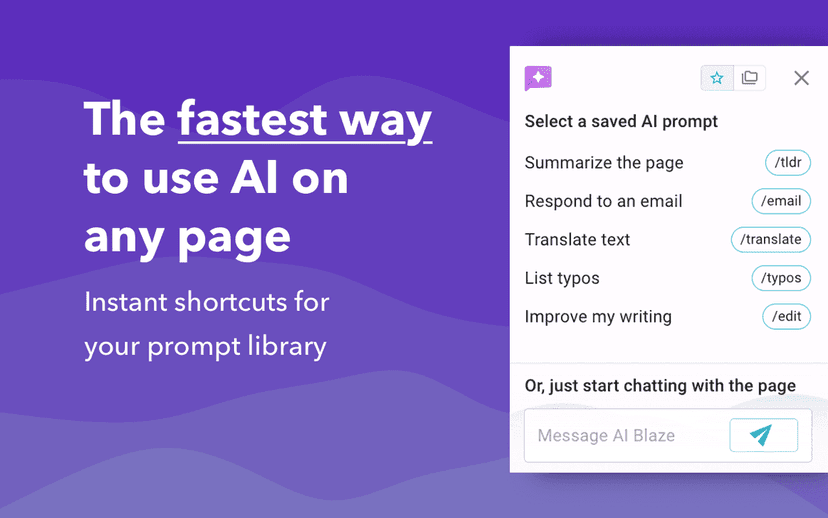
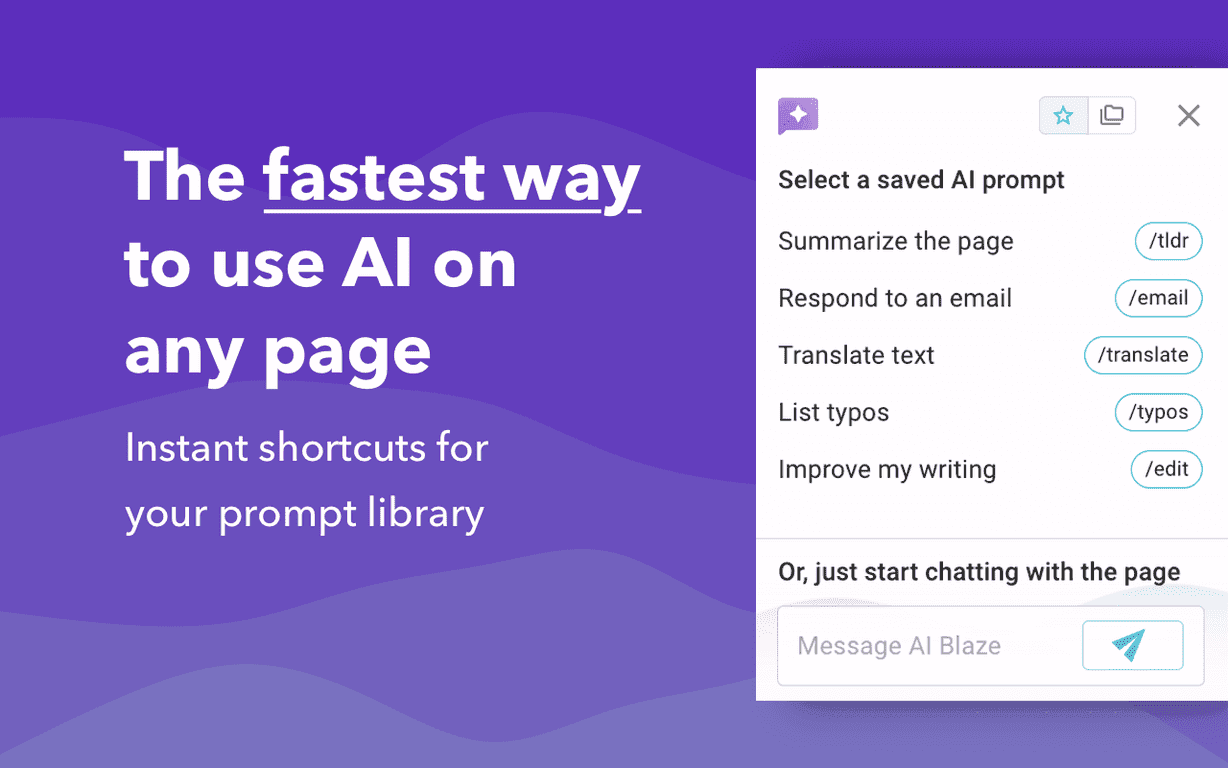
It’s also built around GPT-4, and you can use a library of shortcuts for instant writing assistance. The tool isn’t just rewriting blindly, either—you can steer the output with tone and prompt settings (more on that below).
Key Features I Noticed While Testing AI Blaze
- AI responses for emails and messages
- I tried it on a few common scenarios: following up after no response, asking for clarification, and rewriting a message to sound less blunt. The drafts were usually a good starting point—especially when I gave it the gist of what I wanted to communicate.
- Text rewriting with customizable tones and translations
- Rewriting is where I saw the most value. Changing tone (like making something friendly vs. strictly professional) helped me avoid the “robot” vibe that some tools produce. If you need translation or tone shifts, this is the feature set you’ll use most.
- Dynamic prompts that respond to your input
- Instead of one-size-fits-all outputs, the prompts are adjustable. In my experience, if you provide even a little context (who the recipient is, what the goal is, any constraints), the results improve a lot.
- Team collaboration with a shared prompts library
- If you work with a team, shared prompts can be a big deal. It’s the difference between everyone reinventing their own templates and having consistent language across the board. I can see this being especially useful for customer support or sales follow-ups.
Pros and Cons (Realistic Take)
Pros
- Quick edits without switching tools
- Because it’s a Chrome extension, I didn’t have to copy/paste everything into a separate editor. That alone saves time.
- Customizable prompts
- I liked that I could steer the output instead of accepting whatever the model felt like generating. Tone control matters when you’re sending messages to real humans.
- Useful for teams
- A shared prompts library is a practical feature if you want consistent messaging across multiple people.
- Free to start
- AI Blaze is available for free as a Chrome extension, which makes it easy to test before committing.
Cons
- There’s a learning curve
- At first, I had to slow down and figure out which shortcuts/prompts worked best for different situations. If you want instant results, you’ll still need a minute to understand the interface.
- Quality can vary depending on context
- If your input is vague, the output can feel generic. Give it clearer details (purpose, audience, desired tone), and it performs noticeably better.
- Not a “set it and forget it” tool
- You’ll still want to review and tweak. I don’t think any writing assistant should be treated like an autopilot—at least not for important emails or anything customer-facing.
Pricing Plans: Is AI Blaze Worth Paying For?
AI Blaze is available for free as a Chrome extension. If you want premium plans or additional features, you can check the official website for the latest details (including what’s included and any upgrade options): AI Blaze.
In my view, starting free is a smart move. You can test whether it helps your specific writing habits—like how often you rewrite emails, how many messages you send daily, and whether you care about tone consistency.
Wrap up
If you’re trying to write faster without sacrificing clarity, AI Blaze is worth a look. It’s especially useful if you’re constantly editing drafts, polishing wording, or trying to match a certain tone. The main downside is that you’ll need a bit of time to learn the shortcuts and the output quality depends heavily on the context you provide.
Still, for a Chrome extension that starts free, it’s a solid writing assistant. I’d recommend trying it and using it on a few real messages—then you’ll know quickly if it fits your workflow or if another tool would be a better match.