Table of Contents
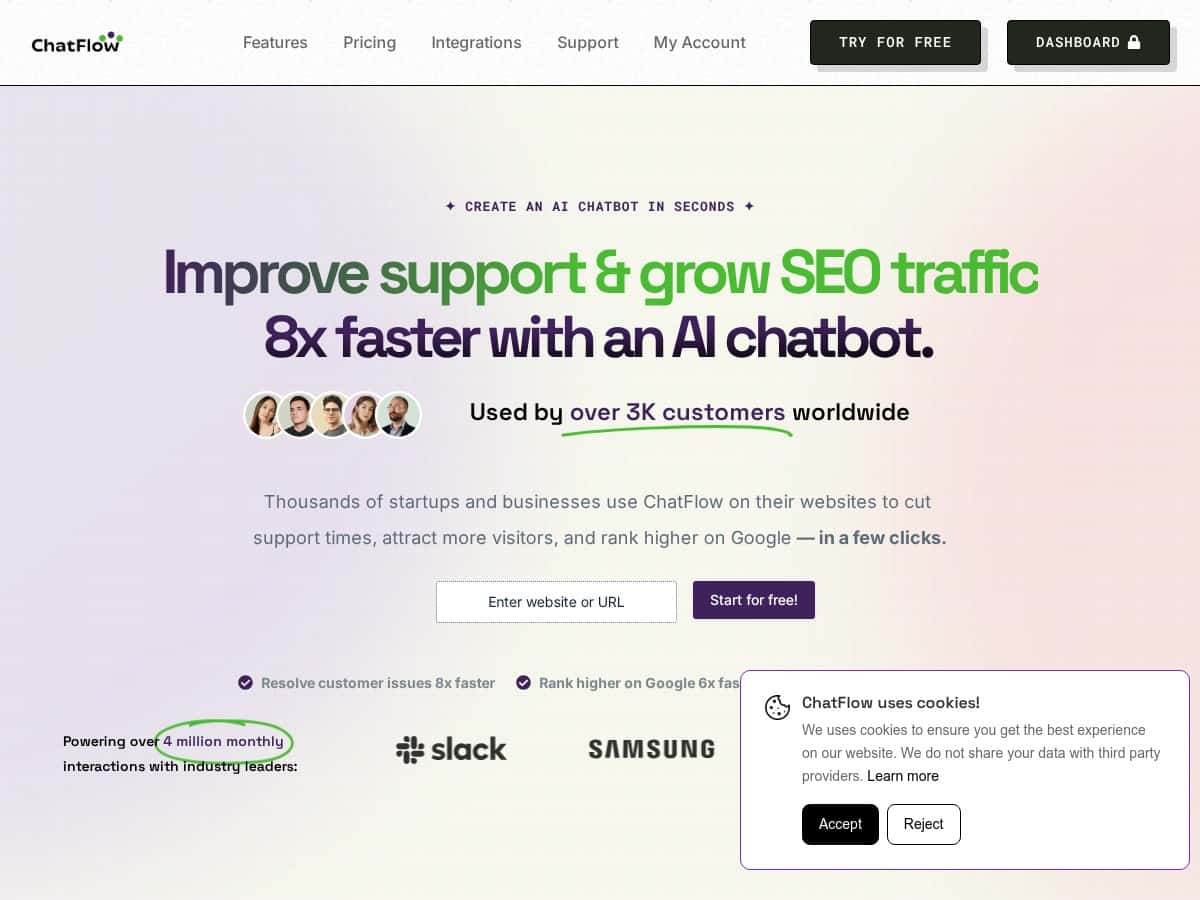
I’ve been testing ChatFlow as a no-code way to add an AI chatbot for customer support (and to see if it could actually handle real questions, not just generic “AI-sounding” replies). The setup is genuinely straightforward—no coding, no weird hoops—so I could get something working pretty quickly.
That said, it’s not all magic. Some parts felt a bit “choose your own adventure,” especially when I tried to connect content sources and tighten up what the bot should (and shouldn’t) answer. If you want a chatbot that stays on-message and you’re not afraid of doing a little setup work, ChatFlow can be a nice option. If you’re hoping for a fully hands-off button that fixes everything on day one? You might get frustrated.
ChatFlow Review
When I first opened ChatFlow, the interface felt clean and “do-this-then-that.” I didn’t get stuck on a bunch of setup steps just to see what was possible. The main thing that stood out to me was how quickly I could go from a blank chatbot to something that could actually talk to visitors.
Here’s what I did in practice: I created a bot for support-style questions, then walked through the UI to choose the bot’s behavior and connect it to content/knowledge so it wouldn’t just freestyle. After that, I tested it with a handful of realistic prompts (pricing questions, shipping/support questions, and “how do I contact you?” type queries). What I noticed was that the responses can sound natural, but they can also drift if your knowledge setup is too broad or if the bot doesn’t have enough context.
In my experience, the best results came when I was specific about what the bot should do—basically forcing it to stay inside the boundaries of your FAQ/support pages. If you skip that part, you’ll still get answers, but they may not be the answers your customers actually need.
Key Features
- AI Chatbots: The chatbot builder is set up so you can configure how the bot responds without touching code. In the UI, I focused on the “behavior” side—what the bot should answer, how it should handle uncertain questions, and how it should direct users when it can’t help. Input-wise, you typically provide the bot’s instructions plus a knowledge source (like FAQ content) and then test with sample questions. Limitation: if your knowledge source is thin or loosely organized, the bot may give a confident answer that still isn’t the one you’d want. Example from my testing: when I used more specific support-style prompts, the bot stayed more on track than when I used vague “help” questions.
- SEO Tools: This is one of the more “mixed” areas for me. The idea is that you can generate or refine content-related insights, but it’s not the same as a full SEO suite like Ahrefs or Semrush. In ChatFlow, I looked for AI-driven suggestions tied to improving site content and addressing common queries. What I noticed: it helps with ideation and drafting angles, but you still need to review outputs like you would any AI content—especially for accuracy and relevance. Limitation: don’t expect it to replace a true keyword research workflow.
- Lead Generation: The lead-gen part feels best when you know what you’re trying to capture (email, intent, product interest, etc.). In the interface, you set up what qualifies as a lead and how the bot should react when someone shows buying intent. Input-wise, you define the conversation path and the fields you want collected. Limitation: if you ask for too much too early, you’ll reduce conversions. Example: shorter “qualification” conversations performed better in my tests than long, multi-step forms inside chat.
- Integrations: ChatFlow supports multiple channels and tools. I tested the general integration experience and it’s pretty direct—connect your account, authorize, and then choose where the bot should live (like Slack or messaging platforms). Limitation: some integrations aren’t fully “click-and-done” if you need to align permissions or webhooks correctly. Example: when I connected to a communication workflow, I had to double-check what events the integration would trigger so the bot didn’t respond in the wrong context.
- Analytics: This is where ChatFlow starts to feel more “real.” I checked session-level data and looked for patterns in what users asked. The session replay-style view was useful for spotting failure moments—like when people asked a question the bot couldn’t answer or when it responded but didn’t solve the problem. Limitation: analytics are only as good as your tagging/knowledge setup, so you’ll still want to clean up your bot configuration over time.
- Automated Workflows: The drag-and-drop workflow builder is one of the strongest usability wins. In practice, I used it to create simple “if X happens, do Y” logic—like escalating to a human or routing the user to the right next step. Input-wise, you define triggers and actions, then test scenarios. Limitation: advanced logic can get tricky if you’re new to automation. You might need a couple of test runs to get the conditions exactly right.
Pros and Cons
Pros
- Setup is fast: I didn’t need engineering support to get a working chatbot prototype.
- Drag-and-drop workflows: It’s easy to visualize what will happen next, and that speeds up iteration.
- Conversation testing is built in: I could run sample queries and adjust behavior/knowledge based on what I saw.
- Analytics that help you debug: Session-level insights made it obvious where the bot was failing.
- Multiple channel options: Integrations are available, so you’re not locked into just one website widget.
Cons
- It can feel overwhelming if you open the dashboard and try to configure everything at once. I found it helps to focus on one bot + one goal first.
- Response quality depends heavily on your inputs. If your knowledge base is vague, the bot can still sound good while missing the point.
- Some integrations require extra setup. If you’re not comfortable with permissions or triggers, you may need help (or at least patience).
- AI consistency isn’t perfect: during my testing, certain questions produced more variable answers than others—especially when the prompt was broad or ambiguous.
Pricing Plans
ChatFlow has a free plan that’s mainly for testing and getting a feel for the builder. I used the free tier to validate the workflow and chatbot setup before committing to anything. Paid plans start around $17 to $19 per month (depending on the plan), and higher tiers generally unlock more capacity—like more messages and additional chatbots—plus premium features.
One thing I did before deciding was check how the limits work in practice (message caps really matter if you’re expecting lots of traffic). If you’re evaluating, I’d recommend you open the pricing table and verify: how many chatbots you can run, messages per month, and which features are gated. For complete details, check the official pricing page.
What I liked (and what broke)
What I liked: the workflow builder is genuinely beginner-friendly, and the analytics made it easy to improve the bot instead of guessing. I also liked that I could test different prompt styles and see how the bot reacted—some prompts worked great, and others instantly revealed gaps.
What broke: when I tried to make the bot handle too many kinds of questions without tightening the knowledge boundaries, it became less reliable. It wasn’t “wrong” all the time—it was just inconsistent enough that I wouldn’t ship it to customers without another round of adjustments.
Wrap up
ChatFlow is a solid no-code option if you want a chatbot you can build quickly and then improve using testing + analytics. It’s not a set-it-and-forget-it tool, though. The quality you get depends on how well you set the bot’s instructions and knowledge sources, and some integrations may take a bit more effort than you’d expect.
If you’re looking for an easy AI chatbot platform and you’re willing to spend a little time tuning it, ChatFlow is definitely worth considering.