Table of Contents
So, you’ve got an EPUB file and you want it on your Kindle… but you’re staring at a bunch of converter sites and wondering which one won’t mess up your formatting. Yeah, I’ve been there. The first time I tried this, I picked a random “EPUB to MOBI” converter and the result looked fine in the preview, but on the Kindle the table layout was mangled and the table of contents was basically useless. That’s what usually makes people feel stuck.
In this post, I’m going to walk you through the options that actually work in practice—online converters for quick jobs, desktop tools when you care about formatting and metadata, and a clear decision rule for MOBI vs newer Kindle formats. I’ll also cover DRM the right way (because it matters legally), plus what to check after conversion so you don’t waste time troubleshooting on the device.
Key Takeaways
Key Takeaways
- Online converters are great for quick EPUB to MOBI conversions, but they often have upload limits (for example, Convertio caps at 100 MB) and can lose formatting on complex layouts.
- Desktop tools (especially Calibre) are better when you’re converting a bunch of books, need consistent metadata, or want to tweak conversion settings.
- Kindle compatibility: most Kindle workflows don’t accept EPUB directly, so converting to MOBI (or another supported format) is what gets you reading.
- Metadata matters. If author/title/cover art goes missing, your library becomes a mess. Tools like Calibre let you fix this after conversion by editing fields.
- DRM: only remove or bypass DRM if you’re legally allowed to do so. If a file is DRM-protected, assume conversion may fail or require authorization from the rights holder.
- Batch conversion is where desktop wins. Calibre’s batch workflow is the difference between “one book” and “my whole library.”
- Free vs paid: free tools are usually enough for EPUBs with clean structure; paid tools can be worth it when you need better fidelity, faster processing, or smoother metadata handling.
Let’s start with the simplest answer: if you just need Convert EPUB to MOBI Free and you don’t want to install anything, online converters are the fastest route. But you should pick them with your constraints in mind.
Here’s what I look at first when I test a free/online EPUB to MOBI converter:
- Upload limit (web tools usually cap file size—sometimes it’s 20 MB, sometimes 100 MB)
- How they handle tables, images, and fonts (complex EPUBs are where things break)
- Whether they preserve metadata (title/author/cover)
- Whether the TOC (table of contents) survives (this is the #1 “feels broken” issue on Kindle)
Now, a few popular options:
Convertio is a solid “try it now” choice. It supports thousands of formats and lets you upload from your PC, Google Drive, or Dropbox. The catch is the 100 MB upload cap—if your EPUB is bigger (or has lots of embedded images), you’ll hit a wall and need a different method.
Zamzar is another widely used online converter. It’s been around since 2006, supports lots of formats, and offers a free tier. In my experience, it’s decent for straightforward EPUBs, but if the book has heavy styling or complicated layout, you may still end up doing a second pass with a desktop tool.
If you want something more “author/publisher oriented,” Reedsy is worth checking. I tested it on a DRM-free EPUB with a clean chapter structure and standard typography. What I noticed: the conversion looked readable, but the Kindle TOC depended heavily on the original EPUB’s nav structure. When the EPUB had consistent headings, the TOC came through better. When headings were messy, the TOC was less reliable.
Use Desktop Software for Better Control and Batch Conversion
I’ll be honest: if your EPUB has any kind of complexity (lots of images, footnotes, fancy formatting, or tables), desktop tools tend to be less “hope and pray.” They give you repeatable settings and easier metadata cleanup.
Calibre is still my go-to. It’s free, open-source, and it’s great for EPUB to MOBI conversions—especially when you’re converting multiple books. What I like most is that I can:
- Batch convert (select multiple EPUBs and convert together)
- Inspect/edit metadata after conversion (title, author, series, tags)
- Fix TOC issues when the EPUB headings aren’t mapping cleanly
Another desktop option is Any eBook Converter. It’s useful if you want a more guided interface. For compatible files, it can offer DRM-related features—but again, only when you’re authorized to do so. For me, the value is speed and control over conversion settings without digging through advanced menus.
How I choose between online vs desktop: if I’m converting one small file and I’m okay with minor formatting quirks, I’ll try an online converter first. If I’m converting a library (or the book has tables, diagrams, or unusual layout), I jump straight to Calibre.
Other Useful Tools for EPUB to MOBI Conversion
Not every tool is built for the same scenario, so here are a few others that can be handy depending on where your files live and how consistent you need results to be.
CloudConvert is flexible if your files are stored in the cloud. It supports a wide range of formats and lets you customize conversion steps. The trade-off is that cloud services can vary in speed depending on server load, and sometimes “more options” also means “more chances to misconfigure.”
EPUBSoft eBook Converter is a straightforward choice if you want a simple interface and consistent conversions across different formats. In my experience, it’s best for EPUBs that are already clean and well-structured.
How to Convert EPUB to MOBI in a Few Simple Steps
- Start with a DRM-free EPUB (if you can): if the file is DRM-protected, conversion may fail or lead to errors depending on the tool. For DRM-free books, it’s usually smooth.
- Open the converter and upload the EPUB: drag-and-drop works in most online tools. In Calibre, use Add books and select your EPUB(s).
- Pick MOBI as the output format: choose MOBI explicitly. Some tools also offer AZW/AZW3—don’t assume MOBI is selected by default.
- Convert and download: wait for processing, then download the MOBI file.
- Transfer to your Kindle: use USB (copy into the right documents folder) or email delivery if your setup supports it.
Here’s the part people skip—and then they’re annoyed later: verify the converted MOBI on the Kindle (or Kindle app). Don’t just open it and scroll. Check:
- Table of contents: tap a chapter link—does it jump correctly?
- Page breaks and section breaks: do you get weird mid-paragraph jumps?
- Images and captions: are images cut off or stretched?
- Tables and alignment: do tables become unreadable blocks?
- Font and spacing: does it look cramped or oddly spaced?
- Metadata: title/author/cover show up correctly in the library view?
If something’s off, don’t panic. With Calibre, you can re-run conversion with different settings and also edit metadata fields. For example, in Calibre you can right-click the book > Edit metadata, then re-convert if needed.
Tips for Choosing the Best EPUB to MOBI Converter
- Check file size limits before you waste time: online tools often cap uploads. If you’re working with image-heavy EPUBs, assume you might need desktop conversion.
- Look at formatting fidelity (tables are the stress test): if your EPUB has tables, try a quick conversion and open it on Kindle before converting your whole library.
- TOC survival is non-negotiable: if the EPUB headings/nav are inconsistent, many converters will produce a broken or incomplete TOC.
- Batch conversion support: if you have more than ~5–10 files, desktop software usually saves you time.
- Metadata handling: choose tools that preserve title/author/series and cover art—or at least make it easy to fix.
- DRM policy: don’t pick tools based on “DRM removal” promises unless you’re sure you have rights to do that. Otherwise, you’re more likely to hit errors or end up with a legal mess.
If you’re deciding between MOBI and a newer Kindle format, here’s a practical rule I use:
- If your book has complex layouts (lots of styling, special formatting), and your Kindle model supports it, consider newer formats like AZW3 instead of forcing everything into MOBI.
- If you need maximum legacy compatibility or you’re dealing with older Kindle devices, MOBI is often the safer bet.
6. Why Kindle Devices Need MOBI Files Instead of EPUBs
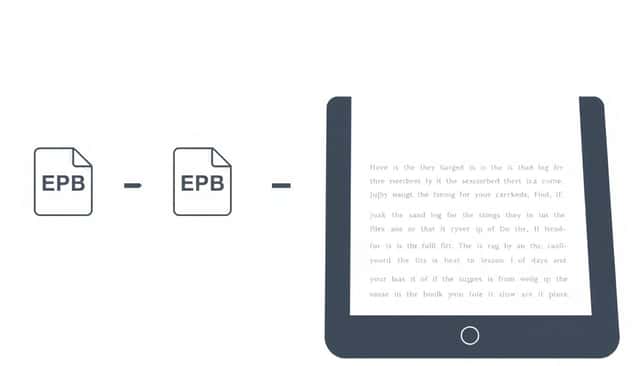
Here’s the basic problem: Kindle devices don’t read EPUB files directly. So if you’ve downloaded an EPUB and you want it on your Kindle, conversion is the bridge that makes it compatible.
Most Kindle workflows expect formats like MOBI (older) or newer equivalents depending on your device. If you try to load an EPUB straight onto a Kindle that doesn’t support it, you’ll either see nothing, or the file won’t be recognized the way you expect.
In my experience, the “wait, why isn’t my book showing up?” moment usually comes from one of these:
- The Kindle doesn’t support EPUB in that context
- The file extension/format isn’t what the device expects
- The file transfer went to the wrong folder (USB copy errors happen more than people admit)
So yes—converting EPUB to MOBI (or to whatever your Kindle actually supports) is the practical step that gets you reading without headaches.
7. How Metadata Plays a Role in EPUB to MOBI Conversion
Metadata is the stuff you care about even if you don’t notice it at first: title, author, series, tags, and the cover image. When metadata is missing or wrong after conversion, it’s not just cosmetic—your library gets harder to manage.
What I’ve seen go wrong:
- The cover disappears and you get a generic placeholder
- Author names get truncated or formatted weirdly
- Series info vanishes, so everything looks like “random books”
- Sometimes the converted file opens, but the Kindle library view looks totally off
That’s why preserving metadata during conversion matters. Some tools handle it better than others. With Calibre, you can also fix metadata after the conversion—so even if the initial MOBI isn’t perfect, you’re not stuck.
Quick Calibre workflow I use: convert > open the MOBI in Kindle app (or device) > if the cover/title/author is wrong, go back in Calibre, edit metadata fields, and re-convert. It’s faster than redoing everything from scratch.
8. Handling DRM-Protected EPUB Files for Conversion
DRM is where this whole topic gets tricky. DRM-protected ebooks may not convert cleanly, and in many cases, tools will refuse or fail when they detect protection.
Also—important—there’s a legal side here. DRM removal/bypass isn’t something I’m going to treat like a normal “free conversion step.” If you have the rights to do it (for example, your jurisdiction and license allow it), then you can look for tools that support authorized workflows. If you don’t, the safest move is to use legitimate sources or Kindle-compatible versions you’re allowed to access.
What you can do safely:
- Check if your EPUB is DRM-free before you try conversion
- Use the converter’s supported features rather than hunting for “magic removal” claims
- Back up your original file before any conversion attempts
If you’re working with DRM-free EPUBs, conversion is straightforward: upload, choose MOBI, convert, transfer. That’s the clean scenario.
9. Batch Conversion Tips for Large EPUB Libraries
If you’re converting a single book, online tools might be enough. But if you’re dealing with dozens (or hundreds), that’s where desktop software earns its keep.
Here’s what I do before I convert a batch in Calibre:
- Set a naming convention (so you don’t end up with “book1, book2, book3” chaos)
- Make sure metadata is consistent (series vs standalone, author formatting, tags)
- Convert in one run using Calibre’s batch workflow
After conversion, don’t just trust the filenames. Open a few MOBIs on your Kindle (or Kindle app) and spot-check:
- TOC works for at least the first 2–3 chapters
- Images aren’t cut off
- Tables (if any) remain readable
- Cover art shows up and title/author look right
Batch conversion saves time, but only if you verify that the conversion profile is producing acceptable results. Otherwise you’ll be troubleshooting 80 books instead of 1.
10. Best Paid vs. Free EPUB to MOBI Converters in 2026
Free tools are great—when your EPUB is reasonable. I’ve had plenty of success converting clean DRM-free EPUBs with free options like Calibre. The conversions are good, and the cost is obviously hard to beat.
Where paid tools can help is consistency and speed, especially when you run into edge cases: messy EPUB structure, heavy styling, or lots of embedded assets. Some paid converters also give you more control over output and metadata handling without as much manual tweaking.
Here’s a simple way to decide:
- Go free if you convert occasionally, your EPUBs are well-structured, and you’re okay doing a quick fix pass with Calibre if needed.
- Consider paid if you convert often, need better formatting fidelity, or you’re losing too much time correcting metadata/TOC issues.
One practical tip: if a paid tool offers a trial, test it on the hardest EPUB you own (the one with tables/images and the worst formatting). If it handles that, it’ll probably handle the rest.
FAQs
What are the best online tools to convert EPUB to MOBI in 2026?
If you’re converting a large library or you care about metadata and formatting consistency, desktop tools like Calibre are usually the better choice. Online converters are convenient for quick jobs, but file size limits and formatting fidelity can be hit-or-miss.
Upload your EPUB in your chosen converter, select MOBI as the output format, run the conversion, then download the MOBI file. After that, transfer it to your Kindle (USB copy or email delivery, depending on your setup).
Look at upload limits, how well it preserves TOC and formatting (especially tables/images), whether metadata is kept or easy to fix, and whether it supports batch conversion. And if your EPUB is DRM-protected, only use tools/features you’re legally allowed to use.