Table of Contents
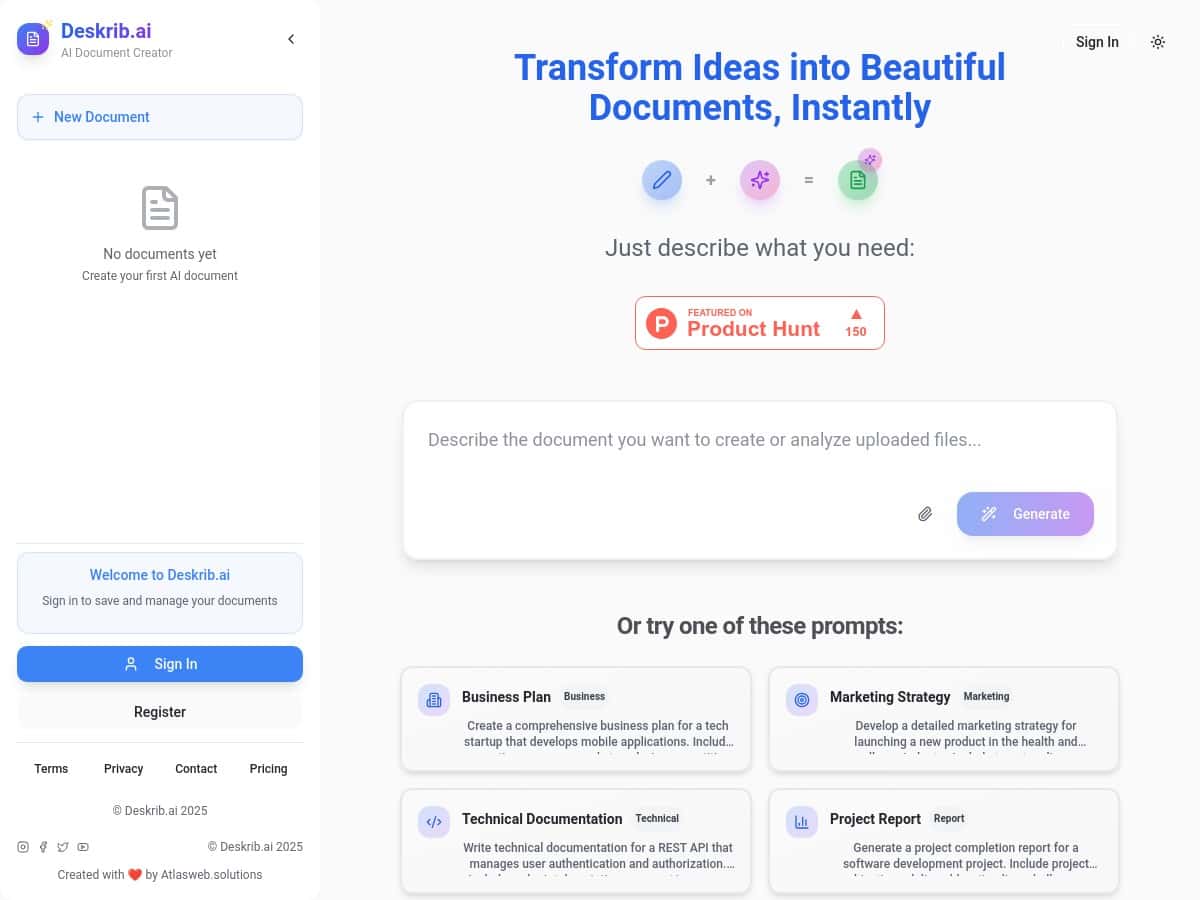
If you’ve ever stared at a blank document and thought, “I don’t even know where to start,” I get it. DeskribAI is basically built for that moment—type what you need, and it turns it into something you can actually edit instead of starting from scratch. I tested it on a few real-world tasks (resume + proposal outline + a short report section), and what stood out to me wasn’t just the writing—it was the formatting and the way the chat lets you iterate without losing your place.
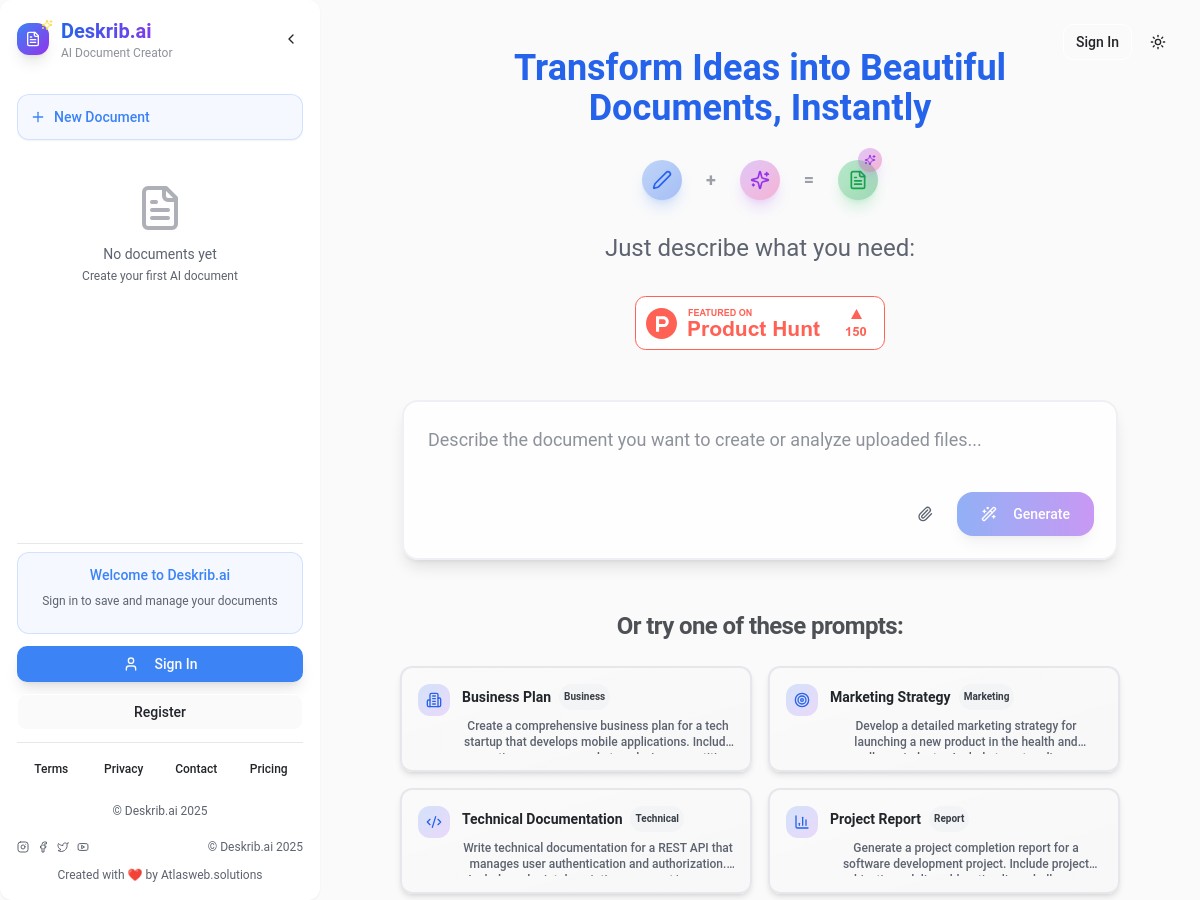
DeskribAI Review (What I Tested and What Actually Happened)
I signed up and tested DeskribAI over the course of about an evening—roughly 60–90 minutes total—because that’s usually how long it takes me to get a draft I’m willing to edit. I started with simple prompts first (the “show me something” phase), then I moved into more specific edits using the chat.
1) Resume draft: better structure than “generic AI text”
For the resume test, I didn’t try to be fancy. I gave it a target job title and a few bullet points of experience. I used a prompt along the lines of:
Prompt I used: “Create a 1-page resume for a ‘Customer Success Manager’ role. Use this experience: [3–4 bullets]. Add a short professional summary, 4–5 achievement bullets under experience, and skills for CRM + onboarding + QBRs. Keep it concise and ATS-friendly.”
What I noticed right away: the output came in a clean, sectioned format (summary, experience, skills). It wasn’t just a wall of text. The bullets were also “edit-ready”—I could quickly swap in details I knew were missing instead of rewriting everything.
Time saved (my rough estimate): I’d normally spend 45–60 minutes formatting and reorganizing a first draft. With DeskribAI, my first usable layout took me more like 15–25 minutes, mostly because I already had the raw bullets and just needed organization.
2) Proposal outline: good first pass, but it needed tightening
Next I tried a proposal outline. This is where I’m picky, because proposals have a specific rhythm: problem → approach → deliverables → timeline → pricing/next steps (even if pricing is TBD).
Prompt I used: “Draft a proposal outline for a 6-week website optimization project. Include: overview, goals, current challenges, proposed approach (SEO + performance + UX), deliverables list, timeline by week, and next steps. Tone: professional and confident, not salesy.”
The “shape” of the proposal was solid. I liked that it naturally broke things into scannable sections instead of dumping everything into paragraphs. Still, I had to refine a few items (especially the deliverables wording and the timeline phrasing) so it matched what I’d actually offer.
What I had to correct: a couple deliverables were too broad (they sounded good, but they weren’t specific enough). After I asked for “more concrete deliverables with measurable outcomes,” it improved fast.
3) Report section + chat edits: iteration felt smooth
Finally, I used DeskribAI for a smaller report section—basically a chunk I needed for a client update. I liked the chat-based editing because I could say things like “make this more formal” or “shorten to 120 words” without regenerating the whole document.
Example follow-up edit I used: “Rewrite the executive summary to be 110–130 words. Make the claims more cautious and remove any absolute statements.”
This is where DeskribAI felt most useful to me. It wasn’t just “generate once.” I could iterate like I would with a human editor—tweak tone, tighten length, and adjust emphasis.
Exports: PDF/PNG were handy for sharing
I also tested exporting. Being able to export to formats like PDF and PNG matters more than people think—especially if you need to send a clean preview to someone who won’t touch your doc formatting.
In my case, the PDF output kept the structure intact enough that I didn’t have to rebuild formatting before sharing. PNG export was useful for quick “here’s what it looks like” screenshots.
Quick reality check: AI exports are great for drafts, but you still want to proofread. If you include numbers, dates, or claims, you should verify them—AI will confidently format something even if the content needs fact-checking.
Key Features (and How They Helped Me)
- AI-driven content creation from prompts or outlines
- I used this for the resume and proposal. The best results came when I gave it a target role + rough bullets or requirements. If you’re vague (“write me a resume”), it’ll still produce something—but you’ll spend longer editing.
- Interactive chat-based editing for real-time updates
- This is the feature I came to rely on. After generating the draft, I could ask for specific changes like “shorter,” “more measurable outcomes,” or “make it more formal.” That saved me from starting over.
- Supports multiple export formats, including PDF and PNG
- For sharing, PDF was my go-to. PNG was convenient when I wanted a quick visual without worrying about recipients opening/editing the original file.
- Customizable styles and professional formatting
- The formatting was clean enough that I didn’t immediately feel like I needed to rebuild the document layout. That said, if you need super specific branding (custom fonts, strict templates), you may still have to adjust after export.
- Import existing files for summarization and info extraction
- I didn’t deep-test every import workflow, but the idea is useful: if you already have notes or a rough doc, you can convert it into a structured draft instead of typing everything again.
- User-friendly interface suitable for all skill levels
- Even with minimal prompt experience, I could get a workable draft quickly. It’s not intimidating.
- Version control and collaboration options
- I didn’t run a full multi-user collaboration test, but the presence of versioning/collab tools is a big deal if you’re iterating with a team. If you’re the only editor, you’ll still benefit from being able to revisit earlier drafts.
Pros and Cons (Based on My Actual Use)
Pros
- Drafts come out structured — Resume and proposal outputs weren’t just paragraphs; they had sections I could edit quickly.
- Chat-based iteration is genuinely useful — I was able to tighten tone, length, and specificity without regenerating everything.
- Export formats make sharing easier — PDF/PNG worked well for sending clean previews.
- Fast learning curve — I didn’t need tutorials to get value within the first session.
- Works across multiple document types — Resume-style, proposal-style, and report-style content all produced usable starting points.
Cons
- Pricing details aren’t clearly published — I couldn’t find fixed public numbers during my check, so you may need to request a quote.
- Advanced customization may be limited — if you need very specific template control, plan on manual tweaking.
- Could be expensive for occasional use — if you only generate documents once in a while, a subscription might feel like overkill.
- Limitations aren’t super transparent — things like exact file size limits, credit/page caps, and how export fidelity behaves under edge cases weren’t spelled out clearly enough for me to fully verify.
Pricing Plans (What I Could Verify)
DeskribAI appears to run on a subscription model. When I checked, exact pricing wasn’t clearly listed publicly, which means you may need to contact their team or follow through to see plan options at checkout.
Here’s what I can say without guessing:
- Public fixed pricing: not clearly shown (at least not in a way I could confirm directly).
- Free tier: I didn’t see a clearly stated free plan during my visit.
- Trials/demos: it’s possible they offer trial options or demos depending on current promotions, but I can’t confirm specific availability without checking the live offer page.
If you’re deciding whether it’s worth it, I’d recommend you ask about: export limits (how many documents/pages), any credit system, and whether PDF/PNG exports have restrictions on length or formatting. That’s the stuff that matters when you’re actually using it.
My Take: Should You Try DeskribAI?
If you regularly write resumes, proposals, or report sections and you want something that gives you a clean draft you can iterate on, DeskribAI is worth trying. The chat-based editing is the standout—generation is nice, but the ability to refine without starting over is where I felt the real payoff.
On the other hand, if you only need occasional documents, or you require highly specific template/branding control every time, you might find yourself doing extra cleanup after export. In that case, it’s not that DeskribAI is “bad”—it just might not be the most cost-effective fit.
Either way, if you’re tired of blank-page stress and you want a faster draft-to-edit workflow, DeskribAI delivered that for me.