Table of Contents

What Is Fig Prompt (and What I Actually Found)?
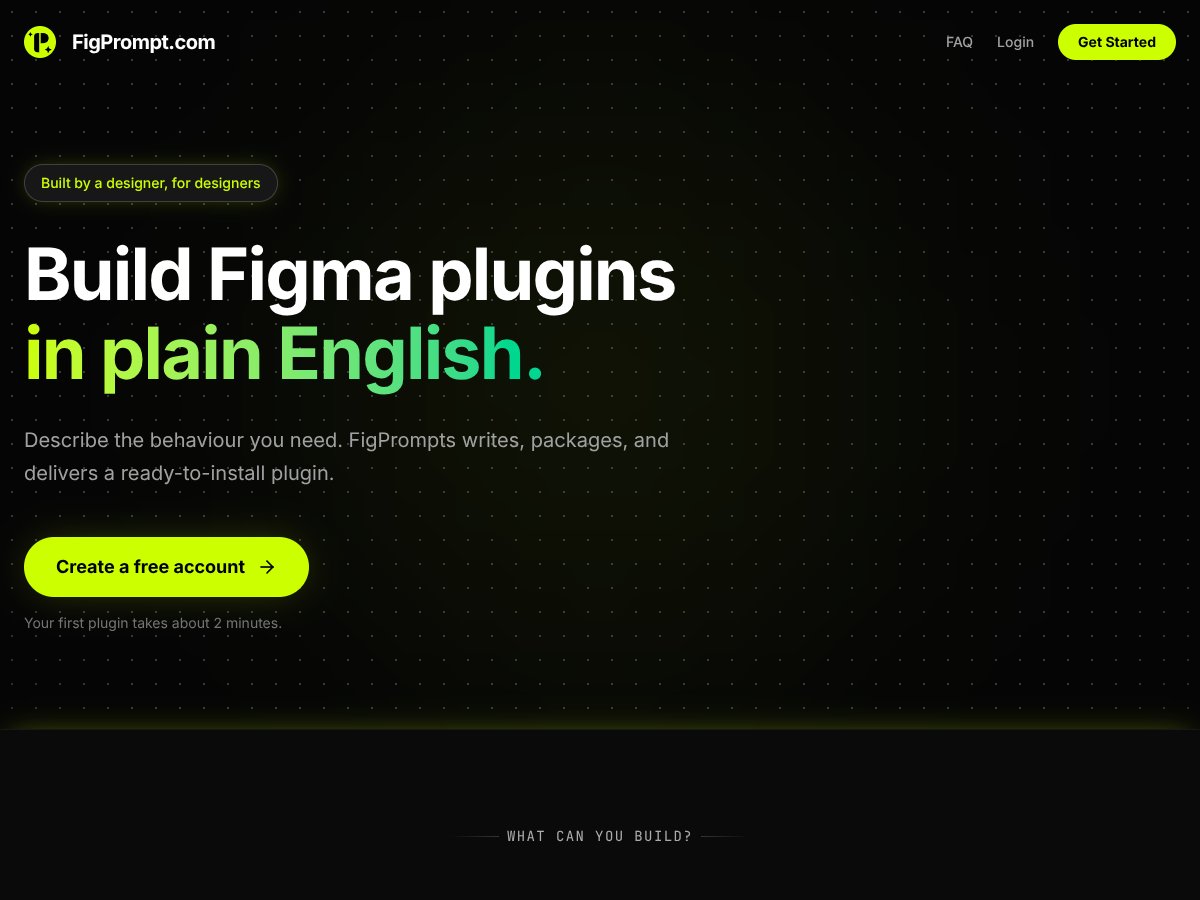
I’ll be honest—when I first heard about Fig Prompt, I had that “sure, okay” feeling. Describe a Figma plugin in plain English and get working code back? That’s the kind of promise that usually turns into a half-baked demo. But I also kept running into the same problem: I want to build small Figma tools without jumping straight into TypeScript, npm, and all the setup overhead.
So I tested it. And yeah, it does what it claims… mostly.
At a high level, Fig Prompt lets you write a prompt describing what you want your plugin to do. Then it generates the plugin code files you need, based on the Figma plugin API. The “no-code” part is really “no manual coding,” not “no effort at all,” but it’s still a big difference from building from scratch.
Here’s what I noticed quickly: it’s not a full visual builder. It’s closer to an AI-assisted code generator that turns a straightforward idea into a usable starting point. If your plugin idea is simple (think: add a menu item, read selected layers, change properties, apply a naming rule), you’ll probably feel productive fast.
But if you’re imagining complex logic, custom UI flows, or very specific edge cases, you’ll likely need to do some cleanup and adjustments. That’s not a dealbreaker—it’s just the reality of how these tools work right now.
Also, it doesn’t replace a developer for serious, production-grade plugins. What it can do is help you get a prototype running without spending hours on boilerplate.
Fig Prompt Pricing: What You’ll Want to Confirm First

| Plan | Price | What You Get | My Take |
|---|---|---|---|
| Free Tier | Unknown / Not publicly specified | Likely limited access, maybe a few basic plugin generations | I can’t tell you the exact limits because they’re not clearly posted. If you’re just testing ideas, it might be enough—but don’t assume you’ll be able to iterate forever on the free tier. |
| Paid Plans | Check website for details | Details not explicitly provided; probably tiered options with increased usage limits and features | This is the part that made me pause. Without clear numbers, it’s hard to estimate monthly cost—especially if you’re building multiple plugins or doing lots of prompt iterations. If you’re on a budget, verify usage limits before you commit. |
The main issue, in my opinion, is that the pricing feels a little too vague. What’s the actual cost per generation? Are there monthly caps? Is it subscription-based or usage-based? The sales page doesn’t make that straightforward, and that kind of uncertainty is annoying when you’re trying to plan work.
If you’re a casual user—like you want to generate one or two small plugins for your workflow—this might still be fine. But if you’re a team, or you expect to build and test repeatedly, I’d treat it like a “confirm first” tool. Ask about limits. Look for pricing transparency. Otherwise, you could end up paying more than you expected.
Until they make the plan details clearer, I’d call it a bit of a gamble for heavy use. For small-scale projects, though? It’s still worth trying if you’re curious.
The Good Stuff vs. The Frustrating Parts (After Testing)
What I Liked
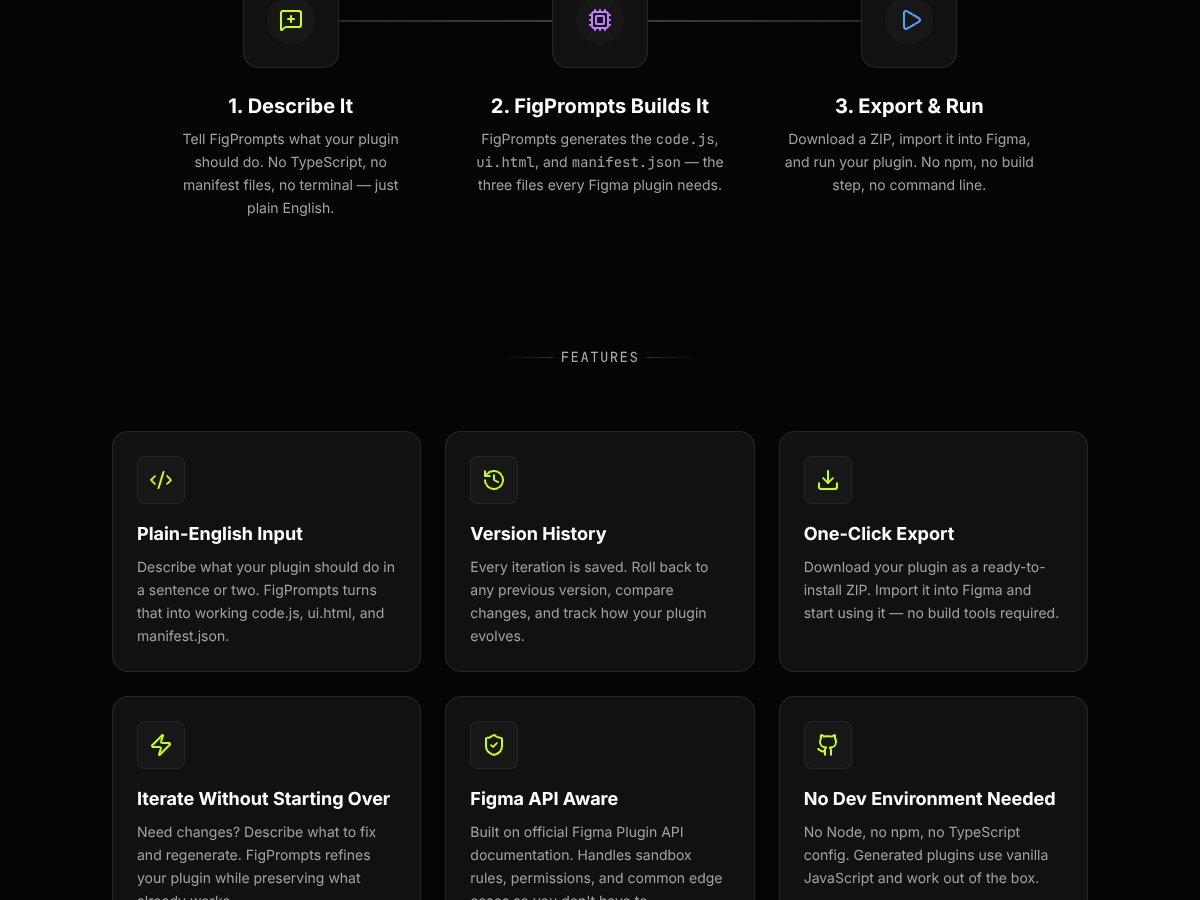
- Instant plugin creation: When it works, it’s fast. I was able to go from an idea to a runnable plugin in minutes, not hours. That time savings is real.
- No npm / terminal / TypeScript: I didn’t have to set up a dev environment just to get started. For designers, that’s the whole point. I’d rather spend time testing the idea than fighting tooling.
- Version history: This matters more than people think. When you’re iterating on prompts, having a way to roll back is huge. It reduces the “oops, now it’s broken” stress.
- Uses the official Figma plugin API: That’s a good sign for compatibility. It also means you’re not dealing with some random abstraction that might break when Figma updates.
- Design-friendly mindset: It feels built for the actual Figma user experience. The prompts and workflow feel more aligned with how designers think than how developers typically structure projects.
What Could Be Better
- Feature transparency is limited: I wanted more examples like “Here are 10 plugin ideas we can generate reliably” or “Here’s what’s not supported yet.” Without that, you’re guessing.
- Documentation feels thin: I didn’t run into a wall immediately, but when something didn’t work, I had to experiment instead of finding a clear tutorial. That slows you down.
- Pricing opacity: Again—if you can’t see costs and limits up front, it’s harder to trust for long-term use. Teams especially will feel this.
- Complexity limits aren’t clear: It’s not obvious how far it can go with advanced logic, UI complexity, or tricky selection behavior. You might get something workable, but not always “production-ready.”
- Not much social proof: I didn’t find a lot of public reviews or testimonials. So you’re relying on your own testing, which isn’t everyone’s favorite.
Who Is Fig Prompt Actually For?

In my experience, Fig Prompt fits best when you’re a solo designer or a small team and you want to prototype custom Figma plugins without turning it into a full engineering project.
For example, I can see it being great for things like:
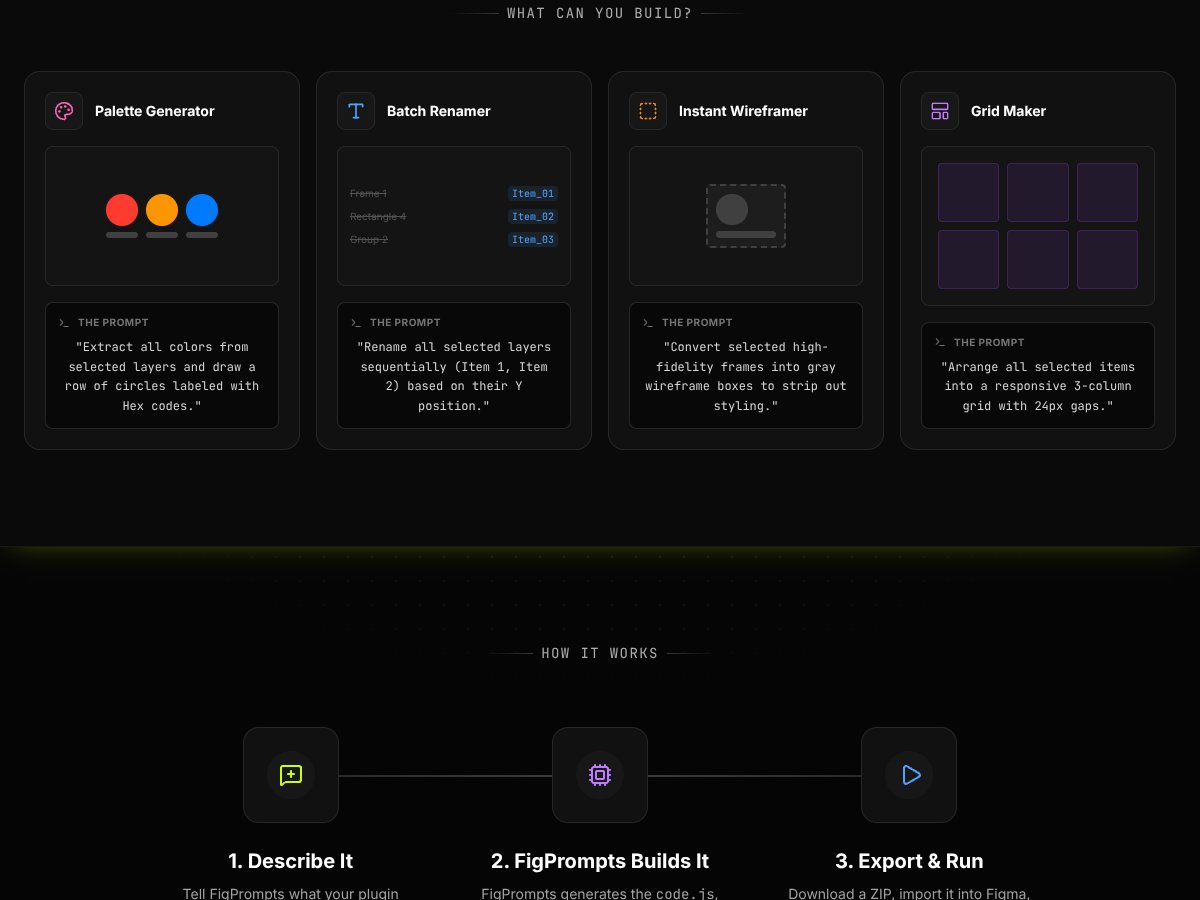
- Extracting a color palette from selected frames or components
- Batch renaming layers using a naming rule
- Quickly applying consistent styles (within what the API supports)
- Creating a simple menu item that runs a straightforward action
If you’re the person in your team who’s always like, “We should totally automate this,” Fig Prompt scratches that itch. You can describe what you want and get a starting point fast, then refine it without starting from scratch.
That said, I don’t think it’s the right choice if you need heavy-duty plugins with lots of custom UI, advanced state management, or deep integrations. If you’re building a plugin that has to be rock-solid and handle lots of edge cases, you’ll still want a more traditional dev approach.
For straightforward automations and fast iterations? It can absolutely save you hours.
Who Should Look Elsewhere?
If you need highly customizable, robust plugins—especially ones that require advanced logic, complex permissions, or deep integrations—Fig Prompt may feel limiting. You’ll probably end up doing manual work anyway, and at that point you might as well start with native development.
Also, if you’re someone who relies on community tutorials, proven workflows, or lots of public examples, the current lack of reviews and documentation could be a downside. I’m not saying it’s unusable. I’m saying you’ll be doing more “figure it out” yourself.
And if predictable costs matter to you, the opaque pricing structure is a real concern. With tools like this, usage can add up quickly depending on how often you iterate prompts. If you can’t forecast your spend, that’s a problem.
How Fig Prompt Stacks Up Against Alternatives
Figma Native Plugin Development
- What it does differently: Native development means writing the plugin code yourself using JavaScript and Figma’s plugin framework. It’s more work upfront, but you get full control.
- Pricing: It’s free to start, but you pay with time (and possibly hiring someone if you’re not coding).
- Choose this if... you need precise behavior, custom UI, and you’re comfortable building from scratch.
- Stick with Fig Prompt if... you want to prototype quickly and avoid the steep setup and learning curve.
GitHub Copilot
- What it does differently: Copilot is a general AI coding assistant. You still have to prompt well, write code, and debug. It can help with Figma plugin development, but it’s not purpose-built for that workflow.
- Pricing: Usually around $10/month or $100/year, with a free trial available.
- Choose this if... you code already and want flexible AI help across multiple projects.
- Stick with Fig Prompt if... you want something specifically aimed at generating Figma plugin scaffolding from plain English.
OpenAI Codex-based Tools
- What it does differently: These tools generate code from prompts too, often inside an IDE or chat interface. They’re flexible, but you’ll still need to integrate and adjust for your exact use case.
- Pricing: Varies a lot—some are free, others can get expensive if you’re running lots of generations.
- Choose this if... you want broad code generation and you don’t mind debugging.
- Stick with Fig Prompt if... you want fewer moving parts and a more Figma-plugin-focused workflow.
Traditional Figma Plugin Frameworks
- What it does differently: You still develop with JavaScript and the Figma API, but you may use established patterns or frameworks to speed things up.
- Pricing: Free in terms of tooling, but you’ll invest developer time.
- Choose this if... you have coding experience and you want total control over functionality.
- Stick with Fig Prompt if... you want to get an initial version working quickly—especially if you’re not comfortable coding.
Bottom Line: Should You Try Fig Prompt?
After testing, I’d rate Fig Prompt a solid 7/10. It’s genuinely useful for simplifying Figma plugin creation for non-technical designers. The biggest win is speed: you can go from an idea to something runnable without writing everything manually.
But I can’t ignore the two sticking points: documentation isn’t as detailed as I’d like, and pricing/limits aren’t clear enough to feel totally safe for long-term or heavy usage.
If you’re curious and you want to build simple tools fast—go try it. The free tier (if that’s truly available) is a good way to test whether it matches your workflow. If you end up using it often, you’ll want to confirm what you’re paying for and what the caps are.
Personally, I’d recommend it when you’re in a hurry and you want to experiment without a steep learning curve. If your goal is highly tailored, complex plugins with full control, you’ll probably be happier going native or working with a developer.
Common Questions About Fig Prompt
- Is Fig Prompt worth the money? For quick, no-code-style plugin creation, it can be worth it because you save time. But since pricing and limits aren’t clearly spelled out, I’d verify costs before you commit long-term.
- Is there a free version? There appears to be a free tier or trial, but the details aren’t super clear. If you want to test seriously, check what the free limits actually are.
- How does it compare to other AI code generators? Tools like Copilot are general-purpose. Fig Prompt is more focused on Figma plugins, so it’s likely easier for designers to get something working quickly—though it may be less flexible outside that scope.
- What are the technical capabilities? It can generate basic plugin logic from plain language. For complex behavior, you may still need manual tweaks or additional iteration.
- Can I get a refund? I didn’t see clear public info about refunds. If you decide to pay, check their terms before you rely on a refund policy.