Table of Contents
If you’ve ever tried to promote a book and thought, “Why does this look so… amateur?” you’re definitely not alone. I’ve seen it happen to plenty of authors and small publishers—your cover might look great on its own, but the moment you try to drop it into a promo post, it suddenly feels flat. That’s where free book mockup generators come in.
If you'd rather not do it all by hand, our AI book generator can turn a rough outline into a finished draft in minutes.
These tools let you take your cover art and place it into a realistic scene—like a hardcover on a desk, an open book on a table, or a stack of books on a shelf—without needing Photoshop skills. Most of the workflow is upload → pick a template → tweak a couple settings → download.
In my experience, the biggest difference between tools isn’t the “mockup” part. It’s the free-plan limits: whether you get a clean export or a watermark, what file type you can download (PNG vs JPG vs MP4), and how high-res the output really is.
Below, I’ll show you what to look for, which free options tend to work best for different goals, and how to avoid the common “looks good on screen, but not usable in real life” problem.
Key Takeaways
- Most free book mockup generators are quick: you upload your cover, choose a scene (desk, bookshelf, open book, etc.), and download a finished image.
- Before you commit, check the free-plan export rules—especially watermark presence, maximum download size, and supported formats (PNG/JPG/MP4).
- Different tools shine for different tasks: Mockey.ai is great when you want realistic 3D-style scenes; Canva is best for fast social-ready edits; Kittl is useful when you want more control over styling; Pixelcut is handy if you want to generate a scene from a text prompt.
- If you need animation, look for MP4 output (some tools do this on free tiers, others don’t—or they limit resolution/file length).
- For a professional look, use sharp cover images, keep backgrounds clean, and make sure lighting/shadows match the scene. Small mismatches are what make mockups feel “off.”
What Are Free Book Mockup Generators and How Do They Work
A free book mockup generator is basically an online “cover placement” tool. You upload your cover (or cover + optional spine/side elements), then the site maps your art onto a prebuilt book scene. The result is a realistic-looking image you can use for marketing, a website, a storefront, or social posts.
Most of them follow the same pattern:
- Upload your cover image.
- Pick a template/scene (hardcover, paperback, open book, stack of books, etc.).
- Adjust things like angle, background, lighting, or color accents.
- Generate the mockup.
- Download in a specific format and size—this is where the free-plan differences matter.
Here’s what I pay attention to when I test tools: the download button often looks the same for everyone, but the output can change dramatically. You might get a clean image on-screen and then hit a watermark, a smaller resolution, or a “free export” that’s really meant for previews only.
For example, Mockey.ai and Kittl both have lots of book-style templates (hardcover, paperback, and more). They typically lean toward realistic scenes with editing controls that make it easier to match your cover to the environment.
Some tools go heavier on “scene variety.” Mediamodifier, for instance, is known for having a broad set of backgrounds—bookshelves, desks, and artistic environments—so you can find a look that fits your genre.
And if you want the scene to be generated from a description instead of manually picking a template, Pixelcut is one of the more popular options. You describe the environment (like “cozy café” or “modern minimal desk”), then it creates the mockup image for you.
Finally, if you’re not trying to build a “perfect” scene and you mostly need something fast for social, Canva is hard to beat. You can mock up the book, then quickly add text overlays, logos, and promo banners without switching tools.
Key Features to Look for in a Free Book Mockup Generator
If you only check one thing, make it the free export details. “Free” can mean anything from “no watermark” to “watermark + smaller size.” So before you generate 10 mockups, skim the download options.
Here’s what I recommend you look for:
- Template variety: hardcover vs paperback vs open book vs children’s book styles.
- Free-plan watermark rules: does the free download include a watermark or branding? Is it removed only on paid tiers?
- Export formats: PNG and JPG are common for images; MP4 is usually what you want if you’re after animated mockups.
- Maximum resolution on free: even if a tool says “high resolution,” the free tier may cap it (for example, 1000px vs 3000px).
- Customization controls: changing background, angle, lighting, color accents, and positioning.
- Speed: some tools generate instantly; others take longer—especially if you’re using AI scene prompts.
Because free-plan limitations change, I can’t promise every number will match your exact account today. But you can use this comparison checklist to quickly evaluate what you’ll actually be able to download.
Quick comparison checklist (what to verify on the free plan)
- Mockey.ai: check whether free downloads are PNG/JPG and whether a watermark appears. Also confirm if 3D-style scenes are included on free.
- Canva: confirm whether your mockup export is watermark-free and what image size you can download without upgrading.
- Kittl: verify the maximum export resolution on the free tier and whether watermark-free exports are only for certain formats/templates.
- Pixelcut: verify whether free downloads are PNG and whether AI scene generation is limited in the number of tries.
- 3dmockup.co / Pacdora: confirm MP4 availability (if you want animation) and whether free exports include watermarks.
One more thing: realism isn’t just about the scene. It’s also about how your cover image fits. If the tool stretches your cover, clips the title area, or warps the spine text, your mockup won’t look professional even if the background looks great.
Top Free Book Mockup Generators in 2026
Mockey.ai
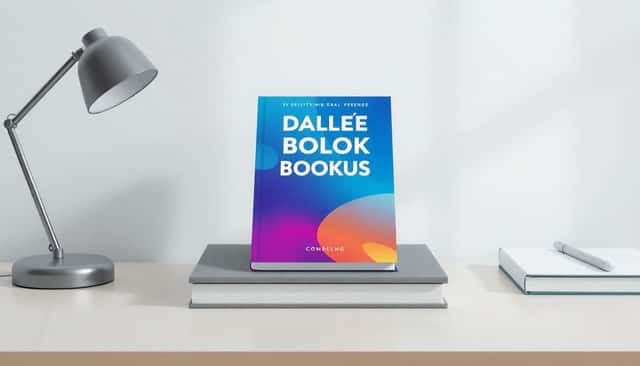
If you want a “3D-ish” realistic look fast, I usually point people to Mockey.ai. It’s built around templates where you upload your cover and then place it into a scene like an open book, hardcover, or paperback setup.
Where it tends to work well: when you’re promoting a new release and you want the mockup to look like a real product photo—not a flat graphic.
What to watch on the free plan: don’t assume “no watermark.” Open the download screen and check the export you’re actually getting (format + size). Also verify whether the free tier includes the specific 3D-style templates you want.
Canva
Canva is the one I recommend when you need mockups and you want to edit them for marketing. You can mock the book, then add a blurb, an author name, a “Now Available” banner, or even a full Instagram post layout without leaving the platform.
In practice, Canva’s strength is speed. It’s easy to go from “cover uploaded” to “ready-to-post image” in minutes—especially if you’re already familiar with Canva’s drag-and-drop editor.
On the free tier, check what you can download without restrictions. Free templates are plentiful, but premium assets and certain export settings can push you toward a paid plan.
Kittl
Kittl’s book mockup generator is useful when you want more styling control than the simplest “upload and download” tools. You can adjust covers and backgrounds, and you can usually get a clean, polished result without too much fiddling.
One thing people like is the focus on customization. If your cover has specific color themes, being able to tweak the scene so it doesn’t clash makes a big difference.
Just verify the free-plan export limits before you rely on it for anything print-related. Some tools advertise high resolution, but the free tier may cap the final download size.
Pixelcut
If you prefer describing the vibe instead of browsing templates forever, Pixelcut is a strong option. You upload your cover, type a scene prompt (like “cozy cafe” or “minimal desk with soft light”), and it generates a realistic mockup.
I like this approach when I’m testing multiple marketing angles quickly. You can try “warm inviting lighting” vs “cool modern studio” without manually hunting for the perfect background.
On the free version, confirm the export format (PNG is common) and whether you get a watermark-free download. Also check if you’re limited in the number of generations before prompting you to upgrade.
Other Notable Tools: 3dmockup.co and Pacdora
3dmockup.co is worth a look if you specifically want 3D-style mockups that can also work for animation workflows. Some of their outputs are available as PNG for static use, and MP4 for motion.
A practical use case: if you’re making a short promo video for a book launch, you can export an MP4 mockup and then overlay your title, author, and call-to-action in a video editor.
Pacdora is more focused on animated mockups. If your goal is “scroll-stopping” visuals for social media, motion can help a lot.
Still, don’t assume free means fully unrestricted. Check whether free downloads include watermarks, and verify the MP4 quality/resolution. Animation is where free tiers sometimes get stingy.
How to Pick the Best Mockup Generator for Your Needs
Here’s how I’d choose if I were picking for myself (and not just browsing lists): match the tool to the end use.
- For realistic product-style scenes (marketing images that look “real”): try Mockey.ai first.
- For social posts with text overlays: go with Canva so you don’t have to bounce between tools.
- For more control over styling: look at Kittl and test a couple scenes with your cover colors.
- For fast scene experimentation using prompts: use Pixelcut.
- For animation (MP4 mockups): check 3dmockup.co and Pacdora.
Also, be honest about your timeline. If you need a ready-to-post image today, don’t spend an hour chasing the “perfect” mockup. Pick a tool, generate 2–3 versions, and then refine the best one.
Steps to Create a Book Mockup with Mockey.ai
These steps are based on how Mockey.ai’s workflow typically works: choose a template, upload your cover, place it into a scene, then export.
1) Go to Mockey.ai and select a template (hardcover, paperback, or open book).
2) Upload your cover image. If your cover has a spine or wrap details, use the best-quality file you have—crooked or blurry covers show up fast in mockups.
3) Choose a background/scene (desk, bookshelf, and similar options). This is where your genre vibe starts to show.
4) Adjust the scene elements if the tool lets you (angle, color accents, positioning). Small adjustments can make the cover look more naturally “in the scene.”
5) Preview the result and then download. Before you click download, double-check the output format and whether the free export is watermark-free.
6) If the first scene doesn’t feel right, generate one more background. In my experience, switching backgrounds is often the fastest way to make the mockup look more premium.
Tips for Making Your Book Mockup Look Professional
- Start with a sharp cover file. If your cover is low-res, the mockup will amplify the blur. Nobody wants to zoom in and see pixel soup.
- Match lighting and shadows. If the scene has warm lighting and your cover looks cold (or vice versa), it can feel “pasted on.”
- Keep backgrounds relevant. A minimalist desk works for most fiction/nonfiction. Loud backgrounds can steal attention from the title and author name.
- Use color harmony. If your cover is blue-heavy, don’t place it into a neon-green scene unless you’re going for a specific style.
- Don’t over-edit. A little contrast and readability is good. Too much tweaking makes the mockup look unnatural.
- Check the crop. Make sure the title is readable at the size you’ll actually use (Amazon thumbnail, Instagram feed, banner, etc.).
FAQs
A book mockup generator creates realistic visual mockups of your book cover on digital or “physical” style scenes (like a desk, shelf, or open book layout). It’s a fast way to showcase your design without printing anything.
Most free generators let you upload your cover, choose a template/scene, and then customize basic elements like background or angle. After that, they generate an image (or sometimes a video) you can download.
Often, yes—for online marketing, portfolio pages, and social media. Just be careful with the free export: some tools add watermarks, limit resolution, or restrict commercial usage. If you’re planning a print run or a big ad campaign, you’ll want to confirm the licensing and download quality first.
Which are some of the best free book mockup generators in 2026?
Common favorites include Mockey.ai, Canva, Kittl, and Pixelcut. Each one is strong for different reasons—so the “best” choice usually depends on whether you want realistic scenes, quick social layouts, more customization, or AI-generated environments.