Table of Contents
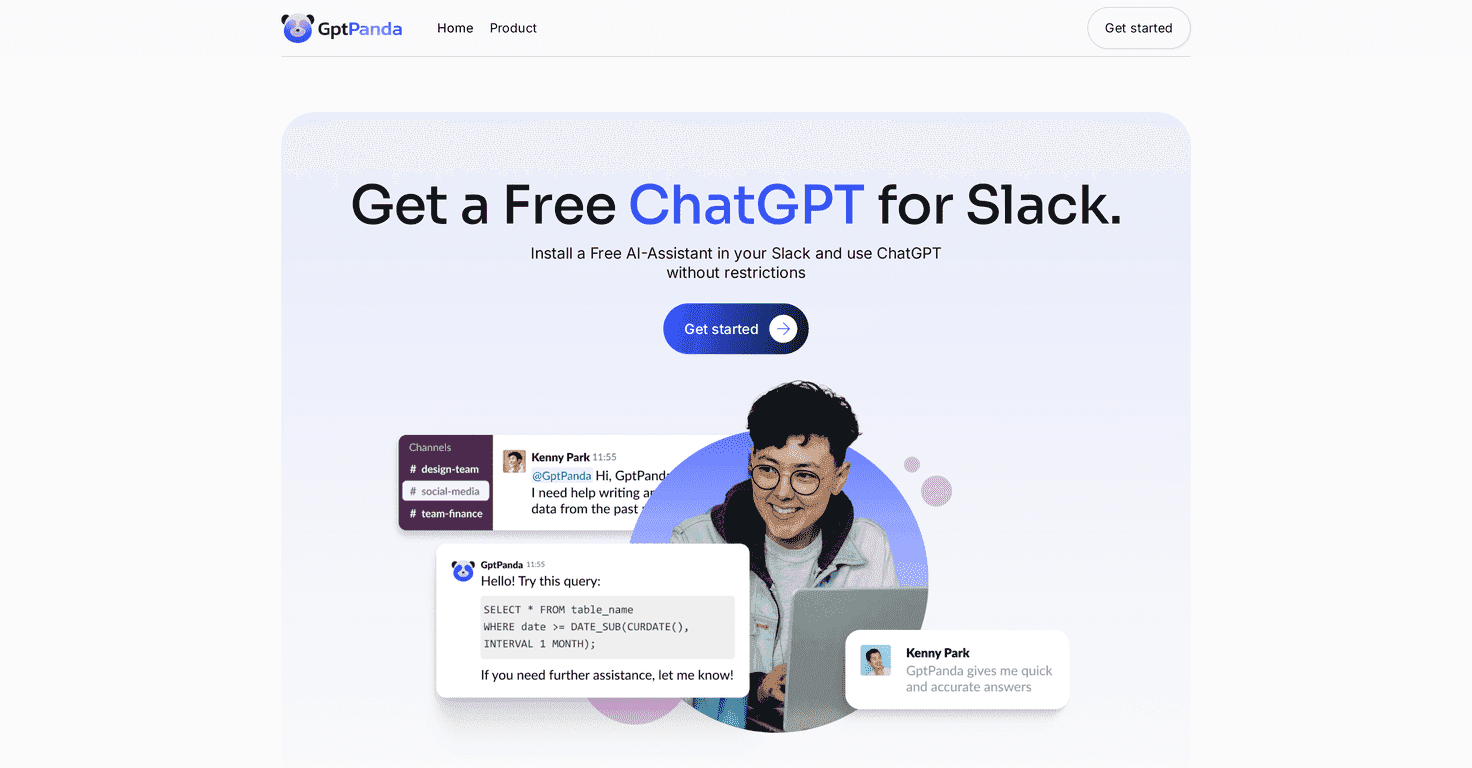
If you work in Slack every day, you already know how fast things get messy—questions pile up, decisions get buried in threads, and someone always has to “look it up.” That’s exactly why I was curious about GPT Panda. It’s an AI assistant built to live inside Slack, so you can ask for help without leaving your workspace.

In my experience, the best AI tools are the ones that don’t add friction. GPT Panda aims for that by letting you chat with the assistant in both private messages and public channels. So instead of pinging someone and waiting, you can drop a question straight into the conversation where the context already exists.
It also supports multiple languages, which matters more than people think—especially if your team includes non-English speakers or you’re collaborating with international clients. And installation is advertised as super simple (two clicks, basically). I didn’t have to wrestle with a bunch of setup screens, which is always a win.
One detail I actually liked: the idea of unlimited requests. If you’re using AI for ongoing work—drafting, brainstorming, summarizing—you don’t want to hit some invisible usage cap right when you’re in the middle of something.
GPT Panda Review
GPT Panda is basically a way to bring ChatGPT-style help directly into Slack. That sounds simple—and it is—but the real value is how it fits into your day. Instead of copying text into a separate website, you can ask questions where your team is already working.
Here are a few things I found myself using it for right away:
- Turning messy notes into something readable (especially after long meetings)
- Drafting replies for teammates—like “Can you confirm the timeline?” or “Here’s what I understood from the thread…”
- Summarizing threads when someone drops a follow-up a week later
- Brainstorming (campaign ideas, onboarding checklists, support macros)
Of course, it’s not magic. You still need to sanity-check outputs—especially if you’re dealing with company-specific policies, legal wording, or anything that needs to be 100% accurate. But for everyday productivity, it can save a surprising amount of time.
One more thing: because it supports private messages and public channels, you can choose the vibe. Want to keep something internal? DM it. Want the whole team to benefit from the answer? Drop it in the channel. That flexibility is genuinely useful.
Key Features
- ChatGPT-style integration in Slack for quick assistance without leaving your workspace
- Multi-channel support so you can chat in private DMs or in public channels
- Multi-language support to help diverse teams collaborate more smoothly
- Easy two-click installation (no complicated setup process, at least based on the onboarding flow)
- Unlimited requests so you can keep using it as your day-to-day assistant
Pros and Cons
Pros
- Free to use, which is huge if you’re testing AI tools before rolling anything out to a whole team
- Works where the work happens—Slack users don’t have to change habits or switch tabs
- Improves collaboration because answers can stay in the channel threads instead of becoming lost in DMs
- Simple interface—it’s easy enough that even non-technical teammates can use it
Cons
- Slack-only, so if your org uses tools like Teams, email, or Google Chat more heavily, this won’t cover everything
- Data privacy is always something to consider with any AI integration—make sure your team is aligned on what’s safe to share
Quick reality check: if your team expects “set it and forget it” automation, you may still need to write good prompts and review the results. AI can draft fast, but you’re the one responsible for accuracy.
Pricing Plans
GPT Panda is available for free. That’s one of the biggest reasons I think it’s worth trying—especially if you want to see whether an AI assistant genuinely helps your team before you commit to anything paid.
Wrap up
If your team already lives in Slack, GPT Panda is an easy add-on. It’s convenient, it supports both DMs and channels, and the “unlimited requests” angle is exactly what you want for day-to-day usage. Just don’t expect it to replace judgment—use it to draft, summarize, and speed things up, then review the output like you would anything else.
For Slack-first teams looking for an AI assistant that’s quick to adopt, I’d say it’s worth checking out.
Promote GPT Panda