Table of Contents
Meetings have a way of turning into chaos—half the time I’m repeating what someone just said, and the other half I’m trying to remember decisions from three different conversations. Granola caught my eye because it promises automatic transcriptions plus clean summaries, without me having to wrestle with a wall of text afterward. So I tested it in real meetings and paid attention to the stuff that actually matters: setup, transcription quality, how the notes looked, and what I still had to fix.
Granola Review (What I Actually Saw in Meetings)
First thing: setup didn’t feel scary. I connected Granola to my laptop and used it for meetings across platforms like Zoom and Teams. In practice, that meant I didn’t have to manually type notes while the meeting was happening—I just focused on the conversation and let Granola build the transcript and summary on the back end.
How did it perform? Here’s what stood out from my test:
- Meeting length & speakers: I ran it on a couple of sessions—one around 45 minutes with 3–4 speakers, and another closer to 60 minutes with 5+ speakers where people jumped in quickly.
- Transcription speed: the transcription showed up quickly enough that I could skim right after the call ended (not minutes later).
- Accuracy in normal conditions: for most of the conversation, it captured the gist clearly. When people spoke at a normal pace and the audio was clean, I didn’t feel like I was correcting every line.
- Where it stumbled: during noisier moments (overlapping voices, someone talking while the other person is still finishing), I noticed a few misheard phrases. It wasn’t constant, but it was definitely there.
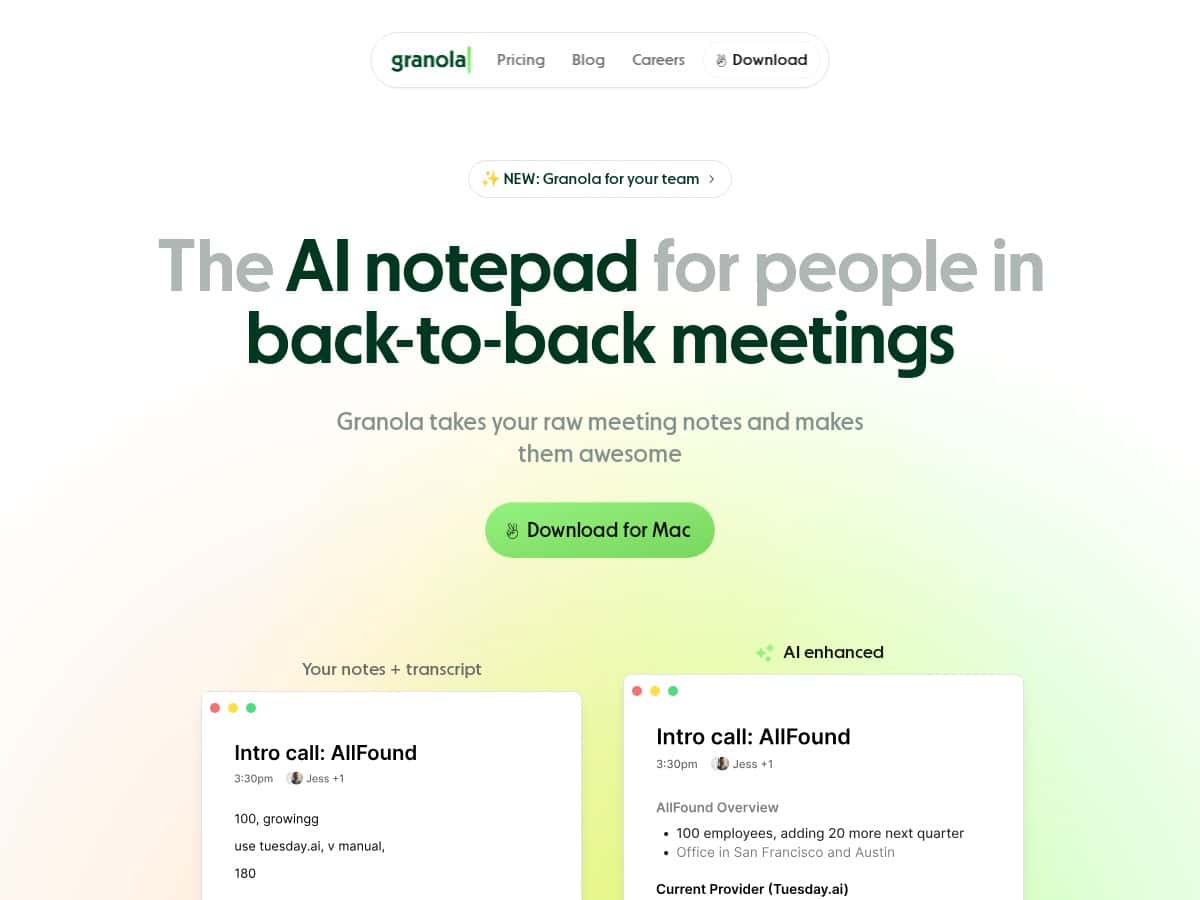
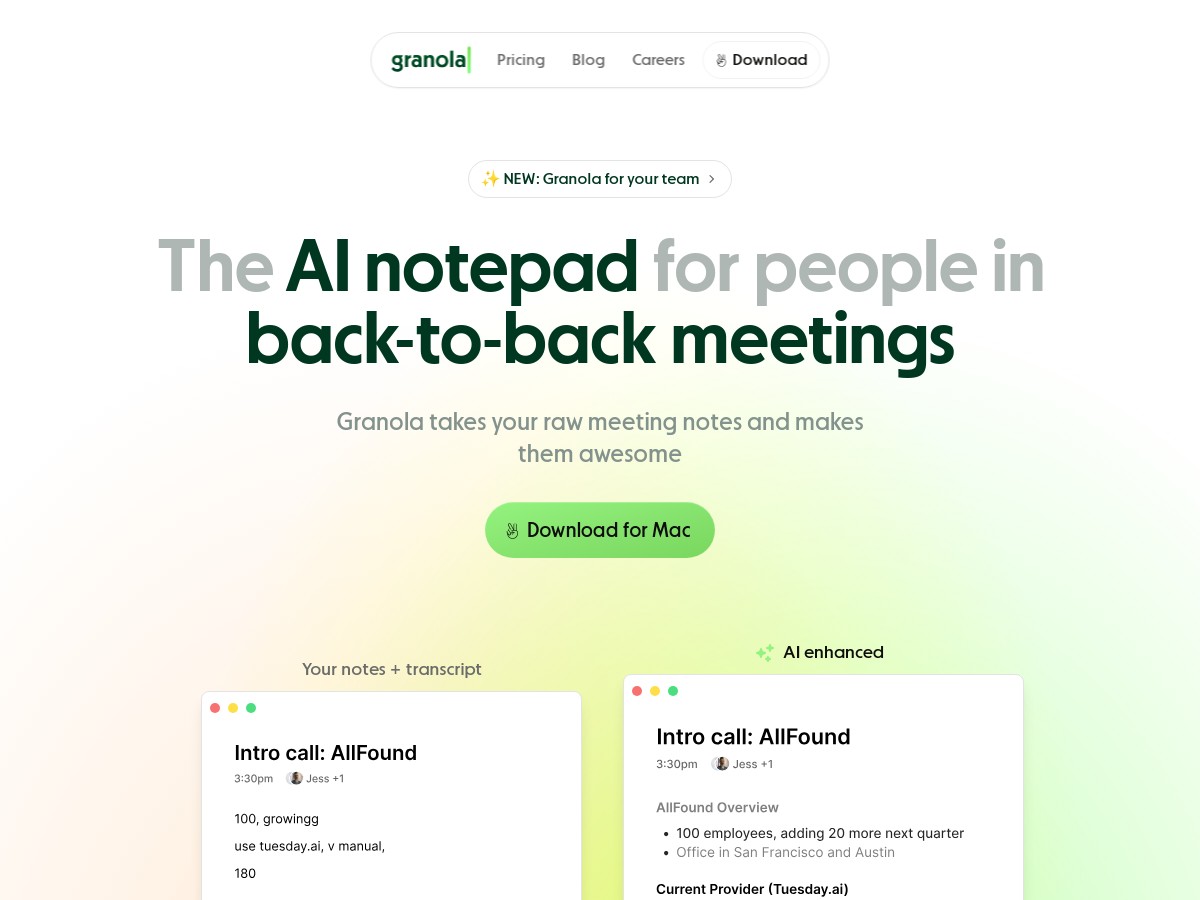
One small but important thing: Granola didn’t just dump raw text. It turned the transcript into structured notes—so instead of hunting through paragraphs, I could jump to the parts I care about.
Example of what the output looked like (anonymized):
“Decision: We’ll ship feature X on Friday. Action items: Alex to update the spec by Thursday 3pm. Priya to review onboarding docs. Open question: whether we need additional analytics for step 2.”
That’s the kind of thing I normally end up typing manually after the meeting. With Granola, I still did a quick pass, but I wasn’t starting from zero.
Time saved? I won’t pretend it’s zero-effort. But in my experience, it cut the “messy notes cleanup” part down a lot. If I typically spend about 20–30 minutes turning a transcript into something shareable, Granola brought that closer to 10–15 minutes for the meetings where audio quality was decent. The biggest time saver wasn’t magic AI—it was the structure and the fact that action points were already separated.
So, is it accurate enough for most meetings? For everyday team calls and planning discussions, yes—especially when your audio is decent. But if you regularly have chaotic audio (lots of interruptions, background noise, people talking over each other), you’ll want to skim and correct. That’s not a dealbreaker—it’s just reality.
Key Features (and How They Fit Into a Real Workflow)
- AI-Enhanced Transcriptions: Granola can transcribe meeting audio in real time or from recordings. What I liked is that it wasn’t just “text appears”—it was usable right away for building notes.
- Customizable Templates: You can use different templates depending on the meeting type. In my test, switching templates changed how the summary was organized, which made it easier to match the output to what I needed to send back to the team.
- Cross-Platform Compatibility: It worked with common meeting tools like Zoom and Teams. I didn’t have to set up extra bots during my test sessions, which matters when you’re not trying to fight with IT or permissions.
- Post-Meeting Productivity: Action items, questions, and decisions were pulled out into something I could scan fast. This is the part I used the most—because it’s exactly what I’d otherwise type manually.
- Structured Notes (Less Scrolling, More Clarity): It separates user notes from AI-generated content and organizes everything with a hierarchy. I found that helps when you’re sharing notes with stakeholders who don’t want to read a full transcript.
- Easy Sharing: Sharing notes quickly is part of the design. I didn’t have to export and reformat it into something else—it was already in a shareable structure.
How does Granola compare to other tools? I’ve used a couple of transcription-and-notes competitors in the past (think Otter/Fireflies style outputs). Here’s what felt different: some tools give you a transcript you can search, but you still end up building summaries yourself. Granola leaned harder into the “here’s the summary + action items” workflow. The tradeoff is that if you want a hyper-detailed, verbatim-style record, you may find it less satisfying than a pure transcript-first approach.
Pros and Cons (Based on My Test)
Pros
- It’s quick to get started. I didn’t feel like I needed a tutorial just to make it work.
- Notes come out organized. The structure is what saved me time—especially when I needed action items and decisions fast.
- Summaries are easy to scan. I could read the key points without digging through the entire transcript.
- Templates actually help. Switching templates changed the layout enough that I could tailor notes for different meeting types.
- Privacy feels more grounded than some “always-on” tools. Granola’s approach appears to focus on capturing audio locally rather than relying on invasive bots. If privacy is your top concern, I’d still double-check their privacy documentation on the product site to confirm exactly what’s stored and where.
Cons
- Audio quality matters a lot. When the sound got messy, transcription accuracy dropped. That’s normal for speech-to-text, but it’s worth calling out.
- You still need a quick review. I didn’t have to rewrite everything, but I did catch misheard phrases in busier segments.
- It’s not a verbatim archive. If you’re expecting a full “record everything exactly” transcript for legal or compliance use, this isn’t that. It’s built for notes and summaries.
- Platform support may not be equal everywhere. My impression is that it’s strongest on macOS right now, and Windows/mobile support may be less mature depending on your setup.
- Speaker labels can wobble. In meetings with a lot of overlapping talk, speaker identification wasn’t always perfect, which meant I sometimes corrected who said what.
Pricing Plans (What I Can and Can’t Confirm)
Granola offers a free trial, which is great because it lets you test transcription quality and summary usefulness before committing. That said, the exact pricing tiers (price points, limits like number of meetings, export options, and team features) weren’t fully spelled out in the content I reviewed.
If you want the real details, check the official Granola pricing page directly from their website. Pricing can change, and I don’t want to guess—especially when meeting limits and plan features are usually what make or break the decision.
Wrap up
Overall, Granola is a solid choice if you’re tired of messy notes and want your follow-ups to be faster. The biggest win for me was the structured output—action items, decisions, and a clean summary—so I wasn’t stuck scrolling through a transcript like it was a search engine. It’s not perfect (no transcription tool is), and you’ll still want to skim for misheard phrases in noisy calls. But for typical team meetings where the audio is reasonably clear, it genuinely makes the after-meeting work a lot less painful.