LIFETIME DEAL — LIMITED TIME
Get Lifetime AccessLimited-time — price increases soon ⏳
AI Tools

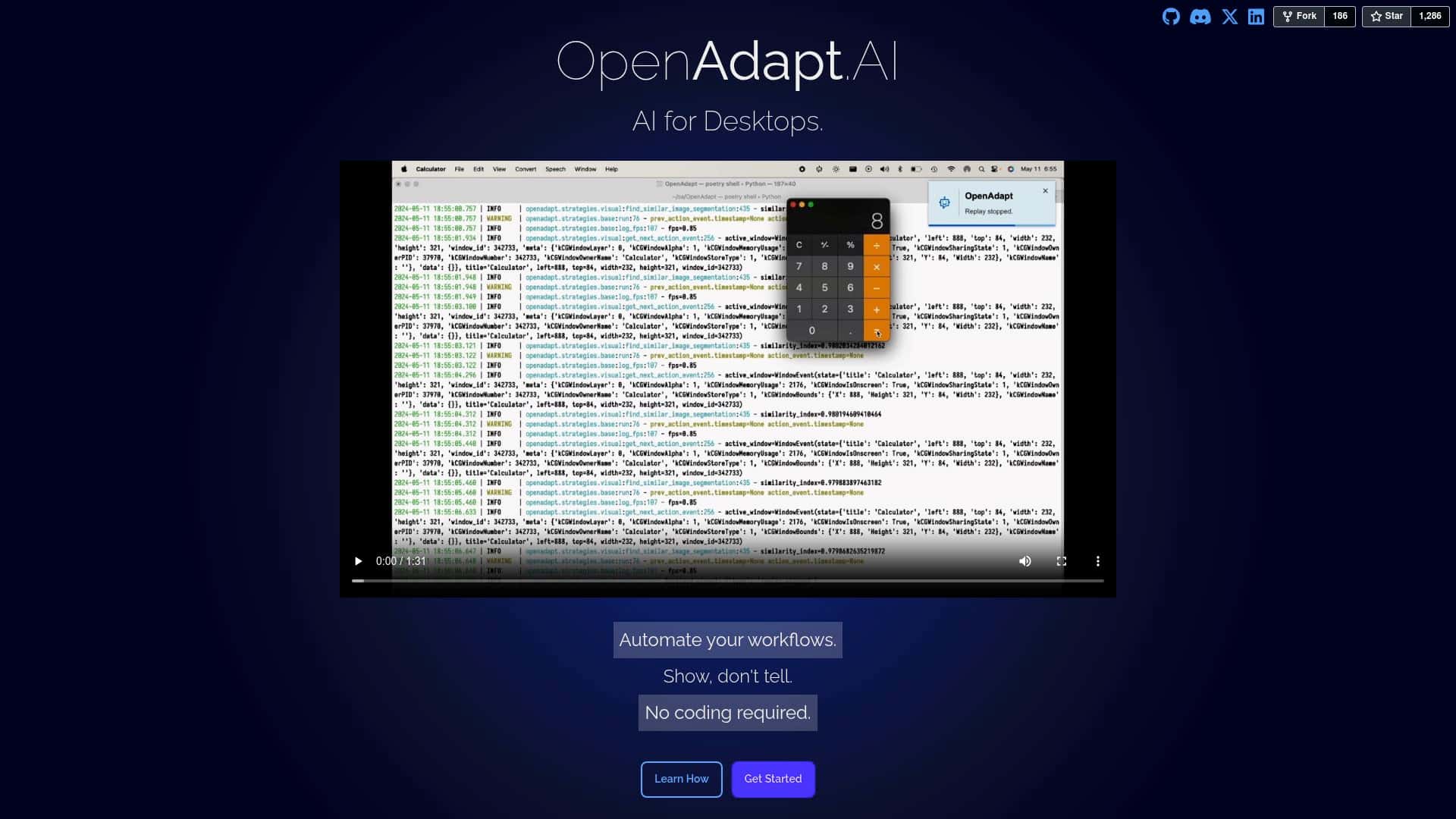
OpenAdapt.AI Review – Simplify Desktop Automation with AI

Updated: April 20, 2026
9 min read
#Ai tool#Automation

Table of Contents

If you’ve ever thought, “Why am I manually doing this again?”—yeah, me too. OpenAdapt.AI is trying to solve that exact problem by letting you automate desktop tasks without writing code. The big question is: does it actually work reliably, or is it just another “AI demo” that falls apart the moment you try real work?

In my testing, I focused on one thing: could I record a task, get it to replay end-to-end, and then repeat it without babysitting it every step of the way?

Table of Contents

OpenAdapt.AI Review: what I tested (and what actually broke)

Here’s the honest setup context first, because “it worked for me” means a lot more when you know what I was running.

  • OS: Windows 11 Pro (23H2)
  • Apps tested: Microsoft Excel, Microsoft Outlook, and a LinkedIn browser session
  • Hardware: Intel i7 (8 cores), 16GB RAM, 500GB SSD
  • Build/Stage: alpha (I ran into multiple “not quite ready yet” moments, which I’ll call out below)

How I evaluated it

I didn’t just record one quick click. I tried to build three mini-workflows that match real “desk work”:

  • Workflow A (Excel): open an existing spreadsheet, filter a column, copy 20 rows, and paste into a new sheet
  • Workflow B (Outlook): open a draft email, paste a subject line + message, and attach a file
  • Workflow C (LinkedIn): navigate to a profile page, click the “Connect” button, and confirm the dialog

Then I tested replay reliability by running each workflow 3 times. I also watched for the stuff that usually ruins automation: focus issues, wrong window selection, and UI changes.

Recording: it’s “show it once”… but not always “works first try”

OpenAdapt.AI’s core idea is simple: you demonstrate the task, and it learns the steps to replicate it. That part feels intuitive. But in practice, I noticed something important: the quality of the demonstration matters a lot.

For example, in Workflow A (Excel), my first recording missed one step. I clicked inside the sheet, but I didn’t pause long enough for the filter dropdown to fully render. On replay, the system hovered and then selected the wrong filter option. Not a total failure—more like it took the “closest match” and that match wasn’t what I intended.

What I did to fix it:

  • Re-recorded with a slightly slower pace (especially on dropdowns)
  • Explicitly demonstrated the filter selection step again (no skipping)
  • Made sure the Excel window stayed in the foreground during recording and replay

After that, Workflow A succeeded 3/3 times. That’s the first measurable win I saw: once the UI state was consistent, the replay became dependable.

Replay reliability: where it felt strong

In Workflow B (Outlook), it handled the “copy text + paste + attach” flow pretty well. The parts that worked best were the ones that were visually consistent—same email draft location, same attachment picker, and the same window sizes.

My success rate on replay for Workflow B was 2/3 at first, then 3/3 after one tweak.

What went wrong on the first attempt:

  • It attached the wrong file type (I had two similarly named files in the picker)
  • The automation didn’t “wait” long enough before confirming the attachment dialog

After I re-recorded and made sure I selected the exact file I wanted (and paused on the file picker screen), the replay nailed the attachment step.

Where it struggled: LinkedIn was the hardest

I’ll be blunt: LinkedIn is where this tool showed the most “alpha vibes.” The buttons and dialogs change depending on account state, page layout, and even A/B tests.

For Workflow C, I got 1/3 success initially. On replay, it sometimes clicked the right area but then failed to confirm the dialog—likely because the UI shifted slightly or the focus moved to a different element.

What helped:

  • I kept the LinkedIn tab as the only active browser window during replay
  • I recorded the confirmation step more carefully (including the final click)
  • I avoided resizing the window between runs

Even with those improvements, I didn’t get the same “set it and forget it” reliability I saw in Excel and Outlook. If your automation target is a site with frequent UI changes, you should expect to iterate.

Time to first useful automation (my experience)

This isn’t instant magic. From “install and open” to “I have a workflow that works end-to-end,” I spent about 45–60 minutes overall, mostly because I had to re-record steps where the UI didn’t match perfectly.

Once I had one workflow working, creating the next one was faster—closer to 20–30 minutes each, assuming the app UI stayed consistent.

Privacy/security: what I could verify (and what I couldn’t)

You’ll see claims about privacy and “industry-standard security,” but here’s the part that matters: I couldn’t confirm every internal detail just from the marketing copy in the original materials I reviewed. What I can say is this:

  • Open-source projects often make it easier to audit, but you still need to check the actual code/docs for what gets stored (recordings, logs, screenshots, etc.).
  • If the tool uses screen capture for learning, you should assume it processes visual data during recording.
  • Before using it on sensitive data, I recommend testing on a dummy spreadsheet and a throwaway email template first.

If you want to verify privacy specifics, the best move is to check the project’s license and the documentation/security notes in the official repo (and the exact workflow data handling described there). If you share the link to the security/privacy page you’re looking at, I can help you interpret it.

Bottom line from my test

OpenAdapt.AI is strongest when:

  • the UI is stable (desktop apps like Excel/Outlook were easier)
  • you demonstrate each “state change” clearly (dropdowns, dialogs, confirmations)
  • you keep window focus consistent during recording and replay

It’s weakest when:

  • the target UI changes frequently (LinkedIn was a rougher experience)
  • your workflow depends on picking the “right” item from a list that looks similar
  • you expect perfect results without a couple of recording iterations

Key Features (with what I actually noticed)

  1. No-code record & replay
    This is the core value. I recorded steps in Excel and Outlook without editing scripts. The learning isn’t “instant perfection,” but it’s quick to get to a usable workflow once you re-record the tricky UI moments.
  2. Workflow automation across common desktop apps
    In my case, Excel and Outlook were the most reliable. I could run the same workflow multiple times without it drifting—after I made the demonstration precise.
  3. Cross-application compatibility
    The promise is “it can span apps,” and I saw that. I demonstrated tasks that moved between desktop app UI and browser UI (LinkedIn). Browser automation was just less consistent due to UI changes.
  4. Learning from demonstrations
    This is real in the sense that re-recording improves outcomes. But “learns over time” depends on how the tool stores and reuses what it learned. In alpha, I still had to refine workflows manually.
  5. Windows and MacOS support
    The feature list says it supports Windows and MacOS. I tested on Windows 11, so I can’t speak to Mac reliability from hands-on results here.
  6. Privacy/security claims
    The feature list mentions privacy and “industry-standard security.” I recommend verifying exactly what’s stored (recordings, metadata, logs) and where it’s stored (local vs cloud) in the official documentation/security page for the version you download.

Pros and Cons (my real take after iterating)

Pros

  • Beginner-friendly concept: you’re demonstrating tasks, not writing code. That lowers the barrier fast.
  • Excel/Outlook automation felt practical: once I got past the first “UI state” hiccup, replay worked reliably.
  • Iteration is built into the workflow: when something fails, you can re-record the specific step that went off track instead of starting over from scratch.
  • Open-source angle: it’s easier to trust a tool more when you can inspect how it works—at least in theory.

Cons

  • Alpha means UI surprises: LinkedIn replay was inconsistent due to dynamic layouts and dialogs.
  • Documentation gaps: I had to experiment to figure out the “best demonstration pace” and how strict the focus/window requirements are.
  • Similar-looking UI elements cause mistakes: in Outlook, file picker ambiguity led to attaching the wrong item.
  • Not every workflow is plug-and-play: expect 1–3 recording passes for anything involving dropdowns, confirmations, or web UI.

Pricing Plans

OpenAdapt.AI is presented as free as an open-source project. In other words, you’re not paying a subscription to use it.

That said, “free” doesn’t mean “effort-free.” You may spend time troubleshooting workflows—especially in alpha.

What I recommend before you commit: run your first workflow using dummy data (like a sample Excel file and a test email template) so you can confirm reliability without risking real information.

How I’d start (a first workflow you can copy)

If you try it, don’t start with LinkedIn. Start with something stable.

  • Pick a desktop task you do daily (Excel filter, copy/paste into a report, Outlook template email)
  • Record slowly through UI state changes (dropdown opens, dialog appears, confirm click)
  • Run it 3 times immediately. If it fails once, re-record only the failing step and try again.
  • Keep window focus locked during replay—no switching tabs or resizing mid-run.

That approach is what got me from “it almost works” to “it works reliably” in the Excel and Outlook workflows.

Wrap up

OpenAdapt.AI is a genuinely interesting way to automate desktop work without coding, and my testing showed it can be practical—especially with stable desktop app interfaces. Just don’t expect it to be flawless on day one, and don’t start with a highly dynamic site unless you’re ready to iterate.

If you want a tool for repeatable office tasks, it’s worth your time. But if your workflows are chaotic or UI-heavy, you’ll probably spend more time refining than you’d like.

Try OpenAdapt.AI with a simple Excel or Outlook workflow first, and build from there.

Stefan

Stefan

Stefan is the founder of Automateed. A content creator at heart, swimming through SAAS waters, and trying to make new AI apps available to fellow entrepreneurs.

Related Posts

self published books that made it big featured image

Self Published Books That Made It Big: Success Stories & Tips

Discover how self-published books achieved massive success in 2026. Learn from top authors, key strategies, and industry insights to boost your publishing journey.

Stefan
diy publication featured image

DIY Publication: Top 10 Most Searched Strategies for 2026

Discover the best DIY publication tips, tools, and trends for 2026. Learn how to publish, design, and promote your content independently today!

Stefan
kundenspezifische druckerfabrik in china featured image

Kundenspezifische Druckerfabrik in China: Top 10 Hersteller 2026

Entdecken Sie die führenden kundenspezifischen Druckerfabriken in China 2026. Erfahren Sie, wie Sie die beste Fabrik wählen und von maßgeschneiderten Drucklösungen profitieren.

Stefan

Create Your AI Book in 10 Minutes