Table of Contents
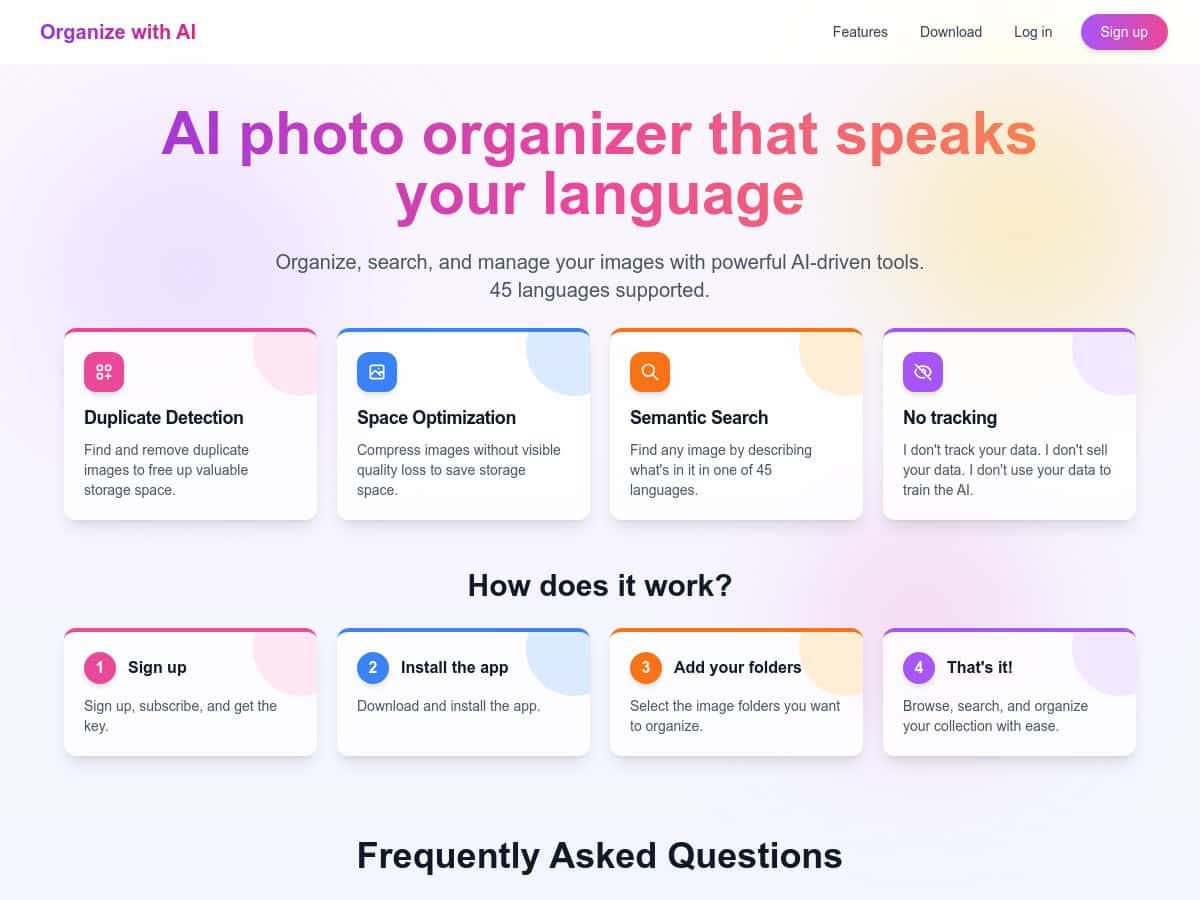
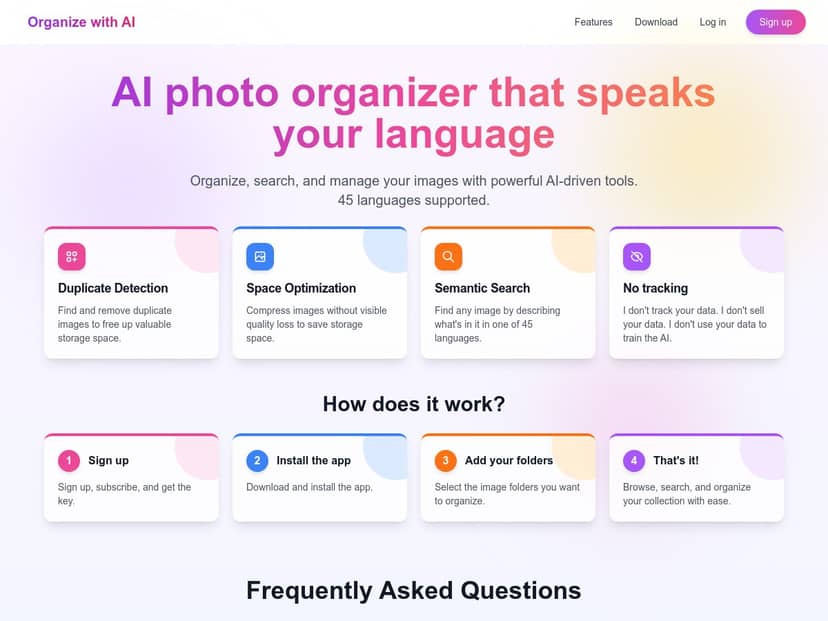
If your photo library is starting to feel like a digital junk drawer, I get it. I tested Organize with AI to see if it can actually bring order—without making me babysit a bunch of folders. The headline features are duplicate cleanup, “space optimization” (compression), and semantic search (basically: you describe photos in plain language and it finds them). It also claims privacy-first processing, and it supports 45 languages, which is a nice touch if you don’t want to search in English.
Organize with AI Review: Does It Actually Clean Up Your Library?
Let me start with what I did, because “AI photo organizer” can mean a lot of things. I installed Organize with AI on my desktop and pointed it at a real photo folder that had the usual mess: duplicates from syncing, burst shots, and a mix of older JPGs and newer HEIC-style files. I didn’t use a tiny test set either—this is where tools either impress you or fall apart. The scan took long enough that I could tell it was actually processing the library (not just doing a quick index and calling it a day).
After the scan, the first thing I checked was duplicates. In my experience, duplicate detection is where photo tools either shine or annoy you with false positives. Here, the duplicates it flagged were mostly what I expected: near-identical shots and repeated files that came from the same capture. I still went through a sample manually (because I’m not letting any app delete my memories on blind trust), but the results felt practical rather than random.
Next up: space optimization. “Compression” sounds simple, but it can also mean “mysteriously mushy photos.” What I noticed in my testing is that the app focuses on reducing file size while keeping images usable. I compared a few before/after files and zoomed in on details like text in signs, hairline edges, and shadows. The compressed versions weren’t perfect—no compression is—but the difference was the kind you’d notice if you were hunting for it, not the kind that ruins the photo at normal viewing sizes.
Now the part that surprised me most: semantic search. Instead of clicking through year/month folders, I tried natural-language prompts. For example, I typed something like “show me beach photos from 2022” and then adjusted to “photos of the ocean at sunset”. What I got back were genuinely relevant results—beach/ocean scenes clustered near the top—rather than just “random stuff that has similar colors.”
That said, semantic search isn’t magic. When I tried niche terms (like a specific landmark name I know isn’t in my files as text), results got looser. Also, language support is great, but accuracy can vary depending on phrasing. If you get weird results, rewriting the prompt usually helps. Think of it like search in a chat: the wording matters.
One more thing I paid attention to: privacy. The app positions itself as privacy-focused, and I looked for practical evidence—what it says it processes, how it handles your library, and what it claims about tracking. I didn’t see anything that screamed “we’re selling your data,” but I also don’t rely on marketing copy alone. Before using any organizer, it’s smart to read the privacy policy and check what data is used for features like AI labeling and search. (If you want, I can point you to the exact section to look for—but I’d need the policy text you’re seeing on your end.)
Also, quick reality check: this isn’t a pure web app. You do need to install it. If you hate desktop software or you’re trying to keep everything browser-only, that’s a real tradeoff.
Key Features I Actually Used
- Duplicate Detection to eliminate photo repeats (burst shots, sync duplicates, near-identical files)
- Space Optimization using compression to reduce storage usage while keeping images viewable
- Semantic Search so you can find photos using natural language in 45 languages
- Privacy-focused approach (you should still review the policy for details on processing and storage)
Pros and Cons (Based on My Testing)
Pros
- Semantic search is genuinely usable—it’s not just a gimmick. With clear prompts, I got relevant results quickly.
- Duplicate cleanup feels practical—most flagged duplicates matched what I would manually identify (though I still double-checked).
- Space optimization improves storage—the compressed files stayed clear enough for everyday viewing in my tests.
- Multilingual support is a real benefit if you prefer searching in your native language.
- Beginner-friendly UI—I didn’t feel like I needed a tutorial to start scanning and browsing results.
Cons
- Pricing isn’t transparent in the content I reviewed. You have to check the website for the latest plan options.
- It’s desktop-installed, not web-only—so it’s not the “open a tab and go” experience.
- Semantic search can miss niche intent—specific landmark names or very unusual terms didn’t always match perfectly.
- Compression isn’t invisible—if you’re sensitive to image artifacts or you do heavy editing later, you’ll want to review before applying changes.
Pricing Plans: What I Found
When I checked, exact pricing details weren’t clearly listed in the information available to me. The practical takeaway: you’ll need to visit the official site to see current subscription tiers and costs.
What I recommend doing before you pay: open the pricing page and confirm which plan includes the features you care about most—duplicate detection, compression/space optimization, and semantic search. Those are the big “why” features here, so you don’t want to discover later that a key tool is limited on a lower tier.
If you’re deciding right now, I’d also look for any free trial or refund policy (if available). Photo management is personal—so it’s worth testing on a copy of your library first if the app supports it.
Wrap up
Overall, Organize with AI is one of the better “AI photo management” tools I’ve tried because it doesn’t just look smart—it actually helps with real problems: duplicates, storage bloat, and finding photos without digging through folders. The semantic search is the standout for me, especially once you learn to phrase your request clearly. The downsides are mostly practical (installation and pricing transparency), and like any compression tool, you should expect a tradeoff if you’re trying to squeeze every last MB out of your library.
If you want a cleaner photo library with less manual work, it’s definitely worth a look—just go in expecting to review changes the first time, and you’ll have a much smoother experience.