Table of Contents
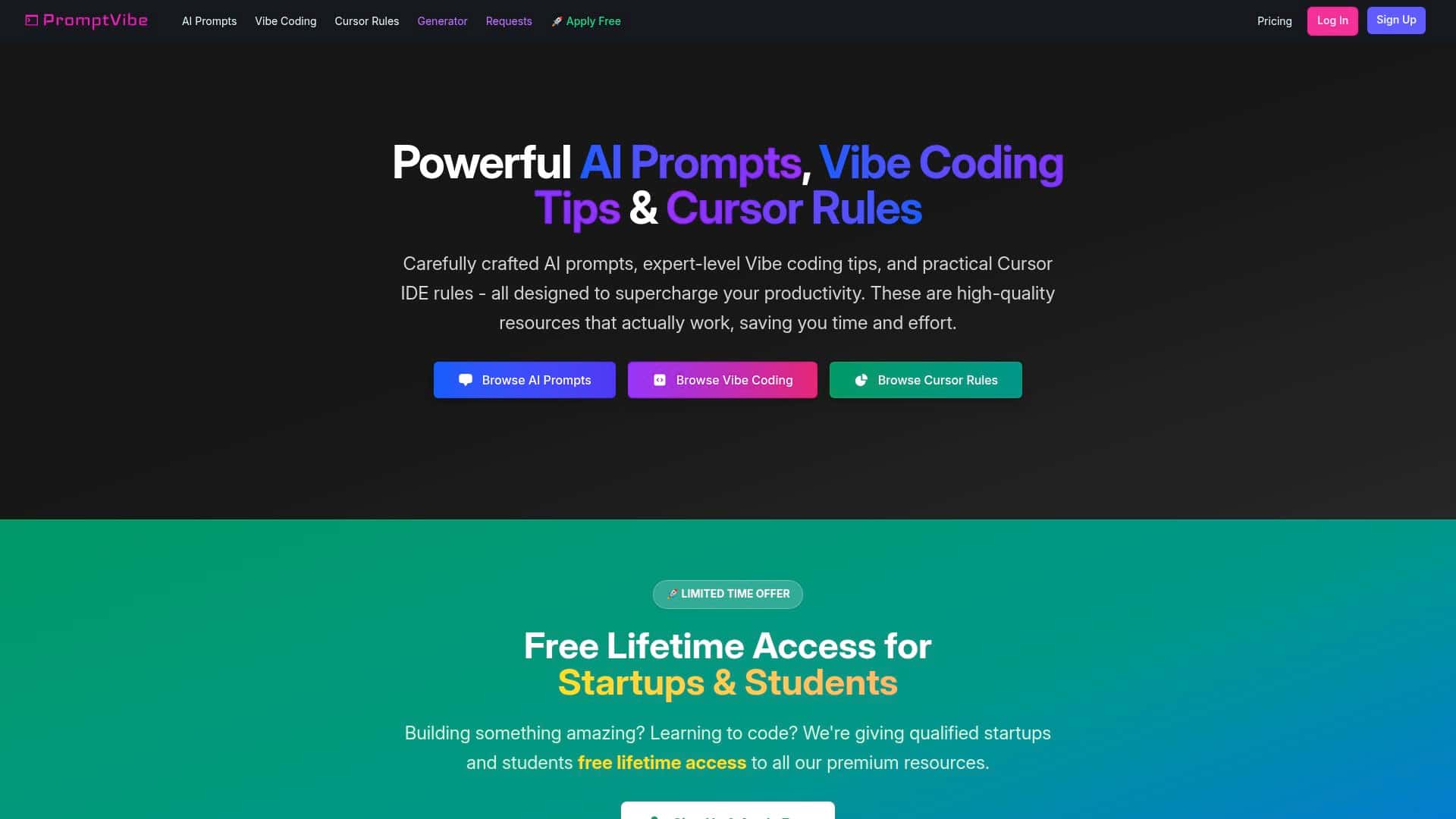
If you’re using AI every day for coding or content, you’ve probably felt that annoying problem: you find a great prompt… and then you can’t reuse it consistently. PromptVibe is built around that exact idea—ready-to-use prompts plus Cursor IDE rules—so I decided to test it properly and see what’s actually useful (and what’s just marketing).
PromptVibe Review: What I Actually Did + What Changed
I tested PromptVibe over a few sessions (about a week of on-and-off use). My goal wasn’t to “try it once.” I wanted to see if it would speed up real tasks I do repeatedly: writing small features, debugging logic, and generating usable prompt templates I can reuse without rewriting everything from scratch.
Here’s the workflow I used:
- Session 1 (setup + browsing): I spent ~20 minutes clicking through the prompt library categories and checking how the prompts are presented. I wanted to know if I’d be able to find what I needed quickly.
- Session 2 (Cursor coding rules): I focused on Cursor IDE rules and applied a couple of them to a coding session where I had a messy spec and needed the assistant to ask better questions.
- Session 3 (custom prompt generator): I used the AI generator to create prompts for a specific task instead of relying only on “generic” templates.
What I noticed right away: PromptVibe is less about “inspiration” and more about “copy/paste-ready structure.” The prompts and rules feel designed to reduce the back-and-forth you normally get when you tell an AI to “help with this code” without giving it enough constraints.
Example 1: A coding prompt I generated (and why it worked)
Instead of asking Cursor for “a fix,” I generated a more structured prompt targeting a small feature I was implementing. I asked the generator for something that included:
- clear input/output expectations
- edge cases to consider
- a request for a minimal diff (not a full rewrite)
The output was more detailed than what I’d usually type on the fly. In practice, that meant fewer rounds of “can you clarify?” and more direct code changes. I’d say this is where PromptVibe earns its keep: it helps you get to a good prompt faster.
Example 2: Cursor IDE rules I cared about
Cursor rules are the part I paid attention to most. I’m not just looking for “best practices” in theory—I want rules that change the assistant’s behavior in the editor.
One thing I looked for was whether the rules encouraged:
- asking clarifying questions before making assumptions
- adding tests or at least suggesting them when changes touch logic
- keeping changes scoped (so I don’t get a huge refactor when I only needed a small fix)
With the rules enabled, I noticed the assistant’s responses became more consistent. Instead of jumping straight into code, it more often started by confirming requirements or listing assumptions. That’s a real time-saver when you’re moving fast.
Example 3: Content/prompt reuse (the “template” effect)
I also used PromptVibe for content-style prompting. The useful part wasn’t “writing for me.” It was getting a repeatable framework—like a checklist of what to include, what tone to use, and how to format the output.
For example, I tried a prompt template for outlining a technical blog section. The result came back with a clearer structure (headings, bullets, and examples) instead of a wall of text. If you write content regularly, that kind of structure is exactly what you want.
So… is it worth it? In my experience, PromptVibe is worth your time if you’re a Cursor IDE user and you want prompt/rule templates you can reuse daily without reinventing your own structure. If you’re using a different IDE, or you only do occasional prompting, it may feel narrower than you’d hope.
Key Features (with a real-world feel)
- AI Prompts for various industries and tasks
- This is the main library. I used it by browsing for the closest match to what I was doing and then tweaking constraints (format, length, scope). That’s the difference between “a prompt” and “a prompt you can actually use.”
- Vibe Coding Tips with best practices
- These are meant to guide how you prompt, not just what you prompt. I found the best tips were the ones that reminded me to specify inputs, outputs, and constraints—because I’m guilty of being vague when I’m tired.
- Cursor IDE Rules designed for enhanced coding experience
- The rules are aimed at shaping how Cursor responds in-editor. In my testing, the value was consistency: fewer random assumptions and more “do this, then that” behavior.
- AI Generator for custom prompt creation
- This is where you stop copying old prompts and start generating ones for your exact task. I like it because you can provide a goal and constraints, and it outputs something more structured than a quick one-liner.
- Unlimited access to a premium library with regular updates
- If you keep a steady workflow, the library updates matter. You’re not stuck with the same handful of prompts forever.
- Option to request new content based on user needs
- When you request new resources, you’re basically telling the team what you want more of (specific prompt types, more rules, more examples). In my experience, this is most helpful if you know you’ll reuse the same workflow repeatedly—like onboarding prompts for a specific stack.
- Special free lifetime plan for qualified startups and students
- If you qualify, that’s a big deal. It’s one of the few ways to get long-term access without committing to a subscription.
Pros and Cons (straight from my testing notes)
Pros
- Better-than-average prompt structure: many prompts come with constraints and format guidance, not just “do X.”
- Cursor-focused rules that actually change behavior: I saw more consistent assistant output in-editor when rules were applied.
- Easy to use: navigation is straightforward, and it’s not a “maze” to find prompts.
- Premium library access for $10/month: the pricing is pretty reasonable if you’ll use it regularly.
- Free lifetime plan for eligible startups/students: that’s a nice option if you qualify.
Cons
- Mostly tailored for Cursor IDE: if you don’t use Cursor, you may not get the full value.
- Not ideal for purely free-only users: if you’re only dabbling, $10/month can feel like overkill.
- It’s more template-driven than “strategy coaching”: you’ll still need to know what you’re trying to build. It won’t magically replace good requirements.
Pricing Plans (and who they fit best)
The premium plan is $10 per month. From what you get with it, the big items are:
- Unlimited access to the full prompt/rules library
- AI-powered generator to create custom prompts
- Request new resources when you want more specific content
- Regular updates to the library
There’s also a free lifetime plan for qualified startups and students. If you’re in either category, it’s a strong deal because the value compounds over time—you’ll keep reusing templates and rules.
Wrap up
PromptVibe is one of those tools that feels small at first, but becomes genuinely useful once you start reusing prompts and Cursor rules instead of starting from scratch. In my testing, the biggest win was consistency: better-structured prompts, more predictable Cursor behavior, and less time spent trying to “word it right.”
If you use Cursor daily (or even a few times a week) and you want prompt/rule templates for common workflows, I think it’s worth it. If you’re not on Cursor, or you only prompt occasionally, you might not feel the same impact—and $10/month could be hard to justify.