Table of Contents
I’ve used a bunch of online whiteboards over the years, and tldraw is one of the few that feels genuinely quick to pick up. I tested it on a laptop (Chrome on Windows) and also tried a second session on mobile just to see how the experience holds up. My goal was simple: create a board, collaborate with another person in real time, drop in a couple of visuals, then export something usable for sharing.
Overall, tldraw delivers on the “fast and flexible” promise. The canvas feels roomy (that infinite canvas matters more than I expected), collaboration is smooth enough for real discussions, and the toolset is broad without being overwhelming. But it’s not perfect—some features are gated, and a few things depend on JavaScript and browser behavior. Still, for a free collaborative whiteboard, it’s hard to beat.
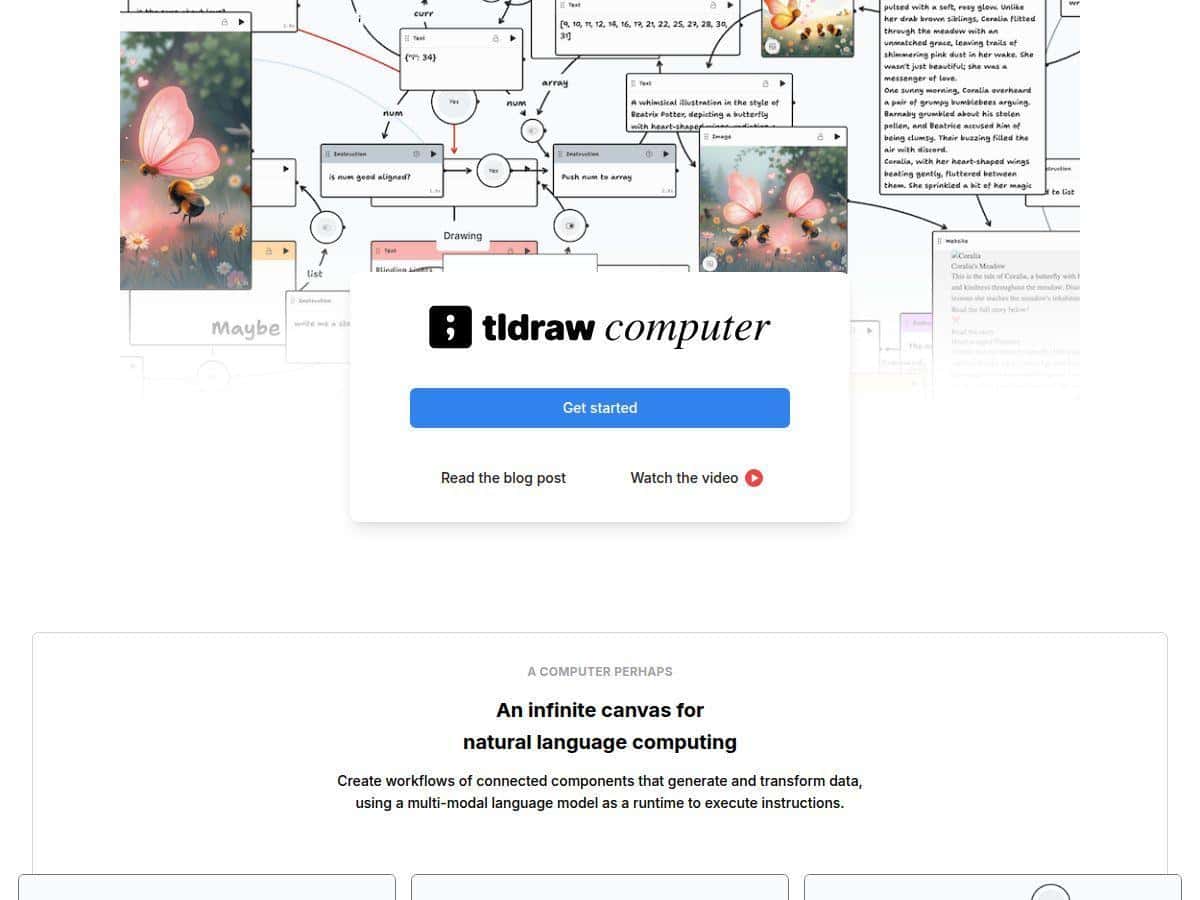
tldraw computer Review
When I opened tldraw, I didn’t feel like I needed a tutorial. The UI is clean, and the drawing tools are right there. I started by sketching a quick flowchart (rectangles + arrows), then added sticky-note style text blocks to label each step. That’s where tldraw surprised me—instead of feeling “blank canvas only,” it actually supports structured diagramming without turning into something complicated.
For collaboration, I invited a second person to the same board and we worked for about 20–30 minutes. The real-time cursors are visible, and it’s easy to tell who’s editing what. We both added shapes, moved elements around, and used the selection tools to tweak spacing. The updates came through quickly enough that it didn’t feel distracting—more like we were in the same room than “watching a laggy screen.”
Then I tested the media side: I inserted an image and used it as a reference while drawing on top. That’s a common workflow for me (bring in a screenshot, annotate it, then export). It worked smoothly, but I did notice that export output quality depends on the format you choose—more on that below.
Key Features
- Collaborative real-time whiteboard with live cursors
- What I liked: it’s obvious when someone else is interacting. You can see their cursor, and edits appear as they happen. In my test, we were both dragging shapes and adding text at the same time without stepping on each other too much.
- Infinite canvas (no “page” anxiety)
- This is the feature I didn’t fully appreciate until I used it. I kept expanding the board as the diagram grew—no resizing, no awkward “fit everything onto one screen.” If you’re mapping out ideas that branch, the infinite canvas keeps the process moving.
- Drawing and annotation tools that don’t feel bloated
- I used basic shapes, arrows, and text, plus a couple of freehand strokes. The tools feel responsive, and snapping/alignment helped when we were trying to keep the flowchart readable.
- Insert images, videos, GIFs, and media embeds
- I specifically tested adding an image as a reference layer. It’s handy for design reviews and teaching—drop in a screenshot, then annotate directly on the canvas. I didn’t run a long video embed test, but the media insertion options are there and easy to access.
- Export options (SVG, PNG, JPG, JSON)
- This is where you’ll want to be intentional. I exported a small section as SVG and it preserved the crisp vector look for shapes and text. When I exported as PNG, it was great for quick sharing, but it’s raster—so zooming in later won’t look as sharp as SVG.
- JSON is useful if you want to rework the board later or integrate it into a custom workflow (especially if you’re building on the SDK).
- Open-source SDK for custom development
- If you’re a developer, this is a big deal. I didn’t build a full integration in the time I tested, but I did check the idea of using tldraw’s SDK to embed or extend boards in an app. This is also why licensing shows up later—advanced/custom setups aren’t just “free forever.”
- Google Workspace integration
- For teams already living in Google, integration matters. In practice, this can make sharing and collaboration smoother when people expect everything to be accessible through their usual tools. I didn’t wire up every workflow, but the integration is one of those “nice to have” features that reduces friction.
- Offline support and local file saving
- I tested offline-ish behavior by saving and then working without constantly needing a live connection. The key takeaway: it’s not purely “cloud or nothing.” If you lose connectivity, you still have a way to keep working and then get back in sync when you’re online again.
Pros and Cons
Pros
- Free for basic use — I was able to create and collaborate without a login for the core experience.
- Real-time collaboration feels usable — live cursors and updates were responsive enough for active editing (at least in my test with two people).
- Infinite canvas makes brainstorming easier — you don’t constantly fight the layout.
- Exports are actually practical — SVG is the one I reach for when I need clean diagram output; PNG is better for quick sharing.
- Great for mixed content — dropping in images as references is straightforward.
Cons
- Some advanced features are paywalled — if you need deeper capabilities (especially around commercial/team deployments and SDK-level customization), you’ll hit licensing requirements.
- JavaScript matters — if JavaScript is disabled or blocked in your environment, tldraw won’t behave properly.
- Free version has limitations that show up in exports — in my testing, exported images can include a watermark in the free version. That can be a dealbreaker if you’re trying to publish or send polished assets.
- Team costs can add up — if you’re a small startup with a lot of collaborators, the team licensing model may feel expensive compared to “just use the free web app.”
Pricing Plans
Here’s what I found when I looked at the pricing model: the basic tldraw web app is free for individual and casual use, and you don’t need to log in for the core experience.
For developers and teams, there’s a 100-day free trial of the SDK. After that, the startup license is listed at $6,000 annually for teams up to 10 users. Bigger teams or commercial deployments move into custom pricing.
One more practical thing: the watermark behavior. In the free version, a watermark may appear on exported images (for example, PNG/JPG-style exports when you’re trying to share finished visuals). During the SDK trial, you get full functionality, so the watermark limitation is less of an issue while you’re evaluating.
Wrap up
If you want a free collaborative whiteboard that’s quick to use, supports real-time co-editing, and doesn’t make you cram everything into a fixed page, tldraw is a strong pick. It’s especially good for diagramming, brainstorming, teaching with annotations, and lightweight design reviews—the infinite canvas and export options are the reason.
That said, I wouldn’t choose it blindly for a commercial rollout where you need advanced features or heavy SDK customization right away. The licensing model and export watermark limitation in the free tier are the two things that could slow you down.
For me, the best way to decide is this: if your goal is to start collaborating today with minimal setup, tldraw delivers. If your goal is a fully commercial, deeply customized deployment, plan for the trial/license early so you’re not surprised later.