LIFETIME DEAL — LIMITED TIME
Get Lifetime AccessLimited-time — price increases soon ⏳
AI Tools

Xtract Review – Transform Your Web Research Experience

Updated: April 20, 2026
6 min read
#Ai tool#Research

Table of Contents

If you’ve ever tried to pull useful info from a long webpage and ended up with… well, a messy browser tab graveyard, I get it. I’ve spent way too much time copying bits of text, screenshotting paragraphs, and then manually reformatting everything just so I can actually study or write something. That’s why I wanted to test Xtract—to see if it really makes web research faster, or if it’s just another “AI tool” that sounds good but doesn’t deliver.

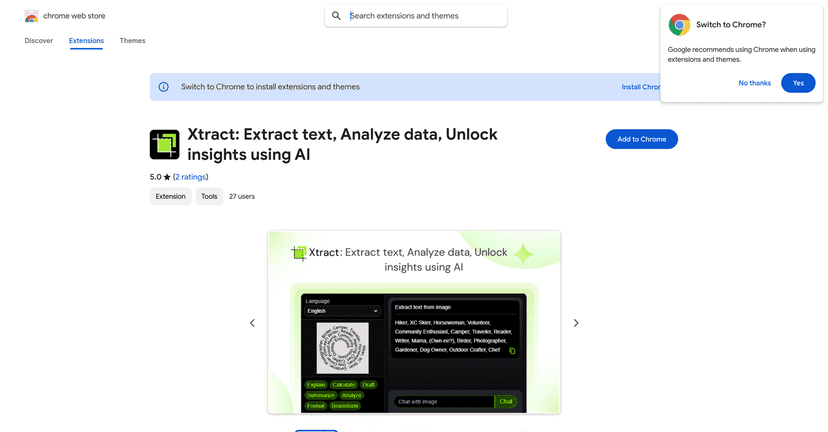
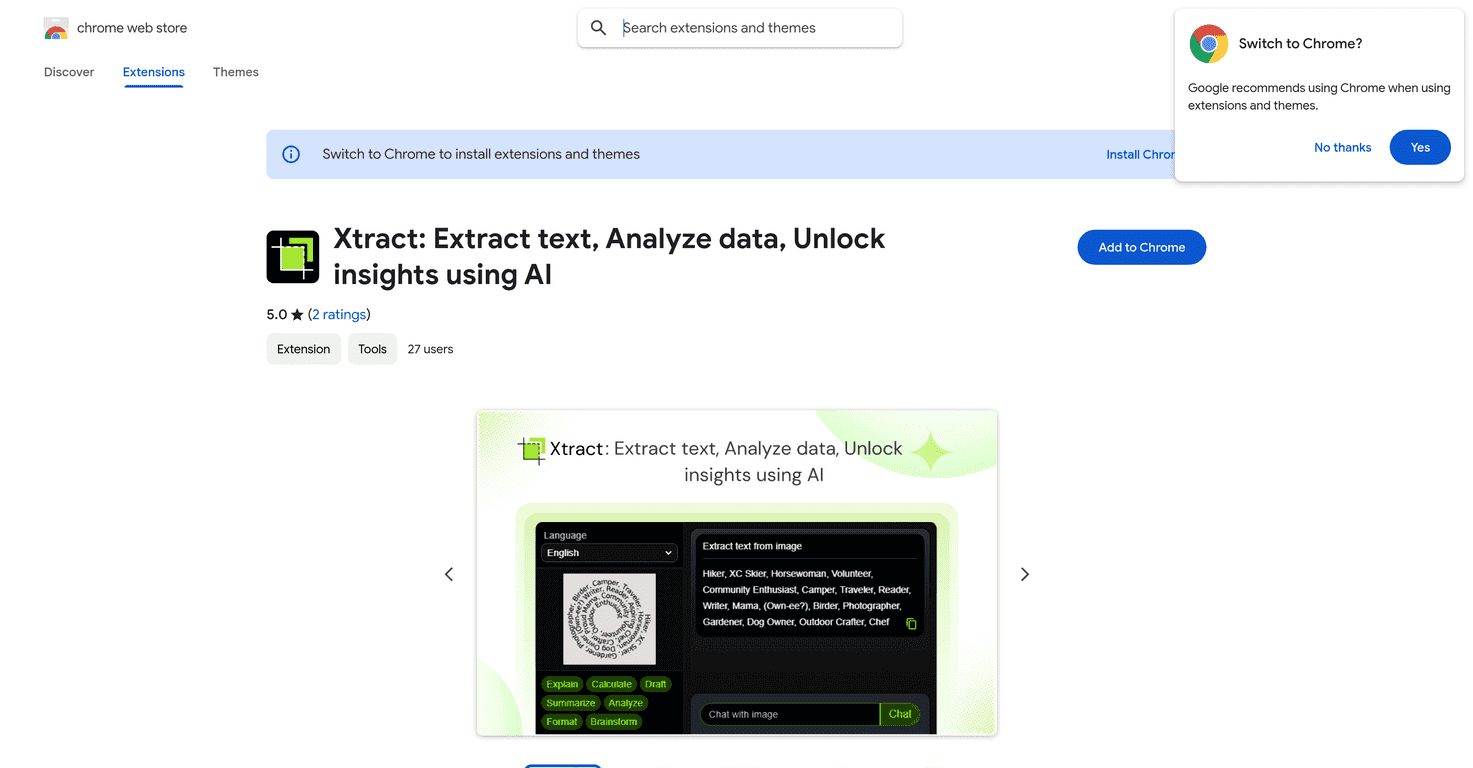
In short, Xtract is a Chrome extension built to extract text (and other content) from what you’re viewing, then help you analyze it without jumping between ten different apps. It’s powered by Google’s Gemini AI, and that combo is what gives it the “do more than copy/paste” feel. Below, I’ll walk through what I noticed during setup and day-to-day use, plus the parts that felt a little less smooth than I expected.

Xtract

Xtract Review: Does It Actually Help With Web Research?

Xtract is positioned as an AI-driven Chrome extension for extracting and analyzing content from the web. That’s a broad claim, so I focused on the stuff that actually matters day-to-day: can it pull readable text from messy pages, does it handle “real” research workflows, and is the AI output useful or just generic?

What I liked right away is that the tool feels built for quick moments. You’re not expected to leave the page, copy everything manually, and then start over. Instead, you extract, then ask for something useful—summaries, explanations, calculations, or deeper analysis—based on what you just captured.

One thing worth mentioning: Xtract uses Gemini AI, and that can be a big win for analysis, but it also means you may need to do an extra setup step depending on which features you want to use fully. More on that in the pros/cons.

Key Features I Actually Tested

  1. High-Precision Text Extraction — This is the core. On normal articles and documentation pages, the extracted text was clean enough that I didn’t feel like I had to “clean up” every line before using it. Where it gets tricky is with highly dynamic pages (lots of popups, weird layouts, or content loaded after scrolling). In those cases, you may need to try a couple times or extract smaller sections.
  2. Quick Snip Tool — I liked the “grab it fast” approach. If you’re reading something in the browser and you want to capture a specific paragraph, chart, or snippet without reselecting text manually, the shortcut makes it feel more natural. It’s especially handy when the page selection is awkward.
  3. Gemini AI Integration (API key) — Some of the “smart” parts rely on Gemini. In my experience, once it’s set up, the difference is noticeable: you’re not just extracting text—you’re getting actual follow-up help (summaries, explanations, and analysis). If you don’t set it up, you might still be able to extract, but AI-powered actions can be limited.
  4. Multi-Language Support — I tested this by working with content that wasn’t in English. The extension didn’t just spit out a rough translation—it kept the context readable enough to be useful for research. If you regularly deal with international sources, this is a real quality-of-life feature.
  5. Smart Data Analysis — This is where I expected “cool demo” output, but it was more practical than I thought. When I fed it structured info (like a table or a block of extracted data), the analysis helped turn it into something I could reference quickly. The graphs/visuals aren’t magic, but they’re useful when you’re trying to compare points fast.
  6. AI-Powered Chat — The chat part is great for drilling into what you extracted. Instead of starting from scratch, you can ask questions like “what does this mean in plain English?” or “what are the key takeaways?” and keep the conversation anchored to your source content.
  7. Visual Recognition — If you’re pulling info from images or video pages, this can save time. I found it most helpful when the visual had labels or context that needed interpretation, not just random screenshots.
  8. Privacy and Security — The extension claims it operates locally without data collection. I can’t verify everything under the hood as a user, but I did appreciate the emphasis on privacy. For research work, that matters—especially if you’re working with sensitive drafts.

Pros and Cons (Real Talk)

Pros

  • Extraction quality is strong for most “normal” webpages and readable layouts.
  • Fast activation makes it feel lightweight—you’re not fighting the extension to get work done.
  • Multiple analysis options like Explain, Calculate, Summarize, and Analyze. These aren’t just buttons; they actually change what you get back.
  • Useful for different roles—students can summarize articles and build study notes, while professionals can pull sources and turn them into reference-ready insights.
  • Privacy-focused positioning is a plus if you care about where your data goes.

Cons

  • Gemini API key setup may be required for certain functionalities. If you don’t want to deal with API keys at all, that could be a dealbreaker.
  • Learning curve — if you’re not used to AI tools, the interface and options might feel a little “feature-heavy” at first. I’d recommend starting with extraction + summary before going deep into chat/analysis.

If you’re wondering whether Xtract is worth the time, here’s my honest take: it’s best when you already do research and you’re tired of manual copy/paste. If you only occasionally read a page, you might not feel the payoff. But if you’re doing repeated source gathering—studying, writing, comparing products, or building reports—this extension can genuinely cut down the busywork.

Pricing Plans (What I Found)

At the moment, I didn’t see clear pricing details included in the information I reviewed. The most reliable place to check is the Chrome Web Store listing, since plans and limits can change.

My suggestion? Before you commit, install it and test 2–3 pages in your usual workflow. If the AI features you care about are gated behind a paid plan (or require the Gemini setup), you’ll find out fast.

Wrap up

Xtract is one of those tools that feels genuinely built for research—not just for “cool AI outputs.” The combination of high-precision text extraction, quick capture, and AI analysis makes it easier to turn web content into something you can actually use. Just keep in mind the Gemini setup requirement for some features, and expect a bit of trial-and-error at the beginning.

If you’re constantly gathering sources, summarizing long articles, or trying to make sense of dense information, Xtract can save you a lot of time. And honestly? Once you’ve used it for a couple sessions, going back to manual copy/paste feels slower than it used to.

Promote Xtract

Stefan

Stefan

Stefan is the founder of Automateed. A content creator at heart, swimming through SAAS waters, and trying to make new AI apps available to fellow entrepreneurs.

Related Posts

chine meilleure imprimante featured image

Chine Meilleure Imprimante : Guide 2026 des Fournisseurs et Technologies

Découvrez la meilleure imprimante chinoise en 2026 : types, fournisseurs, technologies, prix et conseils pour choisir la solution adaptée à vos besoins. Lisez notre guide complet !

Stefan
is lisa crowne a real person featured image

Is Lisa Crowne a Real Person? Uncovering the Truth About Daisy Jones & The Six

Discover whether Lisa Crowne is a real person or fictional character from Daisy Jones & The Six. Get expert insights, episode details, and practical tips.

Stefan
are quotes public domain featured image

Are Quotes Public Domain: Complete Guide

Learn everything about are quotes public domain. Complete guide with practical examples, expert tips, and actionable strategies.

Stefan

Create Your AI Book in 10 Minutes