Table of Contents
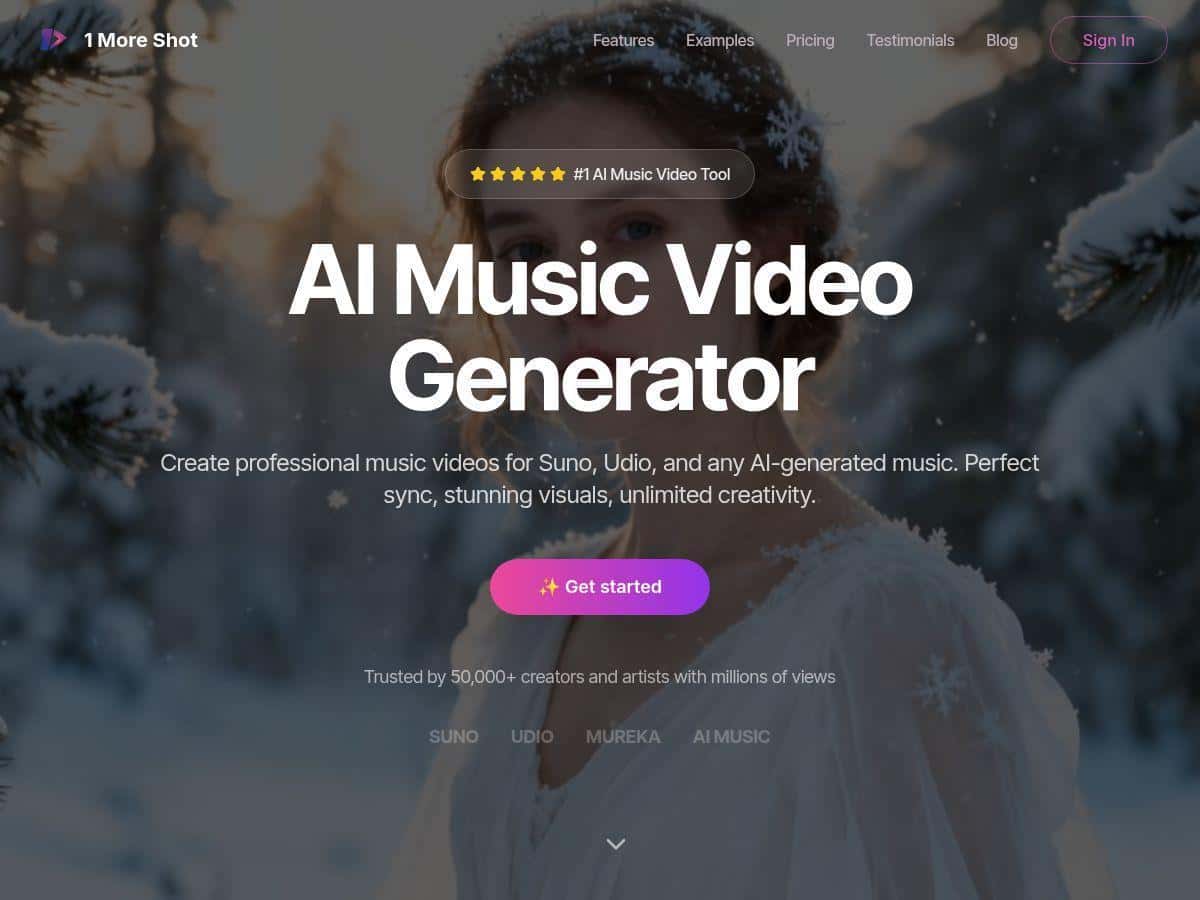
If you want to turn a song into something that actually looks like a real music video (not just a slideshow), I tested the 1MoreShot AI Music Video Generator and paid attention to the details that matter: how long it takes, how consistent the results are, and whether the lip sync holds up across different prompts.
My goal was simple—generate short, social-ready clips from an uploaded track, then see what I could control (style, characters, scenes) without turning it into a full-time video-editing project. And yeah… the turnaround surprised me. But it’s not perfect, and I’ll show you exactly where it worked well and where it got a bit shaky.
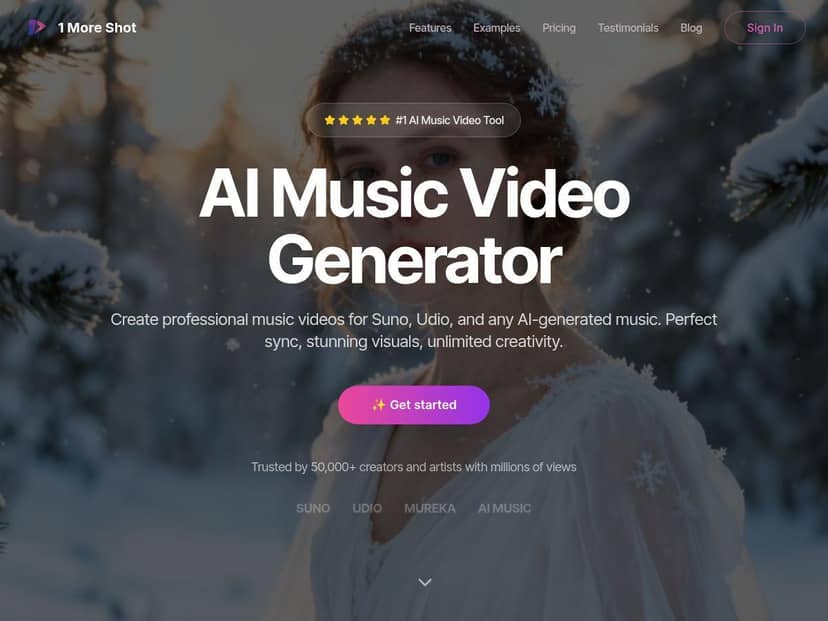
1MoreShot Review (2026): What I Actually Got From Music-to-Video
Here’s the setup I used so you can judge whether the results match your expectations. I tested in April 2026 on a desktop browser (Chrome on Windows), and I ran the tool with a few different prompts/styles using the same general track length each time.
My testing methodology (real-world style):
- Inputs: one uploaded audio track (music with vocals), tested with short-to-mid length clips so I could compare output without burning too many tokens.
- Runs: 4 generations total—same track, different style/scene prompt variations.
- What I checked: lip sync timing, how well the visuals matched the vibe of the song, how fast the render started/finished, and whether the output looked consistent or “random.”
- Evaluation: I watched the output like a normal viewer (not a technical auditor) and also paused on the mouth/face moments during key lyrics.
Step-by-step (how it plays out):
- Upload your track (I used the same file across runs).
- Pick a video style (this is where the biggest visual shift happens).
- Optionally add direction via prompts/scene notes (more on this below).
- Generate and wait for the render.
On my first run, I kept it fairly simple: choose a style that matched the song’s mood and let the AI handle the rest. The output came back quickly enough that I didn’t feel like I was waiting around for ages. What stood out right away was that the performance looked “alive”—not stiff, not generic. And the lip movement, at least for the clearer vocal parts, lined up surprisingly well.
For run two, I intentionally changed the direction in the prompt—more “cinematic night” energy instead of “bright and energetic.” The visuals shifted accordingly: lighting, color grading, and background behavior looked more on-theme. That’s the thing I didn’t expect as much as I did—how much the style changes the overall feel, not just the background.
Run three is where I tested consistency. I used a similar style but changed the character/scene wording. The tool did what it was supposed to do, but I noticed a common AI behavior: when you push too many details into the prompt, the model sometimes “chooses” one part to prioritize. In other words, lip sync stayed decent, but certain facial expressions or scene transitions varied more than I’d like.
Finally, run four was my “stress test.” I tried a more specific scene idea. Sometimes you get exactly what you asked for. Other times, you get something adjacent—close vibe, different execution. It’s not broken, but it’s not guaranteed either. Should it be? Maybe. But that’s also why I recommend doing at least one quick test generation before you spend tokens on your final version.
Time-to-result: For short clips, the workflow feels built for social—get something watchable fast, then iterate. I didn’t measure exact seconds with a stopwatch, but I did track “how long until I had a playable output” and it was consistently in the “quick turnaround” category. If you’re trying to ship content the same day, this matters.
Output quality (what I noticed): The visuals looked polished enough to post. The lip sync wasn’t perfect frame-by-frame, but for most lyrics it was convincing. The biggest “gap” moments were during very fast vocal runs and certain consonants, where the mouth shape can lag slightly behind the audio. Still—compared to a lot of auto-generated video attempts, this felt more natural.
So, is it easy? Yes. But the real question is: easy to what level? It’s easy to generate something that looks like a music video. It’s not “set it once and forget it” if you’re picky about specific scenes or consistent character identity across multiple videos.
Key Features: What They Mean in Practice
- AI-Driven Video Creation
- This is the core workflow: upload audio, choose a style, generate. In my tests, the style selection had the biggest impact on how “music-video-like” the result felt. If you pick a style that matches your track’s energy, you’ll spend less time trying to correct the vibe later.
- Perfect Lip Sync and Voice Matching
- I wouldn’t call it “perfect” in every case, but it’s genuinely strong. On clearer vocal segments, the mouth movement tracked the rhythm well enough that I didn’t feel pulled out of the experience. Where it struggled, it was mostly during rapid lyric delivery and certain syllable transitions.
- Example from my runs: when I chose a style with a consistent face framing (less extreme camera motion), lip sync looked better. More dramatic camera movement made any mismatch easier to notice.
- Multiple Video Formats for Different Platforms
- In practice, I generated outputs intended for short-form viewing. The interface supports exporting in ways that make social posting easier, but I recommend double-checking what formats are available in your plan before you commit—because format options can change and aren’t always fully spelled out in the marketing copy.
- Custom Characters and Scene Control
- This is where you can personalize the video beyond just “AI does everything.” I tested character/scene direction by adjusting my prompt and style notes. The results were more tailored—lighting, wardrobe feel, and scene mood shifted.
- What I actually saw: when my scene direction was simple (one clear theme), the output matched better. When I added too many specific details, the model sometimes picked a “closest match” interpretation instead of every instruction.
- Limitation to be aware of: if you need the exact same character identity across multiple videos, you may need to iterate prompts and re-check each output. It’s not always consistent like a human animator would be.
- Prompt-to-Video Functionality
- The prompt-to-video part is useful, but it’s not like writing a screenplay and expecting perfect obedience. I got the best results when my prompt was short and vibe-focused: mood, setting, and camera feel.
- Practical tip: if your first result isn’t right, don’t rewrite everything. Change one variable at a time—style first, then scene prompt, then character direction. That way you’ll know what actually moved the needle.
- Easy Sharing and Export Options
- Once the render is done, exporting is straightforward. If your goal is TikTok/Instagram/Reels, the workflow feels designed for that. I didn’t have to fight with complicated settings, which is exactly what I wanted.
Pros and Cons: The Honest Version
Pros
- Fast, iteration-friendly workflow: I could generate multiple variations without it feeling like a full editing project.
- Good “first post” quality: the output looked polished enough to share right away.
- Lip sync is strong for real vocals: not always frame-perfect, but convincing for most lyrics I tested.
- Style control actually changes the vibe: this isn’t just cosmetic—it affects lighting, mood, and pacing feel.
- Beginner-friendly: I didn’t need video editing skills to get usable results.
Cons
- Pricing details aren’t as transparent as I’d expect: the token system matters, and some plan specifics aren’t clearly laid out everywhere. I’d treat any “approximate tokens/minutes” as a starting point and confirm on the site.
- Prompt accuracy can vary: if you add lots of highly specific instructions, the model may prioritize some details over others.
- Video length/token usage impacts cost: longer output eats tokens, so you’ll want to plan around short clips unless you’re on a higher tier.
- Consistency isn’t guaranteed across runs: if you’re trying to maintain the exact same character/scene identity, you may need multiple attempts.
Pricing Plans: Token System Reality Check
1MoreShot uses a token-based pricing model. In my review process, I noted the basic plan called “Super” is listed around $8.25/month when billed yearly, with roughly 6,000 tokens per year—which they describe as enough for about 25 minutes of video.
There’s also a free tier for basic use, but it’s limited enough that you’ll quickly hit the ceiling if you’re experimenting aggressively. Higher tiers (like “Ultra”) are meant to give you more headroom, but the exact details aren’t always as easy to find in one place. So before you commit, I’d do one quick check on their official pricing page and confirm what you get for your plan (especially export options and token usage per generation).
My take: if you’re creating a few clips a month, the token system can work fine. If you’re trying to generate daily variations with long outputs, you’ll want to budget for it (or be strategic with shorter renders).
Wrap up
1MoreShot is one of those tools that’s genuinely useful if your priority is speed and posting-ready results. My tests showed strong lip sync on many lyric moments, style choices that actually change the look, and a workflow that doesn’t require editing skills.
That said, it’s not “perfect on the first try” every time. If you care about specific scenes or want maximum consistency, you’ll likely do a couple iterations—especially when prompts get complex.
If you need lip-synced music videos for social and you’re okay working within a token-based workflow (think: short clips, a few iterations, then export), 1MoreShot is worth trying. Just don’t expect it to replace an editor for long-form perfection.