Table of Contents

What Is AI Contender?
I’ll be honest—I went into AI Contender pretty skeptical. A tool that scans your website and then spits out branded social assets sounds like the kind of pitch that usually falls apart in real use. Still, I wanted to see if it was actually useful or just “cool in theory.”
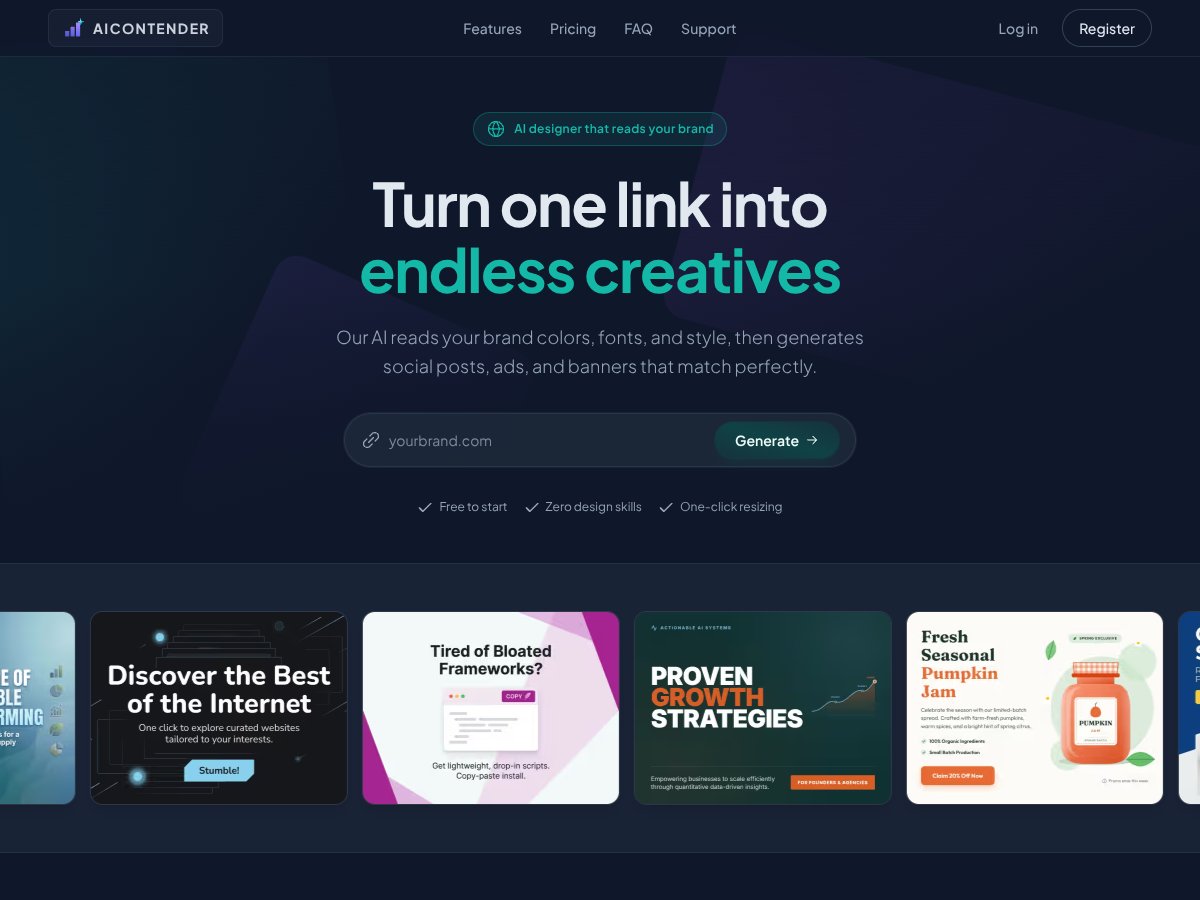
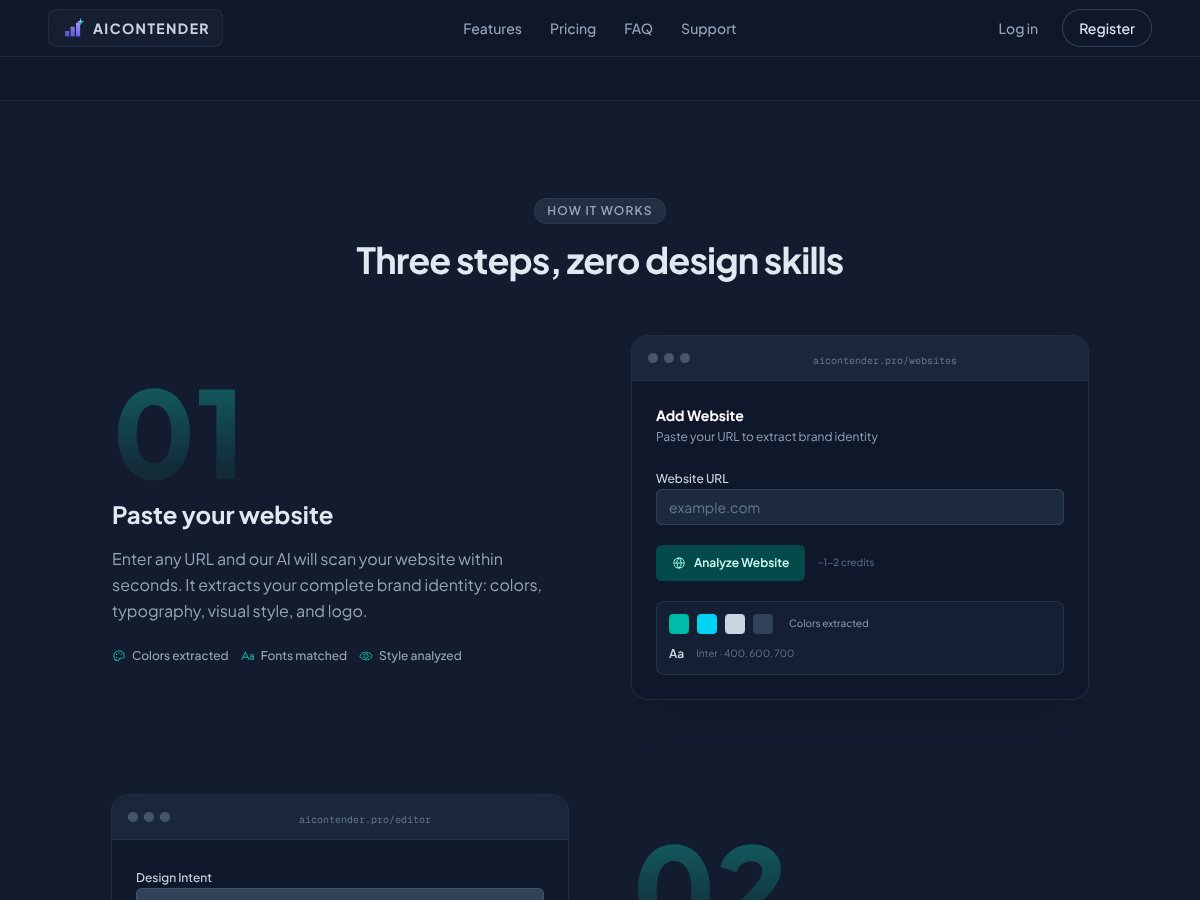
In plain English, AI Contender is a design automation tool that reads a website’s visual style (colors, typography, overall vibe) and then generates marketing visuals like social media posts, ads, banners, and thumbnails. The workflow is simple: paste your website URL, pick a format, generate, then tweak or resize the output.
It’s basically trying to solve a very real problem: keeping your visuals consistent when you don’t have a designer on standby, or when you need fresh content on a schedule. If you’ve ever tried to keep your Instagram, ads, and landing page styles aligned using random template tweaks, you already know how time-consuming that gets.
Now, the part that made me pause: the website doesn’t give much detail about who’s behind the product. I couldn’t find a solid team page, clear company background, or a reliable paper trail of updates. As of my review, I also didn’t see a strong trail of independent user reviews to validate what’s being claimed. That doesn’t automatically mean it’s bad—it just means you should treat it like a “test first” tool.
What I noticed after running a few tests is that it does most of what it claims—especially the automation part. The interface is pretty straightforward: paste URL, choose format, generate, and then edit or resize. But let’s set expectations: this isn’t a full design suite. It’s more like a fast branded starter kit that you’ll still need to review.
Also, I couldn’t find any clear, ongoing support cadence (like a changelog or “last updated” info). If you’re the type who needs constant improvements and transparent roadmap updates, you’ll want to keep that in mind before relying on it for client work.
Key Features of AI Contender

Website Scan & Brand Extraction
This is the core idea: you paste a website URL, and it attempts to extract brand signals—colors, fonts, style cues, and sometimes logo elements depending on what it can detect.
In my test, I used a small “marketing-style” site (clean layout, consistent typography, obvious brand colors) and also tried a more chaotic layout (multiple font stacks and a hero section with a heavy visual background). The scan speed was fast—around a couple seconds before the tool moved me into generation.
What I expected: it would nail the exact font family and match colors closely. What I actually saw: it pulled a few colors correctly, but the font match was not always exact. In one case, the output used a similar weight and vibe but not the same typeface. That’s not shocking for an automated extractor, but it’s important because “close enough” can still look off once you put it next to your real brand assets.
If you want a simple way to sanity-check results, do this: generate one asset in Classic mode, then compare the output typography and color palette against your site’s real CSS (or your brand guide). Don’t trust the first match blindly.
Multiple Format Generation
You can generate assets for multiple channels—things like Instagram posts, Facebook ads, and YouTube thumbnails. The tool also includes seasonal or theme-based suggestions (like “Summer campaign” or “Behind the scenes”) to help you avoid staring at a blank canvas.
Here’s a concrete example of what I entered: I pasted a URL, selected “Instagram post,” and kept the default theme suggestion. The generator produced a layout that looked on-brand in color, but the messaging style felt generic—more like a template than something tailored to my site’s exact tone.
What that means in practice: you’ll probably want to edit the headline/subtext and adjust the composition. The AI gives you a solid starting point, not a final “post-ready” asset 100% of the time.
One-Click Resize & Auto-Resizing
After generating a design, you can resize it to 30+ platform formats with one click. The big claim here is “lossless” resizing, so I tested what that actually means operationally.
My check was simple: I generated the same asset once, then resized it to a second format and compared the output dimensions and file size. In my experience, the visual sharpness held up pretty well (no obvious blurring), and the layout reflowed instead of just stretching.
Still, “works well most of the time” is the honest answer. When I resized down to smaller formats, some elements ended up feeling cramped—especially text blocks. So yes, it’s useful for speed, but don’t assume it will always look perfect at every size.
Inline Editing & Customization
Inline editing is available—you can click text to change it, swap images, and adjust colors. This is the part that determines whether you can actually use the output without exporting into another editor.
In my test, the editing was workable but not “effortless.” It’s not as smooth or feature-rich as Canva’s editing experience. I had a couple moments where clicking elements felt slightly laggy or inconsistent. Nothing catastrophic, but it’s enough to slow you down if you’re planning to do lots of fine-tuning.
If you’re the type who wants layers, advanced typography controls, or pixel-perfect alignment tools, you may find the editor limiting. It’s designed for quick adjustments, not deep production work.
Classic & Creative Modes
Classic mode is more structured—think clean, editable layouts. Creative mode leans more toward complex, photorealistic-style scenes.
I tested both. Classic felt like the “safer bet” for ads and straightforward posts. Creative looked more eye-catching, but it also cost more credits per output. If you’re experimenting with brand matching, Classic is the mode I’d start with first.
Also, don’t underestimate how quickly creative outputs can add up. If you generate multiple variations to find the one that performs, the credit burn can become the real cost—even if the upfront pricing looks low.
AI Suggestions & Automation
The AI can generate ideas based on your brand and the selected format, plus there’s a “Surprise Me” option for random inspiration.
I used it a few times and what I noticed is that the suggestions often sound plausible, but they don’t always match your brand voice. It’ll give you something that looks “marketing-ish,” not necessarily something that sounds like your actual copywriting style.
So I treated suggestions like drafts. If you’re relying on them to be fully on-brand with zero editing, you’ll likely be disappointed.
Limitations & Quirks
The biggest limitation is also the biggest reason the tool can be hit-or-miss: it depends on website scanning. If your site uses unconventional layouts, heavy graphics, multiple fonts, or custom typography that isn’t easily detectable, the extraction can be inaccurate.
It’s also credit-based, and credits aren’t just “one credit per design” in a simple way. Classic vs Creative can change how expensive outputs feel. If you don’t keep an eye on usage, costs can sneak up on you—especially if you’re generating lots of variants.
How AI Contender Works
Getting started was pretty painless. I signed up quickly and didn’t run into annoying verification steps. The UI is minimal: a big URL input box and buttons for generating and editing.
After I pasted my URL, the analysis took roughly 2 seconds before I could generate. That speed is legit—at least compared to tools that feel like they’re stuck in a loading loop.
For the brand extraction check, I focused on two things: whether the color palette felt consistent and whether the typography looked like my site. Colors were often close. Fonts were the weak spot. In one case, the output font style matched the general vibe, but it wasn’t the same typeface, which made the design feel slightly “off” compared to my real brand.
Then I picked a format (Instagram post) and generated. The visual came out in under 10 seconds. Not bad at all.
The generated design itself was basic but usable. I could click text to edit, swap images, and adjust colors. Resizing to another format was also straightforward—one click and the layout adapted. Where I’d like more help is guidance. Some features aren’t obvious, and I had to poke around to understand what each setting actually impacted.
Bottom line for how it works: it’s optimized for quick, on-brand outputs you can lightly tweak. If you want deeply custom designs with precise control over every element, it won’t replace a full design workflow.
AI Contender Pricing: Is It Worth It?

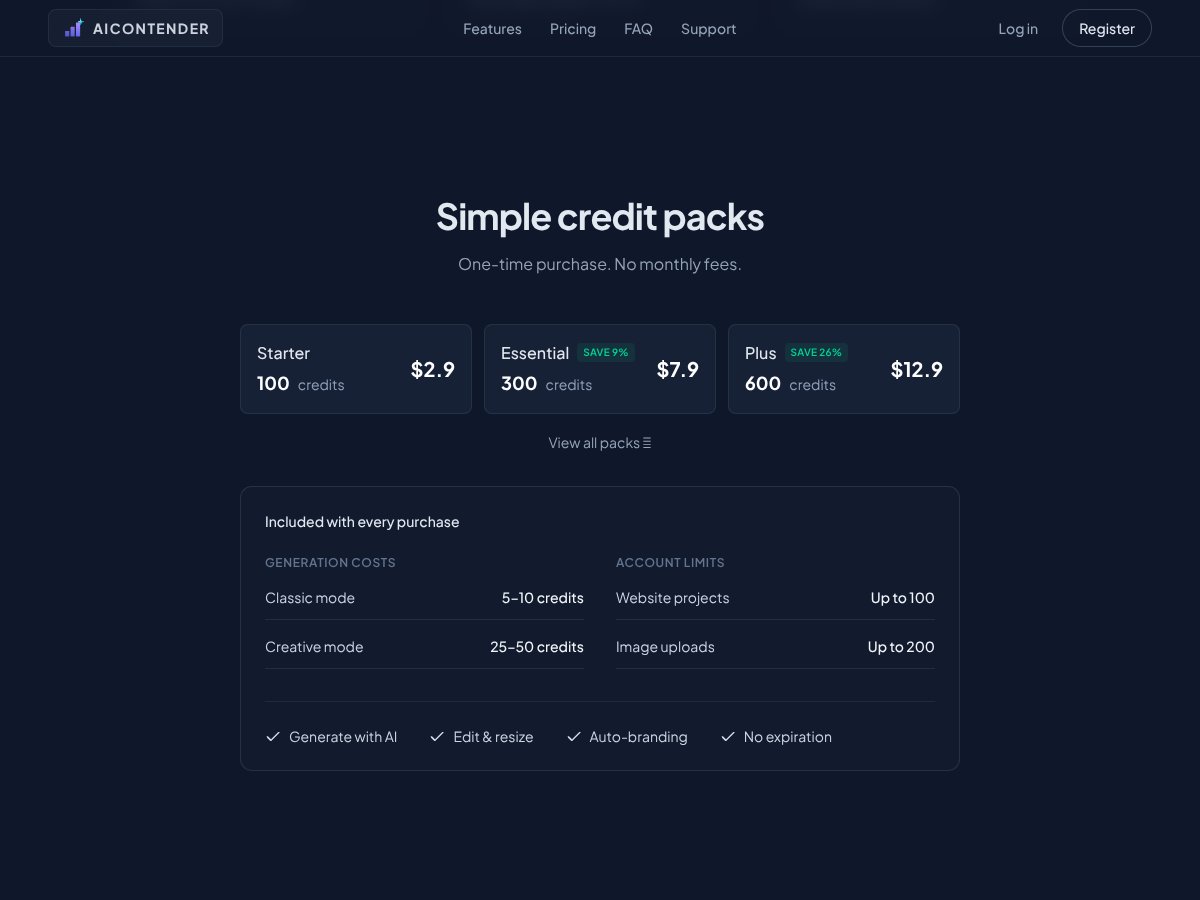
| Plan | Price | What You Get | My Take |
|---|---|---|---|
| Starter Pack | $2.9 (one-time) | 100 credits, basic generation, no subscription required | Good for testing. If you only need a handful of assets, it’s a low-risk way to see if brand extraction works for your site. Just remember: credits get consumed per output, and Creative mode typically costs more than Classic. |
| Essential Pack | $7.9 (one-time) | 300 credits, includes access to classic and creative modes | Solid middle ground. I’d pick this if you plan on generating multiple variations for a few campaigns and want access to both modes without committing to a bigger pack. |
| Plus Pack | $12.9 (one-time) | 600 credits, more flexibility, suitable for moderate use | Better if you’re producing content weekly. Still, if you’re doing lots of Creative-mode experiments, the credit system can add up faster than you’d expect. |
It’s a credit-based, one-time purchase system without clear monthly plans or subscriptions. You buy credits upfront, and they don’t expire (at least that’s how the system is positioned). The part I didn’t love is the lack of a simple “here’s exactly how many designs you’ll get” breakdown, because credits can behave differently depending on the mode and output type.
Fair warning: if you’re a heavy content creator, your real cost won’t just be the pack price—it’ll be how many times you hit “generate,” how many variations you make, and whether you keep bouncing between Classic and Creative.
In my opinion, the pricing feels fair for casual or occasional use. But if you’re trying to replace a subscription design tool for daily production, the credit model may be annoying. You’ll need to keep track of usage manually, because the tool doesn’t give you the kind of predictable “monthly output” budgeting you’d get with a subscription.
If you want to decide faster, use this rule: generate 5–10 samples in Classic mode first. If your brand matching and layout quality are consistent, then consider moving to paid credits for higher volume.
The Good and The Bad
What I Liked
- Website-to-brand extraction: It’s genuinely fast at pulling brand signals, which saves time compared to starting from scratch.
- One-click resizing across many formats: Being able to convert assets without rebuilding the layout is a real time saver.
- Inline editing for quick tweaks: Editing text and adjusting colors directly inside the platform is enough for most “make it ready” changes.
- Credit packs work for small batches: If you don’t generate daily, the one-time model can be cheaper than a monthly subscription.
- Classic vs Creative modes: Classic is great for structured outputs, while Creative is better for attention-grabbing scenes—when you’re okay paying the extra credits.
- Export quality holds up: In my tests, resized outputs stayed sharp enough for real usage (no obvious “blown up” look).
What Could Be Better
- Not enough transparency on credit-to-output math: There isn’t a super clear “X credits = Y designs” breakdown that makes budgeting effortless.
- Limited independent validation: I didn’t find much in the way of user reviews or community feedback. That makes it harder to trust long-term reliability.
- Weak integration story: I didn’t see clear evidence of integrations with tools like Canva, Adobe, Slack, or common marketing platforms.
- Brand extraction isn’t perfect: If your site typography is complex or your design style is inconsistent, you can get mismatches.
- Creative mode can get expensive: If you’re generating lots of variations, credits can disappear faster than you think.
- No subscription/bulk discounts (based on what I could find): Agencies and teams might prefer predictable monthly pricing instead of pay-per-use packs.
Who Is AI Contender Actually For?
AI Contender is best for solo marketers and small business owners who need on-brand visuals quickly without spending hours building designs manually. If you routinely post to social, update ads, or create banners for promotions, this can cut down the “start from zero” part of your workflow.
In my experience, it works especially well when your website has consistent branding—clear colors, readable typography, and a fairly uniform style across pages. For example, if you run a local restaurant and you want seasonal promos, you can paste your site URL, generate a few seasonal variations, then swap the text and image details to match the promotion.
Where it gets tricky is high-volume creators who need highly tailored outputs every time. If you’re a YouTuber making thumbnails all day, a TikTok creator producing daily content, or an email marketer who needs strict brand voice and pixel-perfect layouts, you’ll still have to do more editing than you’d want. This tool is a starter. Not a full replacement.
So yeah—it shines for small-scale, brand-focused content production where speed matters more than perfect custom design from scratch.
Who Should Look Elsewhere
If you need deep customization, advanced design controls, or real collaboration features, AI Contender isn’t the best match. People who care about every pixel (or want to create highly detailed photoreal scenes) may find the generated outputs too limited and the editor too basic.
Also, if you rely on integrations—like exporting into Canva, Adobe workflows, or marketing automation tools—you’ll probably be disappointed. I didn’t see strong evidence of those kinds of integrations being supported.
Fair warning: this tool is built for quick, on-brand generation with minimal fuss. If your workflow requires detailed brand guidelines, multiple-team review processes, or complex multi-step visual compositions, you’ll likely want something more robust.
How AI Contender Stacks Up Against Alternatives
Canva Magic Studio
- What it does differently: Canva Magic Studio lives inside Canva’s broader design ecosystem. You get templates, design tools, and collaboration features in one place, and the AI helps with layout and element suggestions.
- Price comparison: Canva’s free plan is limited, and Pro is typically around $12.99/month. Magic Studio features are included in Pro, which makes it easier to budget if you’re producing content regularly.
- Choose this if... you want an all-in-one design platform with collaboration and deeper editing controls.
- Stick with AI Contender if... your main goal is quick brand-matched visuals generated from your website, and you don’t want to build everything manually.
Adobe Firefly
- What it does differently: Adobe Firefly is built for generating high-quality images from prompts, and it fits naturally if you already work in Adobe’s ecosystem.
- Price comparison: Firefly has had free/beta options, but Adobe’s full suite is expensive. It’s common to see $20/month+ depending on the app plan and region.
- Choose this if... you need advanced AI image generation and you’re comfortable working in Adobe.
- Stick with AI Contender if... you want faster branded marketing assets pulled from your website, without paying Adobe-level subscription costs.
Midjourney
- What it does differently: Midjourney is a text-to-image tool that’s more about artistic exploration—often surreal and less “brand consistent” unless you do a lot of prompt discipline.
- Price comparison: Midjourney is typically subscription-based (around $10/month for basic plans), with additional costs depending on usage and commercial rights.
- Choose this if... you want creative, artistic visuals and you’re okay with a less “automatically on-brand” result.
- Stick with AI Contender if... you want consistent, website-derived brand visuals without running prompt experiments all day.
Crello (VistaCreate)
- What it does differently: Crello/VistaCreate is a Canva-style platform with lots of templates and AI help for creating social posts quickly.
- Price comparison: Free plans exist with limitations, and Pro is often around $9.99/month depending on promotions and region.
- Choose this if... you want a budget-friendly tool that’s easy to use for social content with template variety.
- Stick with AI Contender if... you’d rather automate brand matching from your website than manually pick templates and assets.
Bottom Line: Should You Try AI Contender ?
I’d rate AI Contender a solid 7/10 based on how it performed in my tests. It’s fast, the brand extraction workflow is convenient, and the resizing/editing is good enough to be practical for day-to-day marketing.
Who should try it? Small business owners and social media managers who want quick, on-brand visuals and don’t need ultra-custom design control. If you’re okay with editing the output a bit—and you understand the credit model—you’ll probably get value.
Who should skip it? Anyone who needs deep customization, strong collaboration, or consistently perfect brand matching. If your output has to be pixel-perfect or your brand is typography-heavy, you’ll likely spend time correcting issues that a more advanced tool would handle better.
The starter pack is the smartest move if you’re curious. Test it with a Classic-mode run first and compare the typography and colors against your actual brand. If it saves you enough time to justify the credits, then it makes sense to upgrade. If not, there are better options for detailed creative control.
Common Questions About AI Contender
- Is AI Contender worth the money? It’s worth it if you need quick, website-derived visuals and you’re okay doing light editing. If you require heavy customization or very consistent brand typography, it may fall short.
- Is there a free version? I didn’t see a true free tier available as of my check. You can often test a few designs with limited credits or a demo flow, but confirm what’s included before buying.
- How does it compare to Canva Magic Studio? Canva is more complete for design workflows and collaboration. AI Contender is better if you want automation that starts from your website and generates assets quickly.
- Can I get a refund? Refund policy details weren’t clearly presented in what I reviewed. Check the terms and contact support before purchasing larger credit packs.
- What file formats does it support? The tool claims support for common export formats like PNG, JPG, and SVG. In practice, I recommend you verify the exact export options inside the format/settings screen for your account.
- Can I edit the generated designs? Yes. You can edit text inline and adjust certain elements within the platform.
- Does it support multiple languages? The vendor claims you can provide briefs/instructions in different languages. In my tests, the results depended heavily on the input quality—so if you want clean copy, give clear instructions.