Table of Contents
What Is AI dication by Snaply (and Does It Actually Work)?
I’ll be honest—I went into AI dication by Snaply pretty skeptical. “Local,” “free forever,” and “no cloud” are the kind of claims that usually come with some kind of catch. But I still wanted to see if it was real, so I tested it myself.
Test setup (so you know what I’m basing this on): I installed it on macOS 14.4 using a MacBook Air (M2, 2022). I used the built-in microphone for most checks, and I also tried a USB headset once to see if it changed transcription behavior.
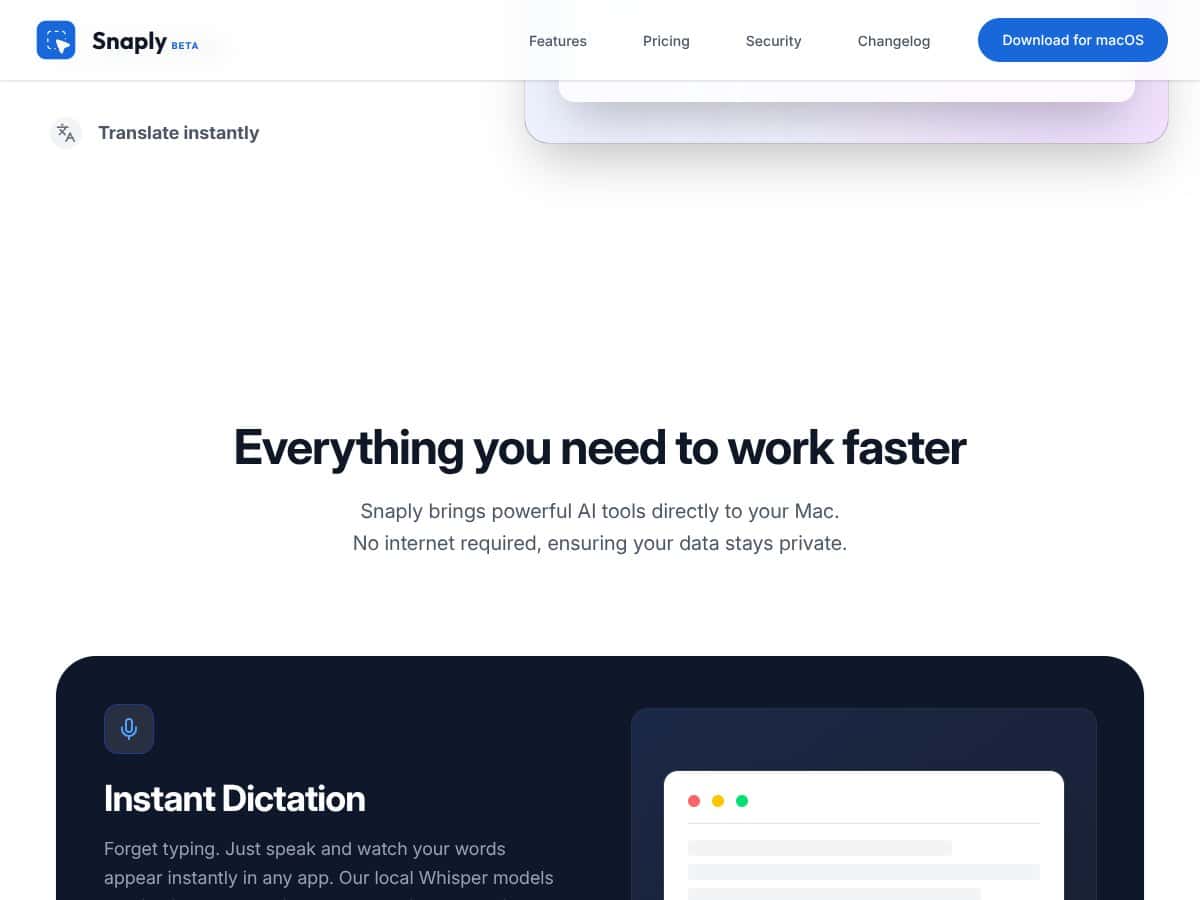
In plain English, AI dication by Snaply is a speech-to-text dictation app that runs on your Mac. It listens to your voice, turns it into text, and then can help you clean things up—grammar tweaks, tone adjustments, and translation—without you having to rely on an internet connection once the app is set up.
The privacy angle is the whole point. If you’re the type of person who doesn’t love sending voice data to cloud services, it’s a relief. In my experience, that matters most when I’m dictating sensitive stuff—client notes, rough drafts, or anything I’d rather keep local.
Also, quick expectation check: this isn’t a full voice assistant. It’s not trying to be Siri. It’s primarily a dictation tool with AI-assisted editing and translation. So if you want “ask a question and get an answer” style interactions, you may feel like you’re using the wrong category of software.
Here’s what I noticed after using it for a while: it’s built for people who want to write faster without constantly switching between voice and typing. The “AI” part shows up most when you let it revise what you dictated—especially when you’re turning rough speech into something you’d actually send.
One limitation up front: Snaply mentions some features like automatic meeting notes that are “coming soon.” I only tested the features that were available during my run, and I didn’t try to fake the rest. If meeting summaries are your top priority, you’ll want to confirm current release status before you commit.
AI dication by Snaply Pricing: Is It Worth It in 2026?
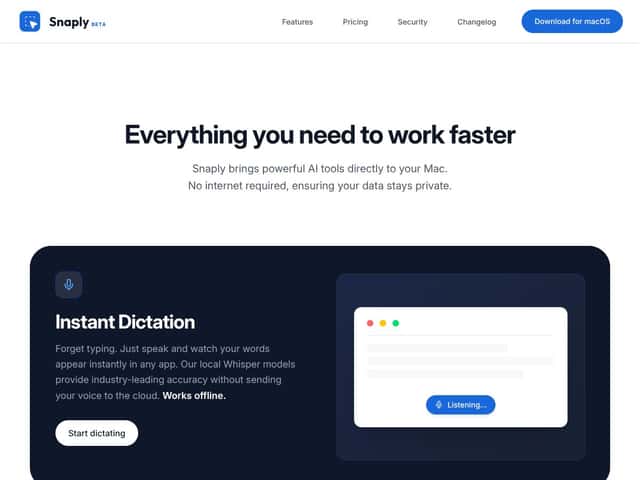
- Instant voice typing
- AI text transformation (grammar, tone)
- Instant translation (100+ languages)
- Offline, local processing
- App integrations (Notion, Slack, etc.)
- Unlimited usage
- All individual features
- Centralized management
- Custom model fine-tuning (possibly)
- Additional support options
| Plan | Price | What You Get | My Take |
|---|---|---|---|
| Free (Individual) | Free forever | Honestly, this is the part that surprised me. For a privacy-focused dictation tool, “free forever” is rare. If you’re testing it for everyday writing, it’s a pretty low-friction way to see if it fits your workflow. | |
| Team Plans | Check website for latest pricing | Team pricing is less transparent. If you’re buying for a company, you’ll want to verify what “centralized management” actually includes (and whether any features are gated). |
What I’d Tell a Friend About the Cost
If you’re an individual user, Snaply’s free tier is the selling point. When I compare it to common cloud dictation options (where you often pay for minutes, storage, or higher-quality features), not having a subscription requirement is a big deal.
That said, I don’t love when pricing pages are vague. During my testing, I didn’t hit a visible usage cap, but I also didn’t run a month-long workload to prove “unlimited” beyond doubt. If you’re the kind of person who dictates for hours every day, I’d still recommend checking Snaply’s current policy text and any fine print on their pricing page before you build a heavy routine around it.
Also, if you’re expecting automatic meeting summaries right now, keep in mind those features weren’t available to me during testing. So “worth it” really depends on whether you need dictation + editing today, or meeting automation later.
The Good, the Bad, and the Stuff That Actually Matters
What I Liked (After Using It)
- Privacy-first design: The app is built around local processing. That’s a huge plus for anyone dictating sensitive content. In my experience, it felt much less “risky” than cloud-first tools.
- Free for individuals: No subscription pressure. I tested it in real writing workflows instead of treating it like a trial.
- Editing feels practical: The grammar/tone tools aren’t just flashy—they actually help when you’re turning spoken sentences into something cleaner.
- Translation is useful (and fast in practice): I didn’t just test a single word or phrase. I ran a few short paragraphs and compared how the output read. It was good enough that I’d actually use it for quick drafts.
- Offline capability: I tested dictation with internet turned off after setup. Dictation still worked, which was the main thing I cared about.
- Mac integration: It’s designed to fit into a Mac workflow rather than feeling like a separate “lab tool.”
What Could Be Better (Real Limitations)
- Some features weren’t available: “Coming soon” items like meeting notes mean it’s not a full replacement for tools aimed at transcription + summaries right now.
- macOS-only: If you’re on Windows or Linux, you’re out of luck. That’s a dealbreaker for mixed teams.
- Documentation could be clearer: I got things working, but I had to experiment a bit with permissions and how the app hooks into editing areas. More step-by-step guidance would help new users.
- Local models can mean trade-offs: Offline dictation is great, but local processing sometimes won’t match the “best possible” accuracy you might see in cloud systems—especially with heavy accents or unusual vocabulary.
- Translation quality varies by input: If you speak in very fragmented sentences, the translation output can look more awkward. Cleaner dictation improves results.
Offline Dictation Test: What Worked (and What Didn’t)
This was my main checklist item, since Snaply’s privacy pitch depends on local processing. I turned off Wi‑Fi after initial setup and ran a few dictation passes.
What worked: live dictation into text fields, basic punctuation handling, and the editing tools I had access to in the app.
What felt weaker: anything that relies on “AI magic” that might be tied to online services (like certain advanced transformations). I didn’t see a total failure, but I did notice that some optional features didn’t behave the same way when I was offline.
If you’re deciding between Snaply and a cloud dictation tool, this matters. For sensitive work, offline stability is the win—but you should still confirm which features are truly offline-capable in the current release.
Who AI dication by Snaply Is Actually For
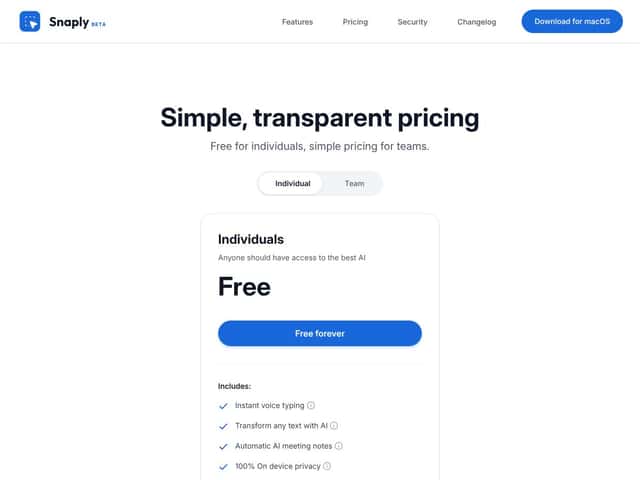
Snaply is a strong fit if you’re on a Mac and you want dictation that stays local. I think it’s especially good for:
- Freelancers and consultants who dictate client notes, drafts, and follow-ups
- People who write emails all day and want to cut down typing fatigue
- Multilingual workflows where you need quick translation for drafts
- Anyone working with sensitive info who doesn’t want to rely on cloud voice processing
In my case, I used it for quick “talk it out, then clean it up” writing. That’s where the grammar/tone assistance feels most helpful—because speech is messy, and editing makes it readable.
Where I’d pause: if your job depends on automated meeting notes and summary workflows right now, Snaply may not fully cover that yet. It’s not that it’s bad—it’s that it’s not trying to be an all-in-one meeting platform at launch.
Who Should Look Elsewhere
If you need cross-platform support (Windows/Linux) or you’re buying for a team that expects heavy cloud collaboration, Snaply probably won’t be your best match. It’s currently aimed at Mac users, and that focus shows.
Also, if you’re specifically looking for a mature meeting-note experience—things like reliable summaries, speaker-aware transcription, and team sharing—cloud-first tools will likely feel more complete today.
One more thing: if your dictation usage is intense, you’ll want to verify pricing policy details. “Free forever” is great, but I always check whether there are any hidden limits (minutes, features, or future tiers) before I make it my daily driver.
How AI dication by Snaply Stacks Up Against Alternatives
MacWhisper
- What it does differently: MacWhisper is open-source and uses local Whisper models, but it’s more about transcribing audio files than doing a smooth real-time dictation workflow with editing.
- Price comparison: Free, but you’ll likely spend more time setting things up and tuning it to your needs.
- Choose this if... you want offline transcription from recorded audio and you don’t mind a more technical setup.
- Stick with AI dication by Snaply if... you want real-time dictation plus editing features without building your own workflow.
Otter.ai
- What it does differently: Otter is cloud-based and shines with meeting transcription, collaboration, and sharing. You’re trading offline privacy for convenience.
- Price comparison: Otter’s free plan includes a monthly minute limit; paid plans cost more depending on storage and features.
- Choose this if... you need team workflows, meeting notes, and cloud-powered features.
- Stick with AI dication by Snaply if... you care more about offline/local dictation and privacy than collaboration.
Dragon NaturallySpeaking
- What it does differently: Dragon is a long-standing professional dictation tool with deep customization and strong accuracy, but it’s built for people who want a very configurable setup.
- Price comparison: It’s typically a paid product and can be expensive depending on the edition.
- Choose this if... you need maximum accuracy and advanced command/control features for professional dictation.
- Stick with AI dication by Snaply if... you want a free, local-first dictation tool for everyday writing.
Google Docs Voice Typing
- What it does differently: Voice typing is convenient inside Google Docs, but it’s cloud-based, so privacy and offline use aren’t the same story as a local app.
- Price comparison: Free.
- Choose this if... you already live in Google Docs and want a no-hassle option.
- Stick with AI dication by Snaply if... offline dictation and local privacy are your priorities.
Bottom Line: Should You Try AI dication by Snaply?
After testing AI dication by Snaply, I’d rate it 7/10 for the kind of user it’s targeting. It’s a straightforward, privacy-first dictation tool for Mac, and it does a solid job at the core job: turning speech into text, then helping you clean it up.
If your main goal is quick dictation + grammar/tone help and you want it to work offline, it’s absolutely worth trying—especially since the individual plan is free.
If you need meeting summaries, team collaboration, or cross-platform support, you’ll probably be happier with a different tool until Snaply’s “coming soon” features land.
So yeah—if you’re on macOS and privacy matters, I’d test it. Just don’t expect it to replace a full meeting transcription platform or a professional dictation suite overnight.