Table of Contents
I’ve been using Google Sheets, Docs, and Slides for work for years, so I’m always looking for add-ons that don’t turn “quick edits” into a whole project. AiAssistWorks caught my eye because it puts AI directly inside the Google tools instead of making me copy/paste everything into a separate website. That’s a big deal when you’re working with spreadsheets all day.
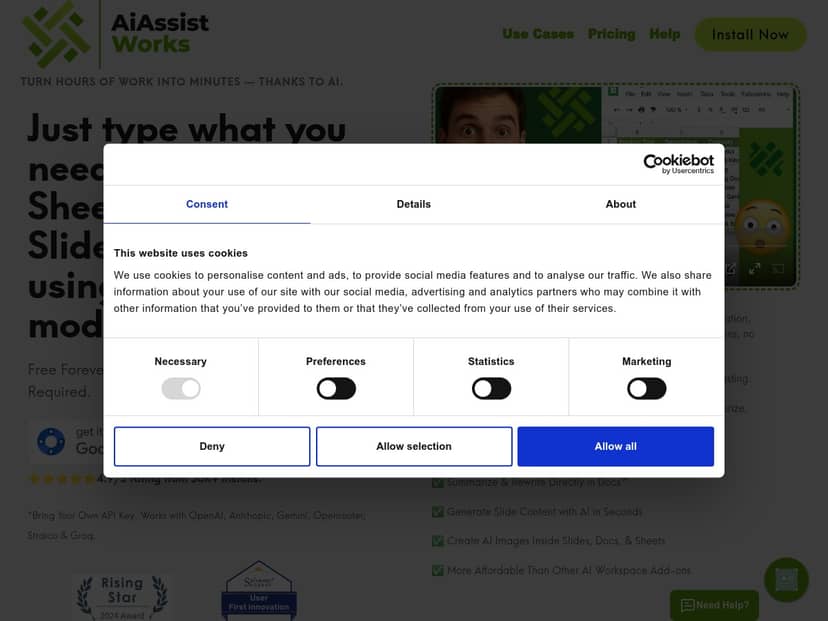
AiAssistWorks Review: What It’s Like in Real Google Workspace Work
First thing: I didn’t try to “break” it with crazy workflows. I started with the stuff that actually wastes my time—cleaning up spreadsheet data, generating drafts in Docs, and turning rough notes into slide-ready copy.
Setup (what I actually did): I installed the add-on, opened a Google Sheet, and looked for the AiAssistWorks sidebar/prompt panel. Then I used it like a normal assistant: select a range (or leave it to apply to the whole sheet), type instructions, and let it generate content back into the sheet. No formulas required on my end, which I honestly appreciated. I’m not against formulas, but I don’t want to spend 20 minutes writing a formula when I’m trying to ship a report.
Sheets test #1 (data cleanup + categorization): I had a column of messy entries (inconsistent naming, lots of duplicates). I used a prompt along the lines of: “Clean these values and categorize them into these buckets: Hardware, Software, Services. Keep the original value in a separate column, and output the category.” What I noticed was that the output was usually usable immediately, but I still had to skim for a few edge cases—especially when the input strings were super vague. That’s normal for AI, but it’s worth knowing: you’ll still do a quick review pass.
Sheets test #2 (filling rows from examples): Next I tested generation. I created a small “example block” with the columns I wanted (think: Product, Use case, Target persona). Then I asked it to fill additional rows based on that format. In my experience, the biggest time-saver wasn’t “one perfect row.” It was having it generate consistent phrasing for dozens or hundreds of rows so I could focus on checking accuracy instead of writing everything from scratch.
Docs test (summaries + rewriting): For Docs, I used it more like a writing assistant. I pasted a section of notes and asked for: “Summarize this into 5 bullet points. Then rewrite the intro paragraph so it sounds professional but not robotic.” The output was solid for quick drafts, and I liked that I could refine without leaving the document. If you’re doing weekly reporting or turning meeting notes into something polished, this part feels genuinely useful.
Slides test (turning notes into slide text): Slides was similar: I fed it rough headings and asked for slide-ready copy. What I liked here is that you can iterate quickly—generate, adjust tone, regenerate. What I didn’t love is that image generation/embedding (if you use it) can add a bit of friction depending on the exact workflow and how your deck is structured. It’s not a deal-breaker, but it’s not “instant magic” either.
So, does it live up to the hype? For me, yes—especially for repetitive work inside Google Workspace. But it’s not the kind of tool where you set it once and never touch it again. Expect a short review step, and you’ll get the best results.
Key Features (and how they show up in practice)
- Multiple AI model options (50+ to 100+ including GPT, Claude, and Gemini)
- In my tests, switching models helped when one response style was too “wordy” or not specific enough. If you’re doing content drafting in Docs, you might prefer one model for tone and another for factual extraction. It’s nice having options instead of being locked into a single engine.
- Sheets automation for large row work
- I didn’t just test one cell. I tested filling many rows using the same column structure. The biggest win was consistency: the phrasing stayed aligned across rows, which made it easier to review and spot problems. If your workflow involves repetitive fields (categories, tags, short descriptions), this is exactly where it shines.
- Generate, summarize, and revise content in Docs
- My go-to prompts were the practical ones: summarizing pasted text, rewriting intros, and converting notes into bullet points. Example prompt I used: “Turn this into 6 bullets. Make the first bullet the ‘key takeaway’ and keep the rest actionable.” That “actionable bullets” style is where it saved me time.
- Create slide decks quickly + embed AI images
- For Slides, I used it to generate slide titles and short descriptions (not full paragraphs). When I tried longer copy, it tended to get cramped. Also, if you’re embedding images, plan for a little cleanup—especially if the deck has a specific theme/layout.
- Natural language instructions (no formulas)
- This is the feature I cared about most. I’m comfortable with formulas, but natural language is faster when you’re describing what you want in plain English. Example: “Normalize these names, remove duplicates, and add a column for the cleaned value.”
- API integrations for advanced customization
- If you’re a developer, you’ll probably like this. For everyone else: this is where setup can get more technical. I didn’t build a full custom integration during my test, but I did check the general setup flow and it clearly expects API key/permission work. If you’re not comfortable with that, you’ll likely stick to the standard add-on prompts.
- Multi-language support
- If you work with global teams, this matters. I didn’t run a huge multilingual dataset test, but the UI supports switching languages and prompts can be written in the target language.
Pros and Cons (based on what I ran into)
Pros
- Fast to use for everyday tasks — I didn’t need to learn a new syntax. I just typed what I wanted and worked inside Sheets/Docs/Slides.
- Great for repetitive spreadsheet work — categorization, row expansion, and generating consistent text fields are where it saved me the most time.
- Model choice is genuinely useful — being able to try different engines helps when one output doesn’t match your tone or structure.
- No formulas required — even if you know formulas, AI prompts are often quicker for “this is what I need” tasks.
- Good entry options — the free tier is enough to test whether it fits your workflow before you pay.
Cons
- Advanced/API stuff isn’t beginner-friendly — if you want deeper customization, expect API key setup and permission steps. That’s not “click and done” for most non-developers.
- Free credits can disappear faster than you’d expect — the free plan gives you a limited number of execution credits, so heavy generation (lots of rows, long prompts) will burn through it. In other words: it’s great for testing, not for running your whole operation.
- Docs and Slides feel a bit less mature than Sheets — Sheets is where the workflow clicks hardest. Docs/Slides are strong, but the “best experience” is still very Sheets-centric in my opinion.
- Cost can add up with frequent large runs — if you’re doing high-volume row generation every day, you’ll want to plan your usage (or budget for it).
Quick reality check: AI output still needs human review. If you’re using it for anything that affects decisions (pricing, compliance, reporting numbers), don’t skip verification.
Pricing Plans (and what “credits” means in practice)
Here’s how the pricing breaks down: there’s a free forever plan, a Plus Monthly option, and a lifetime plan.
- Free forever: 100 execution credits per month
- My takeaway: this is best for light testing—trying prompts, generating a handful of drafts, and doing small Sheets experiments. If you start doing large row generation, you’ll notice the credits running down.
- Plus Monthly: $4/month
- The page positions this as unlimited use of all AI models plus priority support. In practice, “unlimited” usually still means there are internal limits (like rate limits, heavy usage throttling, or practical caps depending on what you run). For me, the main difference was less stress about running additional prompts while testing different workflows.
- Lifetime: $49 one-time
- If you know you’ll use it regularly, the lifetime option can be a good deal. I’d only recommend it if you’re pretty sure you’ll keep doing Sheets/Docs/Slides tasks where AI helps—because otherwise you might be paying for a tool you end up using occasionally.
What I’d do to estimate costs before committing: pick one real workflow you do weekly (for example: “generate 200 rows of descriptions” or “rewrite 10 sections of reports”). Then run a small test and watch how many generations you can do before you hit the free credit limit. That gives you a realistic sense of whether $4/month (or $49 lifetime) is worth it for your actual use.
Wrap up
AiAssistWorks is one of those tools that makes sense if you live in Google Workspace. For me, the value came from staying inside Sheets/Docs/Slides and using natural language to handle the repetitive stuff—especially when generating consistent text across rows or drafting summaries in Docs.
If you’re mostly doing occasional writing, you might not need it. But if you regularly clean data, expand rows, summarize reports, or build slide copy from notes, it’s a pretty practical add-on. Start with the free plan, test your heaviest workflow, and only then decide if the paid tiers fit your pace.