Table of Contents
So I tried animanic to see if it’s actually as easy as it claims. And yeah—at least for getting decent-looking animations up quickly, it delivers. The whole pitch is basically: make animation less intimidating, give you templates and ready-made assets, and let you focus on creating instead of getting stuck in tool setup hell.
If you’re brand new, you’ll probably like how it guides you through the basics. If you’ve animated before, you might still enjoy it for fast prototypes, quick social clips, or educational-style videos where you don’t need ultra-custom character rigs. Either way, I went in expecting “okay, but limited.” What I noticed is that it’s more usable than most beginner-friendly animation tools I’ve tested—just with a couple trade-offs.
animanic Review
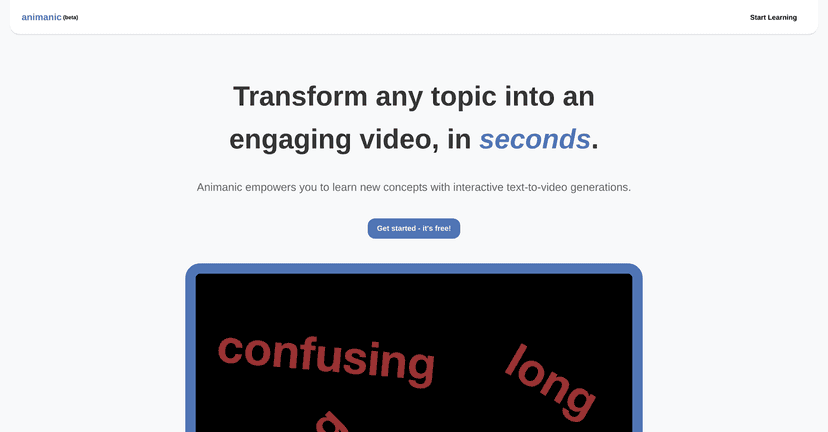
animanic is positioned as an animation platform that makes the process feel straightforward. The big help here is that it leans hard on usability: drag-and-drop building, templates you can start from immediately, and a library of characters/assets so you’re not hunting for everything from scratch. In my experience, that matters because animation projects die early when setup takes longer than the actual creative work.
What I liked most is that you can create both simple and more polished-looking animations without needing to be a full-time rigger or motion graphics wizard. If you’re making things like explainer clips, short promo videos, or educational content, it’s the kind of tool that helps you get to “something watchable” fast.
Now, I’ll be honest: if you’re expecting the same level of deep, frame-by-frame control you’d get in high-end professional suites, you may feel limited. But if your goal is to produce clean animations efficiently, animanic feels built for that.
Key Features (What I Actually Used)
- Drag-and-drop interface — I found the workflow pretty easy to follow. You’re not constantly digging through menus, and it’s clear what you’re supposed to add next. That’s a win for beginners.
- Templates and pre-built characters — Instead of starting from a blank canvas, you can begin with a template and swap in your own text/scene elements. This is where you save a ton of time.
- Multiple animation styles (2D and 3D) — I tested both-style outputs and noticed the tool tries to keep things consistent so you don’t feel like you’re learning a totally different product.
- Collaboration features — If you’re working with a team, it’s handy that there’s a way to collaborate without everyone rebuilding the same project. For group projects, this reduces “version chaos.”
- High-quality output — The results I generated looked crisp enough for typical online use. It’s not just “placeholder animations”—you can actually post what you make.
Pros and Cons (My Honest Take)
Pros
- Beginner-friendly — The interface doesn’t feel like it’s trying to intimidate you. I didn’t need a long tutorial to get my first basic animation running.
- Good for different styles — Whether you want something more 2D-like or a 3D-ish look, the platform doesn’t feel awkward to switch between.
- Pricing that won’t scare individuals — The plans are positioned to be accessible, especially if you’re testing the tool before committing.
- Customer support — When I had questions, the support experience seemed responsive (and that alone is worth a lot when you’re stuck mid-project).
- Regular updates — New templates and improvements are a big deal in tools like this. You don’t want to feel like the library is frozen.
Cons
- Some advanced tools still take time — I could do simple projects right away, but when I tried more complex edits, I had to slow down and learn the “way animanic wants you to work.”
- Template customization isn’t limitless — You can tweak and personalize, but you won’t always be able to fully break out of the template structure the way you might in a more open-ended editor.
- Performance can dip on lower-end devices — On a less powerful machine, preview and rendering felt slower. If your laptop is older, plan for some waiting during export.
Pricing Plans (What You Get for Your Money)
animanic’s pricing is set up for different types of users. There’s a free trial that lets you explore the basics, which I recommend doing before you commit—because you’ll quickly learn whether the template style matches what you want to create.
After that, the premium plan is where you get access to all features and the full template library. It’s offered as a monthly or annual subscription, and in my opinion the annual option makes more sense if you’re planning to create regularly (like weekly content for a channel or course).
They also mention plans for teams and educational institutions. If you’re teaching animation or running a class, having a platform that supports multiple users and shared projects can be a big time-saver.
Quick tip: use the trial to test the exact thing you care about—like whether your characters animate the way you expect, and how smooth previews feel on your device. That’s usually the make-or-break factor.
Wrap up
Overall, I think animanic is a solid choice if you want animation results without spending weeks learning software. It’s especially good for template-driven projects—think explainer clips, promo videos, training content, and other “get it done and make it look good” work. The interface is approachable, the outputs look professional enough for real use, and the library helps you move faster than you would starting from scratch.
Just go in with realistic expectations: if you want total creative control, you might feel constrained by template customization and performance on weaker devices. But if your goal is to create captivating animations efficiently, animanic is absolutely worth a try.
Promote animanic