Table of Contents
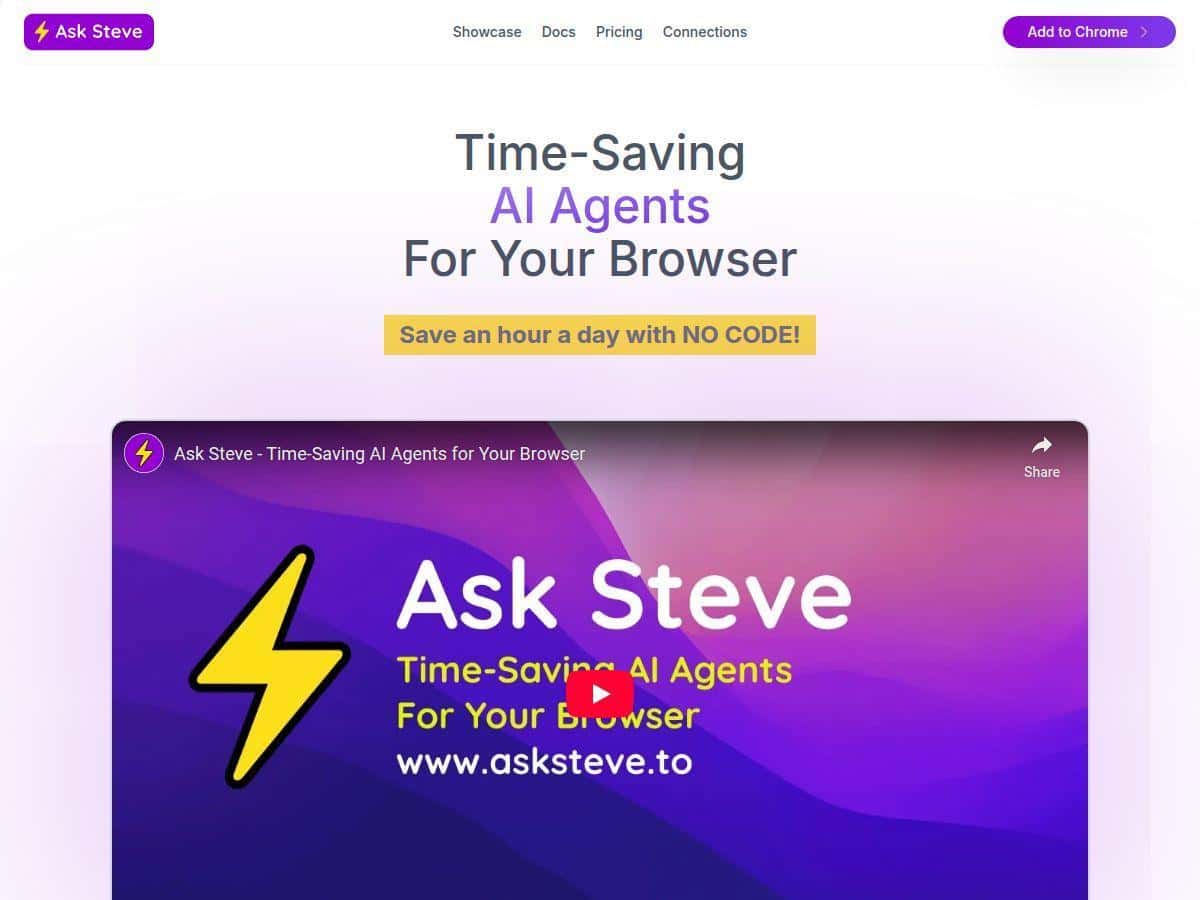
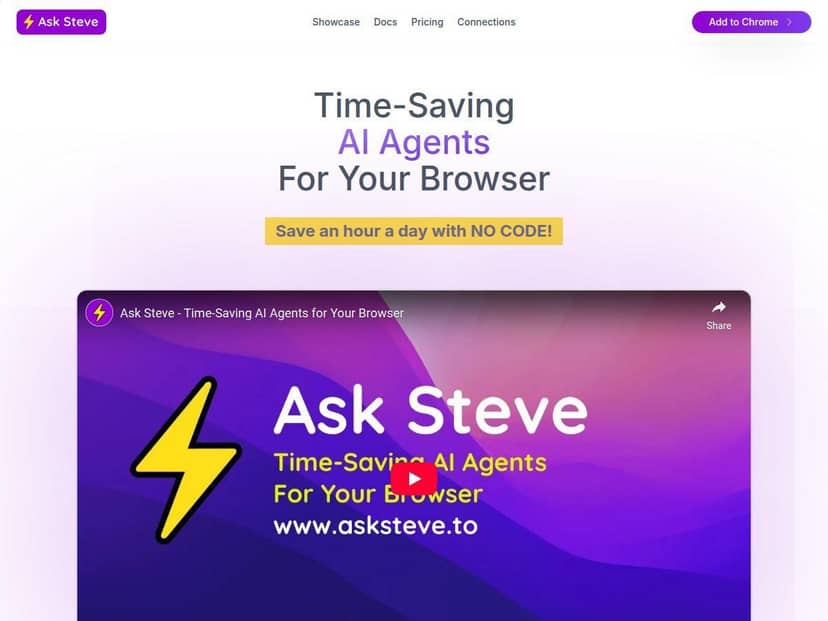
If you’re anything like me, you spend way too much time bouncing between tabs just to do the same “little” tasks over and over—summarizing pages, drafting emails, copying info into spreadsheets, and trying to remember what you meant to do in the first place. That’s why I wanted to test Ask Steve. It’s a browser extension that puts an AI assistant into the page you’re already working on, so you don’t have to paste everything into some separate chatbot window. In my experience, that “stays in-context” part is where it actually saves time.
Ask Steve Review
I tested Ask Steve on a few real workflows I do almost every week: reading and summarizing long articles, drafting outreach emails, and turning messy notes into something usable in a spreadsheet. The extension setup is straightforward—no weird “install five things” process. Once it’s installed, it’s basically an AI panel that can respond to what you’ve got open (or what you highlight).
Here’s what I noticed right away. When I’m on a page, I don’t have to copy the whole thing into a separate tool. I can select a paragraph, ask for a summary, and get an answer that lines up with the selection. That sounds small, but it’s the difference between “I’ll do this later” and “okay, done.”
What I tested (3 practical examples)
- Article summarization: I opened a long blog post, highlighted a section (roughly 3–5 paragraphs), and asked for “a 5-bullet summary plus 2 key takeaways.” The output came back quickly enough that I wasn’t waiting around, and it stayed focused on the highlighted portion instead of drifting into generalities.
- Email drafting: I pulled up a draft email in Gmail, then used Ask Steve to rewrite it for clarity and a friendlier tone. What I liked: it asked me to keep the main points and didn’t just “rewrite for rewrites’ sake.” What I didn’t love: if I gave it a vague prompt (like “make it better”), it returned something decent—but not specific. The moment I said what I wanted (shorter, more direct, include a specific CTA), the results improved.
- Spreadsheet-style work (Google Sheets): I used the data integration workflow to turn notes into rows. In my case, I didn’t want to write formulas or do any manual cleanup, so I asked it to output in a structured format I could paste directly into Sheets. This is where it shines: it reduces the “copy → paste → reformat → fix columns” loop.
One more thing: voice. I tried it while multitasking (laundry day energy, you know?). It worked well enough that I didn’t feel like I was fighting the UI. The best part wasn’t just hands-free control—it was quick follow-ups. I could say something like “summarize that in plain English” and keep moving. Still, if your background noise is loud or your mic setup is off, expect the usual speech-to-text hiccups. That’s not unique to Ask Steve—it’s just how voice works.
Overall? It felt reliable for everyday tasks where you want speed and context. If you’re expecting it to magically replace every workflow tool you use, that’s not really the point. But if you want a helper that lives where you already work—in the browser—this one makes sense.
Key Features
- Integrated AI agents for working alongside on any website
-
Where it shows up: you interact with it from the extension panel while you’re on a page.
How I used it: I asked it to summarize a selected section and then rewrite the key points into a checklist.
What it requires: an internet connection (and whatever the extension needs under the hood to reach its AI backend).
What the output looks like: structured text (bullets, steps, short paragraphs) that matches the page content you selected. - Contextual understanding (based on current page or selection)
-
Where it shows up: when you highlight text, Ask Steve can use that selection as the “source.”
Example use case: “Summarize this section and list any assumptions the author is making.”
Constraints: if you select too little context, it can only answer what you gave it—so you’ll get shorter, more surface-level responses.
What I noticed: prompts work better when you specify the format (bullets, table-like steps, action items). - Data integration that writes directly into Google Sheets, Salesforce, and more
-
Where it shows up: in the extension’s workflow/integration area when you choose a target like Sheets.
Example use case: “Convert these notes into columns: Name, Topic, Next Step, Priority.”
Constraints: you’ll need the relevant connection/permissions for the target app (and in some cases an API setup depending on how the tool routes requests).
What output looks like: structured rows/fields so you’re not staring at a wall of text. - Voice interaction for hands-free commands in multiple languages
-
Where it shows up: voice controls inside the extension panel.
Example use case: “Draft a shorter version of that paragraph” or “Give me three options for the subject line.”
Constraints: internet + a working microphone. If your voice recognition struggles, you’ll need to switch to typed prompts.
Output: the same kind of structured responses, just triggered by spoken input. - Customizable agents without coding (API connections)
-
Where it shows up: in the agent setup/config screens inside the extension.
Example use case: create an “Email Assistant” agent that always formats output with greeting → body → CTA.
Constraints: “no coding” doesn’t mean “no setup.” You still have to connect the right services and confirm permissions. In my case, getting the integration to behave the way I wanted took a little trial and error with prompts and settings.
Output: consistent responses in the format you specify. - Interactive chat with specific tabs or groups
-
Where it shows up: chat modes that tie to a tab/group rather than forcing you to paste everything manually.
Example use case: “Based on this tab, pull out the requirements and summarize them as a checklist.”
Constraints: if the tab content changes or you switch pages, you may need to re-run the prompt so the assistant is looking at the right material.
Output: answers that reference the page you’re on, not random guesswork. - Email assistance for drafting, summaries, and management
-
Where it shows up: while you’re composing or reviewing email content in your browser.
Example use case: “Summarize this thread and draft a reply that asks for a timeline.”
Constraints: it works best when you provide the key context (the thread or the relevant message text). If you only paste one sentence, you’ll get a reply that’s missing the “why.”
Output: short drafts, rewrite options, and sometimes multiple subject lines.
Pros and Cons
Pros
- Fast for real work: selecting text and getting a structured answer is quicker than copying everything into a separate chatbot.
- Good contextual behavior: it’s better than generic “ask anything” tools when you anchor it to a selection.
- Voice is genuinely usable: I didn’t feel like it was a gimmick—especially for quick follow-ups.
- Integrations help with cleanup: turning notes into spreadsheet-ready structure is where it saves the most time.
Cons
- It relies on third-party services: if the underlying AI backend or connected services are slow/down, your experience drops. In my testing, the extension was responsive when services were healthy and noticeably less helpful when they weren’t.
- Offline use isn’t really a thing: without internet, you won’t get meaningful AI responses. That’s the tradeoff for “AI in the browser.”
- Setup for advanced workflows takes time: “advanced features” usually means connecting accounts/permissions and tuning prompts/agent behavior. For a first-time user, I’d expect a bit of fiddling before it feels effortless.
Pricing Plans
Pricing is one of those areas where you should confirm the exact terms before you commit. Based on what I saw while testing, Ask Steve offers: a free BYO account plan and pay-as-you-go credits.
- Free BYO plan: it’s positioned as unlimited use with your own developer LLM account. For anyone considering this, the practical “gotcha” is that unlimited depends on your own provider/usage limits—so you’re not getting free compute from Ask Steve; you’re using your own.
- Pay-as-you-go: the extension lists $9.99 for 5 million credits. I recommend treating credits like a budget: if you’re doing heavy summarization or long outputs across multiple tabs, you’ll burn through credits faster than you expect.
- Enterprise: there are enterprise plans “upon contact,” which usually means customization, team support, and admin-style controls.
If you want to double-check the latest numbers and any caps/limits, make sure you verify directly on the official pricing page linked from the extension site. (Pricing pages can change, and I don’t want to guess on current credit rules.)
Wrap up
Ask Steve is best when you want AI right where you’re already browsing—summarize selected text, draft emails faster, and push structured info into tools like Google Sheets without turning your workflow into a copy/paste mess. If you’re the kind of person who likes shortcuts and hates context switching, it’s a solid pick.
Just be realistic: it’s not magic offline, and advanced features depend on connected services and some initial setup. For me, though, the time saved on everyday browser tasks was noticeable enough that I kept using it after the test.