
Table of Contents
Writing well matters, whether you’re crafting an email, penning your next blog post, or working on a crucial academic paper. That’s why choosing the best proofreading software is a game changer. It can mean the difference between making a great impression or missing the mark.
Finding the right tool can feel overwhelming with so many options out there. Each offers something unique, from fixing grammar mistakes to enhancing your writing style. This guide aims to help you navigate through those choices, ensuring you pick the software that best fits your writing needs.
No matter what you’re writing, there’s a tool out there that can help improve your work. Let’s dive into how to select the perfect proofreading software for your specific writing goals.
15 Best Proofreading Software
Here are some of the best tools on the market for you who are looking to improve and proofread your writing with no hustle:
1. Grammarly
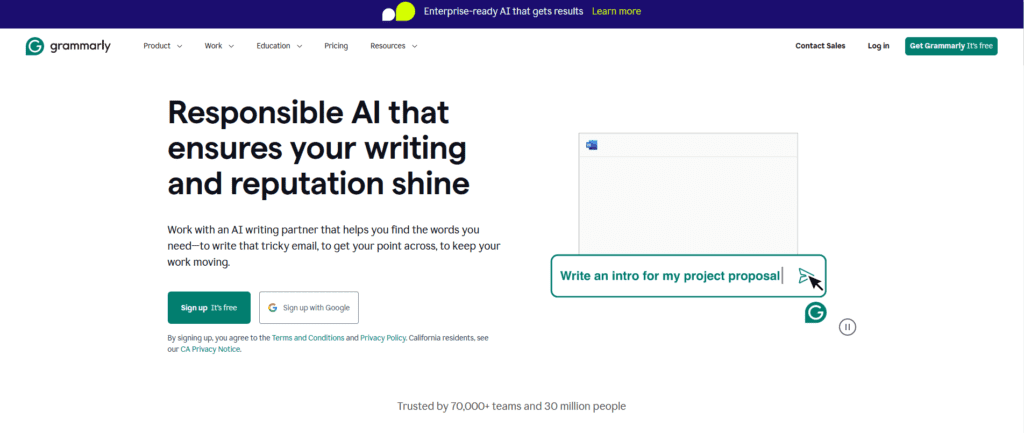
Grammarly is a digital writing assistance tool that leverages artificial intelligence to improve your writing. It’s designed to catch grammatical errors, spelling mistakes, and even provide suggestions for improving clarity and style.
Whether you’re drafting an email, writing a report, or posting on social media, Grammarly scans your text in real time to help ensure your writing is clear and mistake-free.
It operates in the background of various platforms, from word processors to email clients, making it a versatile tool for anyone looking to polish their writing.
Features
When it comes to Grammarly, the real magic lies in its wide array of features designed to polish your writing, and it’s all about making your life easier.
At its core, how Grammarly works is that it checks your spelling and grammar. This isn’t just about catching a missed letter or a misplaced comma, though; it’s way smarter.
Imagine typing out a message and mixing up “their” and “there.” Grammarly catches that mistake because it understands what you’re trying to say, not just what you typed.
But here’s where it gets really interesting. Grammarly looks at your writing and thinks, “Hmm, could this be clearer? Could it be more engaging?” This isn’t just about fixing errors; it’s about elevating your writing so your ideas shine brighter.
Ever hit send on an email and then wonder if it came across a bit harsh? That’s where Grammarly’s tone detector comes into play. It gives you a heads-up about how your message might come across to others, whether it’s confident, friendly, or a tad too formal.
It’s a game-changer for making sure you’re striking the right note, especially in those important emails or messages.
For anyone who’s dived into a larger project, you know how daunting it can be to keep everything clear and consistent. Grammarly’s there to help with suggestions on how to make your sentences flow better and tips to avoid repeating the same words too often.
Now, while the basic checks are available to everyone, diving into Grammarly’s premium features opens up a whole new world. Think advanced checks on your grammar, more nuanced suggestions on tone, and even plagiarism checks to ensure your work is uniquely yours.
Pros
- Super easy to use: You just type, and it starts checking.
- Works everywhere: You can use it in your browser when you’re writing emails, or you can add it to Word and Google Docs.
- Helpful explanations: It doesn’t just tell you what’s wrong; it also explains why, so you can learn and get better.
- Customization: You can set it to check for the kind of writing you’re doing, like formal or casual.
- Free version does a lot: You can get a lot done without paying anything.
Cons
- Need the premium for everything: Some of the cooler features are locked behind a subscription.
- Can miss things: It’s not perfect. Sometimes it might miss errors or suggest changes that don’t fit.
- Internet needed: You have to be online to use it, which can be a pain if you’re somewhere without a good connection.
In using Grammarly, what struck me the most wasn’t just the depth of its checks but how it felt like a learning tool as well.
Every suggestion comes with a clear explanation, so you’re not just fixing your writing on the fly; you’re picking up on the nuances of language that can make you a better writer over time. It’s a subtle, ongoing lesson in grammar and style, disguised as a helpful nudge here and there.
I’ve used Grammarly for school papers, emails, and even posts on social media. It’s like a safety net. It’s also taught me a lot about why some things are errors, which is pretty neat.
All in all, Grammarly is a solid tool. Whether you’re just trying to make sure an email is error-free or you’re working on something bigger, it’s got your back.
The free version does plenty, but if you’re doing a lot of writing, you might find the premium worth it for the extra features. It’s not going to catch everything, but it definitely makes a big difference.
2. ProWritingAid
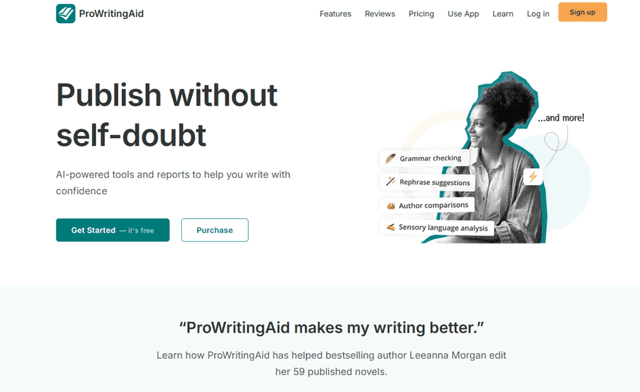
ProWritingAid is a comprehensive writing tool designed to improve your writing through advanced grammar checks, style suggestions, and more.
It’s built for writers of all types, whether you’re crafting an academic paper, a novel, or a business report.
The tool stands out by offering in-depth feedback that goes beyond simple error correction, aiming to help you strengthen your writing skills over time.
Features
One of the standout features of ProWritingAid is its in-depth analysis, which covers everything from grammar and spelling to style and readability.
Unlike basic spell checkers, ProWritingAid analyzes your text to offer suggestions on how to improve sentence structure, eliminate redundancy, and vary your language.
It’s not just about fixing errors; it’s about refining your writing to make it as strong as possible.
The tool also excels in providing detailed reports. These reports can give you insights into habits you might not even be aware of, like overusing certain words or relying on passive voice.
ProWritingAid offers more than 20 different reports, each focusing on a specific area of your writing. This level of detail is particularly useful for writers looking to delve deep into their habits and patterns.
Another significant feature is the platform’s integrations. ProWritingAid can be used directly in word processors like Microsoft Word and Google Docs, on browsers through extensions, and even with writing software like Scrivener.
This versatility means you can use ProWritingAid’s features across all your writing platforms, streamlining your editing process.
Pros
- Comprehensive feedback: Goes beyond grammar to offer style and readability suggestions.
- Detailed reports: Provides over 20 reports for in-depth analysis of your writing habits.
- Versatile integration: Works with word processors, browsers, and writing software.
- Educational tool: Each suggestion comes with explanations, helping you learn as you edit.
- Customization options: Allows you to tailor checks to your writing style and needs.
Cons
- Can be overwhelming: The depth and breadth of feedback might be too much for some users.
- Subscription-based: For full access to all features, you need to subscribe.
- Internet-dependent: Requires an internet connection to use most features.
In my experience using ProWritingAid, the level of detail in the feedback immediately stood out. It felt less like a basic editing tool and more like a comprehensive writing coach.
The suggestions pushed me to reconsider not just word choices and grammar, but the overall flow and clarity of my writing.
The detailed reports helped identify writing habits I wasn’t aware of, making it an invaluable tool for personal improvement.
ProWritingAid is more than just a proofreading tool; it’s a comprehensive writing assistant designed to make your writing clearer, more engaging, and more professional. With its detailed analysis and reports, it’s particularly suited for writers looking to dive deep into their writing style and improve.
While the wealth of information and suggestions might be overwhelming for some, those willing to explore its full range of features will find it an invaluable resource. The tool’s emphasis on learning and improvement sets it apart, making it a worthwhile investment for serious writers.
3. Antidote
Antidote is an advanced language software designed to assist with English and French writing, notable for its depth and range of features.
It combines a sophisticated grammar checker with rich dictionaries and language guides, making it an all-in-one tool for anyone looking to elevate their writing.
Whether it’s for academic papers, professional documents, or casual emails, Antidote aims to not only correct linguistic errors but also enhance the overall quality of your text.
Features
When we take a deeper look into Antidote’s capabilities, we find an impressively thorough grammar checker that stands out for its ability to handle complex errors in both English and French.
Antidote identifies syntax errors, misused words, and style inconsistencies, providing clear, informative explanations for each correction.
This software shines by offering suggestions to enhance your writing’s clarity and flow, which can transform even the most cumbersome sentences into clear, compelling messages.
Beyond the grammar checker, Antidote’s dictionaries are a treasure trove of information. They offer definitions, synonyms, antonyms, and more, all linked intelligently to provide a comprehensive understanding of any word you’re curious about.
The software includes language guides as well, which cover a wide array of topics from grammar rules to style advice, serving as an invaluable resource for both learning and reference.
Another standout feature is its integration capabilities. Antidote can be seamlessly added to most text editors, email clients, and browsers, ensuring that your writing benefits from its guidance no matter where you create content.
This software is not just reactive, correcting errors after they’ve been made; it’s also proactive, offering suggestions and alternatives that can improve your writing before you finalize it.
For those working with bilingual documents or switching frequently between English and French, Antidote’s ability to analyze and correct text in both languages without having to switch settings is particularly beneficial.
Pros
- Comprehensive language support: Exceptional at handling both English and French text.
- Rich linguistic resources: Offers detailed dictionaries and guides that go beyond simple definitions.
- Integrated writing assistance: Seamlessly works with a wide range of software and web applications.
- Educational: Provides explanations and suggestions that help improve your writing skills over time.
- Highly accurate: Excels at detecting and correcting complex grammatical and stylistic issues.
Cons
- Cost: The software is a paid tool, which might be a barrier for some users.
- Complexity: The sheer amount of information and options available can be overwhelming for new users.
- Requires installation: Unlike some online tools, Antidote needs to be installed on your device, which may not suit everyone’s preferences or technical constraints.
In my time using Antidote, the aspect that impressed me the most was its detailed analysis and the educational value it brings to every correction. It doesn’t just make your text better; it makes you a better writer.
Whether it was a complex grammatical structure in English or a nuanced stylistic choice in French, Antidote provided clear, actionable feedback that was easy to understand and apply. It felt less like a simple error checker and more like a comprehensive writing workshop, tailored to my needs.
Antidote goes beyond simple proofreading, offering a rich set of tools that cater to a wide range of writing needs. Its detailed corrections, in-depth dictionaries, and language guides make it an essential tool for writers, educators, and anyone serious about mastering writing in English and French.
While the investment in Antidote is more significant than some other tools, both in terms of cost and the time needed to explore its many features, the payoff in improved writing skills and polished texts is well worth it.
For those looking to elevate their language skills to a professional level, Antidote offers a comprehensive, integrated solution that stands out among writing assistance software.
4. Quillbot
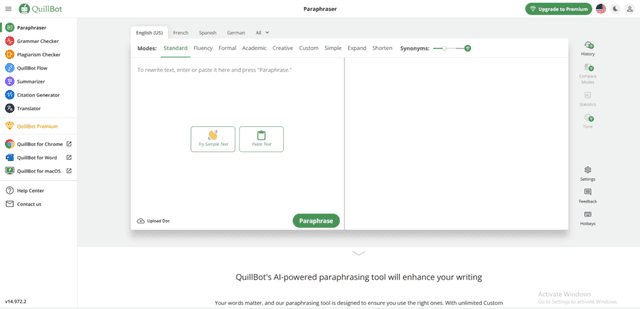
Quillbot is this online tool that helps with writing and rephrasing sentences. If you’re working on an essay, an email, or just trying to make a social media post sound better, Quillbot can give you a hand.
Features
Quillbot is packed with features aimed at improving your writing. Its main draw is the paraphrasing tool, which is like a magic wand for your sentences.
You type in what you want to say, and Quillbot offers several different ways to rephrase it.
This is super helpful for avoiding plagiarism in academic writing or just making your prose more engaging by mixing up your language a bit.
But Quillbot isn’t just a one-trick pony with its paraphrasing feature. It also includes a solid grammar checker. This part of Quillbot looks over your writing to spot any grammatical errors or typos.
Then there’s the summarizer tool, which is pretty neat if you’re dealing with a lot of information. Say you’ve got a bunch of articles for research, but you’re short on time. You can use Quillbot to condense these texts into shorter summaries, pulling out the main points so you don’t have to sift through everything.
Another cool feature is the integration with writing platforms, notably Google Docs. This means you can use Quillbot’s capabilities directly as you’re writing in Google Docs, making your workflow smoother. No need to copy and paste back and forth between programs.
Quillbot also offers a citation generator, which is a lifesaver for academic writing. It helps you properly cite sources in several styles, making sure you give credit where it’s due and avoid any issues with plagiarism.
Pros
- Really easy to use: Just paste your text, and it does its thing.
- Great for rephrasing: Helps you find new ways to say something.
- Grammar checker included: Catches those little mistakes you might not notice.
- Summarizer feature: Handy for getting the gist of long texts without reading it all.
- Integrates with Google Docs: Super convenient if you do most of your writing there.
Cons
- Depends on the internet: You need to be online to use it.
- Sometimes too simple: The suggestions might not always fit what you’re trying to say perfectly.
- Limited free use: You can use it for free, but the best features need a subscription.
I’ve used Quillbot a bunch when I’m writing essays or even when I’m just trying to make a post on social media sound a bit smarter.
It’s like having a quick check to make sure what I’m writing sounds good and makes sense. Plus, the paraphrasing tool has been a lifesaver when I’m stuck on how to say something differently.
Quillbot is a handy tool to have in your writing toolkit. It’s not just about fixing mistakes; it’s about making your writing stronger and more varied.
Whether you’re a student, a professional, or just someone who likes to write, it offers something that can make writing a bit easier and more fun. Sure, it’s not perfect, and relying on it too much might limit your learning, but as a helper? It’s pretty great.
5. Ginger Software
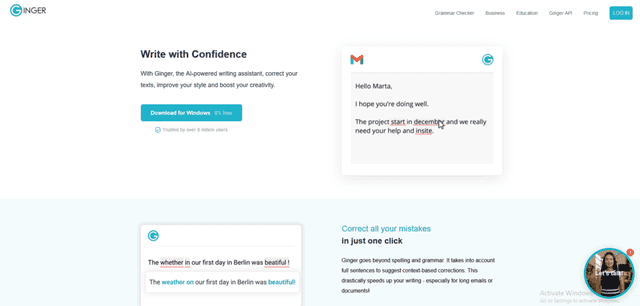
Ginger Software is a tool aimed at making your writing clean and professional. If you’re someone who types a lot, whether emails, essays, or social media posts, Ginger is there to check your spelling and grammar.
It’s straightforward: you write, and Ginger helps make sure what you’re saying makes sense and is error-free.
Features
Ginger Software is grammar and spelling checker made for identifying errors that range from the most common to the complex ones that are often overlooked.
What sets Ginger apart is how it integrates context into its corrections, ensuring that your sentences are not just error-free but also make sense in the narrative or discussion.
The sentence rephraser in Ginger is a standout feature. It provides alternatives to your sentences, offering ways to express the same idea with different words or structures. This is particularly useful for enhancing the readability of your text or avoiding repetition.
The software suggests several variations, allowing you to choose the one that best fits your message and tone.
Ginger also includes a personal dictionary, where you can add words specific to your field of study, work, or interest. This ensures that specialized terminology you frequently use isn’t mistakenly flagged as an error.
Translation is another key feature, supporting over 40 languages. This tool is invaluable for those who work in multilingual environments or are learning a new language, providing quick translations that help bridge communication gaps.
The text-to-speech functionality is a boon for auditory learners or those refining their pronunciation.
By hearing the text read aloud, you can catch mistakes that your eyes might skip over and get a sense of the flow and rhythm of your writing.
Lastly, Ginger’s learning center offers personalized practice sessions based on your writing. It identifies patterns and recurring mistakes in your writing, then provides exercises to help you improve in those specific areas.
This makes Ginger not just a tool for correction but also for growth as a writer.
Pros
- Easy to use: Just type, and it starts helping right away.
- Improves your writing: Not just errors, but how your writing sounds.
- Supports many languages: Great for translation and learning.
- Reads back your text: Helpful for catching mistakes and learning pronunciation.
- Works where you write: Integrates with browsers and Microsoft Word.
Cons
- Premium features require subscription: Some of the best features aren’t free.
- Might not catch everything: No tool is perfect, and it might miss some errors.
- Needs internet connection: You’ve got to be online to use it.
I’ve used Ginger Software mainly for emails and social media posts. It’s been like a second pair of eyes, catching mistakes I overlook. Especially when I’m in a hurry, it’s reassuring to know Ginger’s there to tidy up my writing.
The translation feature has also been a big help when I’m trying to chat with friends from other countries.
Ginger Software is a solid choice if you’re looking to polish your writing. It’s especially useful for non-native speakers or anyone learning a new language, thanks to its translation and text-to-speech features.
While it’s not without its flaws, like the need for a premium subscription to unlock all its features, it offers a lot of value.
Whether you’re a student, a professional, or just someone who types a lot, Ginger can make your writing clearer and help you communicate more effectively.
6. WhiteSmoke
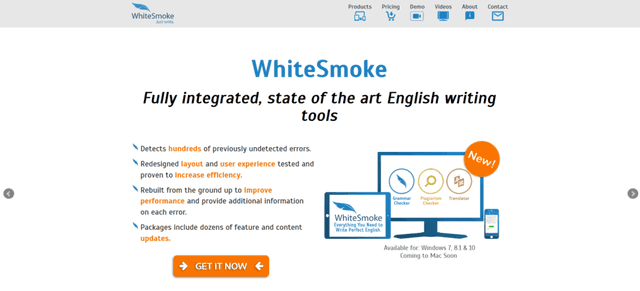
WhiteSmoke is a comprehensive writing tool designed to improve and polish your writing. It’s built to help with a wide range of writing tasks, from academic papers to business emails and personal blogs.
WhiteSmoke checks your grammar, spelling, and style, making sure whatever you write comes across clearly and error-free.
Features
WhiteSmoke is pretty thorough with its features. First, it has a grammar checker that looks at your text to find and correct grammatical mistakes.
This isn’t just about catching a misspelled word; it’s about making sure your sentences are structured properly and your punctuation is spot on.
The tool also includes a style checker, which I find particularly helpful. It looks at your writing and suggests changes to improve clarity and flow.
This means it can help make your writing more engaging and easier to read by pointing out passive voice, awkward constructions, or overly complex sentences.
Another handy feature is the plagiarism checker. If you’re writing something that needs to be original, like school papers or content for websites, WhiteSmoke can compare your text against a vast database to ensure it’s not too similar to existing materials.
WhiteSmoke also offers translation services for multiple languages, which is great if you’re working with international teams or writing for a global audience.
Lastly, there’s a template feature, which provides you with a variety of templates for different types of writing. Whether you’re drafting a resume, a cover letter, or a thank you note, these templates can give you a solid starting point.
Pros
- Comprehensive checking: It covers grammar, style, and plagiarism all in one go.
- Helpful explanations: Not just correcting but also explaining why something is an error.
- Multi-language support: Great for translations and working in languages other than English.
- Writing templates: Provides a quick start for many common writing tasks.
- Online and desktop versions: Makes it accessible no matter where you’re writing from.
Cons
- Subscription model: You need to pay for it, and the best features require a premium plan.
- Can be resource-heavy: The desktop app might slow down older computers.
- Learning curve: With so many features, it can take a bit of time to learn how to use it all effectively.
Using WhiteSmoke really changed the game for me, especially with emails and reports. It caught mistakes I kept overlooking and helped tighten up my writing.
The style suggestions were a big plus, making my writing sound more professional. And checking for plagiarism gave me peace of mind for my more public writing projects.
WhiteSmoke stands out as a robust tool for anyone serious about improving their writing. With its wide range of features, it offers something valuable for students, professionals, and casual writers alike.
While the cost and learning curve might be a drawback for some, the benefits of clearer, more polished writing could well be worth the investment for many.
Whether you’re aiming to enhance your grammar, ensure originality, or communicate across languages, WhiteSmoke offers a comprehensive suite of tools to help you achieve your writing goals.
7. Hemingway Editor
The Hemingway Editor is a straightforward, web-based tool designed to make your writing clear and easy to read. It’s named after Ernest Hemingway, known for his concise and impactful writing style.
This tool is fantastic for anyone looking to strip their writing down to its most effective form, whether you’re working on an essay, a blog post, or even a novel.
Features
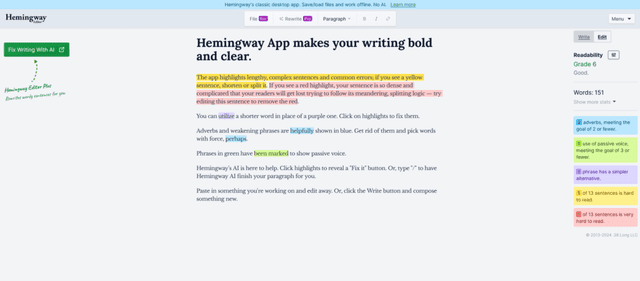
What’s really cool about the Hemingway Editor is how it highlights your text in different colors to show you exactly what needs work. Each color represents a different type of suggestion.
For example, it’ll highlight hard-to-read sentences in yellow, meaning you might want to simplify them. If a sentence is very hard to read, it’ll highlight it in red, which usually means it needs to be broken up or significantly simplified.
Adverbs get their own highlight, too, usually in blue, suggesting where you might want to find stronger verbs.
It also points out the use of passive voice, something Hemingway avoided, showing you where active voice might strengthen your sentence.
Another helpful feature is the readability grade. This tells you the education level someone would need to easily understand your text. The goal is to make your writing accessible, and this feature gives you a clear target to hit.
Pros
- Simplifies your writing: Helps you cut down on unnecessary words and complex sentences.
- Easy to understand: The color-coded feedback is straightforward, making it simple to see where improvements are needed.
- No need to sign up: You can use it without creating an account, which is super convenient.
- Readability grade: Offers a clear benchmark for how accessible your writing is.
- Works for various writing types: Whether it’s academic writing, journalism, or creative writing, it’s versatile.
Cons
- Lacks advanced grammar checks: It’s more focused on style and readability than correcting grammar errors.
- No suggestions for rephrasing: While it highlights issues, it doesn’t offer alternatives or suggestions on how to fix them.
- Can oversimplify: For some types of writing, the suggested changes might make the text too basic.
I’ve used the Hemingway Editor mainly for blog posts and emails. It’s great for a quick check to make sure I’m not overcomplicating things.
I particularly like the instant feedback on sentence length and the use of adverbs. It’s helped me tighten up my writing, though I’ve learned to use it as a guide rather than a strict rulebook.
The Hemingway Editor is a solid, user-friendly tool for anyone looking to make their writing clearer and more direct.
While it might not dive deep into grammar or offer rewrite suggestions, its strength lies in encouraging a more impactful, straightforward writing style. It’s worth a try for writers at any level, especially when you’re looking to refine your voice or simply make your writing more accessible to a wider audience.
8. AutoCrit
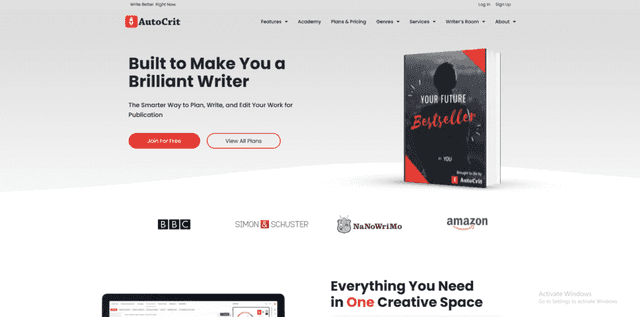
AutoCrit is a specialized online editing tool that’s designed for writers who want to polish their manuscripts to perfection before publishing.
It’s particularly aimed at authors in the fiction genre, but anyone who’s working on a piece of writing and wants to improve its readability, consistency, and overall flow might find it useful.
Features
AutoCrit’s standout feature is its ability to compare your manuscript against those in your genre, providing targeted recommendations based on successful published works.
This isn’t just about catching typos; it’s about refining pacing, dialogue, and narrative structure to meet industry standards and reader expectations.
The tool breaks down feedback into manageable categories like word choice, sentence structure, and pacing. This means you can see not only where your manuscript might be falling short but also understand why and how to fix it.
AutoCrit also highlights overused words and phrases, suggests alternatives, and identifies passive voice usage, which can help make your writing more active and engaging.
Another great feature is the dialogue improvement tool, which helps you craft dialogue that sounds natural and compelling.
Plus, AutoCrit offers pacing analysis, which can be incredibly valuable for maintaining reader interest throughout your story. Check out the complete AutoCrit review.
Pros
- Tailored feedback: Provides genre-specific advice to help your manuscript meet publishing standards.
- In-depth analysis: Covers everything from grammar to narrative elements like pacing and dialogue.
- Easy to use: The platform is user-friendly, with clear explanations for its recommendations.
- Interactive reports: Allows you to see exactly where to focus your editing efforts.
- Supports various writing styles: Whether you’re writing sci-fi, romance, or non-fiction, AutoCrit has tailored advice for you.
Cons
- Subscription required for full access: Most of AutoCrit’s advanced features are behind a paywall.
- Can be overwhelming: The amount of feedback provided might be daunting for new writers.
- Focuses mainly on fiction: Non-fiction writers might find some advice less applicable.
I’ve used AutoCrit for a short story I was working on, and I was impressed by how specific the feedback was. It felt like having a professional editor sitting beside me, pointing out not just the little mistakes but also showing me where I could tighten up my narrative and make my dialogue pop.
It took some time to work through all the suggestions, but my story was much stronger for it.
AutoCrit offers a comprehensive suite of editing tools that can significantly improve the quality of your writing. It’s like a detailed roadmap for revisions, pointing out not just the potholes but also showing you the scenic routes you might have missed.
For writers serious about getting their work ready for publication, AutoCrit is a powerful ally. While the cost and the focus on fiction might limit its appeal for some, its detailed analysis and genre-specific feedback make it a valuable resource for aspiring authors.
9. LanguageTool
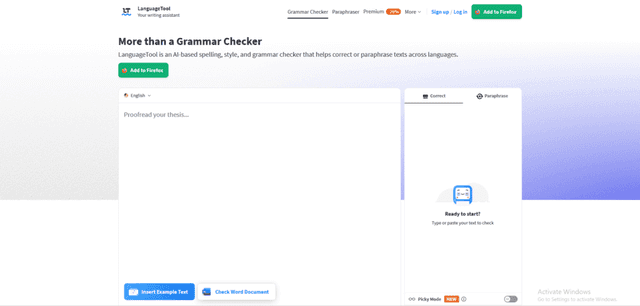
LanguageTool is an open-source proofreading software that checks your writing for grammar, spelling, and style errors. It’s a versatile tool that supports multiple languages, making it ideal for a wide range of users worldwide.
Whether you’re drafting an email, writing an academic paper, or just want to make sure your social media posts are error-free, LanguageTool offers a straightforward solution to polish your writing.
Features
The heart of LanguageTool lies in its comprehensive grammar and spelling checker that goes beyond the basic error detection found in most word processors. It understands context, which means it can catch those tricky errors that are often overlooked.
This context-awareness extends to stylistic suggestions, helping to make your writing not only correct but also clear and concise.
What sets LanguageTool apart is its multilingual support. With the ability to check text in over 20 languages, it’s an invaluable tool for non-native speakers, bilingual writers, or anyone working in an international context.
This extensive language coverage ensures that no matter where you are or what language you’re writing in, you can have confidence in your text.
Another key feature is its add-on and integration capabilities. LanguageTool can be seamlessly integrated into a variety of platforms, including Microsoft Word, Google Docs, and even web browsers through extensions.
This means you can have LanguageTool’s proofreading capabilities handy no matter where you choose to write.
Pros
- Wide language support: Ideal for users writing in multiple languages.
- Context-aware grammar checking: Catches complex errors that other tools might miss.
- Flexible integration: Works across many platforms and devices.
- Regular updates: Continuously improving with new rules and languages.
- Free to use: Offers a robust free version, with a premium option for advanced features.
Cons
- Limited free version: Some of the more advanced features require a premium subscription.
- Can be overwhelming: The array of suggestions and corrections might be daunting for some users.
- Occasional misses: No tool is perfect, and it might not catch every single error.
I’ve found LanguageTool to be a reliable assistant for checking my blog posts and emails. Its ability to understand context has caught errors that I’ve glossed over, and the multilingual support has been particularly useful for me as someone who often writes in more than one language.
The browser integration means it’s always there when I need it, which adds a layer of convenience to my writing process.
LanguageTool stands out for its comprehensive checking capabilities and support for multiple languages, positioning it as a go-to tool for a diverse range of writing tasks.
While navigating its suggestions and corrections might require a bit of a learning curve, the benefits to the clarity and correctness of your writing are well worth the effort.
For anyone looking to elevate the quality of their writing across different languages and platforms, LanguageTool offers a powerful, flexible solution.
10. Slick Write
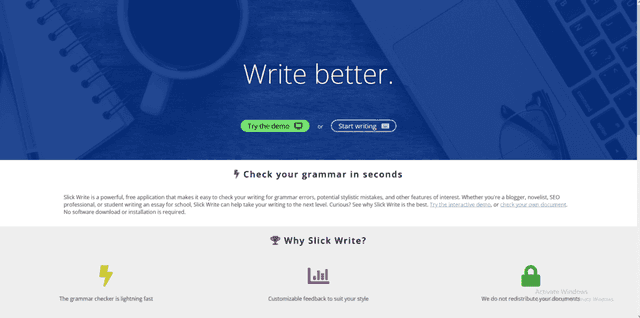
Slick Write is a powerful, free tool that’s designed to help with checking your grammar, potential stylistic mistakes, and other features of interest.
Whether you’re a blogger, novelist, SEO professional, or student writing an essay for school, Slick Write can assist in improving your writing.
Features
At its core, Slick Write offers detailed feedback on your writing, pointing out grammatical errors, potential stylistic issues, and even providing suggestions for eliminating unnecessary words.
This tool stands out for its ability to analyze your text for flow, giving feedback on sentence structures that might make your writing harder to follow.
Slick Write also includes features like a word association game, which can be a fun way to enhance your vocabulary. But more than just games, it provides insights into how frequently you use certain words and phrases, helping to avoid repetition and improve the variety in your writing.
One of the key benefits of Slick Write is its customization options.
You can tailor the feedback to suit your specific writing needs, focusing on the areas that matter most to you, whether that’s SEO considerations for a blog post or clarity for an academic paper.
Pros
- No download necessary: Slick Write works in your browser, making it easily accessible.
- Customizable feedback: Allows you to focus on what’s most important in your writing.
- Detailed statistical feedback: Offers insights into your writing style and habits.
- Free to use: All of its features are available at no cost.
- Useful for various writing types: Whether academic, professional, or creative writing.
Cons
- Can feel overwhelming: The amount of feedback and data provided can be a lot to sort through.
- No offline mode: Requires an internet connection to use.
- May miss context-specific nuances: While great for technical checks, it might not catch every stylistic choice that’s intentionally made.
I’ve turned to Slick Write for blog posts and academic essays, and it’s been incredibly helpful in refining my writing. The statistical feedback has particularly opened my eyes to patterns in my writing I wasn’t aware of.
Slick Write is a valuable tool for anyone looking to enhance their writing. Its comprehensive analysis and feedback make it a standout choice, especially considering it’s free.
While it might take some time to fully explore and utilize all the features effectively, the potential improvements to your writing are well worth it. For writers of all levels and styles, Slick Write offers the insights and assistance to elevate your work to the next level.
11. PaperRater
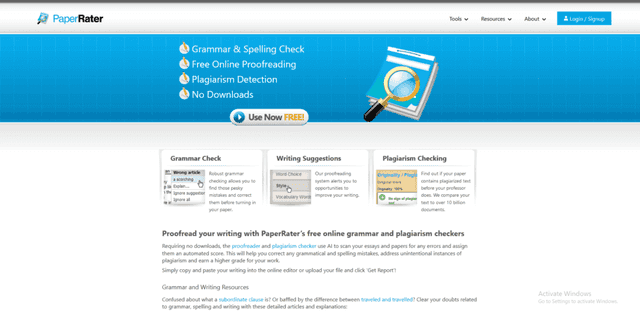
PaperRater is an online tool that’s designed to help improve your writing through advanced grammar checking, plagiarism detection, and writing suggestions. It’s aimed at students, teachers, and professionals looking to polish their writing to perfection.
With its comprehensive suite of tools, PaperRater offers real-time feedback to make your writing clearer, more engaging, and original.
Features
PaperRater stands out for its robust grammar checking feature. It goes beyond basic spell check to analyze your text for complex grammatical issues, ensuring your writing is not only error-free but also grammatically sound.
This tool uses advanced algorithms to provide feedback on sentence structure, verb tense usage, and overall readability, helping to elevate the quality of your writing.
Another significant feature is its plagiarism checker. In an age where originality is paramount, PaperRater offers peace of mind by scanning your document against a vast database of academic works and web pages, identifying potential instances of plagiarism.
This is particularly valuable for students and educators, ensuring the integrity of academic work.
PaperRater also offers writing suggestions tailored to improve your writing style. These suggestions focus on enhancing clarity, avoiding redundancy, and enriching your vocabulary, making your writing more compelling to read.
One of the most user-friendly aspects of PaperRater is its ability to provide instant feedback. There’s no need for downloads or installations; you simply upload your document or paste your text, and PaperRater gives you a comprehensive analysis within seconds.
Pros
- Instant feedback: Quick turnaround time helps improve your writing on the fly.
- Comprehensive grammar check: Addresses both simple and complex grammatical issues.
- Plagiarism detection: Offers a thorough scan to ensure originality.
- Writing improvement suggestions: Helps refine your writing style for better clarity and engagement.
- User-friendly interface: Easy to navigate, making it accessible for users of all skill levels.
Cons
- Limited features in the free version: Some of the more advanced features require a subscription.
- Occasionally misses context: Like most automated tools, it might not catch every nuanced error.
- Dependent on internet connection: Being an online tool, it requires a stable internet connection to function.
I’ve used PaperRater for several academic papers, and it’s been incredibly helpful in catching mistakes I’ve overlooked. The plagiarism detection feature gave me added confidence in the originality of my work before submission.
While I’ve encountered a few instances where the suggestions didn’t perfectly align with my intended meaning, the overall impact on improving my writing has been positive.
PaperRater is a valuable asset for anyone involved in writing, especially in academic and professional settings. Its ability to provide instant, comprehensive feedback makes it an indispensable tool for enhancing the quality of your writing.
While the free version offers plenty of utility, investing in the full range of features could be well worth it for those regularly engaged in writing projects.
In sum, PaperRater offers a practical, effective solution to common writing challenges, helping users produce clear, original, and engaging written work.
12. Ziflow

Ziflow is a cloud-based proofing and review tool designed to streamline the process of content approval for marketing teams and creative professionals.
It’s built to facilitate collaboration among stakeholders, ensuring that feedback, revisions, and approvals are managed efficiently in one centralized platform.
Features
Ziflow sets itself apart with a robust set of features tailored for the review and approval process. It supports a wide range of content types, including documents, images, web pages, and more, making it versatile across different projects.
One of the standout features is its automated workflow capabilities, which guide projects through each stage of the review process, from initial submission to final approval.
This ensures that nothing falls through the cracks and projects move forward on schedule.
Another significant feature is Ziflow’s ability to handle real-time collaboration. Team members can leave comments and feedback directly on the content, making it easy for everyone involved to see what changes are needed and why.
This is enhanced by version control, which tracks revisions over time, so you can easily compare different versions and understand how a project has evolved.
Ziflow also offers comprehensive integration options, connecting seamlessly with popular project management tools, content management systems, and file storage solutions.
This integration capability ensures Ziflow fits naturally into existing workflows, enhancing productivity without the need for significant changes to how teams operate.
Pros
- Supports a wide variety of content types: Versatile across different projects and media.
- Automated workflows: Streamlines the review process, saving time and reducing errors.
- Real-time collaboration: Simplifies feedback and ensures all voices are heard.
- Version control: Keeps track of changes, making it easy to review progress.
- Comprehensive integration: Works well with other tools used by creative and marketing teams.
Cons
- Learning curve: New users might need some time to get used to all the features.
- Cost: For small teams or projects, the pricing might be a consideration.
- Internet dependency: Being cloud-based, a stable internet connection is essential for access.
In my use of Ziflow for a collaborative project, the immediate benefit was how it brought everyone onto the same page. The real-time feedback feature, combined with version control, made it straightforward to see which suggestions had been implemented and which were still pending.
It significantly cut down on the back-and-forth emails and meetings that typically bog down the review process.
For marketing teams and creative professionals looking to optimize their review and approval workflows, Ziflow offers a comprehensive solution. Its blend of automation, real-time collaboration, and integration capabilities makes it a valuable asset for streamlining project management and enhancing team productivity.
While there might be a learning curve and considerations regarding cost, the efficiency gains and improved project outcomes can make Ziflow a worthwhile investment for many organizations.
13. Jasper

Jasper is a writing assistant that has really changed how I approach writing. Whether you’re stuck on what to write next or you need some help polishing your work, Jasper is there to help.
Features
Jasper has some pretty helpful features. First, it understands your writing style and tone.
This means if you want to keep your writing casual or professional, Jasper can adapt. It can also create whole paragraphs based on your prompts, which is great for breaking through writer’s block.
Another big plus is Jasper’s research tool. It can gather information related to your topic, saving you from spending too much time searching online.
This feature is fantastic for adding depth and accuracy to your writing.
Perhaps the most interesting part is how Jasper can add creativity to your work.
It suggests ways to make your writing more engaging and lively, which can be a game-changer for keeping your readers interested.
Pros
- Saves time: Great for those moments when you’re stuck.
- Adapts to your style: Whether you’re writing a blog post or a formal report, Jasper fits right in.
- Helps with writer’s block: It can generate content ideas and paragraphs.
- Research assistant: Saves you from getting lost in a sea of tabs.
- Boosts creativity: Makes your writing more engaging.
Cons
- Learning curve: Takes some getting used to.
- Depends on your input: The better your prompts, the better Jasper’s output.
- Subscription cost: You might need to pay to get the best features.
I’ve used Jasper for everything from emails to blog content. It’s been like having an extra pair of hands.
The tool has made my writing process smoother and less stressful, especially on those days when my brain isn’t cooperating.
Jasper is more than just a proofreading tool; it’s a comprehensive writing assistant that offers a unique blend of creativity and efficiency.
Whether you’re facing writer’s block or just looking to polish your writing, Jasper provides valuable support. It’s not without its learning curve and costs, but the benefits it brings to the writing process are well worth it.
14. Wordtune

Wordtune is a lifesaver for making your writing clearer and more engaging. Have you ever re-read a sentence you wrote and thought it sounded off? That’s where Wordtune shines.
Features
Wordtune is pretty smart. It doesn’t just look at your grammar; it understands the meaning behind what you’re trying to say. Then, it suggests ways to make your sentences flow better.
One thing I love is how it offers multiple suggestions. You can see different ways to phrase your sentence, which helps you keep your writing style unique.
It’s also great for when you’re trying to make your writing more formal or casual. Wordtune has settings for that.
Plus, it works in real-time, right where you write, like in Google Docs or emails. This means you get instant help without having to copy-paste your text into another app.
But here’s the kicker: Wordtune can also help you write in other languages. If you’re trying to phrase something in English but your first language is different, Wordtune can translate your thoughts into smooth, natural English.
Pros
- Improves clarity: Your ideas come across more clearly.
- Multiple rephrasing options: Keeps your writing style flexible.
- Tone adjustment: Easily switch between formal and casual.
- Real-time assistance: Works where you write, saving time.
- Language support: Helps non-native speakers write better in English.
Cons
- Limited free version: The best features are behind a paywall.
- Can be distracting: Lots of suggestions might overwhelm you.
- Needs internet: Since it’s online, no internet means no Wordtune.
I’ve been using Wordtune to polish my emails and reports. It’s amazing how it can take a clunky sentence and turn it into something that’s not only clearer but also sounds like me.
It’s given me a confidence boost in my writing, especially when I’m rushing to meet deadlines and need to make sure my points are getting across.
Wordtune is a fantastic tool for anyone looking to enhance their writing. It’s more than just correcting errors; it’s about refining your ideas and expressing them more effectively.
Whether you’re a student, a professional, or someone learning English, Wordtune offers valuable assistance. Yes, to unlock its full potential, you might need to consider subscribing, but the improvement it brings to your writing could very well be worth it.
15. CorrectEnglish (CE)
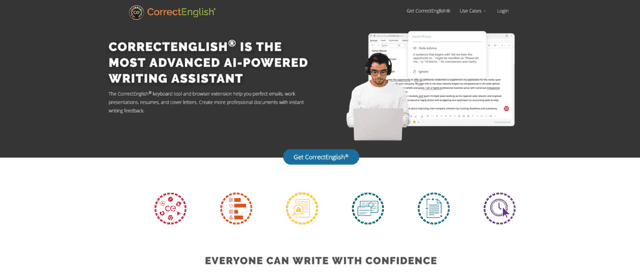
Next up, let’s dive into CorrectEnglish, or CE for short. This tool is all about helping you write better English, plain and simple.
Ever found yourself second-guessing your grammar or the structure of your sentences? That’s exactly what CE aims to fix.
Features
CorrectEnglish is pretty thorough. It checks your writing against a wide range of criteria, not just basic grammar and spelling. It looks at your sentence structure, your use of words, and even helps you make sure your writing is plagiarism-free.
This is super helpful for students or professionals who want to ensure their work is original and up to standard.
One standout feature is its ability to give feedback based on different English dialects. Whether you’re writing for an American, British, or Australian audience, CE has got you covered.
It adjusts its suggestions to fit the norms of each dialect, which is fantastic for tailoring your writing to a specific audience.
CE also offers real-time feedback as you write, which is great for learning and improving on the fly. Plus, it provides explanations for its corrections, so you’re not just fixing mistakes, you’re understanding them, which is key to becoming a better writer.
Pros
- Comprehensive checks: Goes beyond basic grammar to include style and plagiarism.
- Dialect support: Tailors suggestions for American, British, or Australian English.
- Real-time feedback: Helps you improve your writing as you go.
- Educational explanations: Learn from your mistakes to avoid repeating them.
- Plagiarism detection: Ensures your work is original.
Cons
- Subscription required: Free version is limited; full features come at a cost.
- Can be overwhelming: The depth of feedback might be too much for some users.
- Learning curve: Takes some time to get used to all the features.
Using CorrectEnglish has been a game-changer for my writing projects. It’s particularly been a boon for ensuring my academic and professional documents are up to par.
The plagiarism checker has given me peace of mind before submitting work, and the detailed feedback on my writing style has genuinely helped me improve over time.
While it comes with a subscription fee, the investment can pay off by enhancing your writing abilities and ensuring your work is error-free and audience-appropriate.
Why Use Proofreading Software?

Using proofreading software is key for improving any piece of writing, from school essays to professional reports. Here’s why it’s so valuable:
First, it catches mistakes. No matter how carefully you read over your text, some errors can slip through.
Proofreading software scans your work for common errors in spelling, grammar, and punctuation, ensuring your writing is polished.
It also saves time. Manually checking your work for mistakes can be time-consuming. With proofreading software, you get a quick, thorough check, freeing up your time for other tasks.
Another reason is it improves readability. These tools don’t just focus on errors; they suggest ways to make your writing clearer and more engaging.
This can be especially helpful if you’re trying to get a point across to your readers in the most effective way possible.
Proofreading software also provides consistency. It helps maintain the same style and tone throughout your document, which is crucial for keeping your writing coherent.
Lastly, it boosts confidence. Submitting or publishing work knowing it’s been checked thoroughly by proofreading software can give you peace of mind.
You can be more confident in the quality of your writing, knowing it’s free of avoidable mistakes.
In short, proofreading software is an invaluable tool for anyone who writes. It enhances the quality of your writing, making sure it’s error-free, consistent, and ready to make the right impression on your audience.
Choosing the Right Tool for Your Needs

Choosing the right proofreading tool for your needs depends on what you’re writing and what you hope to achieve with your text. Each tool has its strengths, and picking the one that aligns with your goals can make a big difference in the quality of your final product.
Here’s a simple guide to help you select the best tool based on your specific needs:
For Academic Writing
Academic writing demands precision, adherence to style guides, and originality. Tools like CorrectEnglish (CE) are designed with these needs in mind, offering features for style consistency, vocabulary enhancement, and plagiarism detection.
If your primary concern is ensuring that your academic papers are well-crafted and free of plagiarism, a tool with comprehensive checks and educational resources would be ideal.
For Business Communications
When it comes to business communications, clarity, professionalism, and conciseness are key. Grammarly is a popular choice for business professionals because it not only checks for basic grammatical errors but also offers suggestions to improve clarity and tone, making sure your message is communicated effectively.
Its browser extensions and integration with email platforms make it a convenient tool for quick checks on emails and reports.
For Creative Writing
Creative writers need a tool that understands the nuances of language and can offer suggestions for stylistic improvements without stifiling creativity.
ProWritingAid is often recommended for creative writers because it provides in-depth reports on style, overused words, readability, and more, allowing writers to refine their voice without compromising their artistic intent.
Its focus on improving the overall readability and flow of your text makes it a great companion for storytelling.
For Multilingual Writers
If English isn’t your first language, or if you’re writing content in multiple languages, Wordtune is worth considering. It’s designed to improve the fluency of your writing and offers real-time suggestions to make your sentences flow more naturally.
It’s also useful for translating thoughts from your native language into more idiomatic English, making it a great tool for non-native speakers aiming for clarity and naturalness in their English writing.
For General Use
If you’re looking for a versatile tool that can handle a variety of writing tasks, Jasper might be the tool for you. It’s an AI writing assistant that can help generate content ideas, improve clarity and grammar, and even assist with research. It’s suited for anyone who needs a bit of inspiration alongside the traditional spelling and grammar checks.
When choosing a proofreading tool, consider starting with free versions or trials to see which one fits your writing style and needs the best.
Pay attention to how each tool integrates with your preferred writing platforms and whether its suggestions and corrections align with your goals. The right tool should feel like an extension of your writing process, helping you to communicate more effectively and efficiently.
Conclusion
Finding the best proofreading software tailored to your specific needs can significantly enhance the quality of your writing. Whether you’re focusing on academic papers, business emails, or creative projects, the right tool can help you communicate more effectively and with greater confidence.
Remember, the goal is not just to correct errors but to improve your overall writing skills. Investing time in selecting the right proofreading software can pay dividends in your personal, academic, or professional life, making every word you write count.