
Table of Contents
Picking the best software for proofreading can feel weirdly hard. Half the options on the web are basically marketing pages, and they all promise they’ll “fix everything.” I’ve been there—trying one tool, then another, hoping one finally catches the mistakes I keep missing.
After testing a bunch of proofreading and writing-assist tools, I settled on 7 that I actually feel good recommending. They’re strong in the areas that matter most: grammar and spelling, style and readability, plagiarism checks (when you need them), and overall usability—meaning you won’t dread using them every time you write.
Proofreading software has come a long way. Some tools now flag issues in context (not just one-off typos), suggest cleaner phrasing, and even help you spot repeated words or awkward sentence rhythm. That’s a big deal if you write emails for work, submit assignments, or publish content where you can’t afford sloppy mistakes.
And no—none of these tools replace a human editor. But they absolutely can cut down the “oops” moments. They also help you learn what you tend to get wrong over time. Isn’t that what you want from a proofreading tool: fewer errors and better writing habits?
7 Best Software for Proofreading
Look, it’s easy to get overwhelmed when every app claims it’s the “best proofreading software.” I tried and tested quite a few, and these are the ones I kept coming back to—based on quality, features, accessibility, and how painless they are to use.
Whichever one you choose from this list, you’re starting with solid tools—not random fluff.
1. Grammarly
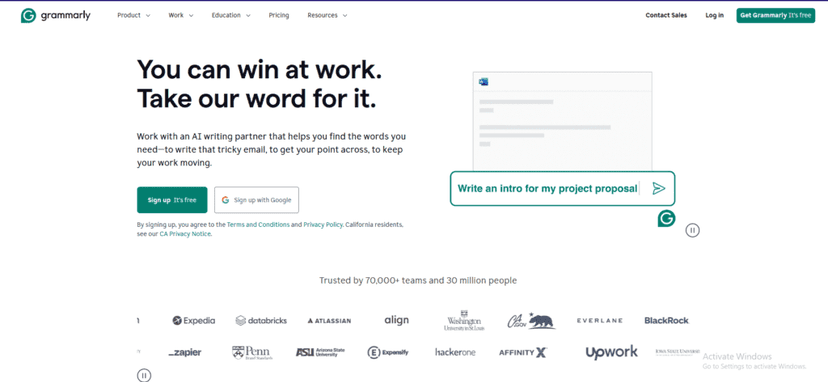
Grammarly is one of those tools you’ll either love immediately or you’ll never bother with. I’m in the “love it” camp—especially for everyday writing like emails, blog drafts, and professional documents.
What I noticed right away is that it doesn’t just underline obvious errors. It also flags things like wordiness, awkward phrasing, and tone issues. Depending on what you’re writing, that’s the difference between “correct” and “actually reads well.”
Grammarly has grown from a basic grammar checker into a full writing assistant that covers grammar, punctuation, style, and even tone.
Features
Grammarly’s editor analyzes your text in real time and highlights issues across multiple categories. In my testing, it’s especially strong at catching:
- Grammar and punctuation problems
- Style and tone suggestions (not just “this is wrong,” but “here’s a better way”)
- Vocabulary improvements to reduce repetition
- Plagiarism detection (helpful when you’re working on school or client submissions)
It also integrates into a bunch of places—browser editing, email clients, and word processors—so you’re not stuck copying text into a separate window every time.
One feature I genuinely like is the personalized feedback. It tracks your recurring mistakes and then gives targeted practice. That turns proofreading into something more useful than a one-time “fix and forget.”
Pros:
- Comprehensive Error Detection: It catches a wide range of grammar and punctuation issues, including the kind that slip past spellcheck.
- Style and Tone Suggestions: You can adjust how something reads depending on audience and intent.
- Seamless Integration: Works across common writing tools, which makes it easy to use consistently.
- Personalized Learning: The feedback system helps you improve based on your patterns, not generic rules.
Cons:
- Subscription Cost: The best results usually require a premium plan.
- Occasional Misinterpretations: Like any AI tool, it can misunderstand context. I’ve seen it suggest changes that sound “technically fine” but not what I meant stylistically.
- Internet Dependence: Since it’s largely cloud-based, you need a stable connection for smooth real-time feedback.
My engagement with Grammarly changed how I revise. When I get a draft to a “good enough” point, Grammarly helps me tighten it—especially by catching grammar issues and pointing out wordy or clunky sentences.
Still, I don’t blindly accept every suggestion. In creative writing, you sometimes want a sentence to stay complex for effect. So yeah, I use it as a guide, not as the final authority.
If you want a proofreading tool that’s broad, fast, and consistently helpful, Grammarly is hard to beat.
2. Hemingway Editor
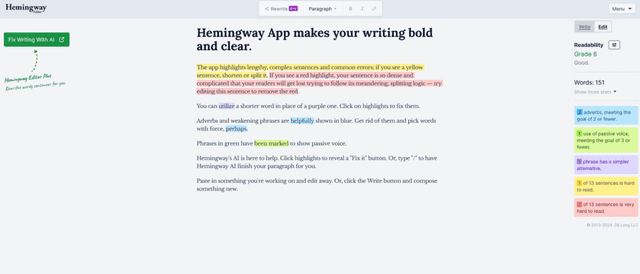
The Hemingway Editor is built around one goal: clarity. It’s named after Ernest Hemingway, and the tool’s vibe matches that—short, punchy, and focused on making your writing easier to read.
I like using it as a “final readability pass.” It points out where my sentences get too tangled or where I rely on filler words. And honestly, once you see the color highlights, you can’t unsee them.
It’s especially useful for bloggers, journalists, and anyone writing for people who skim.
Features
Hemingway Editor highlights problem spots right in your text:
- Yellow: Complex sentences
- Red: Hard-to-read sentences
- Purple: Words with simpler alternatives
- Blue: Adverbs
- Green: Passive voice
It also shows a readability grade level, so you can get a sense of how difficult your writing might feel to readers.
Another nice touch is distraction-free writing mode. I’ll use that when I don’t want to fight with formatting—just write, then run the readability check.
Yes, it’s mainly desktop-focused, but there’s also a web version for quick checks.
Pros:
- Enhances Readability: It pushes you to simplify where it makes sense.
- Immediate Feedback: The color system makes issues obvious at a glance.
- Ease of Use: Minimal learning curve—no complicated settings.
- Versatile for Many Formats: Works well for blog posts, essays, and general writing.
Cons:
- Limited Scope: It’s more about clarity than catching every grammar/spelling mistake.
- No Auto-Correction: It highlights issues, but you still have to fix the text yourself.
- No Collaboration Features: Not really built for teams working together in the same document.
In my experience, Hemingway makes you rewrite with intention. It encouraged me to break down complex ideas into cleaner sentences, and that improved engagement—people actually read what you post, right?
But I’ll be honest: sometimes I keep a complex sentence on purpose. Hemingway is a great guide, not a strict rulebook. Use it to check yourself, then decide what’s best for your message.
If your biggest problem is readability (not spelling), Hemingway Editor is a strong tool to add to your workflow.
3. Ginger Software
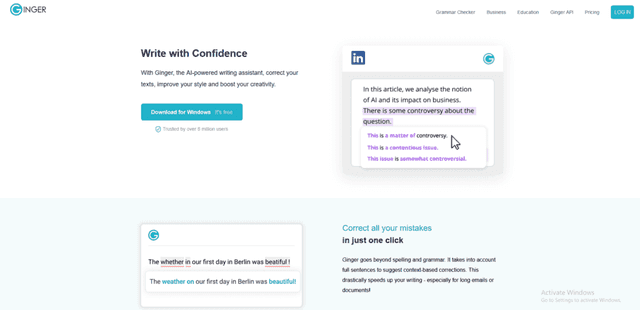
Ginger Software is one of those tools that feels built for real people—especially if English isn’t your first language. I tested it on a few drafts and what stood out was how it focuses on error-free writing in English, not just basic spellchecking.
It goes beyond corrections with rephrasing suggestions, readability help, and extra learning features. If you write a lot and want your sentences to sound more natural, Ginger can be pretty useful.
Features
Ginger’s main strength is context-aware grammar and spelling checks. In my experience, it’s better than simple “red underline” tools because it tries to understand what you’re actually saying.
It also offers:
- Sentence rephrasing: alternate phrasing for clarity and flow
- Personal dictionary: customize how it corrects you
- Translation: translate into 40+ languages
- Text reader: read text aloud (handy for ESL learners)
And you can use it on web browsers, Microsoft Office, and mobile devices, which is great if you’re writing on the go.
Pros:
- Contextual Understanding: More accurate than basic spellcheck because it considers context.
- Multilingual Support: Translation and read-aloud features help in multilingual situations.
- Versatility: Works across platforms, so you can keep writing without switching tools.
- Sentence Rephrasing: Useful for improving clarity and reducing repetitive wording.
Cons:
- Subscription Cost: The full feature set is premium.
- Limited Free Version: Some of the most helpful tools are restricted unless you upgrade.
- Occasional Inaccuracies: It can still suggest something that doesn’t quite fit your intent—so review is always required.
Using Ginger improved both speed and quality for me. It caught spelling/grammar issues I genuinely missed, and the rephrasing suggestions helped me clean up sentences without rewriting everything from scratch.
Translation is another standout. I used it for multilingual drafts and it was helpful—but like any translator, I double-checked the final meaning when the text got complex.
If you want a proofreading tool that’s more “learning + improvement” than just error flags, Ginger is worth a look.
4. WhiteSmoke
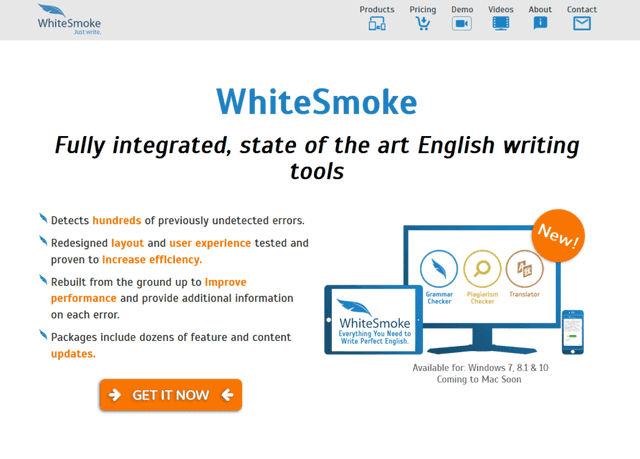
WhiteSmoke is a more “all-in-one” writing tool. When I tested it, I liked that it covers grammar, spelling, style, punctuation, and even translation and plagiarism checks—so you can do a lot without bouncing between multiple apps.
It’s aimed at students, professionals, and writers who want polished text across different platforms.
Features
WhiteSmoke has a full suite of writing checks. In practice, it’s good at finding errors that word processors sometimes miss, and it also focuses on sentence flow and coherence.
One feature I kept using is the translation tool (it supports 50+ languages). For global writing projects, that’s genuinely convenient.
It also includes a plagiarism checker, which is useful if you’re submitting academic work or want extra confidence about originality.
WhiteSmoke is available as a desktop app, a web tool, and through browser/mobile options, so you can use it where you write.
Pros:
- Comprehensive Error Detection: Grammar, style, and punctuation checks in one place.
- Multilingual Translation: Useful when you’re writing across languages.
- Plagiarism Checker: Adds extra peace of mind for academic or professional submissions.
- Multiple Platforms: Desktop, web, and mobile options make it flexible.
Cons:
- Subscription Model: Full access isn’t free, and that might not work for everyone.
- Interface and Usability: I found it a bit less intuitive than some competitors—nothing terrible, but it took me longer to get comfortable.
- Connectivity Requirement: Many features work best with an internet connection, so offline use is limited.
My experience with WhiteSmoke was mostly positive. I liked the detailed error explanations and how it fits into daily writing tasks without feeling clunky.
Translation was helpful, but I also learned to double-check complex sentences for logic and meaning. That’s not WhiteSmoke’s fault—it’s just how translation works.
And the plagiarism tool? That’s the kind of feature you’re glad exists when you’re under a deadline.
Overall, WhiteSmoke is a strong option if you want multiple writing support features bundled together.
5. PaperRater
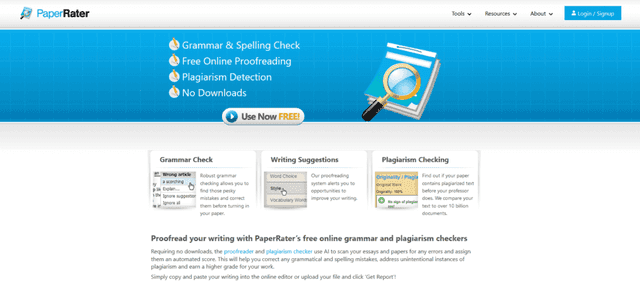
PaperRater is built with students and educators in mind. If you’re writing essays, reports, or academic submissions, it can be a pretty practical tool.
In testing, what stood out is the real-time analysis: grammar, spelling, plagiarism checks, and writing suggestions all show up with the goal of improving the full piece—not just fixing one sentence.
It also includes features that feel very “classroom” oriented, like originality scoring and automated essay scoring.
Features
PaperRater starts with the basics: grammar and spelling checkers that flag potential issues in your text.
Then it adds a couple of things that make it different:
- Originality score: checks submissions against a database of academic works and web pages
- Automated essay scoring: gives a preliminary grade based on writing quality
- Writing suggestions: actionable tips on sentence structure, word choice, and readability
That combination is why it’s useful even beyond school, but it’s especially handy when you want an “educator-style” preview of how your writing might land.
Pros:
- Comprehensive Feedback: Grammar, plagiarism, and writing suggestions work together.
- Speed of Analysis: Real-time feedback helps you revise quickly.
- Educational Focus: Great for students and educators.
- No Subscription Required for Basic Use: You can start with free features.
Cons:
- Limited Features in Free Version: Advanced plagiarism checks and longer document handling may require a premium plan.
- Accuracy of Automated Scoring: The automated grade won’t always match a human grader—use it as a benchmark, not a final verdict.
- Internet Connectivity: Like many cloud tools, it needs an internet connection.
I used PaperRater mainly for academic-style writing. The grammar feedback was quick, and the originality score was the part I checked most often when revising.
I approached the automated essay scoring with skepticism (and honestly, I still do). But it gave me a helpful “this might be weak in X area” signal that I could act on.
If you want a tool that’s built around academic writing improvement, PaperRater is a strong candidate.
6. Scribens
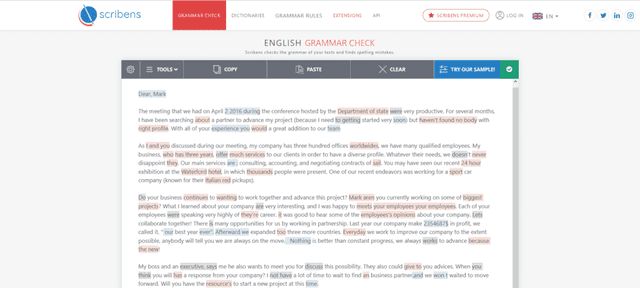
Scribens is a solid grammar checker that’s easy to use—especially if you don’t want to pay for a premium tool just to catch the usual mistakes.
One thing I appreciated right away: it’s free for core grammar checking, and it covers a wide range of issues (grammar, spelling, and punctuation). It’s the kind of tool I use for quick cleanups before sending something off.
Features
Scribens focuses on grammar checking and it’s available directly on the website. You can paste text in and get corrections, or use browser extensions and integrations with Microsoft Word and LibreOffice.
It also includes a synonyms feature, which is helpful when you keep repeating the same words and your writing starts to sound flat.
Pros:
- Extensive Error Detection: It catches a lot of common grammar and punctuation issues.
- Free Access: Core features don’t require paying.
- Ease of Use: Copy-paste friendly, and the extensions make it convenient.
- Language Enhancement: Synonyms help diversify your wording.
Cons:
- Less advanced than premium tools: You won’t get the deeper style/structure coaching you’d see in paid options.
- Advertisements: The free version includes ads, which can be distracting.
- No personalized analytics: It doesn’t track improvements or provide long-term learning insights.
In my experience, Scribens is great for quick checks—especially for short drafts where you want to catch obvious mistakes fast.
The synonyms suggestions also pushed me to rethink word choice a few times, which helped prevent repetition.
For longer, more complex projects, I’d still switch to a more powerful tool. But for everyday writing and budget-friendly proofreading, Scribens does the job.
7. ProWritingAid Review
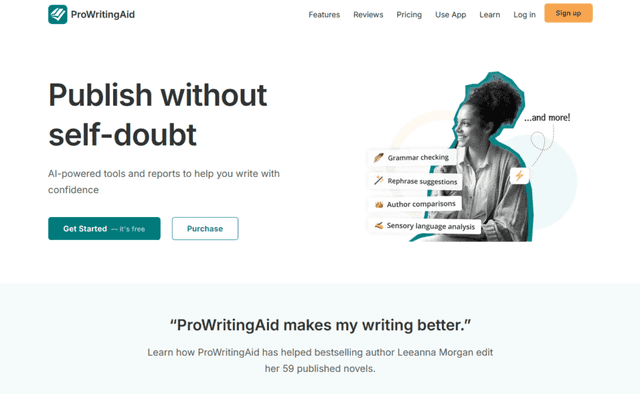
ProWritingAid is the kind of tool I use when I want more than “fix the grammar.” It’s built for deeper editing—style, structure, readability, and even things like pacing and dialogue tags.
In other words, it feels closer to a writing coach than a basic proofreading app. I tested it on a few different types of writing and it consistently gave me useful reports I could actually apply.
It’s a good fit for novelists, content writers, students, and professionals who want detailed feedback (and don’t mind spending a little time reviewing it).
Features
ProWritingAid includes 20+ writing reports. That’s a lot. In practice, it means you can check different aspects of your writing instead of relying on one general score.
Some reports I found especially helpful include:
- Grammar and spelling checks
- Overused words
- Sentence length variation
- Pacing and readability insights
- Dialogue tag suggestions (for fiction writers)
It also integrates with tools like Microsoft Word, Google Docs, and Scrivener, so you can use it in the environment you already write in.
There’s also a summary report that pulls everything together into actionable steps—so you’re not drowning in data.
Pros:
- Comprehensive Analysis: It digs into mechanics and craft, not just surface errors.
- Customization Options: You can tailor checks to your genre and writing style.
- Learning Resources: Explanations and links help you understand why something needs changing.
- Integration Capabilities: Works with multiple writing platforms.
Cons:
- Learning Curve: With so many reports, it can take a bit to know what to run first.
- Performance with Large Documents: Very long texts (like novels) can feel slower to analyze.
- Subscription Model: Full access requires payment.
Using ProWritingAid changed my editing process. The detailed reports didn’t just find mistakes—they helped me spot patterns, like repeated phrasing or sentence rhythm that was making the text feel heavy.
At first, I felt overwhelmed by the amount of feedback. Then I started using the summary report and a “run the top 3 checks” routine. That made it way more manageable.
For anyone who wants serious proofreading and editing help, ProWritingAid is one of the best options out there—especially if you’re the type who wants to improve, not just pass a checklist.
Conclusion
Choosing the best software for proofreading can genuinely change how your writing feels—cleaner, more readable, and more professional. These tools don’t just correct errors; they help you tighten your style and make your message land better.
If you’re a student, professional, or creative writer, adding one of these proofreading tools to your workflow is a smart move. Pick the one that matches how you write (quick fixes vs. deep editing), and you’ll be on track for clearer, more error-free content—without spending hours doing manual line-by-line checks.