Table of Contents

What Is BoardSpace, Really?
I’ll be honest—I was skeptical the first time I heard about BoardSpace. Turning a PDF or set of notes into a “live” whiteboard walkthrough sounds great on paper, but I’ve seen plenty of tools that look impressive and then fall apart when you actually upload a real document.
So I tested it myself. I used it on April 2026 from a laptop browser (Chrome) and uploaded a mix of materials: one 20-page PDF from a study guide, a smaller slide deck, and a page of handwritten-style notes that had diagrams and headings. My goal was simple: see whether BoardSpace could turn “static” content into a clear, step-by-step explanation without me doing extra work.
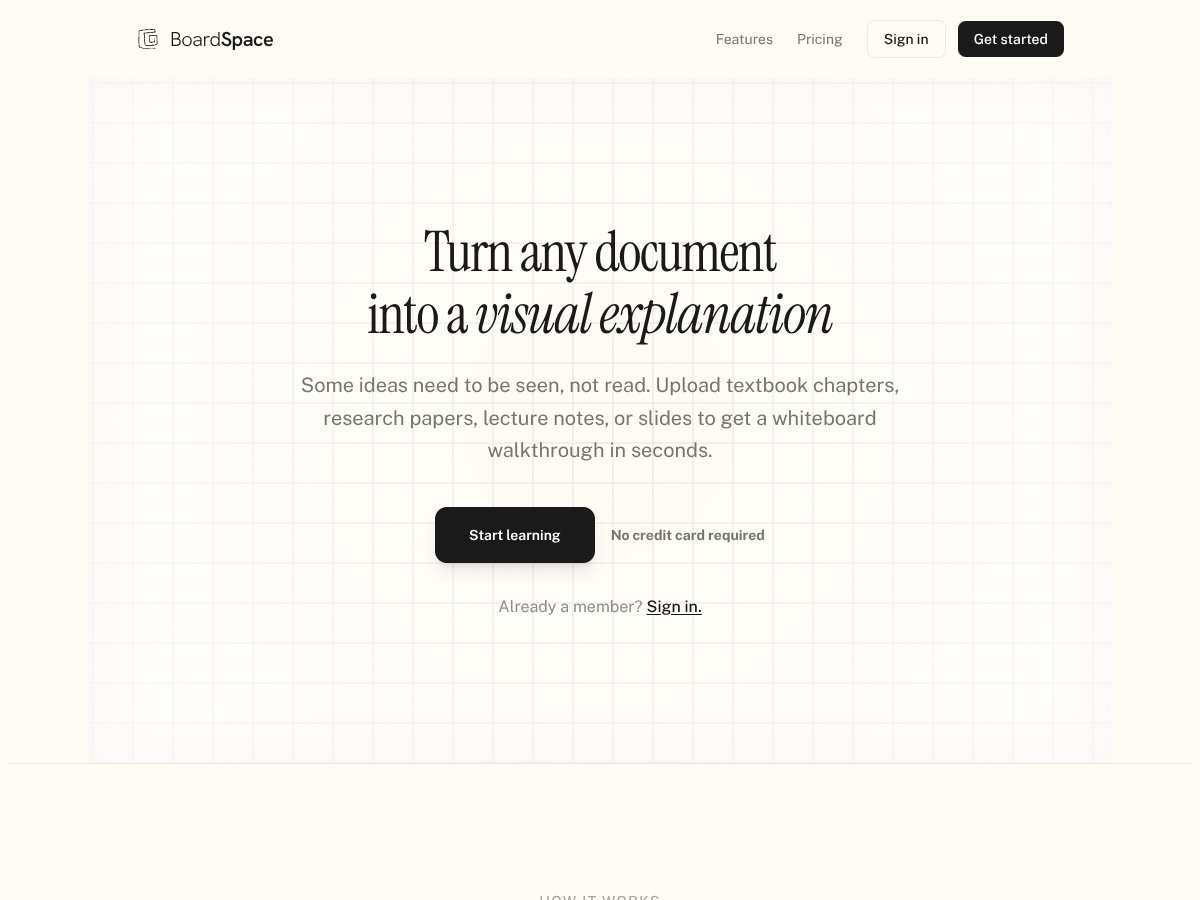
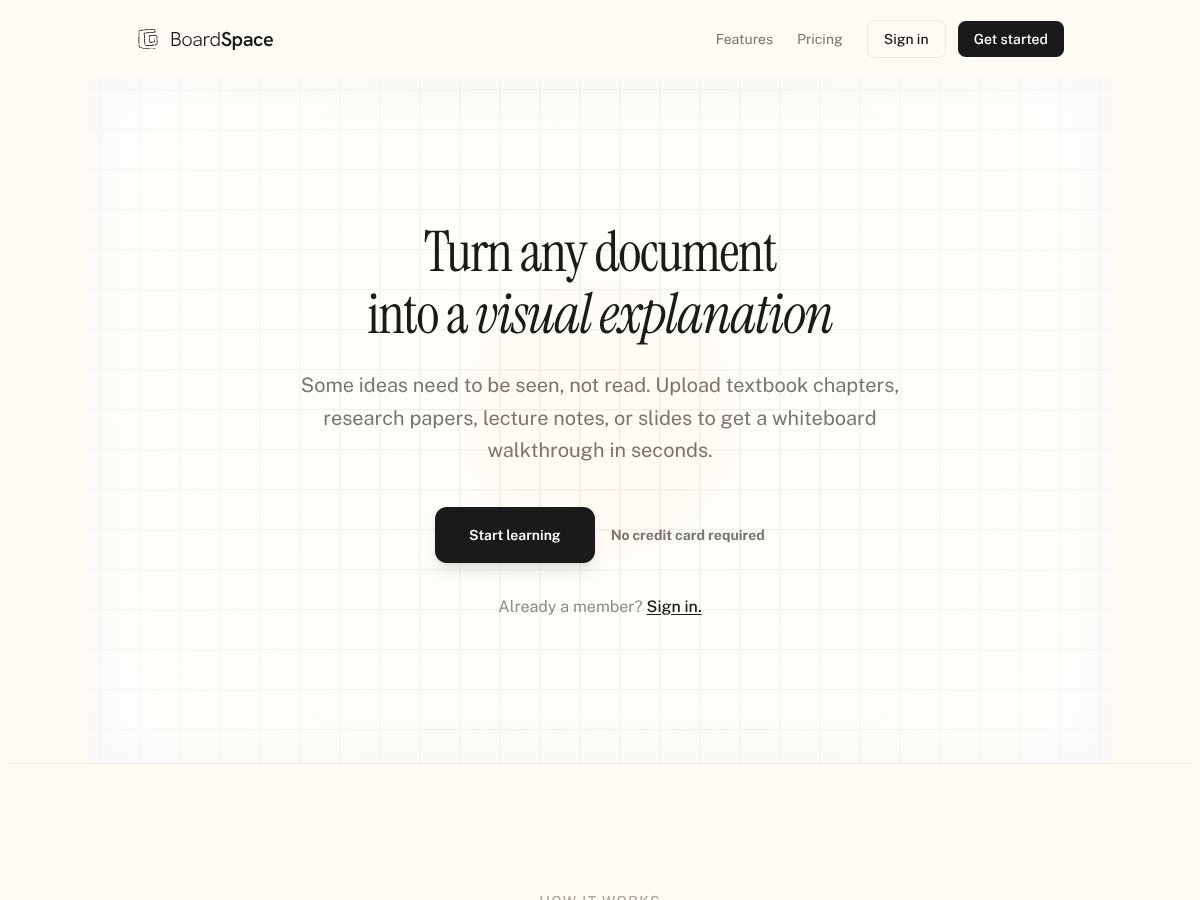
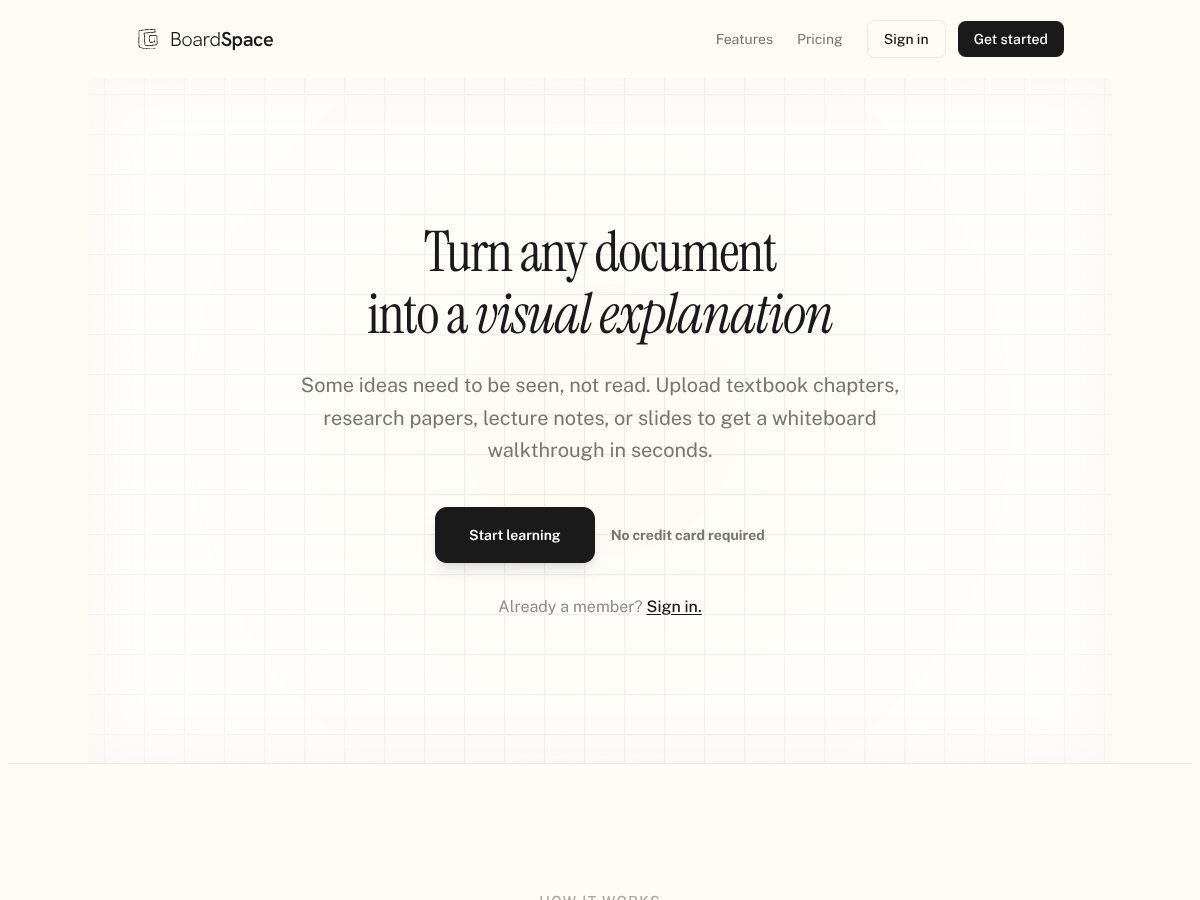
At a basic level, BoardSpace is a tool where you upload documents (PDFs, slides, notes), and then it displays a whiteboard-style session where content is “drawn out” while the explanation progresses. The intent is to help you learn by watching concepts unfold, instead of reading a dense page and guessing what’s important.
Here’s what I noticed right away: it feels less like a full-on tutoring conversation and more like a structured walkthrough of your uploaded material. If you’re hoping it will instantly rewrite your topic from scratch or magically generate brand-new diagrams, that’s not really the vibe.
Also, I couldn’t find a lot of solid background on who’s behind BoardSpace. The site is polished, but the “about” details and team info are pretty thin. That doesn’t automatically mean it’s unreliable—but it does make me cautious about long-term support and product evolution.
One thing I like is that it’s pretty straightforward. You upload, it starts, and you watch. No complicated setup. No endless settings. Still, there are trade-offs. The tool doesn’t feel built for deep, multi-layer explanations where you can drill down into every subtopic. It’s more like a fast visual summary that’s meant to be useful during review.
And just to clarify what I didn’t see: I didn’t find any obvious “behind-the-scenes” AI explanation panels, voice narration, or interactive diagram generation that creates totally new visuals from nothing. It’s primarily visual drawing based on what you upload. If your expectation is an AI assistant that answers anything you ask, you may end up disappointed.
BoardSpace Pricing: Credits, Limits, and What Actually Happens When You Hit Them

BoardSpace’s pricing is simple on the surface, but the real story is how credits behave during real use. I’m not saying the system is bad—just that you should understand it before you start uploading big files.
| Plan | Price | What You Get | My Take |
|---|---|---|---|
| Free (Trial) | $0/month | 150 credits (one-time), 5 docs total, session playback, Q&A | Good to test the concept, but the 5 docs limit can be tight if you’re doing multiple chapters or you want to experiment with several formats. In my testing, I used more than I expected because I uploaded one “practice” file before my main one. |
| Starter | $6/month | 300 credits/month, 70 uploads/month, session playback, Q&A | This is the plan I’d point casual users toward. The upload count helps, but credits can still matter—especially if you do repeated Q&A or keep restarting sessions. |
| Scholar | $18/month | 1,200 credits/month, unlimited uploads, session playback, Q&A | If you’re studying regularly, this one is easier to live with. Unlimited uploads is a big deal when you’re working through a full course pack. Still, if you go wild with Q&A, you’ll want to keep an eye on how credits are consumed. |
Here’s the part I wish was clearer: the sales page doesn’t always spell out how credits map to actions in a way that’s easy to predict. So I paid attention to how my sessions behaved as I used the tool.
In my testing: credits felt tied to the “session” experience—uploading a doc and then running through the walkthrough—and Q&A sessions also seemed to cost credits. What I couldn’t confirm from the UI alone is the exact formula (like “X credits per minute” or “Y credits per Q&A turn”).
What I did check: I looked through the settings and the in-product counters to see whether the tool tells you “credits left” and whether it warns you before you run out. I did see usage tracking, but the level of transparency wasn’t as detailed as I’d want if I were planning a long study sprint.
As for what happens at the limit: I didn’t fully “burn out” my free trial mid-session, so I can’t honestly describe the exact error message you’ll get if you run out halfway through. If you’re considering signing up, I’d treat the trial as “a few good tests,” not “hours of uninterrupted studying.”
Bottom line: if you’re uploading large PDFs or doing lots of Q&A, credits are something you’ll want to monitor. If you’re mostly doing quick review sessions, the plans feel more reasonable.
The Good and The Bad (Based on My Own Sessions)
What I Liked
- Visual walkthroughs that actually help: Watching concepts get drawn out step-by-step made it easier for me to remember the order of ideas compared to staring at a static page.
- Simple workflow: Upload → session plays. That’s it. I didn’t have to fight with settings just to get value.
- Session playback: This is genuinely useful. After I finished a walkthrough, I could go back and review without reloading the whole thing from scratch.
- Free trial is real: You can test the core experience without immediately committing a card. That matters when you’re skeptical like I was.
- Works with common student formats: PDFs and slides were the easiest. Notes worked too, but the clarity depended on how readable the headings and diagrams were.
- Real-time drawing effect: The “watch it build” approach is the whole point, and when the uploaded content is structured, it looks good and feels coherent.
What Could Be Better
- The “how it works” is still fuzzy: I couldn’t find a clear explanation of whether the transformation is fully automated, partially guided, or AI-driven in a specific way. Is it summarizing? Reconstructing? Mapping sections? The docs didn’t give me a satisfying answer.
- Not built for deep Q&A: Q&A exists, but it doesn’t feel like a free-form tutor that can answer anything. It’s more like “ask within the boundaries of what it’s already working from.”
- Credit transparency could be better: I can see usage/counters, but I couldn’t find a clean public breakdown like “credits per upload” or “credits per Q&A interaction.” That makes planning harder.
- Collaboration is limited (in practice): I didn’t see the kind of collaboration features you’d expect from a team whiteboard tool. If you’re teaching a class with multiple active students, this may not feel built for that.
- No export/integration focus: I didn’t find strong export options or integrations that would let me drop outputs into other workflows quickly. If you need to reuse visuals elsewhere, you may have to rely on what the platform provides (and it’s not clear how flexible that is).
Who Is BoardSpace Actually For?

BoardSpace fits best when you already have the material and you want it explained visually—without spending your own time turning it into diagrams.
In my case, I tested it with a biology study guide and a basic chemistry review sheet (lots of headings, arrows, and step sequences). That kind of structure played nicely with the walkthrough style. If your document is messy—tiny fonts, unclear headings, or scattered diagrams—your results will depend on how readable it is when uploaded.
It’s also a good fit if you’re a solo learner who benefits from watching ideas unfold. I found it especially helpful for:
- Review sessions: I could revisit the “story” of the topic without rereading every paragraph.
- Studying from slides: When slides had section titles and bullet structure, the walkthrough felt more organized.
- Quick clarification: If I understood the topic but wanted a cleaner mental sequence, the visual steps helped.
What it’s not: it’s not a replacement for doing your own practice problems, writing summaries by hand, or teaching yourself from scratch. It’s a learning aid—useful, but not magic.
Who Should Look Elsewhere
If you’re expecting a full note-taking app, a collaboration-first platform, or strong integrations with your learning workflow, BoardSpace probably won’t satisfy you.
Also, if you’re a heavy user who needs long, uninterrupted sessions every day, the credits model could feel restrictive. I didn’t see a “set it and forget it” experience that guarantees unlimited usage with no tracking pressure.
And if what you want most is a polished “AI tutor” that can explain anything from scratch with deep transparency, you might be turned off by the lack of clear documentation about the underlying process.
Fair warning: BoardSpace is best when your goal is visual walkthroughs of your existing materials. If your needs are more about planning, collaboration, or content management, you’ll likely be happier elsewhere.
How BoardSpace Stacks Up Against Alternatives
I’m going to be upfront here: instead of doing a random “top tools” list, I used a simple rubric while testing BoardSpace and comparing it conceptually to other options: upload-to-visual time, quality of step-by-step breakdown, how well it supports teaching/flow, and extras like collaboration, templates, and recording.
Explain Everything
- What it does differently: Explain Everything is more of a traditional teaching whiteboard with templates and recording workflows. It’s built for creating polished lessons, not just turning a PDF into a walkthrough.
- Price reality: It’s typically pricier (around $15/month or $120/year depending on plan), and some features can push you toward higher tiers.
- Choose it if... you want to record structured lessons and heavily customize how teaching content looks.
- Stick with BoardSpace if... you want the “upload and get a visual explanation” experience with less setup.
Miro
- What it does differently: Miro is a flexible canvas for brainstorming and team work. It’s great for mind maps and collaboration, but it’s not specialized for “turn this exact document into a step-by-step narrated drawing.”
- Price reality: There’s a free tier, and paid plans start around $8/user/month, which can add up fast.
- Choose it if... you need a shared space for groups, workshops, and ongoing planning.
- Stick with BoardSpace if... you want a more focused tool for turning course materials into an explanation flow.
Jamboard
- What it does differently: Jamboard (via Google Workspace) is more about quick sketches and annotations. Simple is good, but it won’t replicate the “structured walkthrough from your document” idea as well.
- Price reality: It’s included with Google Workspace plans (often around $6/month per user).
- Choose it if... you just need a basic whiteboard and you already live inside Google tools.
- Stick with BoardSpace if... your priority is structured educational walkthroughs from uploaded content.
Microsoft Whiteboard
- What it does differently: Microsoft Whiteboard is great for Teams-friendly collaboration and quick drawing. But it’s not built specifically for teaching from uploaded documents in the same guided style.
- Price reality: It’s typically free with Microsoft 365 subscriptions many people already have.
- Choose it if... you’re all-in on Microsoft 365 and want a simple collaborative canvas.
- Stick with BoardSpace if... you want the “visual explanation” focus rather than a generic collaborative board.
Final Verdict: Should You Try BoardSpace?
After using it, I’d rate BoardSpace around 7/10 for the specific job it’s trying to do. It’s clean, easy to start, and the visual walkthrough format is genuinely helpful—especially for review and for people who learn well when ideas are shown in sequence.
If your main need is live, visual explanations of your existing materials, then yes, it’s worth a trial. The free tier is a good way to see whether the format clicks for you.
But if you’re looking for deep tutoring, unlimited use with no credit pressure, strong collaboration, or serious export/integration support, you’ll probably end up wanting something else.
For me, the biggest “yes” moment was how quickly I could get from “PDF on my drive” to “visual walkthrough I can replay.” That’s the core value. Everything else is supporting detail.
Common Questions About BoardSpace
- Is BoardSpace worth the money? It’s worth it if you’ll actually use the upload-to-visual walkthrough format and replay sessions for review. If you only need generic whiteboarding, you might not get enough value.
- Is there a free version? Yes—there’s a free trial tier with limited credits and a cap on the number of documents you can run. It’s enough to test the experience, not enough for long-term heavy studying.
- How does it compare to Explain Everything? Explain Everything is more about creating and recording your own lessons with templates and customization. BoardSpace is more about turning your uploaded document into a visual walkthrough quickly.
- Can I upload notes or slides? Yes. In my testing, PDFs and slide decks worked best. Notes worked too, but readability mattered.
- Does it support real-time collaboration? I saw multiple-user participation mentioned, but I didn’t test a full classroom-style collaboration workflow. If collaboration is your top priority, it’s worth checking whether the feature set matches your needs.
- Can I get a refund? Refunds depend on where you purchase and the provider’s terms. I couldn’t confirm the exact policy wording from within the content I reviewed, so I recommend checking the provider’s refund policy directly on their site or in your account billing page before you commit.
- Is it easy to use? Yep. The interface is built for quick uploads and fast playback—no steep learning curve.