Table of Contents
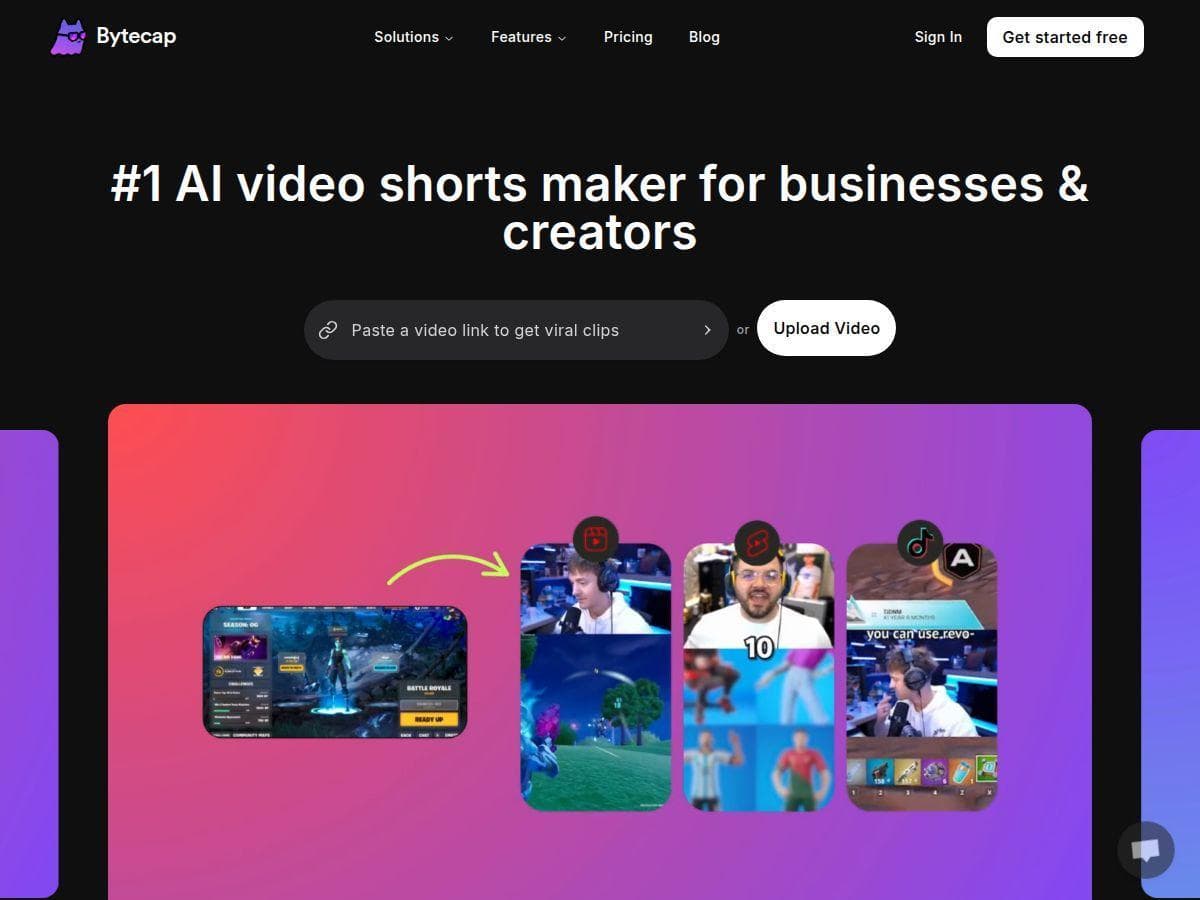
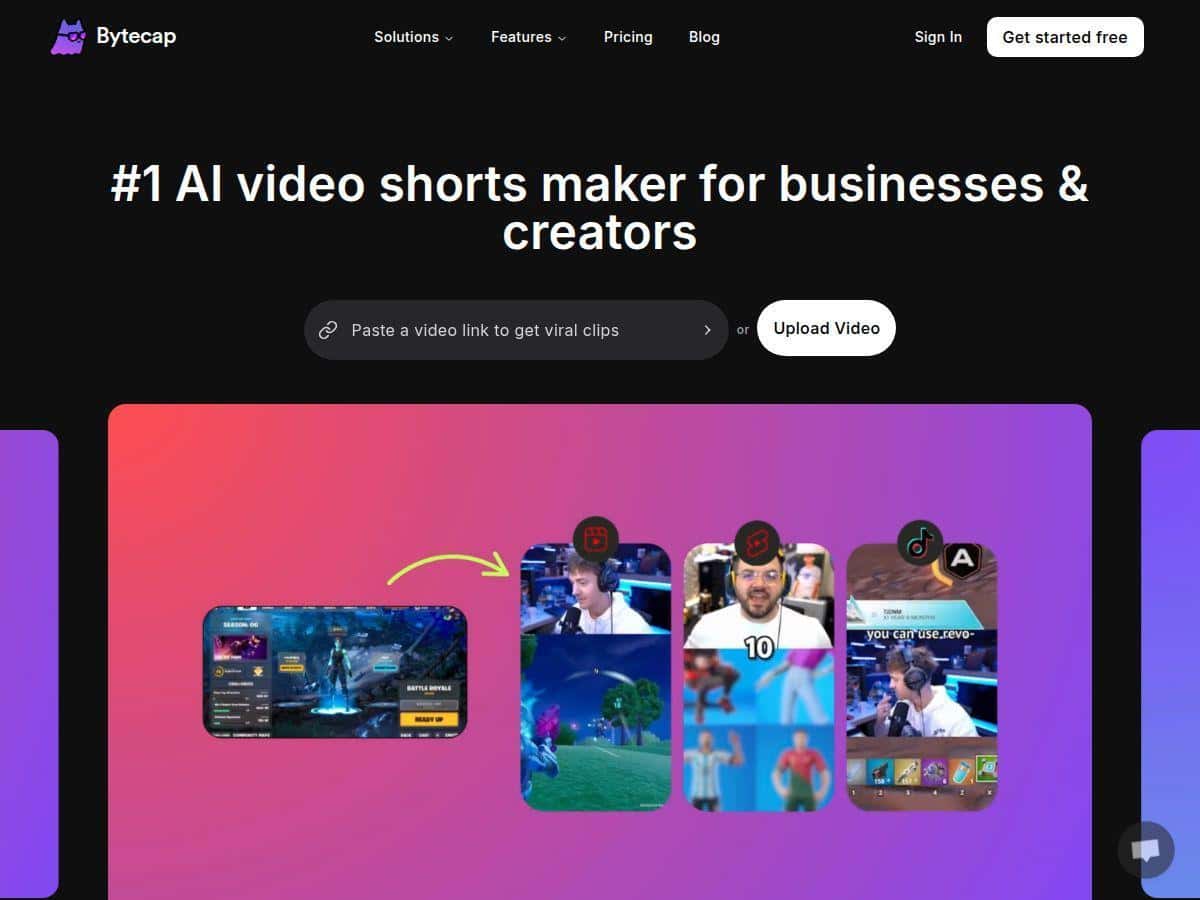
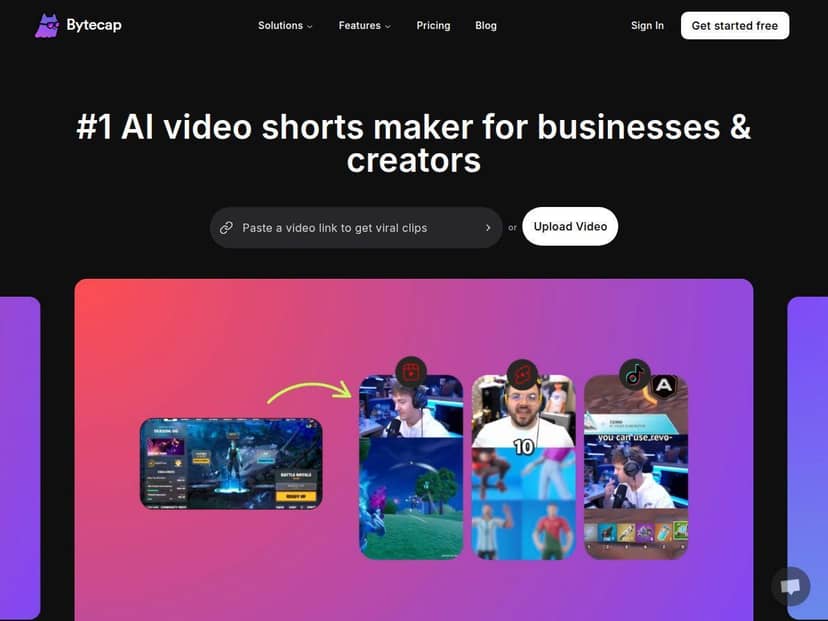
If you’re trying to turn longer videos into social-ready clips without getting dragged into a full editing rabbit hole, Bytecap is one of the tools I kept coming back to. It’s built around AI-assisted scripts, captions, reframing, and quick regenerations—so you can iterate fast instead of starting over every time.
In my experience, the big win isn’t just “making a video.” It’s how quickly you can go from a raw recording (or existing footage) to something that looks sized for TikTok/Shorts/Reels. The tradeoff? You still need to review what the AI does—especially captions and timing—because it won’t be perfect on the first pass for every type of footage.
Bytecap Review: How It Actually Works for Short-Form Creators
I’ve been using Bytecap for a few weeks, mainly to repurpose longer talking-head recordings into Shorts-style videos. I’m on a laptop with a modern Chrome browser, and I worked in the web app (so yes—your results are going to depend on your upload speed and how stable your connection is).
Here’s the workflow I used most often:
- Step 1: Upload a source video (mine was a ~8–12 minute screen + talking audio recording, the kind you’d usually post as a longer video or course segment).
- Step 2: Pick the output format (I tried TikTok/YouTube Shorts/Reels sizing). This is where Bytecap’s “reframing” matters—cropping isn’t just a static zoom; it tries to keep the subject centered.
- Step 3: Generate the short using the AI script/clip suggestions. I’d regenerate a couple times if the first cut didn’t grab the hook fast enough.
- Step 4: Review captions and check timing. Even when the text looks right, the timing can be slightly off depending on pacing and audio clarity.
- Step 5: Export and sanity-check the final file on the target platform (or at least preview it at full screen). This saved me from surprises like cropped text or awkward reframing moments.
What I noticed right away: Bytecap is designed to get you to a “publishable draft” quickly. The first export usually takes minutes, not hours. And when something’s off (a caption word jumps, reframing drifts, the clip starts too late), regenerating is fast enough that you don’t feel trapped.
One more thing—don’t treat the AI voiceover and captions like a “set it and forget it” feature. For my tests, the captions were close but not perfect. The voice sounded solid overall, but if your source audio is very fast or has heavy accents/noise, you’ll want to check the output rather than assuming it’ll match every syllable.
Key Features (What I’d Actually Use)
- AI video creation with scripts + motion visuals
In the UI, the project flow supports generating a short using AI-driven script/scene suggestions. I found this best for turning “talking” content into a more edited-feeling short—especially when you want b-roll style motion or emphasis instead of a raw screen recording. - Language support (advertised as 99+ languages)
This is one of Bytecap’s big selling points. I didn’t test all 99+ languages, but I did see language selection options in the generation flow. If you’re targeting multilingual audiences, this is worth checking in your account settings before you commit. - Visual styles (40+ advertised)
Bytecap lets you choose from different visual styles. In practice, I used this mostly to match the vibe of the platform (clean and modern for tech, slightly more energetic for “how-to” content). Some styles look great immediately; others need regenerations to avoid feeling repetitive. - Edits + regenerations
This is where Bytecap feels genuinely “creator-friendly.” I could regenerate the short without starting from scratch, and I didn’t hit the kind of hard stop that some tools do after a few iterations. (Still: if you’re on a free plan, expect limitations—more on that below.) - Auto-resizing and reframing for TikTok / Shorts / Reels
I tested vertical outputs and the reframing behavior mattered. The AI generally kept the subject visible, but there were moments where the crop felt a little too tight—especially during quick head turns or when important text appeared near the edges. Always preview the final framing. - AI voiceovers (ElevenLabs + OpenAI tech)
Bytecap’s voice option is useful when you don’t want to rely on the original audio or you’re creating a script-based short. In my tests, the voiceover sounded natural enough for social content, but like any TTS system, it can mis-handle unusual names/terms unless your text is clean and specific. - Customizable captions, effects, and transitions
Captions are editable and that’s important. I adjusted styling (font/placement) and checked the timeline to make sure the text stayed readable on vertical. Effects/transitions are there, but I personally prefer using them sparingly—too many visual changes can make the short feel “busy.” - Smart clipping + AI reframing
The clip selection is the part that saves time. It’s not perfect, though. If your source video has long intros or lots of filler, I found the AI sometimes chooses a section that’s “technically relevant” but not the best hook. Regenerating or refining the prompt helped. - Scheduling and publishing (advertised)
I saw the workflow options that point toward automated posting. I didn’t fully stress-test every integration, but if you plan to publish regularly, this is the feature that can actually justify the subscription—because it reduces the “last mile” work after the video is created.
Pros and Cons (Real-World Tradeoffs)
Pros
- Fast path to a short: I can go from source video to a usable draft without learning a full editing timeline.
- Reframing for vertical is genuinely useful: it’s not just resizing; it tries to keep framing sensible for mobile viewing.
- Regenerations help you iterate: when captions or clip selection aren’t right, you can try again quickly.
- Caption styling options: adjusting readability (font size/placement) is a big deal for Shorts/Reels.
- Voiceover is solid for script-based content: good for explainers, summaries, and “re-narration” shorts.
Cons
- Captions can drift: the text might be correct, but timing can lag or jump depending on audio clarity and how fast the speaker talks. I ended up reviewing at least the first 5–10 seconds every time.
- Reframing isn’t perfect: quick motion and edge-of-frame elements (like on-screen text) can get cropped awkwardly.
- Learning curve for “prompting”: if you’re new to AI workflows, you’ll need a few tries to learn what to ask for and how to refine.
- Free plan limitations: expect watermarks and restricted functionality, which makes it less useful if you want to publish immediately.
- Cloud dependency: since it’s web-based, you’re at the mercy of upload speeds and connection stability.
Pricing Plans (What to Expect)
Bytecap has a free plan that outputs watermarked videos and includes basic features. From there, the Lite plan starts at $14/month (with limited credits). The Pro plan is around $35/month and is where you typically get the full experience—things like higher export quality (including 4K), more generous editing/regeneration, and options aimed at publishing workflows.
If you’re doing this casually, the subscription might feel steep. If you’re repurposing content every week, it can pay off because you’re buying time back. For the latest pricing and plan details, check Bytecap’s official site.
Wrap up
Bytecap is best when you want speed: repurpose longer footage into Shorts/Reels quickly, get captions on-screen, and keep iterating until it looks right. It’s not a replacement for careful editing when you need ultra-precise timing or pixel-perfect caption synchronization—but for most creators, the “draft-to-publish” workflow is the point.
If your goal is consistent short-form output without spending hours in a timeline, Bytecap is worth trying. Just do a quick test with one of your real videos first—pay attention to caption timing and framing—then decide if the subscription fits your workflow.