Table of Contents
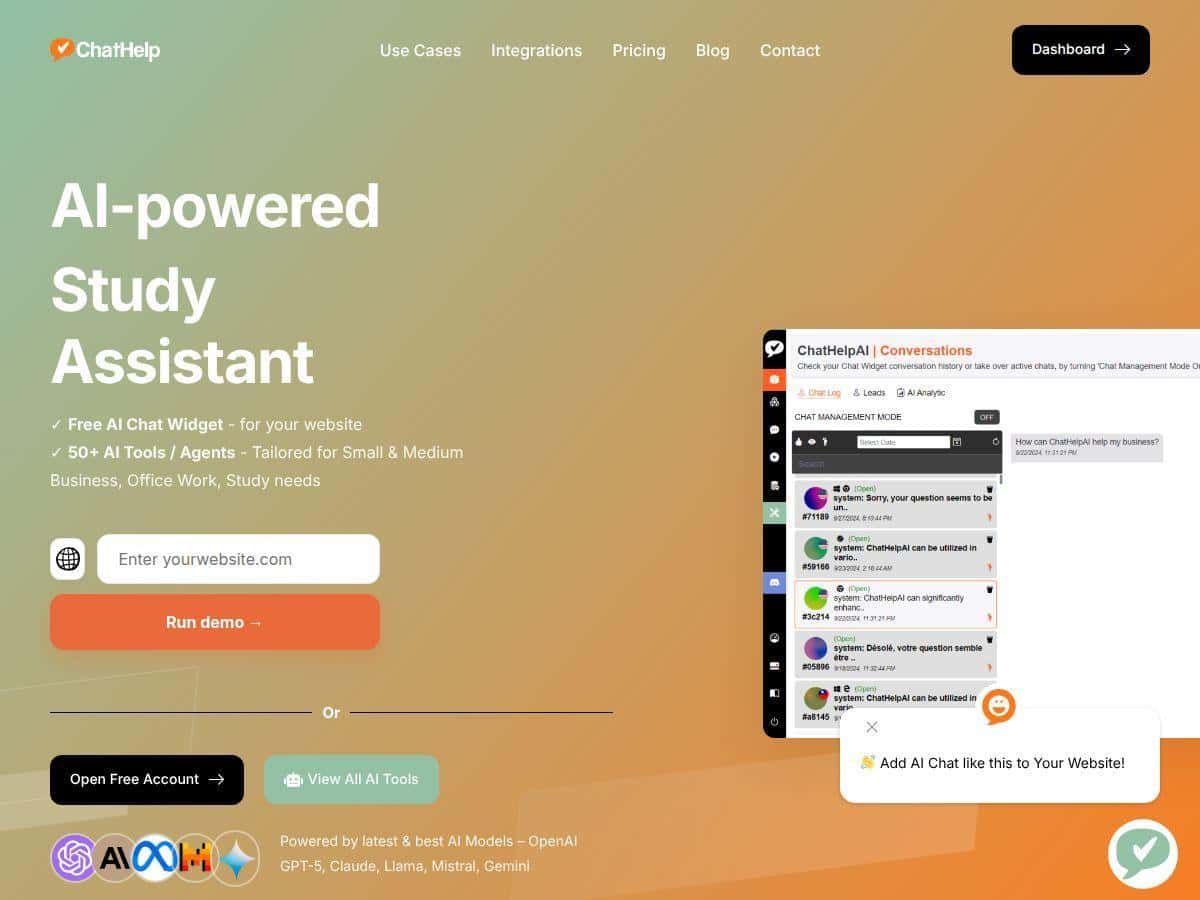
I tried ChatHelp.ai because I wanted something more practical than “generic chatbot” demos. My goal was simple: get a working chat widget on a website, test a few real use cases (summaries, Q&A, and routing questions to the right answers), and see how painful the setup actually is. What I noticed right away is that it’s not just a chatbot—it’s more like a builder + library of tools that you can assemble into something useful.
Setup felt surprisingly manageable. I didn’t have to fight through a bunch of technical steps, and the widget experience looked clean on my site. The part I liked most was being able to create custom-trained bots using my own content, because off-the-shelf answers can be… pretty generic. Once I fed it content I actually care about, responses started to feel more on-brand.
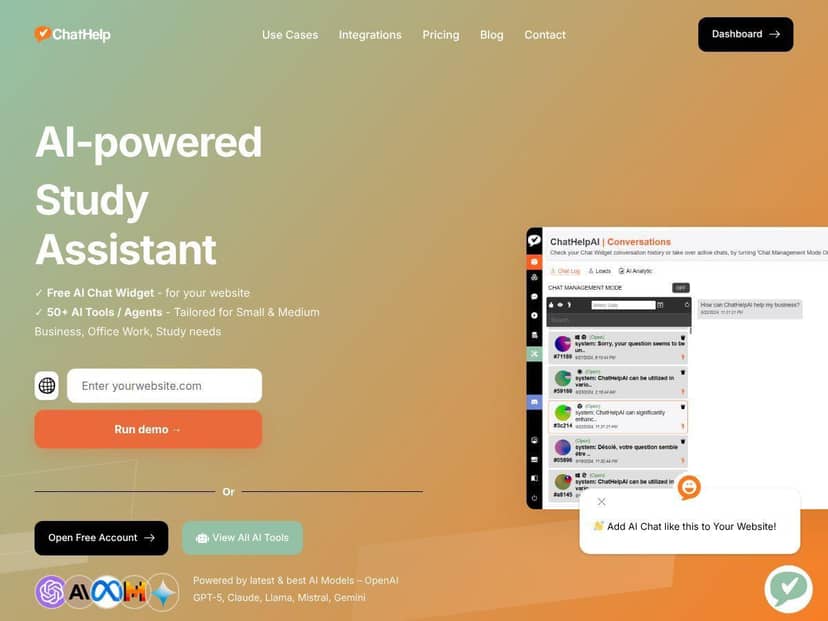
ChatHelp AI Review
Let me be upfront: I didn’t test ChatHelp.ai on a “perfect” scenario where everything goes right. I tested it like most people would—trying to get it to answer real questions, using content that’s relevant, and checking whether the chatbot widget actually behaves well on a live page.
What I did in my test:
- I embedded the customizable chat widget on my site and checked it on both desktop and mobile to make sure it didn’t look weird or break the layout.
- I created a custom-trained bot using content I provided (so I could see whether it would stay consistent with my material instead of drifting into generic answers).
- I ran a handful of prompt-style requests like “Summarize this,” “Answer based on the above,” and “Generate a few FAQ-style replies” to see how the tools handle formatting and usefulness.
What I noticed: the widget experience is the first “real world” test, and ChatHelp.ai passed that bar for me. The chat interface felt easy to interact with, and the customization options helped it blend into the page instead of looking like a random third-party box.
Where it really stood out was the custom-trained angle. When I used my own content, the bot’s responses were more aligned with what I wanted—especially for Q&A and “explain this from my docs” type questions. If your content is clear and structured, you’ll get better results. If your content is messy or contradictory, you’ll still see that show up in the answers. That’s not unique to ChatHelp.ai, but it’s something I’d plan for.
Key Features (and how they actually show up)
- Customizable AI Chat Widget
This is the feature you’ll care about first. I embedded it into my site and it loaded normally without any “wait, where do I put the code?” confusion. The value here is simple: you can match it to your site’s look and control how users experience the chat. - Over 100 AI tools and agents
Instead of just one chatbot, you’re picking from a bunch of tools. In my testing, I used tools for “summarize” and “generate prompts/outputs,” and it was helpful that these were packaged as actions rather than me having to manually engineer everything from scratch each time. - Train chatbots with your own content
This is the big one if you want the bot to sound like you (or at least stick to your facts). I tested this by feeding it content and then asking questions that should be answerable from that text. When the source content directly supported the request, the answers were noticeably more relevant than generic responses. - Supports over 175 languages
Even if you’re not multilingual today, it matters if you plan to expand. I didn’t run a full 175-language stress test, but the language support is something you’d expect to show up in the configuration area for bot responses and user interactions. - Integrations like Gmail, Slack, HubSpot, and Zapier
This is where ChatHelp.ai can go beyond “chat on a page.” I specifically looked at the integration path because that’s often what turns a chatbot into an actual workflow. If you’re comfortable with integrations, you can connect chat events to downstream actions (like notifications or CRM updates). If you’re not, you may need a bit of trial and error. - Secure data hosted on encrypted cloud servers
Security claims are common, so I focused on what matters operationally: you’re not expected to self-host everything from day one. If data handling is a priority for you, this is at least aligned with how businesses typically want their AI tools deployed. - Hosted and self-hosted deployment options
This gives you flexibility. Hosted is usually faster to get live. Self-hosted is better if you have tighter control requirements (or internal policies). I like that they offer both, because teams don’t all have the same risk tolerance.
Pros and Cons (based on my experience)
Pros
- Widget-first experience is solid: embedding and testing the chat UI was straightforward, and it didn’t feel like a “prototype-only” tool.
- Custom-trained bots make a real difference: once I used my own content, responses stayed more relevant to my material.
- Lots of tools beyond basic chat: the “agents/tools” approach helps if you want summarization, generation, or structured outputs rather than just conversation.
- Multilingual support: the “over 175 languages” claim is meaningful if you’re targeting global users.
- Deployment flexibility: hosted for speed, self-hosted if you need control.
- Free trial: I always recommend testing first, and a no-card trial makes it easy to evaluate without pressure.
Cons
- It can feel overwhelming at first: there are a lot of tools/agents. If you don’t have a plan for what you want the bot to do, you’ll click around for longer than you expect.
- Some advanced pieces aren’t fully “plug-and-play”: I found that the more complex integrations or workflows can require extra setup time.
- Higher-tier features may be necessary for full power: if you’re expecting “everything unlocked” on the cheapest plan, you might be disappointed. Some capabilities are simply positioned for larger teams.
- Quality depends on your content: if your training material is inconsistent, the bot will reflect that. Garbage in = garbage out (even with good tooling).
Pricing Plans (who each one is for)
ChatHelp.ai has a free trial that doesn’t require a credit card. After that, the paid plans start at $19/month for Starter, then $29/month for Pro, and $49/month for Business. There’s also a $97 lifetime deal.
Here’s the practical way I’d choose:
- Starter ($19/mo): best if you mainly want the chat widget on your site and basic bot functionality. If your goal is “answer FAQs and capture leads,” this is the quickest path.
- Pro ($29/mo): go here if you need more room to grow—more usage, more tools, and you’re likely doing more serious bot configuration (especially if you’re testing multiple bots or workflows).
- Business ($49/mo): best for teams that want deeper capabilities and more robust workflow needs. This is where you’d expect more advanced usage and a better fit for operational deployment.
- Lifetime ($97 one-time): if you’re confident you’ll keep using it and want predictable costs. In my opinion, it’s the most attractive option for small teams that want the full setup without ongoing monthly fees.
One thing to watch: the exact “more storage / unlimited sessions / full API support” details are plan-dependent, and you’ll want to check the current plan limits on their official pricing page before you commit—especially if you’re planning heavy API usage or high-volume deployment.
Wrap up
ChatHelp.ai is a strong option if you want more than a basic chatbot. The widget experience is easy enough to get live, and the custom-trained bot workflow is where it becomes genuinely useful. If you’re building a customer support helper, an internal FAQ assistant, or a study tool that needs to stick to your content, it’s worth your time.
Just don’t expect it to magically “do everything” with zero setup. If you take the time to feed it good material and decide what you want the bot to do, the results are a lot more impressive. If you want my decision rule: start with Starter or the free trial if you’re testing a single use case—upgrade to Pro/Business when you’re ready for deeper workflows or broader usage.