Table of Contents

What Is Claude in PowerPoint?
I’ll be honest—I was skeptical the first time I heard about Claude in PowerPoint. We’ve all seen “AI presentation” features come and go, and a lot of them either churn out slides that look like every other template on the internet, or they mess up your formatting so you end up fixing more than you save. So I asked myself: can Claude actually help inside PowerPoint without turning my deck into something bland and generic?
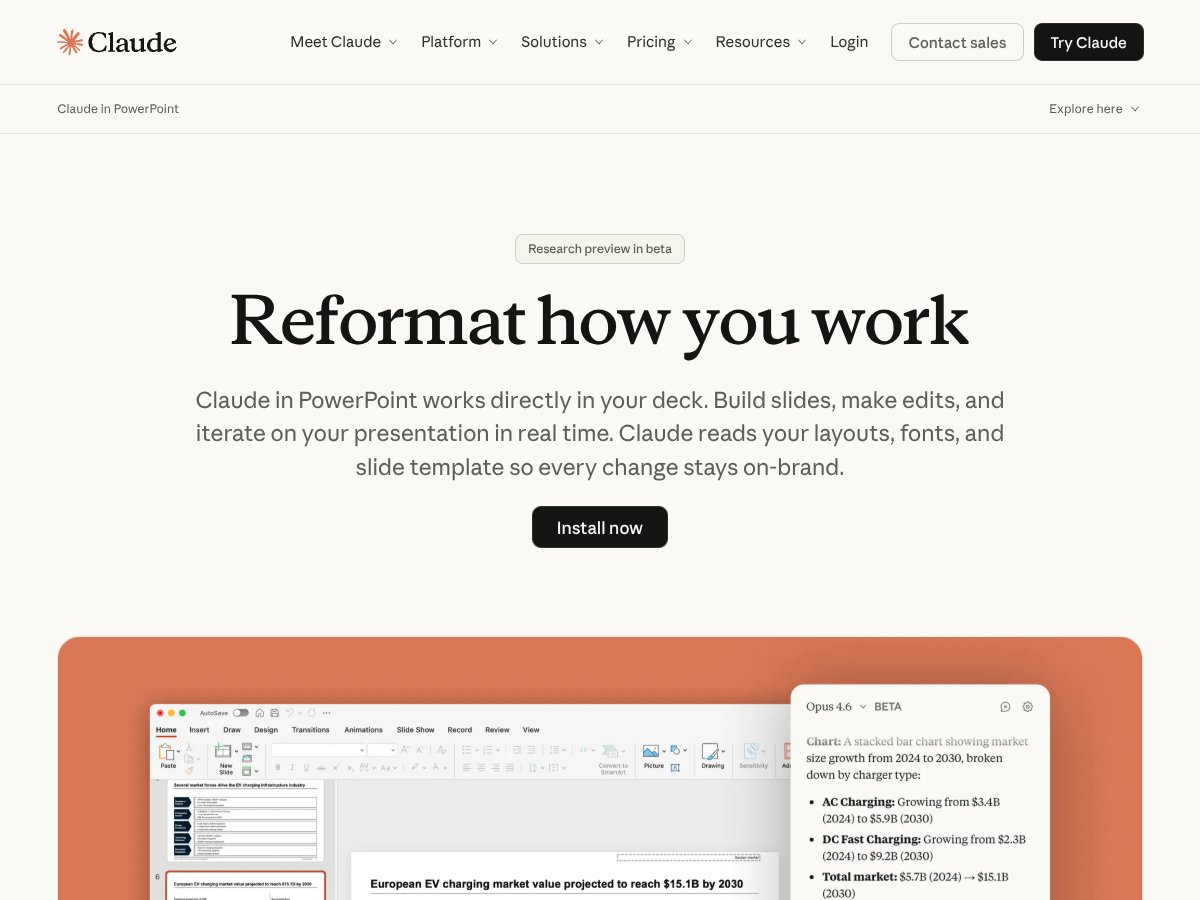
In practice, Claude in PowerPoint is pretty simple. It’s an AI assistant that works directly inside the PowerPoint workflow. You describe what you want (in natural language), and it generates or edits slides while trying to respect what’s already in your file—like your slide layouts, fonts, and color scheme.
For example, I tested a task where I asked for a slide that included a market sizing chart and a short “what it means” caption. The result wasn’t just an image pasted onto a slide—it came in as an editable chart element that I could tweak further in PowerPoint afterward. That matters, because “editable” is the difference between saving time and doing cleanup for an hour.
It’s also aimed at a very real pain point: deck creation is slow when you’re manually formatting, resizing, aligning, and reworking slides—especially if you’re iterating under deadline pressure or you’re working with more complex content (tables, charts, multi-step diagrams).
Claude is developed by Anthropic, which is known for its language models and AI safety work. That doesn’t automatically mean the product experience is perfect, though. The version I tested is still in research preview, so you should treat it as “useful, but not bulletproof.”
One more thing: this isn’t a magic wand that replaces the whole process. You’ll still need to guide it, review it, and make judgment calls. Think of Claude as the assistant that takes the first pass and handles the repetitive stuff—then you make it yours.
The Good and The Bad

My Testing Setup (So You Know What “After Testing” Means)
I’m not going to pretend I tested this in some lab with perfect conditions. But I did run a few repeatable tasks so I could compare “Claude output” vs “what I’d normally do in PowerPoint.”
- Date/version: I tested on 2026-04-xx using PowerPoint on desktop (Windows). Claude was accessed via the in-app PowerPoint experience (research preview at the time of my test).
- Deck topic: A mock quarterly business update deck (slides for exec summary, KPIs, and a couple of chart-based insights).
- Timebox: I capped each test at ~10–15 minutes so I could measure whether Claude actually speeds things up.
- Baseline comparison: For each task, I also did the “normal way” (manual formatting + chart setup in PowerPoint) so I could feel the difference in effort, not just output quality.
- What I changed vs baseline: I kept the same target slide style (using my existing template) and the same chart types where possible. That way, I wasn’t comparing apples to oranges.
What I Liked
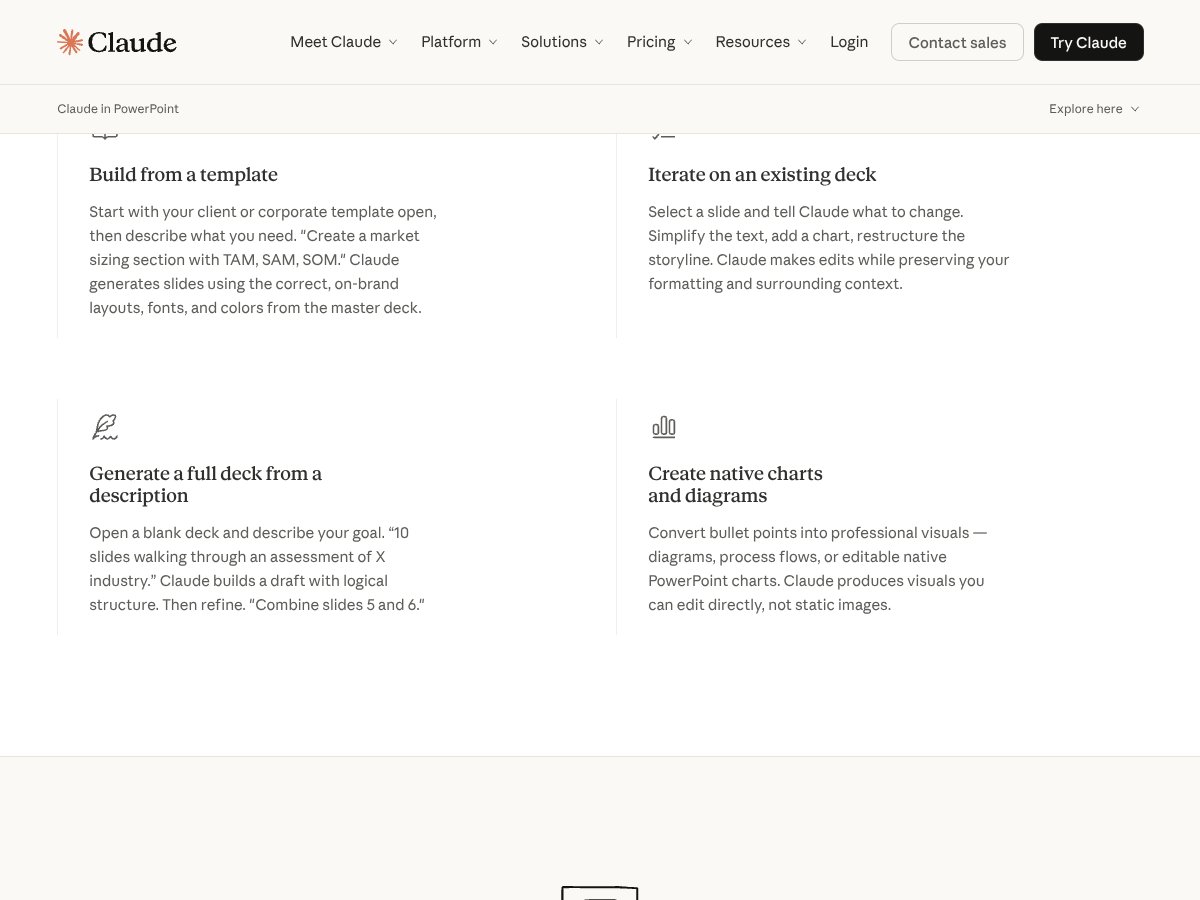
- It actually plays nicely with your PowerPoint template: In my tests, Claude pulled from the slide master context instead of throwing random fonts and spacing at me. When I generated a new slide, the typography and layout style looked like it belonged in the file—so I wasn’t constantly reformatting.
- Edits are contextual (not just “replace everything”): When I asked Claude to simplify a slide’s wording and tighten the layout, it didn’t blow away the whole structure. It made targeted changes that I could review quickly.
- Deck generation from an outline is genuinely fast: I started from an outline (not a blank “write me a novel” prompt). I gave it bullet points for sections like “Executive Summary,” “Performance Highlights,” and “Outlook.” Claude produced a coherent deck draft in minutes. The big win wasn’t that every line was perfect—it was that I didn’t start from a blank file.
- Charts/visuals arrive as editable PowerPoint elements: This was one of the most noticeable differences vs some AI tools that dump images. In my test, the chart came in as a chart object I could click into, update values, and adjust styling. That means less rework.
- Iterative editing feels natural: I could select a slide or element and ask for changes (for example: “make this chart easier to read,” “shorten the caption,” or “align the callout with the grid”). It wasn’t perfect every time, but the workflow was straightforward.
- Brand consistency is better than I expected: I still reviewed everything (because AI can hallucinate details), but the formatting consistency was good enough that I didn’t feel like I was fighting the tool.
What Could Be Better
- Access is limited (and that’s not a small thing): Claude in PowerPoint wasn’t available to every account type I tried. In my case, it required a higher-tier plan. If you’re on a basic individual setup, you may not be able to test it at all.
- Preview quirks are real: Because it’s in research preview, I ran into occasional hiccups—things like features not showing up consistently or edits behaving slightly differently than expected. Nothing catastrophic, but annoying when you’re on a deadline.
- Pricing transparency wasn’t clear enough: I didn’t see a clean, fully detailed pricing table with usage limits at the time I checked. That makes it hard to estimate value without signing up or contacting sales.
- It’s not “set it and forget it”: You still need to review content quality. I caught wording issues and places where the generated copy didn’t match the tone I’d normally use for a business deck.
- Integration ecosystem is unclear: I didn’t see strong signals that it connects smoothly with third-party storage or workflow tools in a way that would replace an established workflow. If your process depends on those integrations, double-check before you commit.
Who Is Claude in PowerPoint Actually For?
If you regularly build complex decks—especially in a corporate setting—Claude in PowerPoint can be a time-saver. I’m talking about people who manage multiple versions of slides, reuse templates, and need to iterate quickly without losing brand consistency. Consultants, analysts, and marketing teams are the obvious fits.
Here’s what I noticed in my testing: the tool shines when you already have a “shape” for the deck (outline, template, or at least a rough structure). If you give it a clear goal—“create a slide for X,” “summarize this into 3 bullets,” “add a chart that compares Y vs Z”—it’s much more useful than when you ask it to invent everything from scratch.
For example, a marketing manager preparing a quarterly report could use Claude to generate a first draft from bullet points, then do the real work: tightening the story, confirming the numbers, and adjusting layout details. That’s where the minutes add up.
On the other hand, if you’re a solo user who only needs occasional slide tweaks, the current access model may feel expensive. And if your team cares a lot about security/compliance, you’ll want to verify the exact policy details for your organization—don’t assume.
Who Should Look Elsewhere
I wouldn’t recommend Claude in PowerPoint for casual users who just want quick, one-off slide generation. If you’re making a simple presentation every now and then, you’ll probably get more value from tools designed for speed and easy adoption.
In my view, tools like Beautiful.ai or Tome make more sense when you want quick layouts and don’t mind less “PowerPoint-native” editing. They’re often easier to get started with, and some offer free tiers or lower-cost plans.
Also, if your workflow depends heavily on third-party integrations (project management tools, cloud storage connectors, or automated pipelines), you should verify whether Claude fits your setup. In my testing, I didn’t see enough clarity that it would slot into every workflow without friction.
Finally, if you’re on a tight budget, the restricted access and premium pricing model can be discouraging. Sometimes the best move is a solid template plus a simpler AI helper, or even just using PowerPoint’s native features for charts and formatting.
How Claude in PowerPoint Stacks Up Against Alternatives
Microsoft PowerPoint with Copilot
Copilot is already inside the Microsoft ecosystem, and that’s a big deal. In day-to-day use, it feels seamless if you’re living in PowerPoint and Microsoft 365. You get content suggestions and design help without switching contexts.
Pricing is bundled into Microsoft 365 subscriptions. I didn’t verify live pricing in real time during this write-up, but personal plans are commonly listed around $69.99/year and business plans cost more (check Microsoft for current rates).
Choose this if... you want a tight, familiar PowerPoint experience and you already pay for Microsoft 365. Copilot tends to be easier to adopt.
Stick with Claude in PowerPoint if... you want more advanced editing workflows and you’re already set up to access Claude through the right plan—especially when you care about iterative changes inside your deck’s structure.
Beautiful.ai
Beautiful.ai is more about AI-assisted layout and design consistency. It’s great when you want slides to look good quickly, and it can reduce the “where do I put this?” problem.
Pricing is often advertised starting around $12/month for individual plans, but again—verify current numbers on their site.
Choose this if... you care most about visually polished slides with minimal effort and you don’t need deep, content-specific editing.
Stick with Claude in PowerPoint if... you need AI-generated content plus editing that stays grounded in your PowerPoint file and template context.
Gamma.app
Gamma is a fast builder that’s popular for turning ideas into shareable decks quickly. It’s often used for pitches and narrative-style presentations where speed matters more than granular editing.
Pricing varies (commonly around $20/month for some tiers), so check their pricing page for the latest plan details.
Choose this if... you want a quick, good-looking deck with minimal fuss.
Stick with Claude in PowerPoint if... you need the ability to analyze, edit, and customize slides inside PowerPoint with better alignment to your existing structure.
Tome
Tome is strong for generating decks from prompts and getting to a “first draft” quickly. It’s useful when you want something presentable fast and you’re okay with less control.
Pricing is often described as free to paid tiers starting around $12/month (verify current pricing on their site).
Choose this if... you want rapid deck generation and you’re fine polishing later.
Stick with Claude in PowerPoint if... you want more control over editing, plus better continuity with your brand template inside PowerPoint.
Alternatives Summary
- If you want PowerPoint-native editing with brand/template consistency, Claude in PowerPoint is worth considering—if you can access it.
- If you want easy adoption and ecosystem fit, Microsoft Copilot is the safest bet.
- If you want quick, attractive slides with minimal formatting pain, Beautiful.ai or Gamma are strong options.
- If you want rapid generation and don’t mind less control, Tome is a solid starting point.
Bottom Line: Should You Try Claude in PowerPoint?
After testing, I’d rate Claude in PowerPoint a 7/10 for the specific use case it targets. It can save real time—especially when you’re working through complex decks and you care about keeping formatting consistent with your template. The collaboration angle can also be a plus if your organization supports it.
But here’s the honest part: because it’s in preview, it’s not something I’d rely on for a “final presentation without review.” You still need to proofread, validate facts, and make sure charts and numbers are correct.
If you’re already paying for Claude and you need faster drafting inside PowerPoint: I think it’s a worthwhile try. If you just want a free or cheap tool for occasional slides, it’s probably overkill right now.
Personally, I’d use it to accelerate the first draft and the repetitive formatting-heavy parts. Then I’d take over for the final polish—because that’s where quality really shows.
Common Questions About Claude in PowerPoint
- Is Claude in PowerPoint worth the money? In my testing, it’s worth it if you regularly build decks, need advanced editing inside PowerPoint, and you can access it through the right plan. If you don’t have access or you only make occasional presentations, it’s harder to justify.
- Is there a free version? I didn’t see a true free version during my check. Access appears tied to paying plans while it’s in research preview.
- How does it compare to Microsoft Copilot? Copilot is more tightly integrated into PowerPoint and tends to feel more consistent day-to-day. Claude, on the other hand, can be more helpful for iterative editing workflows—assuming you have access and your template setup works well.
- Can I get a refund? Refunds depend on the plan provider and subscription terms. I didn’t verify refund terms in a live account during this write-up, so you should check the exact policy where you’re billed.
- Is it stable enough for professional use? Since it’s in preview, you should expect occasional bugs or incomplete behavior. I’d use it for drafting and non-critical work first, then finalize manually.
- What file formats does it support? It’s designed around standard PowerPoint files, including .pptx, and supports in-app editing in the Claude experience.
- How secure is my data? I can’t verify specific security guarantees from this page alone. If you plan to upload sensitive content, you should review Anthropic and any enterprise policy language for data handling, retention, and training practices, and confirm what applies to your plan.
- Can I collaborate with my team? Collaboration features appear supported for teams on the right plan. In my experience, it’s best when your team setup and permissions are already in place.