Table of Contents

What Is ClipBoom?
Honestly, when I first heard about ClipBoom, I was skeptical. The idea of a Windows app claiming you can generate unlimited viral story videos without recurring subscription fees sounded a bit too good to be true—especially since most of these tools either charge monthly or have hidden costs. But I was curious enough to give it a spin, mainly because I’m tired of paying $50+ a month for content creation platforms that never quite deliver on what they promise.
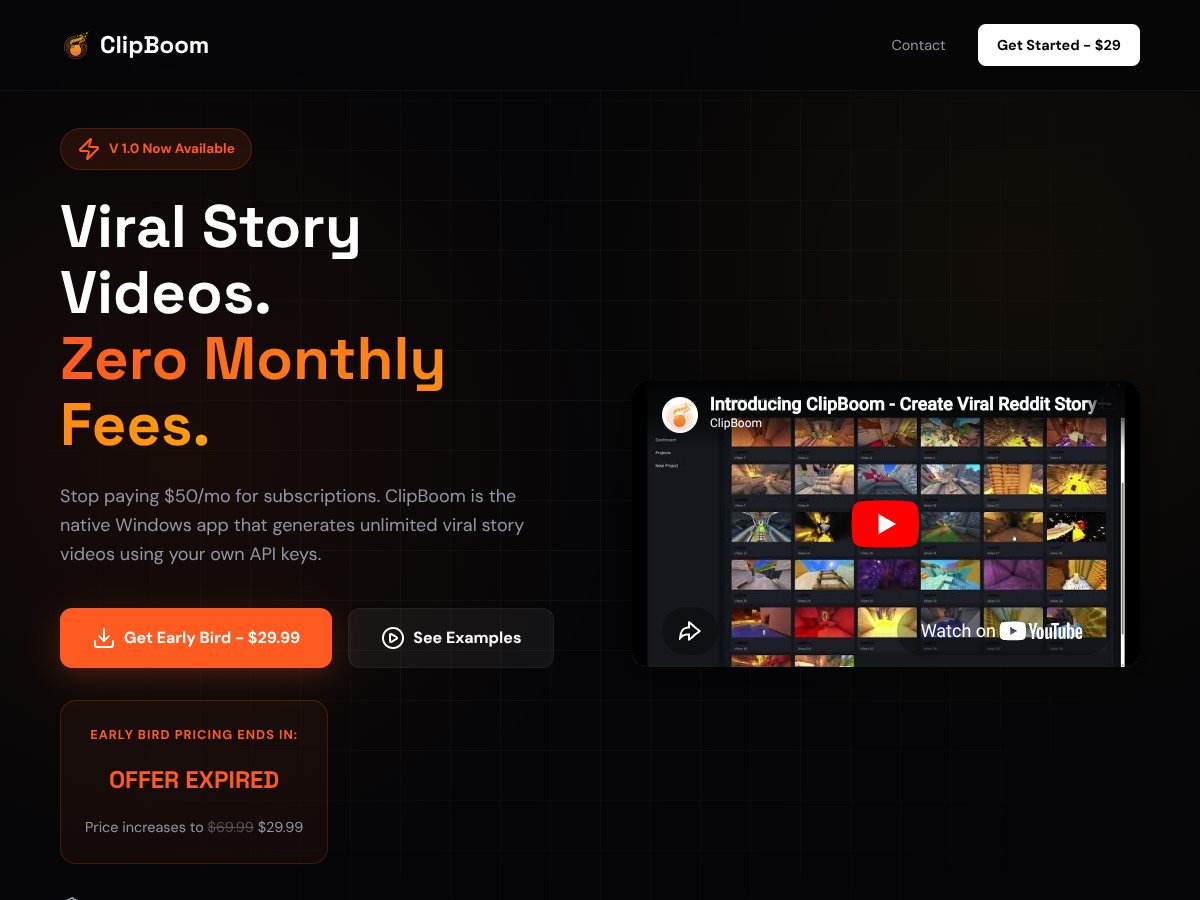
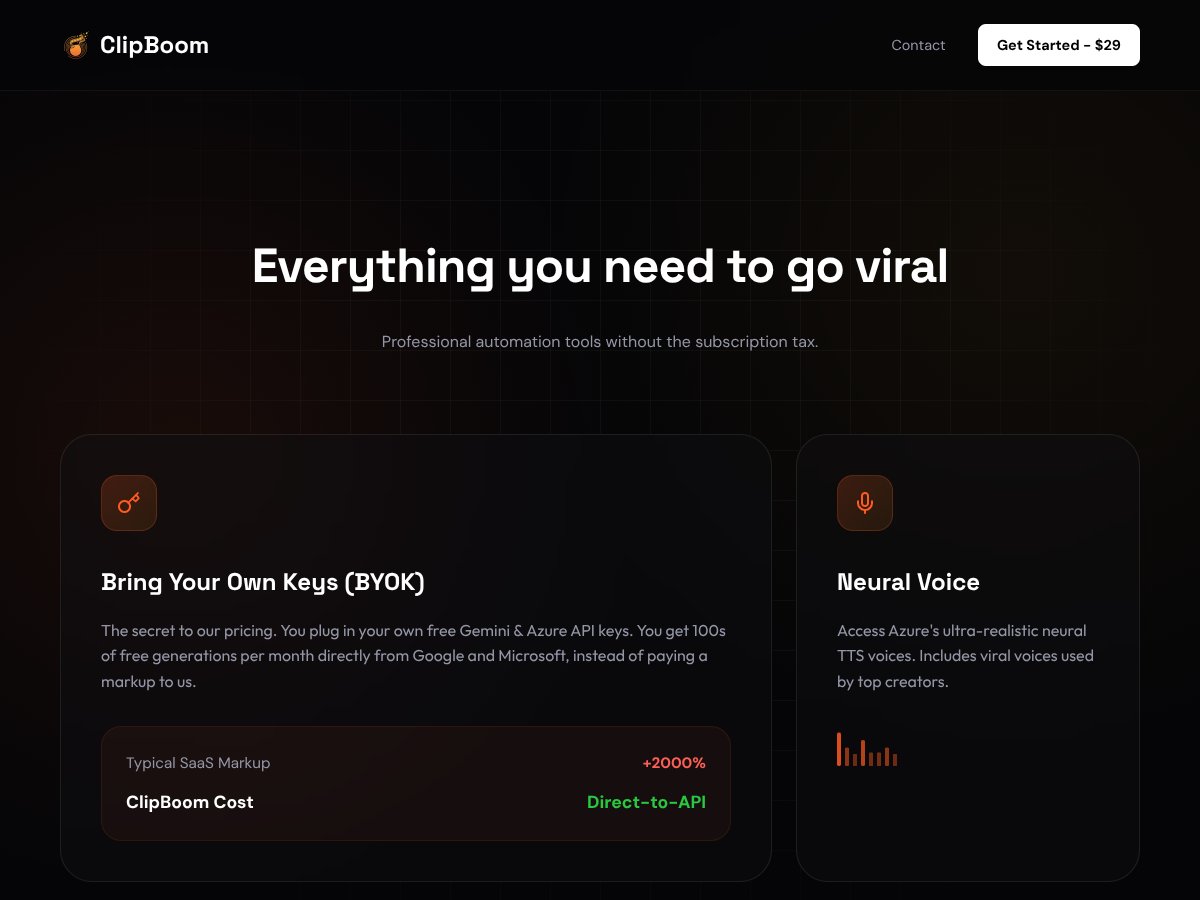
So, what does it actually do? In plain English, ClipBoom is a desktop app (Windows only, as far as I can tell) designed to help creators whip up short-form vertical videos—think TikTok, Instagram Reels, or YouTube Shorts—more quickly. Its main pitch is that it lets you generate these videos without ongoing subscription fees, instead relying on your own API keys from Google’s Gemini and Microsoft’s Azure. This way, you supposedly avoid paying hefty markups that SaaS platforms often tack onto third-party APIs.
The problem it aims to solve is simple: making short-form video content fast and affordable. If you’re someone who’s tried to grow on TikTok or Instagram, you know how time-consuming and sometimes expensive it can be to produce engaging videos regularly. ClipBoom promises to cut down that process by automating script-to-video workflows, adding captions, and even providing background clips—all in one native app.
Behind the scenes, it’s developed by an outfit that’s pretty new on the scene. The website doesn’t offer much info about the team or company, which is a little suspicious. All I could find was that it’s a Windows app that you install locally (no cloud-based SaaS interface), and they’re positioning it as a one-time purchase that’s more budget-friendly than ongoing subscriptions.
My initial impression? It roughly matches what’s advertised. The app launches quickly, and the interface is straightforward enough—though not exactly polished or feature-rich compared to major players like InVideo or Canva. Keep in mind, I couldn’t find detailed documentation or user reviews, so I approached this with a bit of skepticism. It’s not a fully fleshed-out platform with tutorials and support, which is something you should be aware of before jumping in.
What I want to stress is: this isn’t a comprehensive editing suite or an AI-powered content generator that crafts scripts from scratch. It’s more like a specialized shortcut for creating vertical social videos quickly. If you’re expecting advanced editing tools or a robust library of assets, you might find it lacking. But if you want to produce quick, fairly professional-looking clips on a budget, it could be worth a shot. Still, manage your expectations—this isn’t going to replace a dedicated editing suite or fully automate your content creation process.
ClipBoom Pricing: Is It Worth It?

| Plan | Price | What You Get | My Take |
|---|---|---|---|
| Free Tier | Unknown / Not disclosed | Possibly limited; details not publicly available | Honestly, I was expecting a clear free option, but it’s a bit of a mystery. If it exists, it’s probably very limited, so don’t count on it for serious use. |
| Lifetime License | $29.99 (Early Bird, now increased to $69.99) | One-time payment for unlimited use, native Windows app, no recurring fees, includes features like neural voice, auto captions, gameplay clips, GPU rendering, and full ownership of videos. | Here’s the thing about the pricing: it’s a one-time fee, which sounds great, especially compared to subscription models. But keep in mind, the price has already increased from the early bird offer, so don’t expect this to stay super cheap forever. Also, without clear info on API limits or potential upgrades, it’s hard to say if this will handle heavy use without additional costs. |
What they don't tell you on the sales page is whether there are any hidden usage caps or feature gates. From what I gather, the core selling point is that you bring your own API keys—so if you’re a power user who exceeds the free-tier allowances of Gemini or Azure, you'll be paying API fees directly to Google or Microsoft, which are usually quite low but something to watch out for. Also, the app’s pricing might seem attractive upfront, but the true cost depends on your API usage and needs.
Fair warning: if you’re expecting a fully fleshed-out SaaS platform with tiered plans, robust support, and detailed usage analytics, this might not be it. It seems more like a one-and-done tool for creators who want a quick, affordable way to generate viral videos without monthly subscriptions. Which brings us to the next point: is it worth it?
Honestly, if you're a small creator or hobbyist who wants to produce lots of short-form content without recurring costs, this could be a good deal. But if you're planning to scale or need advanced features, you might hit API limits or want more integrated workflows—then you’ll want to compare alternatives like CapCut, InVideo, or Adobe Express, which have more transparent pricing and support.
The Good and The Bad
What I Liked
- One-time payment model: No ongoing subscription fees, which can save you money if you plan to produce lots of videos.
- Bring Your Own Keys (BYOK): This is clever—by leveraging free API tiers, it significantly reduces costs and makes it more affordable for creators.
- Native Windows app: For those used to desktop workflows, the app’s native environment means faster rendering and no browser-based lag.
- Neural voice options: Access to Azure’s high-quality, realistic TTS voices, which can make your videos sound much more professional.
- Auto captions: Accurate, synced captions save editing time and make videos more accessible.
- GPU accelerated rendering: Export times are quick, which is a real timesaver—especially for bulk content creation.
What Could Be Better
- Limited transparency on plans and limits: Without clear info on API quotas, free tier, or possible upgrade paths, it’s tricky to plan long-term.
- No detailed documentation or user community: You’re largely on your own with setup and troubleshooting, which could be frustrating.
- No mention of editing workflows or advanced customization: It’s geared toward quick videos, so if you want detailed editing or overlays, you might be disappointed.
- Potential API costs for heavy users: If you go beyond free allowances, costs could add up, making the “free” and “lifetime” aspects less attractive.
- Limited platform support: Only Windows, so Mac or mobile creators will need alternatives.
Who Is ClipBoom Actually For?
If you're a solo content creator, social media manager, or small business owner who wants to produce quick, vertical videos for TikTok, Instagram Reels, or YouTube Shorts without getting bogged down in editing or subscription fees, this might be a good fit. It’s especially appealing if you’re comfortable managing your own API keys and want to keep costs low while still having access to some high-quality AI voiceovers and fast rendering.
Ideal users are those who already have some familiarity with API management or are willing to learn. For example, a YouTuber who needs to churn out multiple short clips per week and prefers a desktop app over cloud-based tools will find this streamlined. Also, if you’re budget-conscious but want to avoid monthly SaaS fees, the lifetime license could be a compelling option—just keep API costs in mind for heavy usage.
Who Should Look Elsewhere
If you need a fully integrated, user-friendly platform with detailed analytics, extensive editing features, and clear pricing plans, this might not be the right choice. Creators who prefer a drag-and-drop interface or want to work on Mac or mobile should consider alternatives like Canva, InVideo, or Adobe Express, which offer more comprehensive support and easier onboarding.
Fair warning: if your goal is complex video editing, custom overlays, or collaborative workflows, ClipBoom’s focus on quick viral videos and minimal interface might leave you disappointed. Also, if you’re not comfortable managing API keys or are wary of potential API overage costs, you might want a more traditional subscription-based service with predictable fees.
How ClipBoom Stacks Up Against Alternatives
CapCut
- What it does differently: CapCut is a free, full-featured video editor with robust editing tools, effects, and templates. It’s more versatile for detailed editing, but less streamlined for quick social clips.
- Price comparison: Free, with optional in-app purchases for additional effects or assets. ClipBoom may cost more if it’s a paid app, but CapCut’s free tier is convincing.
- Choose this if... You want a free, flexible editor and don't mind spending some time on editing. Ideal if you need detailed control over your videos.
- Stick with ClipBoom if... You prefer a quick, straightforward way to generate social media clips without fussing with complex editing tools.
Canva
- What it does differently: Canva offers drag-and-drop design with video editing capabilities, focusing on templates and quick customization rather than raw editing.
- Price comparison: Free tier available, with Pro plans around $12/month. ClipBoom’s pricing (if paid) might be higher, but Canva offers broader design features.
- Choose this if... You want to combine simple video creation with graphic design and branding assets.
- Stick with ClipBoom if... Your primary goal is rapid short-form video generation, not detailed design work.
InVideo
- What it does differently: InVideo provides templates and AI-assisted workflows for creating marketing videos quickly, with more control over branding and effects.
- Price comparison: Plans start at around $15/month, often with a free trial. ClipBoom’s cost structure is unclear, but InVideo offers transparency and flexibility.
- Choose this if... You need a balance of templates, automation, and customization for marketing or more polished videos.
- Stick with ClipBoom if... You want a simple tool focused solely on social media clips without extra bells and whistles.
VEED
- What it does differently: VEED is a web-based editor with real-time collaboration, subtitles, and effects, suitable for collaborative projects.
- Price comparison: Starts at around $12/month for basic plans. ClipBoom might be more or less expensive depending on its pricing, which isn’t clear.
- Choose this if... You need collaborative editing or subtitles integrated into your workflow.
- Stick with ClipBoom if... You prefer a dedicated desktop app for quick social clips rather than collaboration features.
Bottom Line: Should You Try ClipBoom?
Honestly, I’d rate ClipBoom around 6.5/10. It seems to aim at the quick social media content creator who wants to avoid subscription fees, but the lack of detailed info and reviews makes it a bit of a gamble. If you're someone who just needs a straightforward tool to churn out TikTok or Reels videos fast, it might be worth a shot — especially if you're comfortable with a Windows desktop app and can test it with their free trial or demo.
However, if you’re after a more feature-rich or well-supported platform, options like InVideo or Canva could serve you better. And if you’re on a tight budget, free tools like CapCut might be equally effective without any upfront costs.
My personal take? If your main goal is to produce quick social videos without fuss, give ClipBoom a try. If you want more control, better support, or proven reliability, it’s probably better to look elsewhere.
Common Questions About ClipBoom
- Is ClipBoom worth the money? It’s hard to say without clear pricing, but if it’s affordable and you value quick video creation, it could be worth a try. Just be aware of the limited info and reviews.
- Is there a free version? There’s no publicly confirmed free tier or trial info. You might get a demo or limited access, but details are scarce.
- How does it compare to [competitor]? Compared to tools like CapCut or Canva, ClipBoom seems more focused on quick, social media-ready videos but lacks the flexibility and extensive features of those platforms.
- Can I get a refund? Refund policies aren’t clearly stated publicly, so it’s best to check directly if the platform offers guarantees or trial periods.
- Does it support other platforms besides TikTok, YouTube Shorts, and Reels? Based on available info, it’s primarily targeted at these vertical social formats. Broader platform support isn’t mentioned.
- Is it easy to use? Likely yes for quick social clips, but without user reviews, it’s hard to gauge user-friendliness fully.