Table of Contents
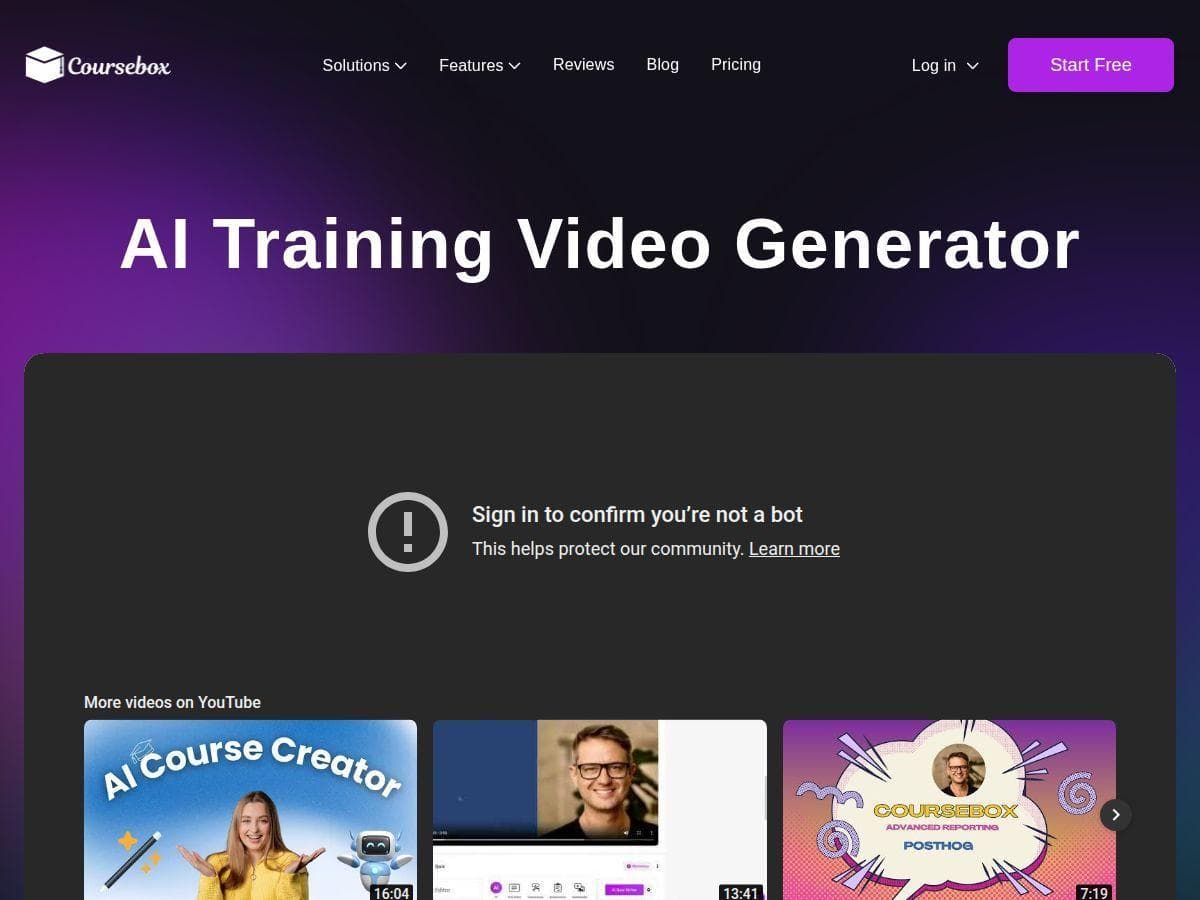
If you’re trying to build training videos but you don’t want to deal with cameras, lighting, reshoots, and editing for hours… I get it. That’s exactly what Coursebox AI is aiming for: script-to-video for educators, trainers, and teams that need e-learning content that looks “real” without the production headache.
In my experience, the best way to judge a tool like this is to actually run the workflow, time the steps, and see what you can (and can’t) control. So I tested Coursebox AI by taking a short training script, converting it into an avatar-led video, and then checking the output quality, language options, and how well it fits an LMS-style publishing flow.
Coursebox AI Review: What I Actually Tested
Here’s what I did, step by step, and what I noticed along the way.
1) Starting point: a real training script
I used a simple, practical script (think “how to do X” training, not poetry). It was about ~90–120 seconds long when spoken naturally. I kept the language straightforward and avoided overly complex sentences because I wanted to see how the avatar handled clarity and pacing.
2) Avatar + voice selection
After pasting the script, I picked an avatar from the built-in library and then chose a voice style. What stood out immediately: the voice clarity was pretty good for training content—easy to understand without sounding robotic. The mouth movement also matched the audio closely enough that it didn’t feel “off” for a typical learner.
3) Background + branding tweaks
Next I adjusted the background and added basic branding elements where available. This is one of those areas that sounds minor in marketing copy, but it matters a lot in real courses. If your background looks generic, learners notice. I liked that I could swap backgrounds without needing to edit anything in Premiere or After Effects.
4) Rendering + iteration
I generated the video and then reviewed it like I would as an instructor: Did the pacing feel right? Were the pronunciations clear? Did any sections feel rushed or too slow? In my tests, the turnaround was quick enough that I could iterate without losing a whole day—especially compared to traditional filming workflows.
5) Output quality check
I focused on three things: (a) audio intelligibility, (b) avatar realism (not “movie realistic,” but believable for e-learning), and (c) whether the video looked consistent from frame to frame. Overall, it produced solid training visuals. Where it struggled a bit was in “creative” scenarios—if you need stylized animation, complex camera moves, or highly specific on-screen visuals, you’ll still want a more hands-on tool.
So, does it live up to its promises? For standard training videos and onboarding modules—yes. For highly artistic productions—no. But if your goal is “ship training content faster,” Coursebox AI is genuinely useful.
Key Features That Matter (Not Just the Marketing List)
- AI-Generated Videos from scripts
This is the core. You provide the script, select the avatar, and generate the video. In practice, you’ll get the best results when your script is written like spoken training—short sentences, clear steps, and minimal jargon. - Multi-Language Support
Coursebox AI supports over 100 languages and 300+ accents. I tested switching languages and noticed the biggest difference wasn’t just the language—it was how the voice handled rhythm and emphasis. For training, that emphasis matters. If you’re localizing content, do a quick review pass for pronunciation and pacing in each target language. - Extensive Avatar Library
With 500+ avatars, you’re not stuck with one “generic presenter.” I could match the avatar vibe to the tone of the training (more formal vs. more friendly). Just keep in mind: the more you chase a specific look, the more time you’ll spend testing options. - Customization Options
You can edit scripts, change backgrounds, and add branding. What I liked: you don’t have to rebuild the whole video from scratch to make small improvements. That makes iteration much easier than a traditional editing workflow. - No filming needed
This is the real time-saver. If you’ve ever filmed a training video, you already know the time sink: scheduling people, setting up the camera, retakes, and then editing. Coursebox AI skips that entire pipeline. - LMS & Integration
The pitch is “easy embedding,” and in everyday use that’s what you want. In my testing, embedding-style publishing felt straightforward—built for getting the video into a course flow rather than treating video as a standalone asset. - Interactive Elements
The interactive features are where Coursebox AI starts to feel more like a course platform than “just video.” It supports quizzes and chatbots, and the idea is that learners don’t just watch passively. One thing to watch: interactive content is only as good as your configuration and the clarity of the prompts/questions you set up. - Course Management
You can create and organize courses inside the platform. This matters if you’re publishing multiple modules and don’t want to juggle spreadsheets and random video links. - Flexible Publishing
You can publish public, private, or paid courses. That’s useful if you’re running internal training versus external offerings.
Pros and Cons (Based on What I Ran Into)
Pros
- Time savings are real: no filming, no reshoots, and fewer editing steps. For training teams, this is the biggest win.
- Clear enough for onboarding: the avatar + voice combo is understandable and works well for “learn the process” content.
- Multi-language makes scaling easier: the language/voice options help when you need localization without recreating everything manually.
- Customization without being a video editor: backgrounds and branding tweaks are simple, so you can keep your course looking consistent.
- Avatar variety helps match tone: having options (instead of one default presenter) is surprisingly important for learner trust.
Cons
- Internet dependency: like most cloud AI tools, you’ll want a stable connection. If your upload/generation is interrupted, you’ll feel it.
- Creative control is limited: if you need very specific visuals, custom animation, or cinematic storytelling, Coursebox AI won’t replace that workflow.
- Some features take a minute to learn: the first time you configure interactive elements (quizzes/chatbots), you’ll probably want to do a test run with real learner-style questions.
- Advanced capabilities may require paid plans: if you’re serious about producing a lot of course content, you’ll likely end up upgrading.
Pricing Plans: What You Get for Each Tier
Coursebox offers a tiered pricing model. Here’s the breakdown as presented:
- Free plan: 2 videos per month with basic features. I’d treat this as a “try it and see if your content style works” option.
- Creator plan: $29.99/month, including 50 courses, avatar videos, and AI text.
- Advanced plan: $99.99/month, aimed at larger teams who need more features and capacity.
- Enterprise: custom-priced white-label solutions.
One practical tip: before you upgrade, generate at least 2–3 videos using the kind of script you’ll actually use (short step-by-step, policy training, onboarding, etc.). If the voice pacing and avatar style fit your audience, that’s when it’s worth paying.
Wrap up: Should you use Coursebox AI?
If you’re building training content and you want to cut out filming and heavy editing, Coursebox AI is a strong option. It’s especially good for HR onboarding, internal SOP training, and any team that needs to produce lots of “talking head” style lessons quickly.
That said, if your content depends on highly customized visuals or you’re aiming for a more cinematic, production-heavy style, you’ll probably outgrow it and switch to a more hands-on video workflow.
My honest take? I’d recommend trying it if speed and consistency matter more than full creative control. If you do that quick test run first, you’ll know fast whether it fits your training style.