Table of Contents
I’ll be honest—when I first started planning an interactive coloring book, I thought it was going to be one of those “big idea, messy execution” projects. You’ve got art, formatting, interactivity, exports, and then the un-fun stuff like making sure pages actually work on phones. So I set out to build a repeatable workflow that I could follow without guessing every step.
In this post, I’m going to walk you through creating interactive coloring books in 6 simple steps—from picking your method all the way to exporting and publishing. Along the way I’ll include the stuff that usually gets skipped: exact file sizes/resolution targets, how I QA interactivity, what tends to fail, and how I price based on what the final product actually includes.
Quick context: I’m assuming you want something you can sell as a digital interactive book (page turns, zoom, links, maybe AR) and/or print. If you’re building specifically for one platform, you can still use the same steps—you’ll just tweak the export settings at the end.
Key Takeaways
Key Takeaways
- Pick your production method first. If you need speed, AI line-art generation can get you to a usable draft fast. If you care about consistency (line weight, spacing, “colorability”), a hybrid workflow usually wins.
- Plan your interactivity like a feature list. AR, page-turn navigation, zoom, and links all require different file exports and testing. Don’t add them at the last minute.
- Use real production settings. In my projects, I target 300 DPI for print-ready art, keep line art high-contrast, and export digital pages in web-friendly formats that don’t blur.
- Choose themes that sell, then tailor the execution. Wellness, mindfulness, nature, and “therapeutic” patterns are common, but your edge comes from consistency, page variety, and clean outlines.
- Protect your rights before you publish. If you use AI, verify commercial licensing for both the model/tool and any reference images. Keep records. If you’re selling regularly, consult a tax pro.
- Engagement isn’t optional. Release schedules, companion content, and share prompts (with hashtags) can make a noticeable difference in downloads and reviews.
Select the Right Method for Creating Your Coloring Book
Before you open any tool, decide what you’re optimizing for. Speed? Consistency? Custom artwork? In my experience, that choice determines everything else—especially whether your pages print cleanly and whether your digital interactivity looks sharp.
Here’s my practical rule: if you need a lot of pages quickly, start with AI for drafts and then tighten the line work. If you’re selling a premium “therapeutic” book, plan time to refine spacing and line weight so coloring feels effortless.
Step 1 (Inputs + Plan): Choose your format and feature list
Start by writing a tiny checklist for your project. I literally keep it in a doc while I work.
- Target output: print PDF, digital interactive PDF, or both
- Page size: e.g., US Letter (8.5x11) or A4 (210x297mm)
- Interactivity you want: page-turn, zoom, clickable links, AR markers, optional “coloring prompt” overlays
- Page count: I usually test with a 10–15 page pilot first, then scale
- Style constraints: thick lines for beginners, medium detail for “adult stress relief,” or high-detail for advanced
Production target I use: For print, I aim for 300 DPI at final size. For digital interactive pages, I still export high-res images (so zoom doesn’t look crunchy), but I’m mindful of file size so your viewer doesn’t lag.
Step 2 (Create Line Art): AI draft vs manual/hybrid refinement
This is where most people either save a ton of time or accidentally create a mess they have to fix later. I’ve done both.
Use AI Tools for Fast Generation of Pages
If speed is your priority, AI can generate outlines, patterns, and full “coloring-ready” layouts in minutes. For example, tools like Colorify AI or DZINE.AI let you turn prompts or reference images into line art you can refine.
In my workflow, I don’t just type one prompt and accept the result. I iterate on prompt wording and then clean up the output.
Prompt example I actually use:
- Prompt: “single subject coloring page, black ink line art, no grayscale, no shading, thick outlines, high contrast, flower garden, simple background, centered composition”
- Add-on: “keep line thickness consistent, avoid tiny disconnected details”
What I noticed: AI is great at producing variety, but it sometimes creates awkward micro-details that are annoying to color (especially with markers). That’s why I always run a quick “colorability” pass after generation.
Use Manual or Hybrid Design Tools for Customization
If you want tighter control, manual tools like Adobe Illustrator/Photoshop (or free options like GIMP) help you fix what AI misses: line weight consistency, spacing, and clean edges.
My go-to hybrid approach is simple:
- Generate 10–20 draft pages with AI
- Import into Illustrator/GIMP
- Clean up edges, remove stray marks, and unify line thickness
- Add your own title/borders and any “interactive-ready” frames (more on that in Step 4)
That hybrid method is usually faster than drawing everything from scratch, but it still feels like your book—not “whatever the model produced.”
Step 3 (Build Your Book Pages): Set up templates + export correctly
This is the part nobody wants to do, but it’s also the part that prevents 90% of headaches later. Build a template once, then reuse it.
- Create a master template: page border area, title placement, and an optional “AR scan area” box
- Keep margins consistent: especially if you plan to print (you don’t want coloring content too close to the edge)
- Export line-art pages: PNG or PDF for digital workflows; for print, keep vectors if possible or export at 300 DPI
- Check contrast: lines should be dark enough that they don’t disappear when zoomed or printed
QA checkpoint (quick): open the exported page and zoom to 150–200%. If the lines look pixelated, fix export settings now—not after you’ve built the interactive book.
Incorporate the Latest Technology Trends in Your Coloring Book
Interactive coloring books don’t have to be complicated. In my opinion, the best approach is to start with “easy wins” (zoom + page navigation) and then add AR only if you’re ready to test it thoroughly.
Step 4 (Add Interactivity): Page-turn + zoom + optional AR
Here’s what I mean by “feature-ready” interactivity. You’re not just sprinkling effects—you’re making sure each feature has the right assets and behaves consistently.
Digital interactivity (easy wins)
Use digital page-turning software like FlipHTML5 or PubHTML5 to add navigation, zoom, notes, and sharing features. The key detail: you still need to export your pages in a format those tools handle well (often PDF or images), and you should confirm how zoom affects line clarity.
- Import: upload your page PDF or image sequence
- Set layout: ensure “fit to page” doesn’t blur your line art
- Enable zoom: test at 100%, 150%, and 200%
- Add links: clickable “jump to next page” buttons or a “scan here” callout
AR interactivity (the part that needs real testing)
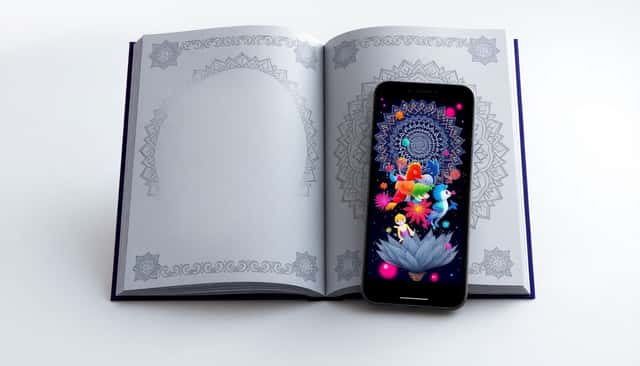
For AR, you can add markers on pages that trigger an animated effect or short video when scanned. A common approach is using Vuforia (marker-based AR). In practice, you generate marker images, place them in a consistent scan area, then test on multiple phones.
Mini walkthrough (1-page AR test):
- Pick what triggers AR: a 5–10 second animation or a looping “character appears” video
- Create the marker: generate a Vuforia marker image (or use Vuforia’s marker workflow) and download the marker graphic
- Place it: put the marker inside a dedicated “scan box” on the page (I usually reserve ~1.5–2 inches square on US Letter so it’s easy to scan)
- Export your page: include the marker clearly in your final print/digital page asset
- Test: scan under bright and dim lighting, at normal reading distance, and with the phone held slightly angled
- Fix what fails: if scans are inconsistent, increase marker size, increase contrast, or move it away from busy line-art areas
What I noticed from testing: AR markers don’t like being surrounded by dense patterns. If your page is super detailed, the marker can get “lost” visually. Give it breathing room.
Personalization (optional, but fun)
You can use AI to suggest color palettes (“warm sunset,” “forest greens,” etc.) or provide feedback prompts like “try darker outlines on the first pass.” Just keep it optional—some users want a distraction-free coloring session.
Step 5 (Quality Assurance checklist): Don’t publish until this passes
Before you export the final interactive book, run a QA pass. This is where I catch the embarrassing issues like blurry zoom, broken links, and AR that only works on one phone.
- Print QA: check a test print for line thickness, bleed/edge margins, and whether any lines disappear
- Digital QA: open on desktop + mobile and verify page-turn speed and zoom clarity
- Link QA: click every button and “next page” link once
- AR QA: scan the marker 5 times per page (same lighting + different lighting)
- Consistency QA: review 5 random pages for style consistency (line weight, spacing, no weird cutoffs)
Time-saver note: When I skip this step, it usually costs more time later. One broken link can mean re-uploading the whole book.
Market Trends and How to Capitalize on Them
Adult coloring is still a strong niche, especially for digital and interactive formats. People want stress relief, mindfulness, and “something calming they can do right now.”
About the market numbers: If you’re going to cite growth projections, it helps to use a specific source. The original draft mentioned “around $2 billion by 2033” and “8.5% annually,” but it didn’t include a citation. I’d rather not guess here. If you want, tell me what source you’re using (report name/link), and I’ll align this section with that exact citation. For now, the practical takeaway is still solid: wellness-themed, consistent, high-contrast line art performs well because it’s easy to color and easy to share.
Here’s how I translate market demand into production decisions:
- Choose themes that match the experience: mandalas, nature scenes, and therapeutic patterns are popular because they’re visually repetitive in a soothing way
- Differentiate with page variety: don’t make 60 pages that all look the same—mix difficulty levels
- Make sharing easy: include a “share prompt” page or a small “tag your finished page” callout
And yes, tools like Publish on Amazon can reduce friction if you’re trying to get your book listed without huge upfront costs. Still, make sure your exported files match the platform’s requirements (especially page size and file quality).
The Best Ways to Price and Market Your Interactive Coloring Book
Pricing should reflect what the buyer actually gets. A plain printable book and an interactive AR-enabled digital book aren’t the same product—even if the art style looks similar.
In general, many creators price digital editions around $5–$15 and printed versions $10–$30 depending on page count, quality, and features. If you add AR, I’d treat that like a value bump—but only if the AR works reliably (otherwise it becomes a complaint magnet).
Step 6 (Export + Distribution + Listing setup)
This is the final “make it real” step. Export once, then distribute everywhere you planned. Don’t rush the upload because it’s usually where formatting breaks.
- Export for digital: export a PDF or interactive package that your flip-book platform accepts; keep image quality high enough for zoom
- Export for print: export print-ready PDFs at 300 DPI (or vector where possible), confirm page size, and run a final preflight check
- Version control: keep a folder like “v1_10pages_ARtest” so you can rollback if something breaks
- Create your listing assets: thumbnail cover image, short description, and 3–5 bullet points that match the features
Listing description tip (what I include):
- “Interactive PDF with page-turn + zoom” (if true)
- “Includes AR scan pages” (only if it’s tested)
- “High-contrast line art for easy coloring”
- Niche keywords naturally: mindfulness coloring activity, interactive adult coloring book
Marketing-wise, I focus on repeatable channels:
- Social media: short clips of the flip-book + a screenshot of the AR scan moment
- Influencers: micro-creators who do wellness content (they usually convert better than random big accounts)
- Promos: bundle discounts during seasonal themes (spring nature sets, holiday mindfulness packs)
Also, offer a free sample. A 2–3 page preview is enough to reduce hesitation and increase downloads/interest. People want to see the line quality before they commit.
Legal Considerations for Creating and Selling Coloring Books
I’m not a lawyer, but I’ve learned the hard way that “I think I’m allowed” is not a strategy. If you’re using AI, you need to verify rights before you sell.
- Originality: use original artwork or properly licensed assets. If you traced or modified reference images, keep the source and license info.
- AI licensing: double-check the commercial licensing terms for the AI tool/model you used. Keep screenshots or exported license statements.
- Copyright: registering your copyright can protect your unique designs from unauthorized copying (especially for original elements like composition, text, and layout). Keep documentation of your creation process.
- Platform policies: some marketplaces have rules about AI-generated content or user-generated interactivity. Look for policy pages on the exact platform you’re uploading to, and save the link.
Disclaimer example (plain-language):
“This digital coloring book includes interactive features. Interactive elements may vary by device and lighting conditions. The artwork in this book is intended for personal use and coloring activities. No rights are transferred for any included third-party materials; any AI-generated elements are used in accordance with applicable licenses.”
On taxes/business licenses: if you’re selling regularly, it’s worth consulting a tax professional in your country/state. I can’t give jurisdiction-specific advice safely here, but I can say this—don’t wait until you’ve already made sales to figure it out.
Tips for Keeping Your Audience Engaged Long-Term
After launch, your job isn’t done. If you want momentum, you need a reason for people to come back.
- Release on a schedule: seasonal sets (spring flowers, summer oceans, fall forests) or monthly “mini packs”
- Build a feedback loop: ask what people colored most and what felt too detailed or too easy
- Create a community spot: a simple mailing list or a social group where you share progress and previews
- Encourage sharing: include a dedicated hashtag and a “tag us” prompt page
- Add companion content: bonus tips, extra patterns, or a “color palette guide” page in a follow-up release
- Request reviews: after a purchase, politely ask for feedback—especially if your book includes interactivity
In my experience, the creators who win long-term aren’t just making one book. They’re building a catalog and learning what their audience actually colors.
FAQs
If you want speed, tools like ColorBliss, DZINE.AI, and Colorify AI are popular because they can generate line-art drafts quickly. My selection criteria are simple: (1) does it produce clean outlines without heavy shading, (2) can you export high-resolution results, and (3) what are the commercial licensing terms?
How to use them well: generate 10–20 drafts, pick the best 3–5 styles, then refine line thickness and remove tiny disconnected details in Illustrator/GIMP.
Start with digital interactivity like page-turn navigation and zoom using tools such as FlipHTML5 or PubHTML5. Then, if you want AR, add marker pages and test scanning on real phones.
Quick setup checklist: import your pages, enable zoom, add “next page” buttons, and verify on mobile. For AR, place markers in a clean scan area and test under different lighting.
For customization, design tools like PicMonkey and BeFunky are useful for adding text, borders, and simple effects. If you need more control over line art, I usually prefer Illustrator or GIMP because you can clean up edges and keep line thickness consistent.
What to watch: don’t add gradients/shading if you want easy coloring. Keep the artwork black/white line-based.
Do both only if you can maintain quality in both formats. Printable books should have crisp line art and correct page sizing. Digital interactive books should prioritize smooth zoom and readable lines at typical screen sizes. If you’re starting small, I recommend launching one format first (usually digital interactive if you’re adding AR or links) and then converting once you know what your audience likes.