Table of Contents
What Is Dokably?
When I first heard about Dokably, I’ll be honest—I was skeptical. I’ve seen a lot of “all-in-one” collaboration tools that promise the world, then end up feeling like you’re still hopping between separate apps. So I did what I always do: I tried to use it like a real workspace, not like a demo. I set up a small project, created a doc, dropped in a few notes, made a couple tasks, and used the whiteboard area to sketch out a quick plan. The big question for me was simple: does it actually reduce switching, or does it just add another tab?
Dokably positions itself as an online collaboration platform for remote teams, combining docs, whiteboards, tasks, notes, and AI assistance in one place. The pitch is that you don’t need separate tools for documentation, brainstorming, and work tracking. In my testing, that part is genuinely the core experience—everything lives in the same workspace and you can link things together instead of copying/pasting between apps.
One area where I didn’t feel fully satisfied is transparency. The website doesn’t clearly lay out who’s behind the product in a way I could verify quickly. I checked the usual places—About/Company pages, legal links, and basic public info—but I didn’t find the kind of clear leadership or company registration details I like to see before trusting a tool with team workflows. That doesn’t automatically mean it’s bad, but it does mean you should treat it like a product still finding its footing.
My overall impression after using it: it’s pretty close to what they advertise—an all-in-one workspace with a clean interface. But it’s also not pretending to be the final form of every category it touches. It doesn’t feel like a full replacement for Jira, and it won’t replace Miro when you need serious diagramming. Some features also felt like they’re still being shaped (beta/MVP vibes), so you’ll want to expect rough edges.
Key Features of Dokably
Docs + Whiteboards + Tasks in one workspace
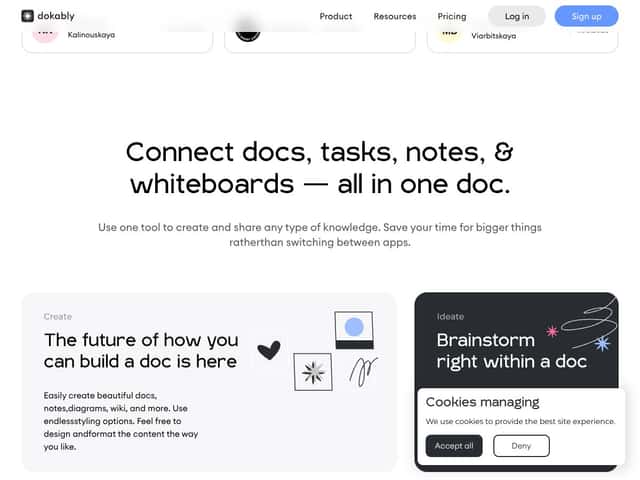
Dokably’s main strength is that it tries to keep documentation, whiteboarding, and task management from living in separate universes. In my workflow, I created a doc, added sticky notes/diagram-like elements inside the doc area, and then assigned tasks that I could keep connected to the same project context. Instead of “doc in one place, board in another,” it feels more like one continuous space.
That said, “unified” doesn’t automatically mean “fully mature.” When I pushed on more advanced task organization and deeper whiteboard capabilities, I could feel where the product is still growing. It’s good for teams who want one place to collaborate, but it’s not trying to outclass specialized tools in every subcategory.
Rich text editing (and a few annoying formatting moments)
The editor supports things like tables, to-do lists, markdown-style formatting, and collapsible/toggle sections. If you’ve used Notion or Google Docs, the general feel is familiar. I also liked the drag-and-drop behavior for adding images, sticky notes, and diagram elements.
Where I ran into trouble: when I moved around larger blocks—especially ones that contained tables plus embedded elements—the layout didn’t always behave exactly how I expected. Sometimes the block would land in a slightly different position than I intended, and I had to re-adjust spacing manually. It wasn’t a total dealbreaker, but it’s the kind of thing that slows you down when you’re trying to build a polished spec quickly.
Real-time collaboration, comments, and version history
I tested real-time collaboration by inviting a second collaborator to work on the same doc while I was editing. The good news: it didn’t feel laggy. Edits came through quickly enough that we weren’t constantly waiting on sync.
Comments and mentions are also straightforward, and the version history is useful when you want to roll back or understand what changed. One thing I appreciated is that discussions don’t feel buried—you can keep feedback attached to the content rather than sending everyone to a different chat thread.
The catch: because it’s still early, some collaboration “extras” (like more advanced live-cursor behaviors or ultra-fine permission controls) aren’t as complete as what you’d expect from more established products.
Task management with multiple views (Kanban, list, table, timeline)
Dokably includes several task views: Kanban, list, table, and timeline. In practice, I used Kanban for quick status and then switched to a list-style view to check details like due dates and assignment. The linking between tasks and other workspace items (docs/whiteboards) is a nice touch because it keeps context attached.
But I didn’t fully love the “MVP” feel in how some views behave. During my tests, filtering and some view-specific controls weren’t always as smooth as I wanted—basically, I sometimes had to do extra clicks to get back to what I was looking for. If your team lives and breathes task boards, you may find yourself missing some of the depth you’d get from Asana or Trello.
Whiteboards for brainstorming (good, but not built for heavy diagramming)
The whiteboard tools are integrated so you can draw and add sticky notes directly in the workspace without jumping out to a separate app. For lightweight brainstorming, it works. I used it to map a rough workflow and capture a few ideas that I later turned into tasks.
Just don’t expect it to behave like a dedicated design/diagram powerhouse. In my testing, the drawing tools felt responsive, but the feature depth and export/import options weren’t in the “power user” league yet. If you need complex diagrams, large asset imports, or professional diagram export workflows, you’ll likely outgrow it.
AI tools (summaries + rephrasing, with real limitations)
The AI assistant can help with summarizing text, rephrasing, spelling help, and question-style assistance. I ran it on a few long-ish doc sections and the results were… decent. The summaries captured the main points most of the time, and rephrasing was useful when I wanted a cleaner tone.
But it didn’t always nail nuance. On one passage that relied on context (a paragraph with implied assumptions), the summary trimmed too much and softened the meaning. It wasn’t “wrong” in a dramatic way, but it was the kind of output you’d want to review before sharing as a final decision document.
So yeah—AI is helpful for drafts and cleanup, but I wouldn’t treat it as a source of truth for anything critical. Proofread like you mean it.
Sharing + permissions (and what I could actually verify)
Sharing links and inviting via email is simple. Permissions are where it gets more interesting. Dokably supports different permission levels so you can control who can view versus edit.
In my tests, the permission model worked well for basic collaboration scenarios (editors vs viewers), but I didn’t see the kind of granular enterprise permission depth you might expect from tools built for large org governance. Also, integrations weren’t robust enough to rely on Dokably as a hub for complex workflows.
Custom domains for branding are also mentioned, but I didn’t go deep enough to fully validate reliability edge cases (like certificate setup timing or how it behaves across different browsers/devices). If custom branding is a must for you, I’d recommend testing the setup with a non-critical workspace first.
How Dokably Works
Signing up was straightforward—email and password, no weird hoops. Once I was in, I could create a doc or board fast. In my case, I had a basic workspace running in under 5 minutes: one doc, a couple notes, and a task list tied to the project.
The interface is clean and minimal, which really helps when you’re trying to get a team moving quickly. The learning curve felt manageable, especially if you already understand docs + tasks + whiteboards.
Still, I hit the kind of limitations you’d expect from an MVP-stage product. Some task views and whiteboard interactions weren’t as polished as the “happy path.” That’s not surprising, but it does mean you may need to be patient while building your exact workflow.
Storage is another practical constraint. The free plan includes 100 MB storage, which sounds fine until you start adding images or PDFs. In my testing, it took only a handful of media-heavy items before it felt like I’d need to be careful about what I uploaded.
Documentation/onboarding is also pretty light. I didn’t find a ton of “best practices” guidance, so I ended up learning by doing. If you prefer guided setup checklists, you might wish there was more hand-holding.
Overall: Dokably is promising, and the unified workspace concept is real—not just marketing. Just keep expectations grounded. It feels like a product actively being built, and you’ll probably want to test it with your own workflow before rolling it out to a full team.
Dokably Pricing: Is It Worth It?
| Plan | Price | What You Get | My Take |
|---|---|---|---|
| Free Forever | $0/month |
|
Great for trying the core workflow. The 100 MB storage limit is the real limiting factor if you upload media-heavy docs (images, PDFs, etc.). |
| Pro | $5.99/user/month |
|
For small teams using docs + whiteboards + tasks daily, this price feels reasonable. The per-user cost can add up as you grow, though. |
Here’s the thing about the pricing: “Unlimited” is great, but it doesn’t always mean “unlimited everything.” On the free tier, storage is capped at 100 MB, and some features may still be in beta or limited depending on what’s being rolled out. Also, I couldn’t find super detailed public breakdowns for every edge case (like how certain permissions behave at scale), so if you’re planning a large rollout, you may want to ask support directly.
What plan makes sense in real life? If you’re a solo user or a tiny team, the Free Forever plan is a solid test drive. If you’re building a real doc/whiteboard/task workflow and you’re already uploading files, Pro is the safer move because unlimited storage matters fast.
The Good and The Bad
What I Liked
- Unified Workspace: Docs, whiteboards, tasks, and notes are in one place, which genuinely cuts down app switching for remote teams.
- Drag-and-drop editor: It’s easy to add images and elements without feeling like you’re fighting the UI.
- AI assistance: Summaries and rephrasing are useful for speeding up drafts—just don’t blindly trust them for nuanced decisions.
- Real-time collaboration: Comments, mentions, and version history are practical, and syncing felt smooth during my tests.
- Multiple task views: Kanban, list, table, and timeline make it easier to match the view to how your team thinks.
- Free tier is actually usable: Unlimited tasks and members on free is rare, and it’s enough to evaluate the product properly.
What Could Be Better
- Some features still feel early: Task and whiteboard capabilities aren’t fully at “mature product” level yet.
- Free storage cap: 100 MB runs out faster than you’d expect if you work with images, PDFs, or lots of embedded content.
- Integrations aren’t a standout: Compared to bigger platforms, the integration ecosystem feels limited (and for teams relying on a lot of third-party tooling, that can be a problem).
- Formatting can get finicky: Moving larger blocks (especially with tables/embedded elements) sometimes requires extra tweaking.
- Less detail on enterprise-style requirements: If you need SLAs, deep governance, or extensive customization, you’ll likely need to talk to them.
Who Is Dokably Actually For?
Dokably is a good fit if your team constantly bounces between docs, whiteboards, and task tracking and you want that stuff to feel connected. In my mind, it’s especially useful for product teams who need to capture requirements in docs, brainstorm visually, and then turn that into tasks without losing context.
It also works well for small to medium startups and solo founders who want one workspace that scales with them. The Free Forever plan makes it easy to test whether the workflow clicks before you commit money, and the AI tools can help with boring-but-necessary tasks like summaries and rephrasing.
Where it might fall short: if you rely on heavy media libraries, need complex integrations, or require very strict enterprise permissions. In those cases, the “still improving” nature of the platform could slow you down.
Who Should Look Elsewhere
If your organization depends on a deep integration stack—think lots of specialized enterprise tools, custom automations, and heavy API workflows—Dokably may feel too limited for day-to-day operations.
Also, if offline access is essential for your team, Dokably’s web-first approach may not meet your needs. And if your workflows involve large storage requirements from day one, the free plan’s 100 MB cap will likely become a constant headache.
Finally, if you’re looking for extremely detailed documentation around enterprise plans, SLAs, and advanced customization, you might find the current public info insufficient. This feels like a product that’s still evolving, so you’ll need patience and flexibility.
How Dokably Stacks Up Against Alternatives
Notion
- What it does differently: Notion is built for flexible knowledge management with lots of customization and templates. It can be powerful, but it also comes with its own learning curve.
- Price comparison: Notion’s free tier is strong, and paid plans typically start around $8/user/month.
- Choose this if… you want a highly customizable workspace and a big ecosystem of templates/integrations.
- Stick with Dokably if… you prefer a more unified docs + whiteboards + tasks experience with AI help built into the flow.
Miro
- What it does differently: Miro is the go-to for visual collaboration and brainstorming, with deeper diagramming and whiteboarding features.
- Price comparison: Miro has a free plan with limited boards, and paid plans often start around $8/user/month.
- Choose this if… your team lives in mind maps, workshops, and complex visual planning.
- Stick with Dokably if… you want visual ideation connected directly to docs and tasks (not just boards).
Trello
- What it does differently: Trello is simple and card-based. It’s great for straightforward task tracking, but it’s not built to replace docs or whiteboards.
- Price comparison: Trello offers a free tier and paid plans typically start around $5/user/month.
- Choose this if… you only need basic project tracking without extra layers.
- Stick with Dokably if… you want tasks plus docs and whiteboards in one connected workspace.
Confluence
- What it does differently: Confluence is an enterprise wiki with strong Jira alignment and deeper org-focused documentation workflows.
- Price comparison: Pricing can start around $5/user/month, but it can get expensive with add-ons and large deployments.
- Choose this if… your org is already built around Jira and you want a traditional documentation system.
- Stick with Dokably if… you want something easier to set up that blends docs, tasks, and AI in a more visual way.
Bottom Line: Should You Try Dokably?
I’d rate Dokably around 7/10 based on what I actually used. It’s a promising all-in-one workspace that brings docs, whiteboards, tasks, and AI into one place, and the interface is easy to work with. The Free Forever plan is genuinely generous for testing the core workflow.
But it’s still in an early stage. Some features feel incomplete, and the free storage cap (100 MB) will matter quickly if you work with lots of media. If your team depends on advanced integrations or deep governance, you may want to look elsewhere first.
Decision rules from my testing:
- Try Dokably if you want docs + whiteboards + tasks connected in one workspace and you’ll actually use the AI for summaries/rephrasing.
- Skip Dokably (for now) if you need enterprise-grade integrations, heavy diagramming/export workflows, or lots of storage without constraints.
If you’re a small team or startup, the free tier is the smart way to start. If the workflow clicks and you hit storage limits, Pro at $5.99/user/month is a reasonable next step.
Common Questions About Dokably
- Is Dokably worth the money? If you value an all-in-one workspace with AI help and real-time collaboration, it can be good value. Just remember some features are still evolving.
- Is there a free version? Yes. The Free Forever plan includes unlimited tasks and members, plus 100 MB storage. Some advanced features may be limited or in beta.
- How does it compare to Notion or Miro? Dokably leans into integration between docs, whiteboards, tasks, and AI. Notion is more customizable for knowledge management, and Miro is stronger for visual-only work.
- Can I use it for large teams? You can, but the free plan’s storage limit won’t work for everyone, and some MVP-stage behaviors may not match what larger orgs expect.
- Does it integrate with other apps? Native integrations don’t seem like a major strength right now. I didn’t find a robust, widely-supported list of integrations comparable to bigger platforms. If you need deep automation, you may need to rely on sharing/workflows inside Dokably (or check with support for any available options).
- Can I get a refund? Refund policies depend on the payment method and plan. Check their support/help pages for the exact terms.