Table of Contents
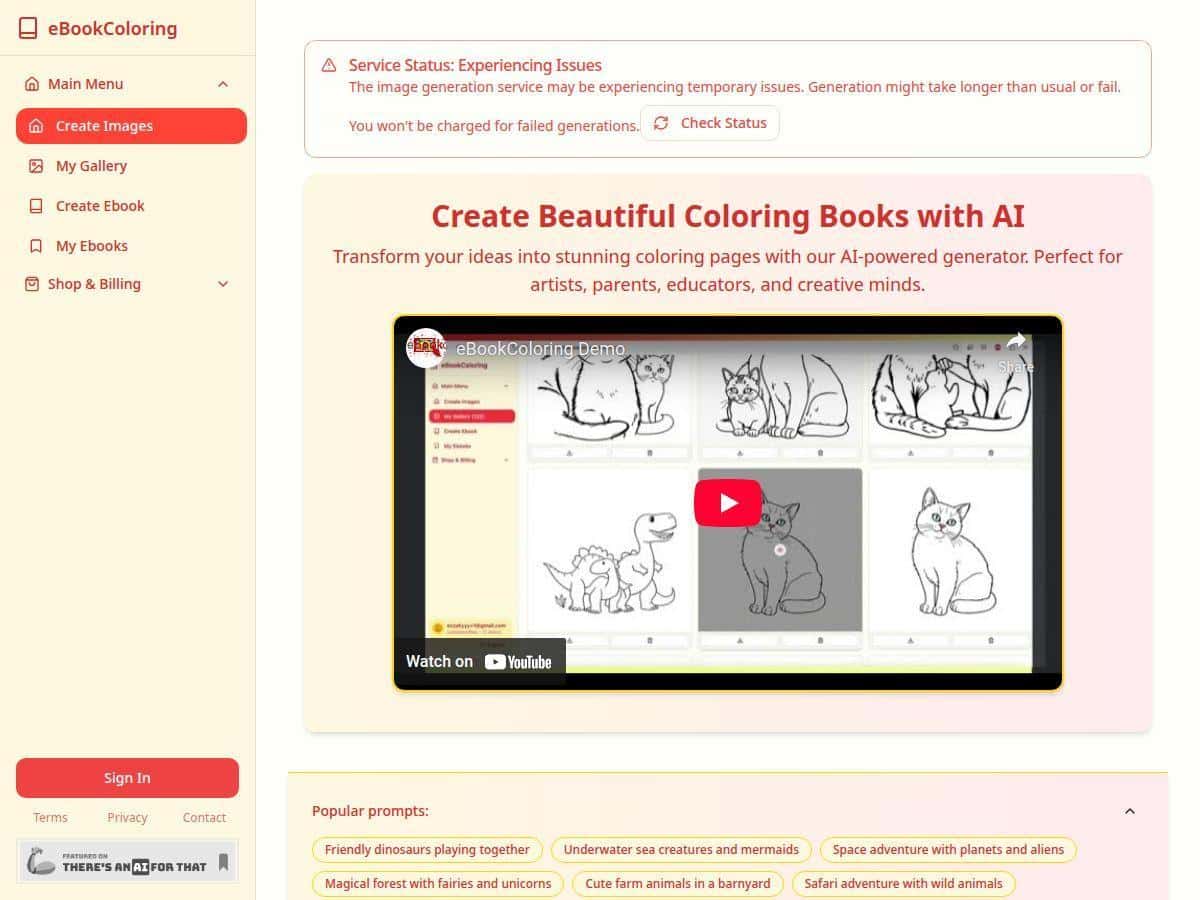
If you’ve ever tried making your own coloring pages from scratch, you already know the pain: sketching line art, cleaning up outlines, and then formatting everything so it prints nicely. That’s why I wanted to test eBookColoring. The promise is simple—type a theme, get coloring pages back fast, and compile them into a book.
Rather focus on ideas than formatting? An AI ebook writing tool handles structure, chapters, and export for you.
So I ran a few real prompts through it, generated multiple pages, and paid attention to the stuff that actually matters when you’re printing: line thickness, how clean the outlines are, whether backgrounds sneak in, and how reliable the results are when the prompt gets more detailed.
eBookColoring Review: What Happened When I Tested It
I started with the free trial and used the credits to generate a small “mini book” instead of just one random page. That’s the only way to judge it, right? One page can look great. A whole set tells you whether the quality holds up.
My setup + workflow (what I actually clicked)
- I opened the project area and entered a theme/prompt in the text box.
- I generated pages repeatedly until I had a handful of options that matched my goal (kid-friendly outlines, clear regions, no messy shading).
- For export, I focused on getting printable PDFs rather than just images, because that’s usually the bottleneck for people who want to hand the pages to kids or students.
Example prompts I used (and what the pages looked like)
Here are a few of the exact directions I tried, plus what I noticed in the output.
- Prompt #1 (kids / simple): “Cute dinosaur, simple outline, thick black lines, minimal background, coloring book page for kids”
- Result: This one was the most reliable. The outlines came out with noticeably thicker strokes (easy for younger kids to color). The dinosaur had clear separations—head/teeth/arms/legs were distinct enough to avoid the “everything is one blob” problem.
- Prompt #2 (fantasy, medium complexity): “Fantasy castle gate with flags, clean line art, moderate detail, no shading, printable coloring page”
- Result: The castle looked great at a glance, but some of the flag folds were a little too “busy.” A couple of areas had lines that felt close together, which can make coloring frustrating because you end up coloring tiny stripes instead of bigger shapes.
- Prompt #3 (education / shapes): “Simple worksheet style: 10 friendly planets, each planet separated, thick outlines, no background, black and white only”
- Result: This worked well for the overall concept—each planet was distinct. The only issue I ran into was spacing. One version had a planet that felt slightly cramped compared to the others, so if you’re picky about layout, you may need to regenerate once or twice.
How fast was it?
Speed-wise, it lived up to the “minutes” idea, but it wasn’t instant magic. My experience was roughly:
- About 20–40 seconds per page for initial generation
- A full mini batch of 5–8 pages took me around 3–6 minutes including re-prompts
So yes—if you’re comparing it to manually drawing and cleaning pages, it’s fast. If you’re expecting zero wait time, you’ll still be clicking “generate” a few times.
PDF + print quality (the part I checked closely)
I specifically looked for common export problems: thin outlines, inconsistent margins, and pages that don’t print cleanly. What I noticed:
- Line clarity: Most pages came with clean black outlines that were readable even after zooming out (which is a good sign for printing).
- Background handling: For the prompts that explicitly said “no background” or “minimal background,” the output generally stayed clean. When I didn’t include that language, I sometimes got extra texture-like elements that didn’t belong in a coloring page.
- Print layout: The pages were formatted as printable sheets, not random crops. Margins looked reasonable, though I still recommend printing one test page before you commit to a whole run.
Where it struggled (real limitations)
This is where I’m glad I tested it—because the weaknesses show up when you push it.
- Fine detail can collapse: When I went for something ornate (lots of tiny patterns), the output sometimes merged shapes. Lines didn’t always “separate” the way a human artist would. Re-prompting helped, but it wasn’t a perfect fix.
- Control is limited: I couldn’t reliably force symmetry or guarantee that every small element would become a distinct color region. If you want mandala-level intricacy, you’ll likely need extra iterations.
- Internet dependency: Like many web tools, it felt sensitive to connection stability. If the page didn’t load fully, generation got delayed or failed.
Bottom line from my test: eBookColoring is strongest for clear, kid-friendly outlines and simple-to-medium detail scenes. It’s less consistent for ultra-ornate designs where you need every tiny area to be perfectly separated.
Key Features (with real proof from the test)
- AI-generated coloring pages from text prompts
- I used prompts directly in the input box and generated multiple pages from the same theme. The output consistently came back as line-art coloring pages (not painterly images).
- Custom coloring book creation
- I didn’t just generate a single page—I built a small set so I could see whether the style stayed consistent across pages. It mostly did, especially with simpler prompts.
- Printable PDFs
- Export was geared toward printable files, not just previews. I focused on checking whether the output stayed clean (no weird gray shading) and whether the page looked properly framed for printing.
- User-friendly interface with easy project saving
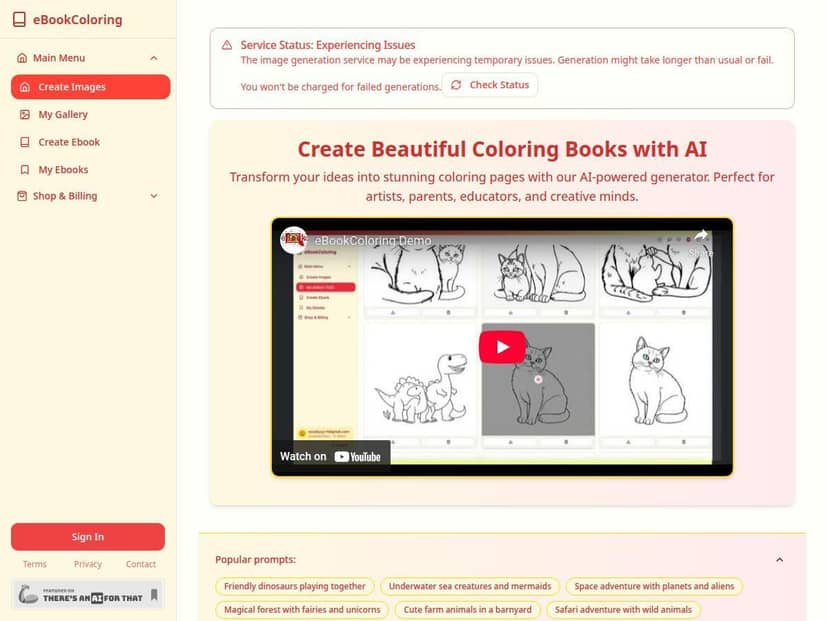
- The interface felt straightforward: enter prompt → generate → review → export/compile. I didn’t have to hunt through menus to find the next step.
- Style control through prompting (not a bunch of sliders)
- What “style control” really means here is prompt wording. When I said “thick black lines” and “no shading,” the pages matched that better. When I didn’t, I got more clutter than I wanted.
- Quick generation + export options
- In my run, pages came back quickly enough that I could iterate on the same concept. I was able to regenerate when the output didn’t have the level of separation I wanted.
Pros and Cons
Pros
- Beginner-friendly: You don’t need design software skills to get something printable.
- Fast iteration: If you don’t like a page, you can re-generate and adjust the wording without restarting from scratch.
- Good results for kids and classroom use: Thick outlines and clear regions showed up most reliably in simpler prompts (like the dinosaur and planets).
- Printable outputs: The PDFs I generated looked like they were meant for real printing, not just display images.
Cons
- Fine detail isn’t always color-friendly: Ornate prompts sometimes produced merged shapes or lines that were too close together. Re-prompting improved things, but it wasn’t guaranteed.
- Limited precision control: I couldn’t “lock” specific elements the way you can in vector tools. Expect a bit of unpredictability.
- Internet required: If your connection is spotty, the experience can slow down or break mid-process.
- Pricing clarity could be better: The trial credit setup is clear enough to start, but it doesn’t fully explain how many pages you’ll get per credit in every scenario.
Pricing Plans (what I saw and what to double-check)
eBookColoring offers a free trial with 3 credits so you can test the basic workflow. After that, the paid plans I saw were:
- Basic: about $9 for 100 credits
- Unlimited: about $49 for unlimited credits
One thing I’d recommend before you commit: verify the current terms on the official site. Pricing and credit rules can change, and the biggest question for me wasn’t the dollar amount—it was how credits map to pages in practice (especially if you regenerate or iterate).
Also, if you plan to make multiple books, check whether exports and projects are included the way you expect. I didn’t run a full billing/retention test, so I can’t promise how refunds or cancellations work—those details are worth reading directly on the pricing page.
Wrap up
After testing eBookColoring, I’d describe it as a solid option if you want quick, printable coloring pages without spending hours drawing. It shines with simple kid-friendly outlines and clear educational concepts. If you’re chasing ultra-ornate, mandala-level precision, you’ll probably need more retries and careful prompting.
If your goal is to generate a usable coloring book fast—something you can print, hand out, and iterate on—eBookColoring is absolutely worth a try. Just do yourself a favor and print one sample page first before you scale up.