Table of Contents
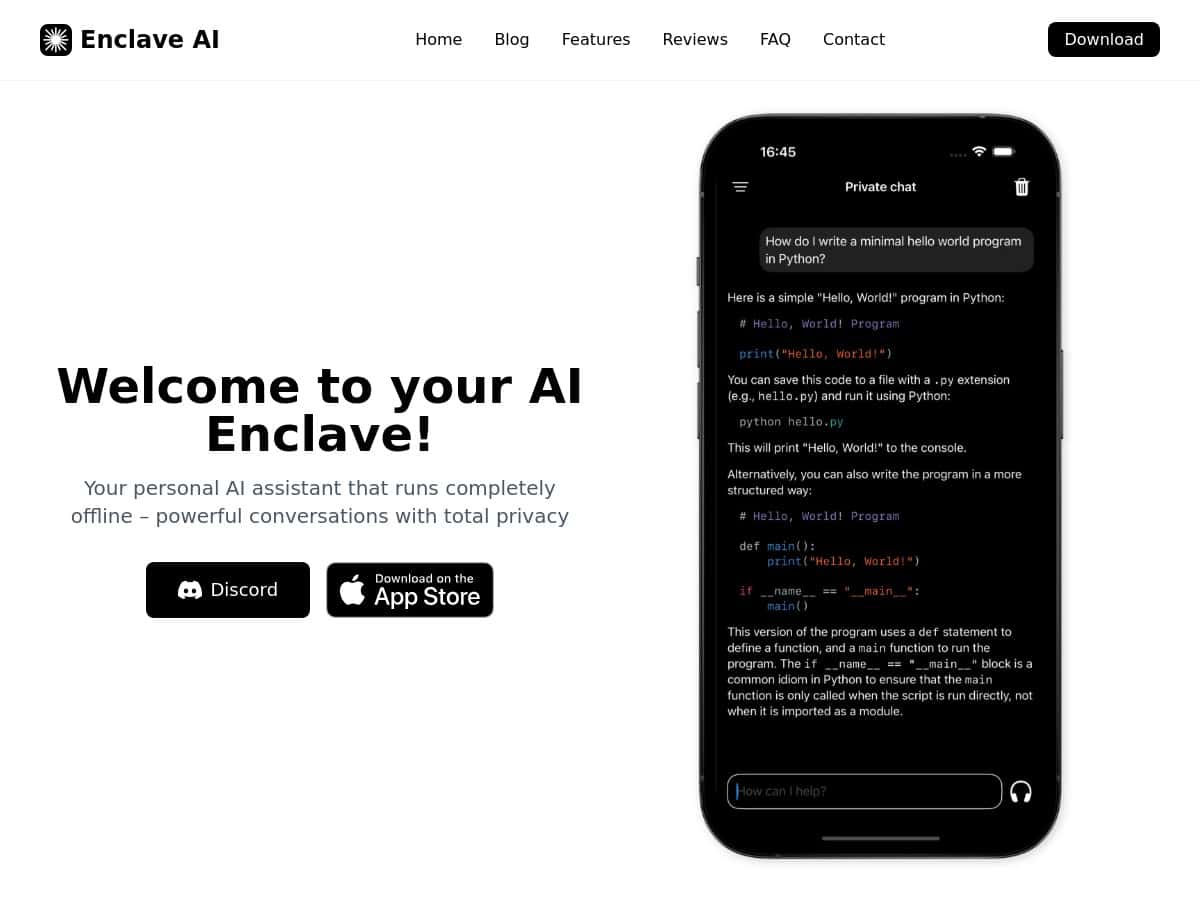
If you’re tired of AI chatbots that “might not” store your prompts somewhere, Enclave AI is one of the few options that’s built specifically for offline, on-device use on Apple devices. The pitch is simple: your chats stay local, and the app keeps working even when you don’t have internet.
In my experience, that matters more than people think. I tested it for a couple of real workflows—quick voice questions, document summaries, and a “can I keep going on airplane mode?” check. What I noticed is that Enclave AI feels less like a web app you’re borrowing and more like a tool you install and rely on.
Enclave AI Review
From the moment I downloaded Enclave AI, I liked how quickly I could get to actually using it. The app doesn’t drown you in settings. You install, pick your model(s), and start chatting.
Here’s the big reason people look at Enclave AI in the first place: it’s built for offline use on iOS and macOS, with the goal that your prompts and responses don’t need to leave your device. That’s exactly what I tested. I also paid attention to what happens when you’re offline—because “offline” can mean anything from “works for 30 seconds” to “fully functional.”
In my experience, Enclave AI is best when you treat it like a local assistant: you download what you need, then you rely on it without expecting the internet to be there. It’s not trying to be the biggest model on the internet. It’s trying to be the most trustworthy assistant you can run locally.
Key Features
- Local voice chat: voice conversations are handled on your device, so you’re not streaming your audio to a third-party service.
- Open-source model options: you can choose from optimized open-source models (with different speed/quality tradeoffs).
- Custom assistants: set up different assistants for different tasks instead of constantly re-prompting.
- Document chat: upload PDFs and chat with them for summaries and insights—offline.
- Shortcuts & Siri integration: use automation for repeat tasks (like “summarize this document” style prompts).
What I Tested (and what I saw)
I tested Enclave AI on an Apple setup (Mac first, then iPhone) with three goals: verify offline behavior, see how usable voice is in real life, and check whether document summaries feel accurate or just “kinda right.”
1) Offline reliability: airplane mode check
After downloading the models needed for the tests, I turned off Wi‑Fi and switched to airplane mode. Then I ran the same kinds of queries I’d normally do online: short questions, follow-ups, and a document summary request.
What worked: chat continued and responses generated normally. The app didn’t throw a “no connection” wall in the middle of a conversation.
What to expect: if you haven’t downloaded the model(s) yet, you’ll likely need internet first to get everything in place. Offline isn’t magic—it’s “offline after setup.”
2) Voice chat: does it feel natural?
Voice chat was one of the more satisfying parts. It didn’t feel like I was fighting the UI. I could speak, get a response, and then ask a follow-up without restarting anything.
What I noticed: the experience felt most natural when I used shorter prompts and clear questions. If I tried to ramble for too long, the assistant still understood, but the output quality dropped a bit—mostly because the input was messy, not because the app was “broken.”
3) Document chat: summaries that are actually usable
I tried document chat with a couple of real files: a multi-page PDF and a longer text-heavy document (the kind you’d want summarized before you read properly).
What I liked: the summaries were structured enough to skim. I also tried “extract key points” style prompts, and the assistant did a decent job grouping themes.
Where it got shaky: like most local summarizers, very dense documents (lots of small text, tables, or scanned pages) can reduce accuracy. If your PDF is image-based (scans), you’ll want to confirm whether Enclave AI handles OCR well in your specific case. In my testing, text-based PDFs were the smoothest.
Practical tip: if you care about accuracy, upload documents that are already selectable text. If the text is “locked” in images, test one page first and see how the summary quality holds up.
4) Model choice: speed vs. quality is real
One thing I’m glad Enclave AI encourages is thinking about models as a tradeoff. Faster models can be great for quick Q&A. Heavier models usually produce better answers, but they can take longer to run locally depending on your device.
I didn’t just pick “whatever was default.” I switched models and ran the same prompt twice. The differences were noticeable—especially in how they handled longer context and how “confident” the answers sounded.
Pros and Cons
Pros
- Privacy-focused by design: the whole point is on-device processing, so you’re not relying on a remote server for every request.
- Works offline after setup: once models are downloaded, it keeps functioning with no internet connection.
- Voice is genuinely usable: it feels more “assistant-like” than a basic speech-to-text feature.
- Document chat is practical: summaries are good enough to save time, especially for text-based PDFs.
- Custom assistants: I like that you can separate workflows instead of constantly rewriting prompts.
Cons
- Apple-only: Enclave AI is for iOS and macOS. If you’re on Android or Windows, you won’t be able to use it.
- Model downloads require internet: your first-time setup (and switching models later) will need downloads.
- Local performance depends on your hardware: heavier models can be slower on smaller devices.
- Document quality depends on the PDF: scanned/image-based PDFs may not summarize as accurately as text-based ones.
Pricing Plans
Pricing isn’t clearly consistent across sources, and app store pricing can change depending on version and region. What I can say is this: Enclave AI is available on the Mac App Store and iOS App Store, and the exact cost (free vs subscription vs one-time purchase) is something you’ll want to confirm on the store listing for your device.
Quick check I recommend: open the app store listing on the device you’ll use it on (Mac vs iPhone). That’s where you’ll see the real price for your region and the current billing model.
Who it’s for (and who should skip it)
So who should actually buy into Enclave AI?
- You travel or work offline a lot. If you’re on planes, in basements, or in places with sketchy reception, local processing is a big win.
- You care about privacy. If “send my prompts to the cloud” is a dealbreaker, this is the category you’re looking at.
- You want document summaries on your own device. Especially for text-based PDFs you review frequently.
Who should skip it?
- You need cross-platform support. This is iOS/macOS only.
- You expect perfect scanned-PDF OCR every time. Test first if your documents are images instead of selectable text.
- You want the “best possible model quality” regardless of speed. Local models are still constrained by device performance. Sometimes the web will still win for raw quality.
My quick decision checklist:
- Do you want offline chat as a core feature (not a bonus)?
- Are you okay doing initial model downloads when you have internet?
- Will you mostly use text-based PDFs (or do you need strong OCR)?
- Do you have an Apple device that can comfortably run the models you want?
Wrap up
Enclave AI is the kind of app that makes sense when you value local control more than you value cloud convenience. It’s not trying to be everything to everyone—it’s trying to be a solid offline assistant for Apple users who don’t want their conversations floating around online.
If privacy and offline functionality are your priorities, Enclave AI is worth a look. If you need Android/Windows support or you rely heavily on scanned documents, I’d still test it carefully before you commit.