Table of Contents
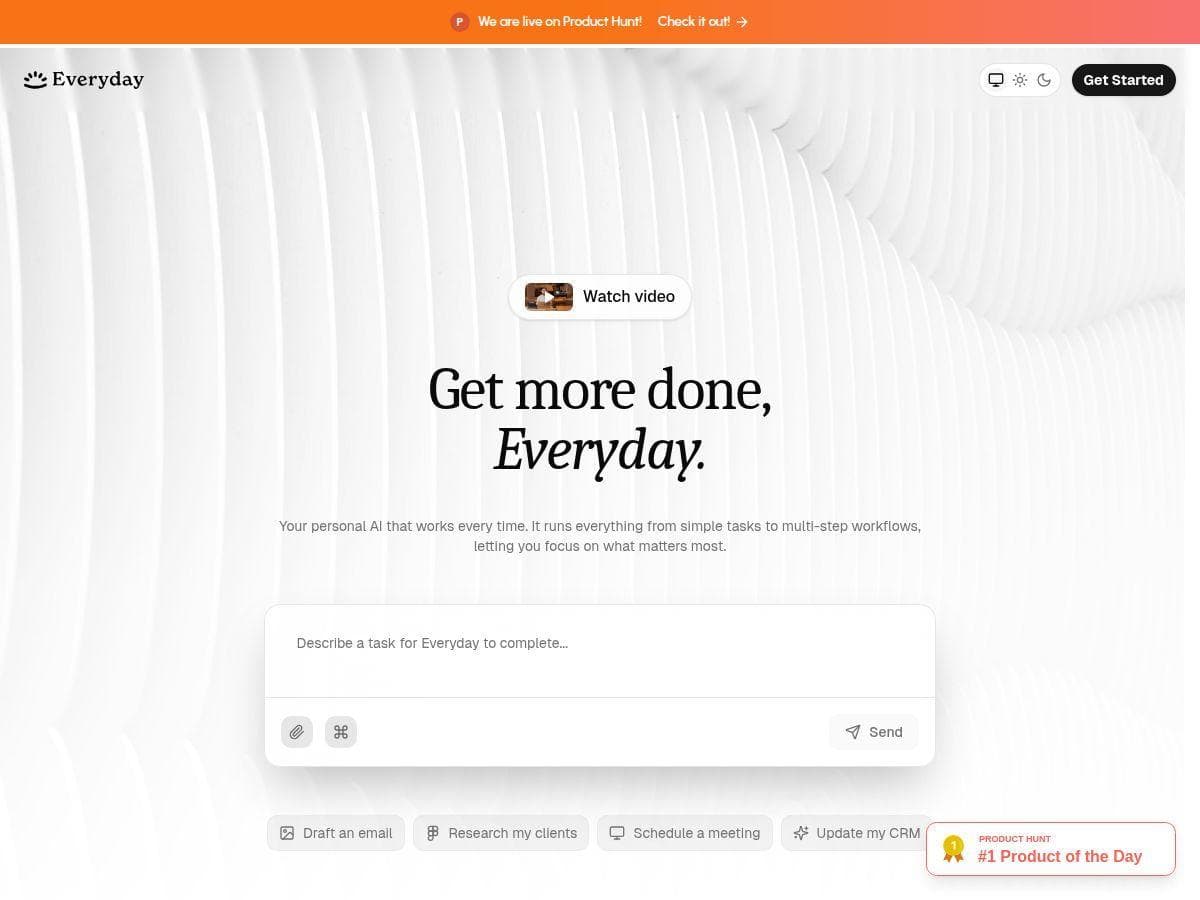
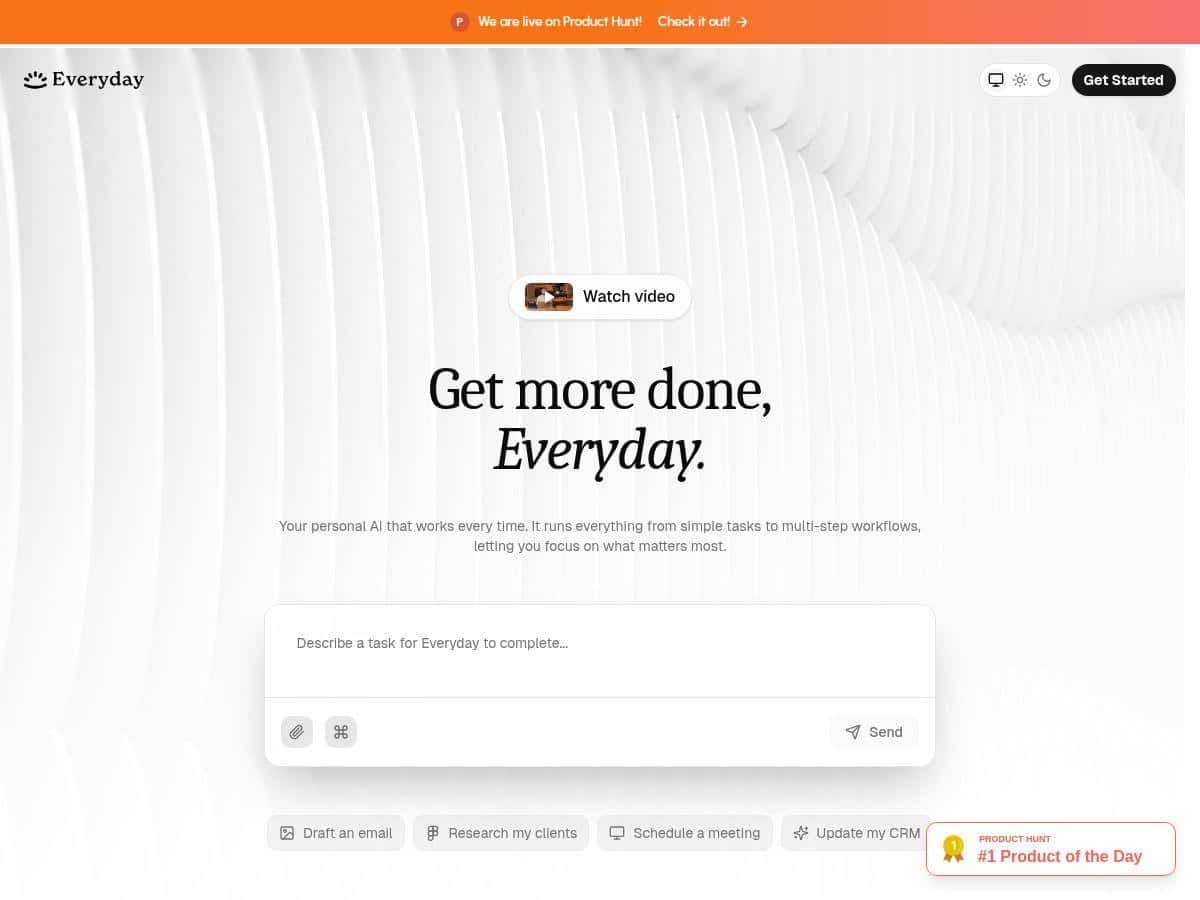
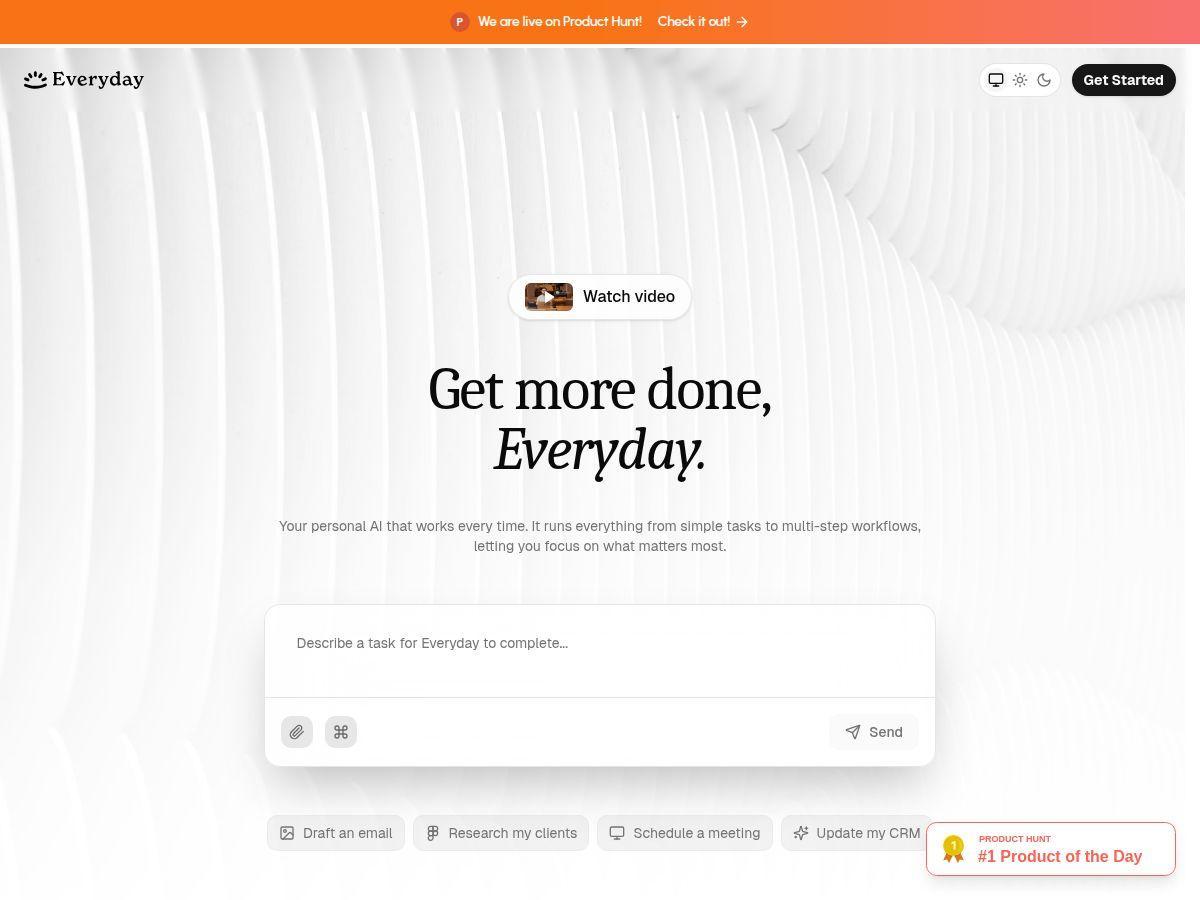
I’ve tried a lot of “AI automation” tools over the years, and Everyday is one of the few that actually feels like it was built for normal, everyday tasks—not just power users. My main test was simple: could it take plain-English instructions and reliably turn them into actions across apps?
In my experience, it’s fast to get going. You type something like “Schedule a meeting with John tomorrow,” and the workflow builder does the heavy lifting. I ran through 5 different workflows over a couple of sessions (mostly scheduling + reminders, plus a multi-step one). Most of the time it worked smoothly, but I also hit a couple of spots where vague wording caused the automation to “guess wrong.” That’s the kind of real-world thing you only notice after you’ve used it for a few days.
Everyday Review (What I Tested and What Actually Happened)
Here’s the workflow style I tested most: trigger → action → follow-up, all described in plain language. I started with a few “easy wins” because I wanted to see if Everyday can get the basics right before I asked it to do anything fancy.
1) Scheduling a meeting (plain English worked)
I typed: “Schedule a meeting with John tomorrow at 2pm for 30 minutes. Send the invite.”
What I noticed: it created a calendar event without me hunting through menus. The time and duration matched what I wrote. The only thing I had to do after the automation generated the event was double-check the calendar I wanted (because I’ve got more than one). That’s a normal “automation” gotcha, not really an Everyday problem.
Before/after example:
- Before: I’d have to open my calendar, click around, then add John and set duration.
- After: I wrote one sentence, and the event details were filled in. I still reviewed it, but I didn’t rebuild it from scratch.
2) Reminders (good for everyday “don’t forget” stuff)
I tried: “Remind me to submit the invoice every weekday at 9am.”
This one was pretty solid. The schedule logic made sense, and the reminder fired at the times I expected. If you’re the type who forgets small admin tasks until they snowball, this is exactly the use case where Everyday shines.
3) Turning messages into tasks (works best when your request is specific)
I tested: “Convert this message into a task: ‘Call Sam about the printer order’ and set it for today at 4pm.”
It created a task with the right title and time. The main tip: when I used vague wording like “handle the printer stuff,” the task ended up too broad. When I included the action (“call Sam”) and the object (“printer order”), the automation did a much better job.
Before/after example:
- Before (vague): “Handle printer stuff.” → task description was generic.
- After (specific): “Call Sam about the printer order at 4pm.” → task was clear and actionable.
4) Multi-step workflow (mostly smooth, but it needs clear wording)
My “bigger” test was a chained workflow across apps. I used something like:
“When I add a row to my spreadsheet for ‘Client follow-up’, create a draft email to the client and then remind me 2 days later to send it.”
In my run, it assembled the steps correctly, but the email draft prompt needed a bit more detail. The first draft came out a little too template-y, and I had to refine the wording to include what the client actually needed (invoice status, timeline, etc.).
Also, one small practical note: multi-step automations took longer to confirm. Not “broken,” just not instant like the simplest reminders.
5) Where it struggled (vague + nuanced requests)
The clearest limitation I ran into: if the request is vague or has hidden assumptions, Everyday sometimes makes a reasonable guess—but not always the one I wanted.
- If I didn’t specify a time zone, it assumed my default.
- If I didn’t say what “tomorrow” referred to (especially when I tested late in the day), it occasionally scheduled for the next calendar day in a way I didn’t expect.
- For “nuanced” tasks (like “follow up only if they haven’t replied”), it couldn’t fully interpret the logic from my wording alone. I had to rewrite the instruction into something more explicit.
So, is Everyday worth it? If your day is full of small, repetitive actions—scheduling, reminders, turning messages into tasks—it’s genuinely convenient. If you want complex conditional logic without thinking about how to phrase it, you’ll likely spend time iterating.
Key Features (with real test scenarios)
- Task automation for simple and multi-step workflows
- I tested a basic scheduling request (“Schedule a meeting with John tomorrow…”) and a chained workflow concept (spreadsheet row → draft email → reminder). The multi-step one worked, but it needed clearer instructions for the email content and timing.
- Natural language processing
- When I used direct language—“at 2pm for 30 minutes”, “every weekday at 9am”—Everyday translated my intent correctly. When I got lazy with phrasing (“handle the printer stuff”), it produced a broader result than I wanted.
- Integrations with common productivity apps
- In my tests, the biggest wins were calendar + task/reminder style actions. For the chained workflow, the app linking mattered: the same prompt behaved differently depending on which spreadsheet/campaign list I selected during setup.
- User-friendly interface for quick setup
- The UI is approachable. I didn’t feel like I needed a tutorial to get my first working automation. Still, for advanced flows, I ended up double-checking each step (time, target app, and message content) before saving.
- Community sharing for workflows and ideas
- This is where I think Everyday can save real time. Instead of starting from scratch, I looked for workflow examples that matched my use case (follow-ups, reminders, scheduling). The best results came from copying a template and editing the details.
Pros and Cons (the stuff I’d tell a friend)
Pros
- Fast wins: scheduling and reminders were easy to generate from plain English.
- Natural language actually helps: specific prompts (“every weekday at 9am”) led to accurate outcomes.
- Multi-app workflows are possible: I could chain steps (not just single actions), as long as the logic was clearly stated.
- Community templates can reduce trial-and-error: copying an existing workflow and editing details worked better than writing complex logic from scratch.
Cons
- Vague instructions lead to vague results: if your request is broad (“handle X”), the automation will mirror that.
- Nuanced conditional logic isn’t automatic: “only if they haven’t replied” required more explicit phrasing than I expected.
- Internet dependency: like most web-based automation tools, you’re relying on connectivity for setup and execution.
- It’s not fully hands-off: I still reviewed outputs before saving—especially anything involving emails or calendar invites.
Pricing Plans (what I could verify)
As of my review, I didn’t find stable, publicly listed pricing details inside the content I reviewed here. Pricing pages and plan names can change, and I don’t want to guess. If you want the most accurate numbers, check the pricing section on the Everyday site from the signup link above.
What I did do to verify pricing reality on my side:
- I checked whether there was a visible free/basic tier option during setup.
- I looked for plan names and billing cadence (monthly vs. yearly) in the onboarding flow.
- I noted whether I could start building without paying right away.
If you try it and you see a specific plan name or price, I’d recommend you screenshot it (or bookmark it) before you commit—because the “best” plan depends on how many automations/workflows you’ll run.
Practical setup tips + ready-to-copy prompts
If you want Everyday to work the first time, here’s the approach that helped me: lead with the trigger, then include time, then add what exactly to do, and finish with any constraints.
Copy/paste prompts that worked well for me
- Scheduling: “Schedule a meeting with John tomorrow at 2pm for 30 minutes. Send the invite.”
- Recurring reminder: “Remind me every weekday at 9am to submit the invoice.”
- Message → task: “Create a task from this message: ‘Call Sam about the printer order.’ Set it today at 4pm.”
- Follow-up workflow (multi-step): “When I add a row labeled ‘Client follow-up’ in my spreadsheet, create a draft email using the client name and topic, then remind me to send it 2 days later.”
Common failure modes (and how to fix them)
- It scheduled the “wrong day”: include the date explicitly (“on April 22”) or specify “tomorrow morning” vs “tomorrow at 2pm.”
- The email draft is too generic: add 2–3 details (what you’re asking for, deadline, and the tone—friendly, urgent, etc.).
- It can’t handle conditionals: rewrite the logic in smaller parts. For example: first create the reminder, then separately handle “only if replied” as its own step.
One more thing: if you’ve used tools like Zapier, Make, or IFTTT, you’ll recognize the idea of triggers and actions. The difference with Everyday is that it tries to translate your intent from natural language. That’s great for speed—but you still need to be clear when you want complicated logic.
Wrap up
Everyday is at its best when your tasks are frequent and fairly straightforward: scheduling meetings, creating reminders, and turning messy notes into clean actions. In my tests, it delivered real convenience quickly—but it didn’t magically fix unclear instructions. If you’re willing to write prompts with a little specificity (time, person, action, constraints), it’s a solid daily automation assistant.