Table of Contents
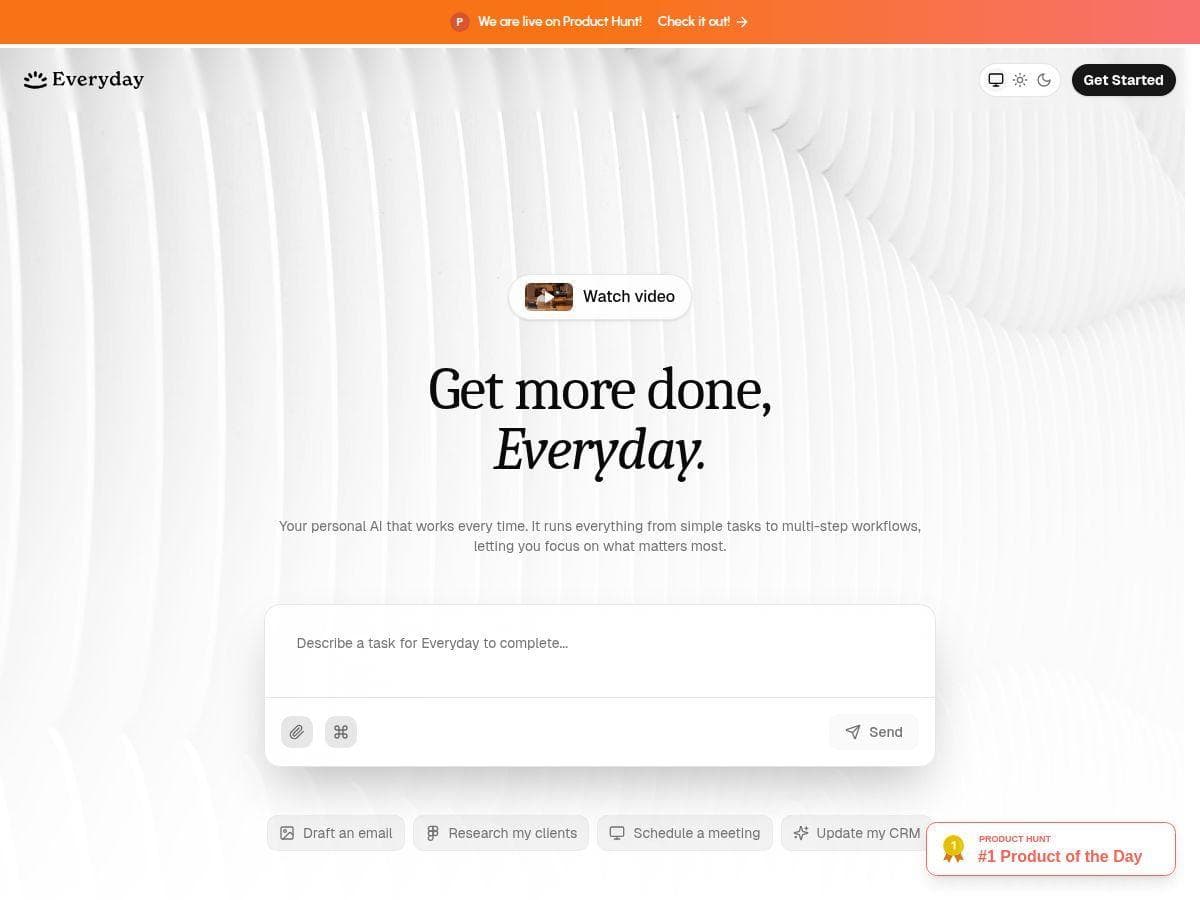
If you’re like me, you end up doing the same “tiny admin” tasks all day—copying details into forms, scheduling meetings, turning emails into reminders, and generally bouncing between apps. That’s exactly what I wanted to test with Everyday.
In my testing, I focused on one thing: can I type what I want in plain English and have it actually do it (not just “suggest” actions)? I ran a handful of workflows over a couple of sessions, starting with simple commands and then pushing it into multi-step stuff. What I noticed: Everyday is fast when your request is clear, but it can misread intent when the instructions are vague or too ambitious. Still, for everyday automation, it’s genuinely convenient.
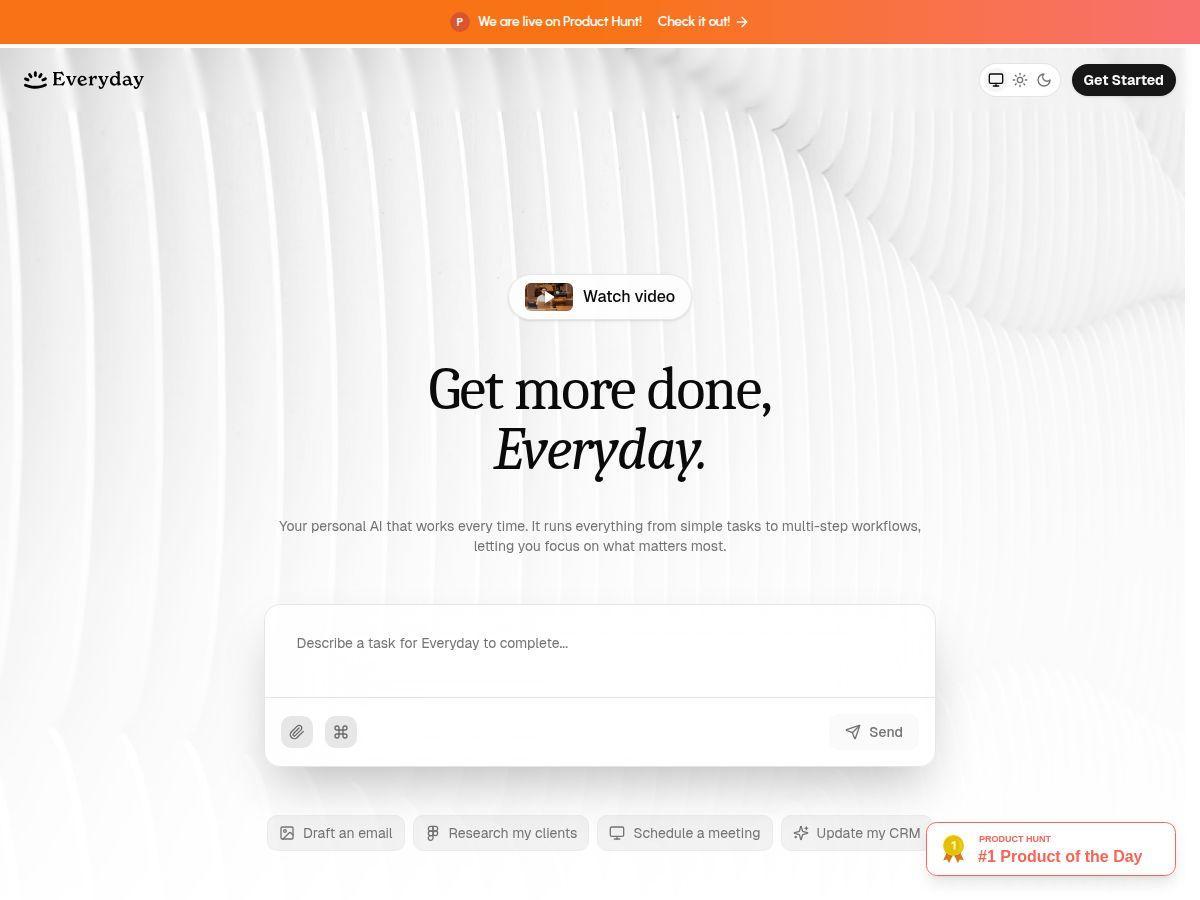
Everyday Review: What It Did (and Where It Stumbled)
When I started using Everyday, I didn’t want to “toy around” with vague prompts. I wanted to see if it could handle the kind of requests I actually make. So I built a small set of tests around everyday tasks: scheduling, reminders, and turning a message into something actionable.
Setup experience (what surprised me)
Getting started felt pretty straightforward. The interface is clean, and the main idea—type the task in plain English—is obvious right away. I didn’t have to hunt for where to click first. That matters, because automation tools can be surprisingly fiddly.
One thing I noticed quickly: the more specific I was about time, destination, and what “done” looks like, the better the results. If I was lazy with details, the system either guessed wrong or didn’t execute.
Test 1: Simple scheduling command
I tried a basic prompt like:
Prompt: “Schedule a meeting with John tomorrow at 2pm. Add a 15-minute reminder.”
What happened: This one worked smoothly. The meeting details were created in the calendar destination after I had connected the calendar account. The reminder timing matched what I asked for (15 minutes before). No extra back-and-forth.
Test 2: Same task, but vague
Then I tested the opposite:
Prompt: “Schedule a meeting with John tomorrow.”
What happened: It didn’t fail completely, but it didn’t “lock in” the way I expected. The time wasn’t handled the way I wanted, and I ended up needing to clarify the time window before it would be useful. That’s my main complaint with “everyday” automation—people (including me) often leave out details without realizing it.
Test 3: Turning an instruction into multiple steps
Next, I tried a multi-step workflow:
Prompt: “Create a reminder for my invoice follow-up next Friday at 10am, and include ‘email the client for payment’ in the note.”
What happened: The reminder got created, and the note text was included correctly. This is where Everyday felt genuinely helpful—one message turned into a concrete task with the right wording.
Test 4: When it gets the intent slightly wrong
I also ran into the kind of issue you’d expect from any AI automation layer: misinterpretation. I used a prompt that was close to what I wanted, but not exact:
Prompt: “Remind me to send the deck to the team sometime this week.”
What happened: “Sometime this week” is basically an invitation for assumptions. The reminder ended up not being at the time I had in mind. I corrected it by rewriting the prompt with a specific day/time:
Improved prompt: “Remind me on Wednesday at 11am to send the deck to the team.”
That version worked cleanly. Lesson learned: if you want it to nail the outcome, give it a target.
Test 5: Small workflow sequence (clarity beats cleverness)
Finally, I tried a quick sequence where I wanted it to create something and then set an associated follow-up. The best results came when I explicitly said what should be created first and what the follow-up should be.
Prompt: “Create a calendar event ‘Client check-in’ on Thursday at 3pm. After that, add a reminder 1 hour before titled ‘Prepare questions from last call.’”
What happened: It executed the event and reminder as expected once the instructions were in a clear order. When I wrote it more casually, it either skipped the reminder or changed the reminder wording.
So, does Everyday feel like a “set it and forget it” automation platform? Not exactly. But does it save time for daily tasks? In my experience, yes—especially when you write prompts like you’re giving instructions to a very literal assistant.
Key Features (With Real Examples From My Tests)
- Task Automation for everyday workflows
- This is the core feature, and it’s best when your request is concrete. For example, when I said:
- “Create a reminder for invoice follow-up next Friday at 10am, note: email the client for payment.”
- It created the reminder with the note included. When I left out the time (“next Friday” only), it didn’t behave as reliably—so the automation is only as good as the clarity of the command.
- Natural Language Processing (but you still have to be specific)
- Everyday handles plain English well—no complicated syntax. Still, it doesn’t magically know what you mean if you don’t say it. “Tomorrow” without a time was the biggest weakness I saw. Once I added a time (“tomorrow at 2pm”), the result matched my intent.
- Integrations with apps
- In my testing, the biggest value came from using Everyday with tools I already use—mainly calendar and reminders. The workflow only worked once accounts were connected, but after that, it was quick to execute calendar events and reminders from a single prompt.
- Practical tip: if you’re connecting multiple apps, start with one (like calendar) and get a few commands working before you expand. It’s easier to debug when something doesn’t go through.
- User-friendly setup
- I appreciated how quickly I could get to a “type a task → get an action” flow. No long training session. The interface doesn’t feel overwhelming, which is a big deal for automation tools.
- Community sharing for workflows and ideas
- Sharing workflows can be useful if you find templates that match your routine. I didn’t rely on the community as much as I built from my own examples, but I can see why people would—especially if you’re trying to avoid starting from a blank page.
Pros and Cons (What I Actually Liked vs. What Didn’t Work)
Pros
- It’s genuinely faster for routine tasks — once I wrote a clear prompt, actions happened without me manually switching contexts.
- Natural language works well for common “admin” requests — scheduling and reminder creation were the smoothest tests.
- Multi-step instructions are possible — the event + reminder sequence worked when I specified the order and timing.
- Community workflow sharing could help you move quicker — especially if you want templates, not experimentation.
Cons
- Vague prompts reduce reliability — “tomorrow” and “sometime this week” caused incorrect assumptions. Adding a specific time fixed it.
- It’s not ideal for complex, nuanced instructions — if the request requires lots of conditional logic, you’ll likely need to refine the prompt or break it into smaller steps.
- Internet/account connectivity matters — if integrations aren’t connected properly, the automation can’t execute the action.
Pricing Plans: What I Could (and Couldn’t) Verify
I couldn’t find stable, clearly listed pricing details directly in the content I reviewed for this post. What I did notice is that Everyday’s pricing info may change depending on the signup flow and plan availability, so I recommend checking the pricing page on Everyday during signup.
What you should look for when you check:
- Whether there’s a free tier or trial (and how long it lasts)
- Limits like number of automations, runs, or connected integrations
- Whether premium features are required for multi-step workflows
If you want, tell me what pricing screen you see (plan names + price), and I’ll help you interpret what’s actually worth paying for based on the kind of workflows you want.
Wrap up
Everyday is one of those tools that feels simple on the surface, but it rewards you for being specific. In my experience, it’s best for everyday automation: scheduling meetings, creating reminders, and turning straightforward requests into actions across your apps. If you write prompts with clear times and outcomes, it performs well. If you leave important details out, you’ll likely need to correct it.
So yeah—if you’re trying to reduce repetitive tasks and you’re willing to give the tool clear instructions, it’s worth a shot.