Table of Contents
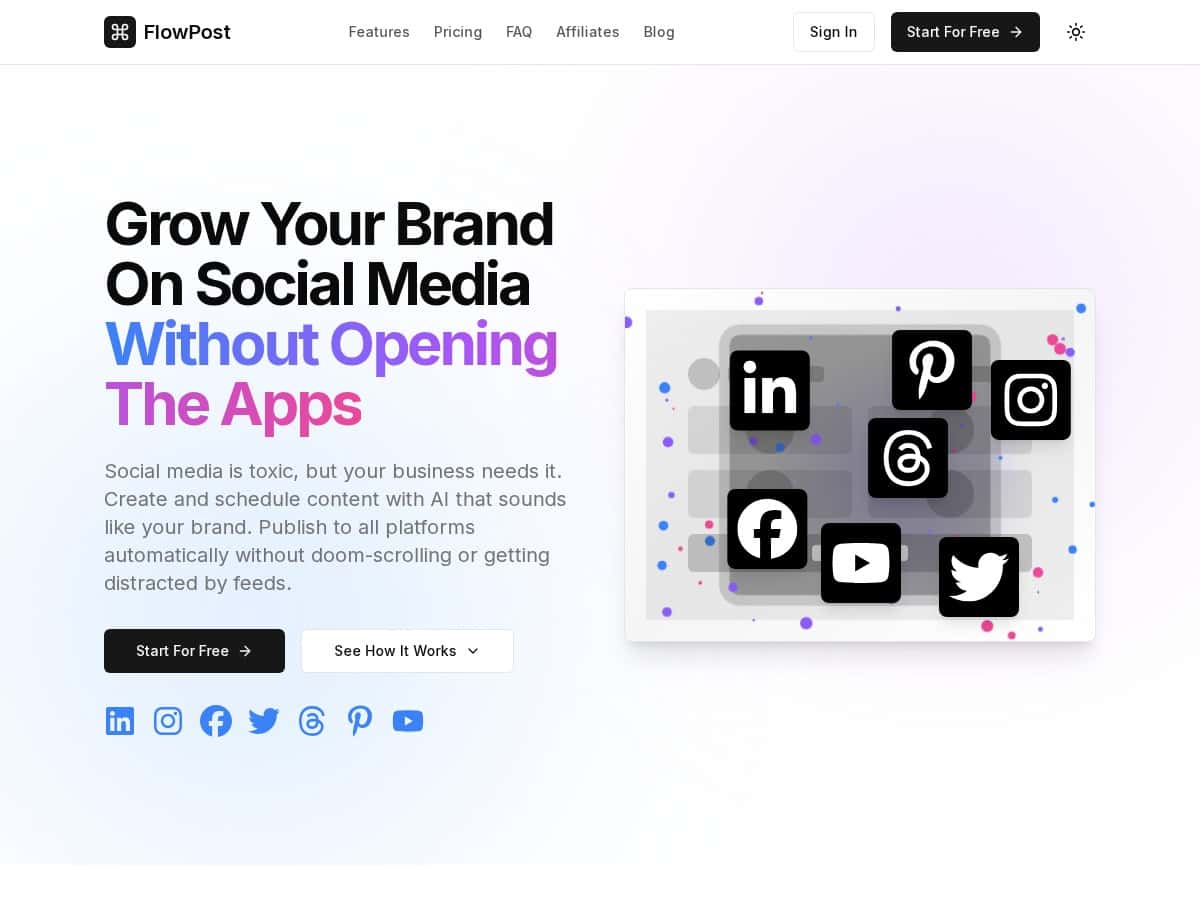
If you’re juggling more than one social account, you already know the annoying part: writing ideas, turning them into captions, finding images, and then remembering to actually post. That’s where FlowPost steps in. It promises AI-assisted content creation plus scheduling and publishing, all in one place.
I tested FlowPost hands-on for a real week of posting. I’m not just talking about “it looks easy.” I mean I created drafts, scheduled them out, generated captions and image ideas, and then watched what happened when it came time to publish. Below is what I liked, what slowed me down, and what I think you should watch for before you commit.
FlowPost Review: What It’s Like After You Actually Use It
Let me start with the setup, because that’s usually where tools either win you over or lose you. I connected multiple accounts and then spent time using the unified dashboard to move between platforms. The “one place” layout matters. When I’m switching between Instagram, Facebook, and LinkedIn, I don’t want to feel like I’m hopping between tabs and logins all day.
In my test week, I created and scheduled a small batch of posts (about 10 drafts total). I used AI to generate caption drafts for each topic, then edited them to sound like my brand. I also generated a couple of AI images to see if they were usable or just “cool-looking but off.” Spoiler: they were closer to usable than I expected, but I still had to tweak the prompts to get better results.
Here’s what stood out most:
- Scheduling felt straightforward: I could plan a week ahead without getting lost. The scheduling workflow didn’t feel like I was doing extra steps just to get content out the door.
- Cross-platform publishing was genuinely convenient: once a post was ready, it was easy to publish to multiple platforms from the same workflow.
- AI copy saved time, but didn’t replace editing: it gave me solid starting points—then I had to adjust tone, length, and sometimes add/remove hashtags.
- AI images were a nice option: I liked having visuals ready quickly, especially when I didn’t want to hunt for stock images.
One thing I noticed while testing: the tool is at its best when you treat it like a content system, not a “set it and forget it” button. If you’re okay doing quick edits before posting, FlowPost can cut your workload a lot. If you expect the AI to perfectly match your voice with zero touch, you’ll likely get frustrated.
Key Features: What They Do (and How They Worked for Me)
- Unified Dashboard for managing multiple social accounts
- This is the core of FlowPost. Instead of bouncing between platform dashboards, you manage drafts, scheduling, and publishing from one view. In my test, it made it faster to compare what was posted where and when. The limitation I ran into was typical for multi-platform tools: the more platforms you connect, the more you’ll still need to double-check formatting per platform (especially with captions and links).
- AI Content Generation for brand-aligned posts
- The AI generator helped me draft captions quickly. I used it for a few different post types—short announcements, a “tips” style post, and a promotional caption. What I noticed: the first draft is usually usable, but it tends to be a bit generic unless you give it a clear prompt (topic, audience, tone, and goal). I also had to trim or expand depending on the platform.
- Example from my test: I prompted for a LinkedIn post about “how to plan a content calendar in 30 minutes.” The AI produced a draft with a hook + bullet points. I edited it to match my usual style and added a more specific call-to-action. Without that edit, it sounded like something you’ve seen before.
- Cross-platform Publishing with one click
- Once a post is ready, pushing it to multiple platforms is quick. That’s the value here—less clicking, fewer steps. My practical tip: don’t blindly publish the same caption everywhere. I always do a quick scan for platform differences (hashtags, link formatting, and character limits).
- Post Scheduling for optimal engagement
- Scheduling was one of the easiest parts. I scheduled posts ahead and didn’t feel like I was fighting the interface. The limitation is more about your strategy than the software: if you schedule everything at once without thinking about your audience’s time zones or content cadence, you’ll still get mixed results.
- Video and Carousel Publishing for richer content
- For teams that post non-image content, this matters. I didn’t publish a full video series in my week-long test, but I did check the workflow for media posts. The main thing to watch is making sure your assets are properly formatted before you schedule—otherwise you’ll be doing cleanup later.
- AI Image Generation to create custom visuals
- I liked that I could generate visuals when I didn’t have something ready. In my test, the first image attempts were okay, but they weren’t always “on-brand.” When I adjusted the prompt (more specific style, subject, and color vibe), the results got better.
- What you should expect: AI images can be great for experimentation and quick drafts. If your brand depends on very specific design rules, you’ll likely still want to refine images or combine AI with your own templates.
- Analytics and Insights to track performance
- FlowPost’s analytics help you see what’s working. I used it to check which posts performed better after publishing and to spot patterns (like which topics got more engagement). My honest take: it’s helpful, but don’t expect it to replace deeper native analytics tools. If you need very granular reporting, you may still want to cross-check in platform analytics.
- Team Collaboration for shared content creation
- If you work with other people, collaboration is where tools like this earn their keep. In my test, having a shared workflow reduced the “who changed what” problem. Still, you’ll want to set clear rules for approvals—otherwise you can end up with multiple people iterating on the same draft.
- Automation Workflows for repetitive tasks
- Automation is great for repetitive steps (like reminders, recurring content, or standard posting workflows). I didn’t go too deep into complex automations in my test week, but I can see how this would save time for teams posting similar formats often.
- Smart Posting Reminders via Email
- This is a small feature, but it helped me stay on schedule. I didn’t have to rely on memory. The “limitation” is that email reminders are only useful if you actually check them—so if your inbox is chaos, you’ll want to pair reminders with a calendar habit.
- Visual Content Calendar for easy planning
- The content calendar view made it easier to see what’s coming up. I planned a week ahead and could spot gaps quickly. If you’re the type who posts only when inspiration hits, this calendar will nudge you toward a more consistent cadence.
- Cloud Media Library for storing media files
- Having a media library keeps your assets organized. In practice, it reduces the “where did I save that image?” problem. Just remember: AI-generated assets and uploaded assets should be tagged/organized the way you actually work, or you’ll lose time later.
Pros and Cons (Based on My Test, Not Just Marketing)
Pros
- Time savings are real—if you’re posting consistently: I spent less time drafting from scratch once I used the AI prompts as a starting point.
- Scheduling and publishing flow is smooth: planning a week ahead didn’t feel complicated.
- AI helps you get unstuck: when I didn’t have a perfect caption idea, the AI drafts gave me something to work with.
- Team collaboration reduces friction: shared workflows make it easier to review and iterate without losing track.
Cons
- AI can miss your exact brand voice: I had to edit multiple drafts for tone and specificity. It’s not “publish instantly” for me.
- Formatting still needs a human check: even with cross-platform publishing, I recommend a quick review for hashtags, links, and length.
- Pricing/credits can be confusing at first: the idea of “unlimited scheduling” is great, but AI credits are what you’ll run out of first if you’re generating lots of captions and images.
Pricing Plans: What You Get (and What to Watch)
FlowPost offers a free 14-day trial so you can test the workflow before paying. After that, the Basic Plan starts at $29/month and includes:
- Five social accounts
- Unlimited scheduling
- 20 AI credits for content and image creation
Here’s what I’d pay attention to if you’re deciding between plans:
- AI credits are likely the bottleneck: if you generate multiple caption drafts and several images per week, credits can disappear faster than you expect.
- “Unlimited scheduling” doesn’t mean “unlimited AI”: you can schedule forever, but the AI part still has limits—so plan your generation strategy (draft fewer variations, edit more manually).
- Upgrades matter for teams: if more people are creating content, you’ll probably want higher tiers for account count, collaboration features, or expanded usage.
If you’re comparing this tool to others, I’d also look at how each platform handles approvals, credit usage, and analytics depth—because those are usually the real deciding factors after the novelty wears off.
FlowPost Alternatives Worth Considering (Quick Reality Check)
- Buffer: great for scheduling and basic analytics, but you may need another tool for heavy AI writing and image generation.
- Hootsuite: strong for multi-account management and team workflows, though it can feel more complex and pricey depending on features.
- Later: especially popular for visual-first planning; good calendar experience, but AI generation depth varies by plan.
- Sprout Social: excellent for reporting and collaboration—often a better fit for larger teams with bigger budgets.
My take: if your priority is AI-assisted drafting + quick scheduling in one place, FlowPost is a solid contender. If you need advanced reporting or enterprise-grade governance, you may prefer platforms like Sprout Social.
Wrap up
FlowPost is genuinely useful if you want a simpler way to manage multiple social accounts and you’re okay doing quick edits to polish AI drafts. In my week of testing, it helped me plan ahead, reduce the “blank page” problem, and keep content moving without constant back-and-forth.
Just don’t assume AI means “no work.” The best results came when I used FlowPost as a content assistant—generate, edit, schedule, then review performance. If that fits your workflow, it’s worth trying, especially with the 14-day trial.