Table of Contents
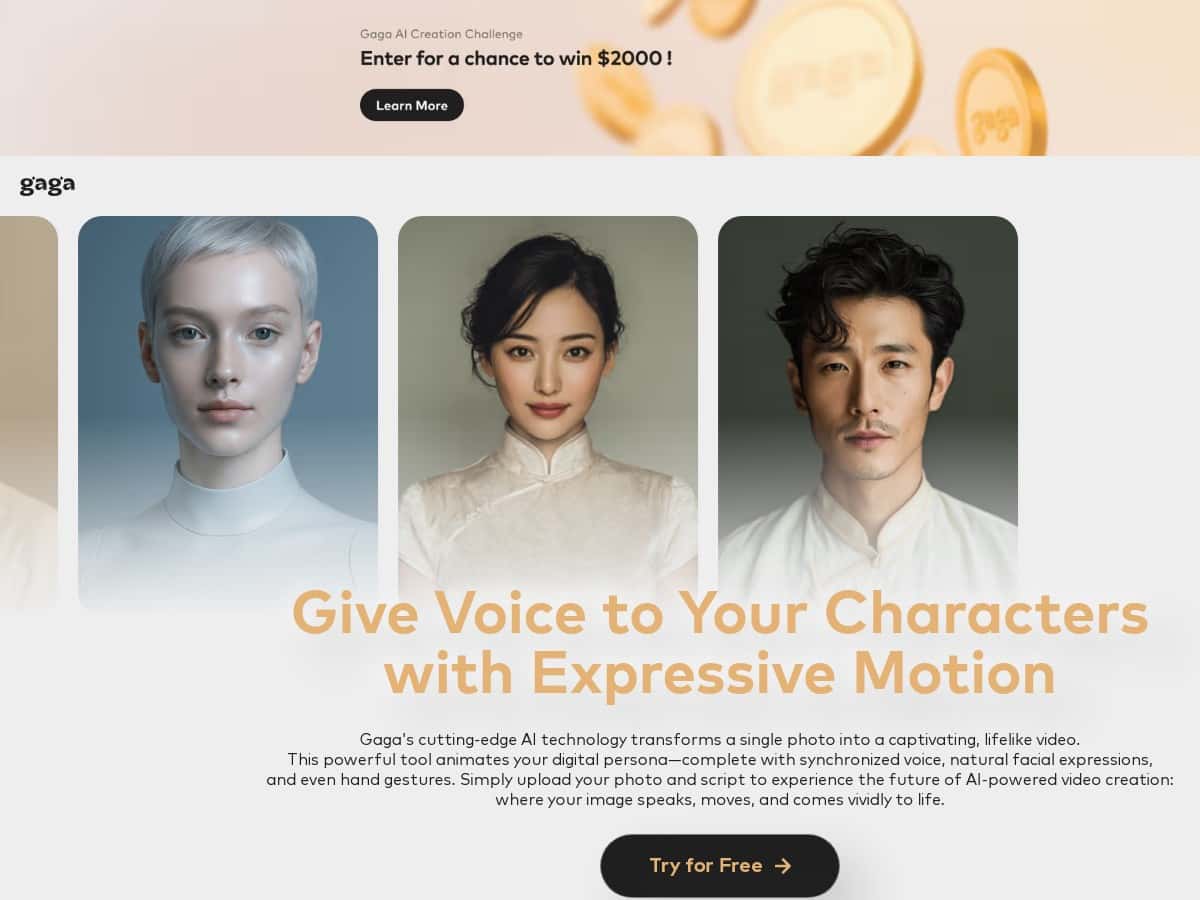
I’ve been testing a bunch of AI avatar tools lately, and Gaga is one of the few that actually feels simple the moment you land on it. The basic idea is straightforward: you upload a photo of a person, add a script and/or voice, and it generates a short animated avatar video. No complicated setup, no “wait, where do I click?” moments.
In my experience, the results look pretty convincing—especially if your photo is clear and front-facing. The facial motion and gestures aren’t robotic, and the lip-sync generally tracks the spoken audio well enough for quick intros, promos, or social posts. That said, it’s not magic. If your input photo is low-res, has heavy shadows, or the face is turned sideways, you’ll notice artifacts and weird mouth timing more often.
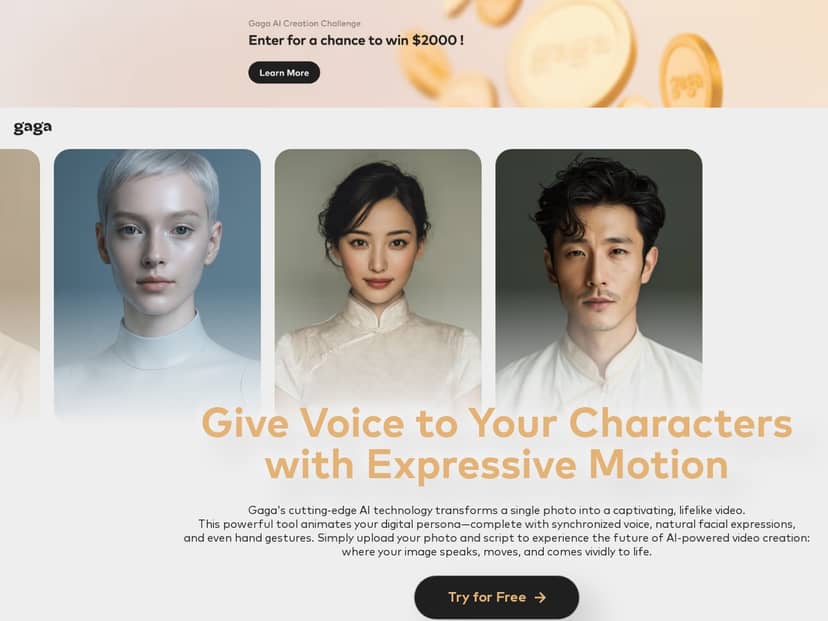
Gaga Review: What I Actually Got From Turning Photos Into Avatar Videos
Here’s what I did (and what I noticed) when I tested Gaga. I used it on a desktop browser and generated a few short clips using the same general script, then swapped the input photo quality to see how much it changed the output. I’m big on testing “apples to apples,” because otherwise it’s too easy to blame the tool when it’s really the input.
Test setup (quick but real): I tried three photo inputs—(1) a high-res, front-facing portrait with good lighting, (2) a medium-res photo that was still clear but not super sharp, and (3) a low-res crop where the face details were softer.
Results:
- High-res, front-facing photo: Lip-sync felt the most stable. I didn’t see the mouth “drifting” out of sync until later in the line (roughly after the first ~10–15 seconds depending on how fast the script was). Facial motion looked natural enough for a short intro.
- Medium-res photo: The avatar still worked, but I started noticing slightly less precise mouth shapes on certain sounds (especially when words had lots of consonants in quick succession). Gestures looked fine, but the face detail wasn’t as crisp.
- Low-res / softer detail: This is where the cracks show. The mouth movement didn’t match as cleanly, and I saw more “floaty” edges around the hairline and jaw area. It wasn’t unusable, but it definitely looked lower quality.
So yeah—Gaga can produce realistic avatar videos, but your input photo isn’t a minor detail. It’s basically the foundation. If your photo has harsh shadows, glasses with heavy reflections, or the face is turned sideways, expect more artifacts.
Also, one practical thing: the generation flow is quick. Upload → choose your voice/script approach → generate. I didn’t need to tweak advanced settings to get a decent first result, which is a big win if you’re not trying to become a video editor overnight.
Key Features (With Real Examples From My Tests)
- Expressive motion (face + gestures)
- On my best input photo, the avatar’s expressions looked believable—smiles landed naturally, and the motion didn’t feel like it was stuck on one “loop.” On lower-quality photos, the gestures were still there, but the facial detail (and how well the mouth matched) dropped noticeably.
- Lip-sync synced to script or voice
- I tried two approaches: using a script with the built-in voice flow and using an audio option. The lip-sync was strongest when the narration wasn’t too fast. When I used a more rapid line, the mouth sometimes lagged slightly on quick phonemes. It wasn’t constant, but it was the first thing I’d call out.
- Short-form video length (up to 60 seconds)
- This is great for intros, course announcements, and product teasers. But if you’re imagining a 2–3 minute explainer, you’ll need to split it into multiple clips. I found it works best when you keep the script tight—think ~1 idea per 10–20 seconds.
- Voice options (personal recordings + custom-trained voices)
- What I liked here is the flexibility. You can go with a standard voice option, or use your own voice. I didn’t spend all day training custom voices, but I did test the “use your voice” route and the results felt more consistent for brand tone—especially for announcements and creator-style content.
- Dynamic poses and scene transitions
- Gaga does more than just animate the face. In my generated clips, the avatar shifts posture and the pacing feels more engaging than a static talking-head. Still, don’t expect cinematic camera moves. It’s more “animated avatar performance” than “Hollywood edit.”
- One-click-style workflow
- The interface is designed so you can get a first render quickly. My first attempt didn’t require fiddling with obscure options—uploading a clearer photo was the biggest “setting” that improved the result.
Pros and Cons (What’s Great, What’s Annoying)
Pros
- Realistic enough for short-form content: On a clear, front-facing image, the avatar looks surprisingly lifelike for the time it takes to generate.
- Easy to get started: I could produce a usable clip without needing a tutorial-style setup.
- Lip-sync is generally solid: It tracks best when your narration isn’t rushed and your photo is sharp.
- Voice flexibility: Using your own voice helps keep things consistent with your brand or teaching style.
- Good for educators and marketers: Quick announcements, intro videos, and “talking about one topic” clips work really well within the 60-second limit.
Cons
- 60-second cap: It’s limiting if you want longer storytelling. You’ll likely do multiple renders and stitch the clips elsewhere.
- Photo quality dependence: Low-res, heavy shadows, side profiles, and reflective glasses can cause more noticeable artifacts.
- Limited advanced control: There aren’t a ton of “fine-tune” options for picky users who want exact mouth/gesture behavior.
- Edge cases show up: Hair occlusion (bangs covering part of the face), strong hats, and extreme angles can confuse the avatar mapping.
My practical tips (so you don’t waste credits):
- Use a front-facing photo with even lighting (no strong side shadows).
- Keep the script concise and avoid super fast phrasing if you care about clean lip-sync.
- Do a “test render” first using a short sentence. If the mouth-sync looks off, swap the photo before you commit to a full 60-second version.
- Watch for glasses reflections. If your lenses catch light, the avatar can misread the face region.
Pricing Plans (Credits, Free Trial, and What I’d Budget)
Gaga uses a credit-based system and offers a free trial so you can test the workflow before paying. The platform is described as roughly costing $0.01 per credit. In practice, a typical short avatar video (around the 60-second limit) usually consumes multiple credits, which is why I always recommend doing a short test clip first.
Pricing tiers: I didn’t see the exact tier table embedded in the provided content, so the most accurate move is to check the current pricing on the official Gaga website for the latest plan names and credit bundles. (Plans and credit amounts can change over time.)
If you’re trying to plan budgets: for educators making a handful of clips per week (say 30–45 seconds each), it’s usually smarter to keep scripts short and generate fewer “full length” versions until you’re happy with the voice + photo match.
Wrap-up
Gaga is a solid option if you want quick, realistic-ish avatar videos from a single photo without turning it into a whole production. The big thing I’d watch is photo quality—clear, front-facing images give you the best lip-sync and the least distracting artifacts. If you’re making short intros, announcements, or bite-sized promo content, it does the job fast. If you need longer videos or super precise control over every facial detail, you’ll hit the limitations pretty quickly.