Table of Contents
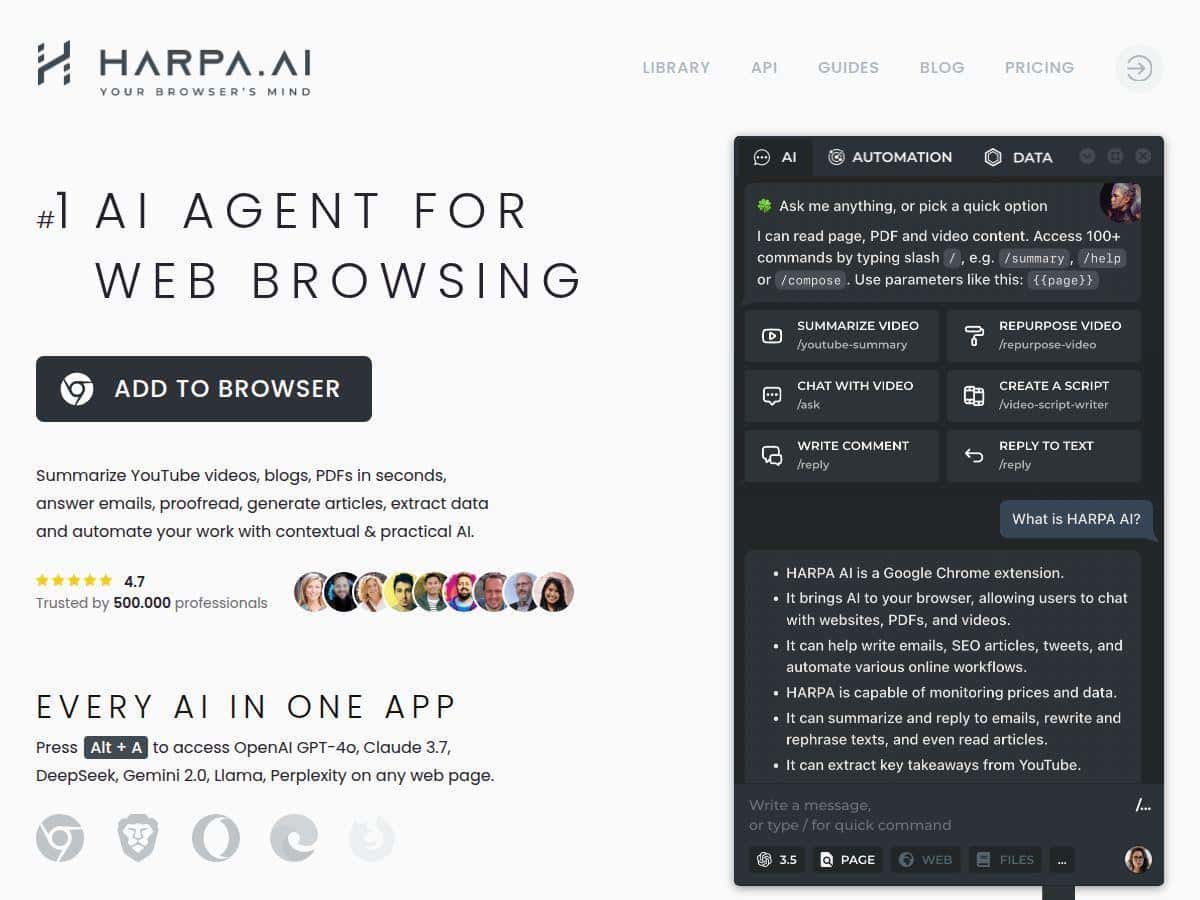
I’ve been testing Harpa as an everyday browser extension for a few weeks, mostly on Chrome. What I wanted to find out wasn’t whether it “can do AI stuff” (it can). I wanted to know if it actually helps with real workflows: summarizing what I’m looking at, extracting details from messy pages, drafting email replies, and automating repetitive clicks/forms without turning my browser into a laggy science project.
Harpa Review: what it’s like day-to-day (and where it stumbles)
Let me be straight: Harpa is best when you already spend a lot of time in the browser and you hate repeating the same “read → extract → rewrite” steps. In my testing, the extension really shines in three areas:
- Turning long pages/videos into something skimmable (without me copy-pasting everything into a separate tool)
- Pulling specific info out of sites (prices, contact details, product specs)
- Drafting and adapting writing (emails/social posts) while I’m already on the right page
On the “multi-model” side, I appreciated that I could switch between models depending on the task. For example, when I needed a quick structured summary, one model felt snappier. When I needed tighter writing/editing, another model gave me better phrasing. And yes—having multiple options inside the same extension is genuinely convenient. I don’t have to open a different tab just to try a different model.
That said, it’s not magic. On complex sites with heavy scripts (think dashboards and content-heavy pages), I sometimes saw slower responses or occasional weirdness with page selection. The workaround was usually the same: highlight/select the part I actually needed more carefully, then rerun the action.
Rough time savings: I didn’t do a lab study, but I tracked a few repeated tasks for a week (summary + extraction + first-draft email). On those workflows, I estimated saving around 30–45 minutes per day compared to my usual “manual skim + copy/paste + rewrite” routine. Your mileage will vary, especially if your tasks are mostly one-off.
Key Features: how I used them (with real examples)
- Multi-Model AI Integration (ChatGPT, Claude, Gemini, Perplexity, DeepSeek, LLaMA, Mistral)
I tested this by running the same prompt on the same page selection and comparing output style. What I noticed: some models are better at short, structured summaries, while others are more helpful for rewriting and tone. If you’re doing research, being able to swap models without leaving the page saves time. - Web Automation (clicking, filling forms, monitoring page updates)
I used automation for a “repeatable” workflow: open a page, fill a few fields, and trigger a search. The best part wasn’t just saving keystrokes—it was reducing the mental friction of “what do I click next?”
Limitation: if the website changes layout or loads content slowly, the automation can fail or select the wrong element. When that happened, I re-recorded/adjusted the step and it worked again. - YouTube Summarizer
I tried it on a mid-length video and used the summary to decide whether I needed to watch the whole thing. The output was usually pretty solid: key points first, then a short recap.
Example of what I got (paraphrased):
“Main takeaway: X. Key points: (1) … (2) … (3) … Who it’s for: … Next steps: …”
One thing to watch: if the video has jargon-heavy segments, the summary can still miss nuance. I ended up asking a follow-up like “List the examples mentioned and explain what they illustrate.” - Answer Engine (cited, hallucination-resistant responses)
This is the feature I used most when I needed factual answers from what I was viewing. I fed it a question like: “What are the pricing tiers mentioned here, and what’s included in each?”
The responses were generally grounded in the page content. When I asked for something that wasn’t actually on the page, it didn’t confidently invent details (which is exactly what I want). Still, I recommend treating it like “fast first draft,” then verify anything important. - Writing Assistant (emails, posts, articles)
I used the writing assistant to draft replies based on a page of notes. I gave it a quick brief: audience, tone (friendly but direct), and what to include/avoid.
Example prompt I used:
“Draft a concise email response. Tone: professional and slightly warm. Include: 3 bullet points, one question at the end, and a clear next step.”
What I noticed: it’s great for structure and getting me unstuck. But if I wanted very specific phrasing (like matching a company’s voice), I had to do a second pass. - Gmail & email integration
I tested drafting and summarizing by grabbing content from a message thread and asking for a cleaner version. It helped me quickly categorize and draft. The time win here wasn’t “it writes the perfect email.” It was “I didn’t stare at the inbox for 20 minutes trying to find the right starting point.”
Note: if you’re expecting it to perfectly match existing thread context, you still need to provide a little direction. - SEO tools (keywords, content audits, content planning)
I used this for a content planning session: give me a keyword set, suggest angles, and propose an outline. The tool helped generate options quickly, but I still checked intent and search phrasing manually.
In my experience, the best results came when I specified constraints like target length and whether the content should be beginner-friendly or more technical. - Custom AI Agents
This is where Harpa starts feeling less like “a chat box” and more like a workflow tool. I built a small agent to extract a set of fields from a set of pages (name, price, key features).
Limitation: agents are only as good as the consistency of the pages you’re targeting. If the site layout changes a lot, you’ll spend time adjusting selectors. - Data extraction (prices, contacts, market research)
I tested extraction on a product/listing page and asked for a table-like output. It worked well when the page had clear labels. When labels were inconsistent, the extraction was messier—so I had to refine the prompt like “Extract only fields that match these exact headings.”
Example output style (again, paraphrased):
“Product: … | Price: … | Currency: … | Shipping: … | Notes: …” - Privacy-focused design (local processing, GDPR compliance)
I can’t verify every internal implementation detail from the outside, but I did look for transparency around how data is handled. The pitch here is privacy-minded processing and GDPR alignment, and that matters if you’re working with client info. If you handle sensitive documents, I’d still treat any AI tool as needing basic caution (don’t paste secrets). - Page Update Tracker
I used this to watch a page for changes. The point is simple: you shouldn’t have to keep checking manually. When the page updated, I got alerted and could respond faster.
Downside: if the site updates frequently (even when content changes aren’t meaningful), you may get noisy alerts. I ended up adjusting what I cared about. - Ready-to-Use Prompts (100+ templates)
This part saved me time because I didn’t start from scratch. Still, I didn’t just run templates blindly. I tweaked prompts with my own constraints (length, tone, format).
If you’re new to AI prompting, start with the templates—but expect to personalize them.
Pros and Cons: what I liked, what annoyed me
Pros
- Fewer context switches: you stay in the page you’re working on instead of bouncing between tools.
- Model switching is genuinely useful: different tasks benefit from different output styles.
- Automation helps with “repeat work”: form filling + click sequences are where I saw the biggest time savings.
- Extraction is strong when pages are consistent: labeled fields usually come out clean.
- Writing drafts are fast: it’s great for structure and first-pass wording.
- Privacy-minded positioning: if you care about GDPR/local processing, this is a plus.
- Integrates with automation platforms: if you already use Zapier/IFTTT, it fits into a broader setup.
Cons
- No mobile version: if you rely on phone browsing, you’ll miss out.
- Some advanced features are paywalled: I hit limits on certain workflows when using the free tier.
- Performance can dip on complex sites: on heavy pages, response time wasn’t always instant. I typically had to narrow the selection.
- Learning curve is real: the more you want to automate, the more you need to understand how it selects elements and formats prompts.
- Best on Chromium: I saw better results in Chrome than in some other setups.
- Occasional compatibility quirks: sometimes the extension didn’t “grab” the right element until I reselected it.
Pricing Plans (and what I noticed on free vs paid)
Harpa has a free tier for basic usage. In my testing, the free plan was enough to get comfortable with summaries, writing drafts, and basic interactions. But when I tried to run more intensive workflows—especially the automation-heavy stuff and more demanding capabilities—I bumped into what felt like practical limits.
S Plan: $12/month billed annually. This is where features like CloudGPT, chat history, and extra capabilities become more useful for ongoing work. For me, this plan made sense once I stopped treating Harpa like a “try it” tool and started using it daily.
S2 Plan: $19/month. I’d consider this if you’re doing more frequent multi-step tasks (drafting + extraction + repeated research).
X Plan: $240/month for enterprise. That’s for teams and organizations with heavier usage patterns and more structured needs.
One practical thing I like: token options for heavy users. If you’re the kind of person who runs multiple summaries/extractions per day, that matters more than the headline price.
Wrap up
After using Harpa in my browser for a few weeks, I’d summarize it like this: it’s a strong all-in-one assistant for summarizing, extracting, and drafting while you’re already on the web. The biggest wins for me were (1) YouTube/page summaries that let me decide faster, (2) extraction that turns messy content into usable fields, and (3) automation that reduces repetitive clicks and form work.
It’s not perfect. On complex sites, you may need to be more careful with selection, and the speed can vary. Still, if your work involves lots of browsing and writing, Harpa earns its spot.