Table of Contents
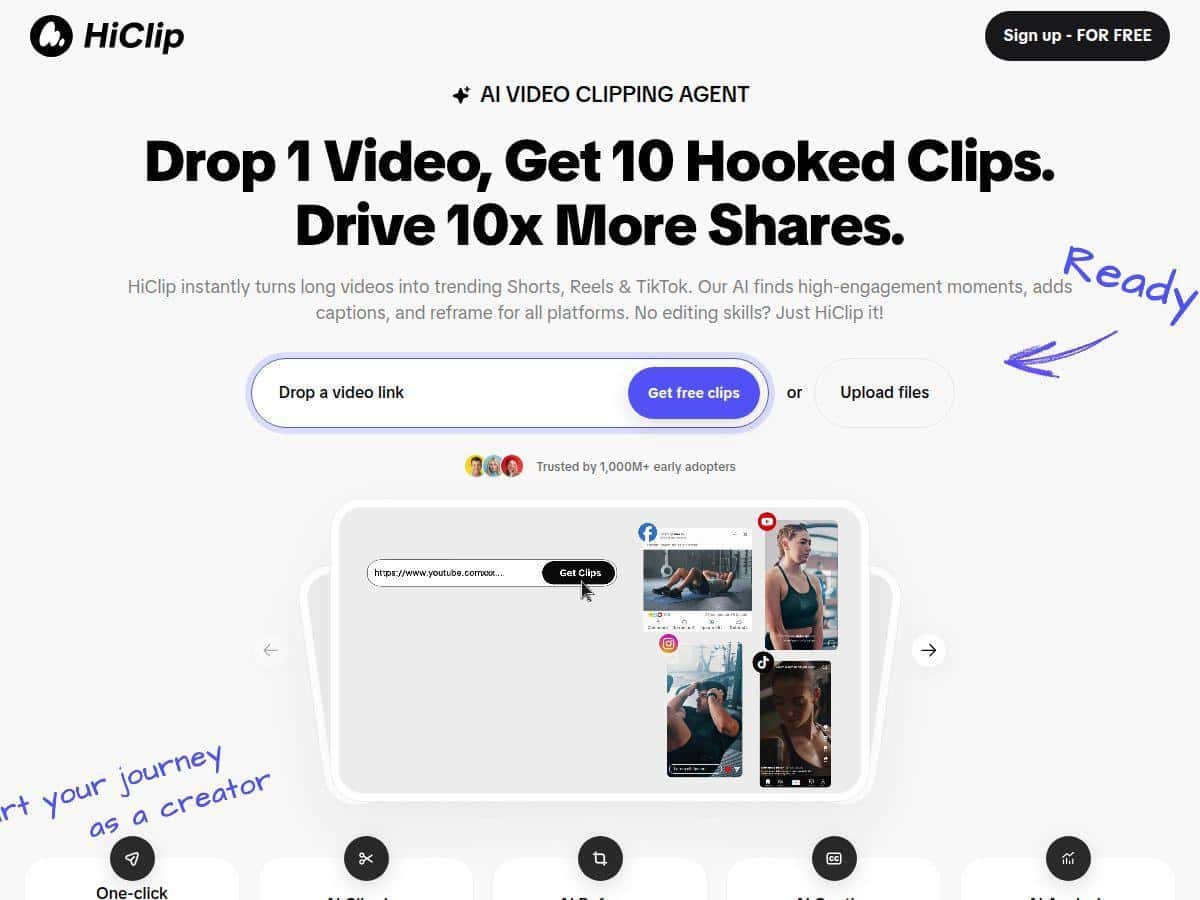
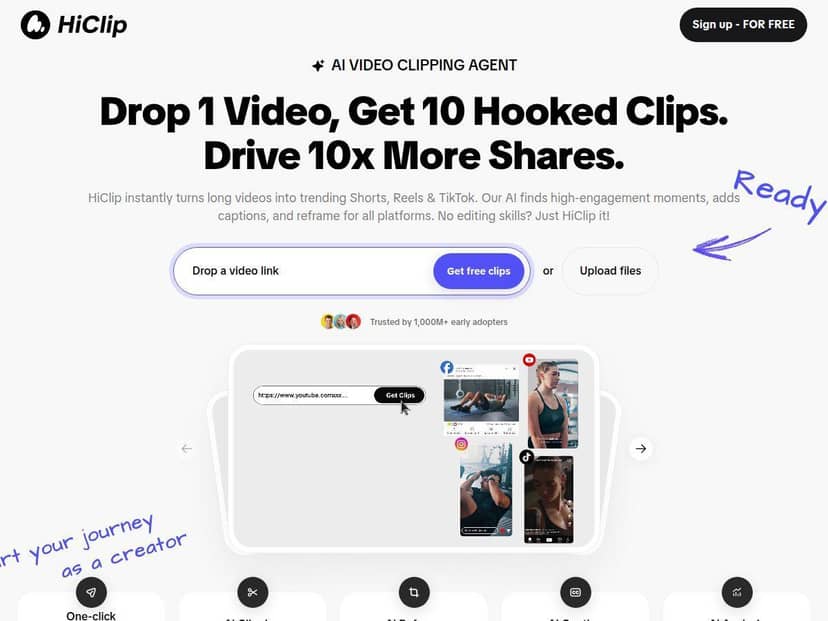
If you’ve ever stared at a 45–90 minute video and thought, “I need like 10 short clips… but I don’t have time,” you’re going to feel right at home with HiClip. The pitch is simple: upload (or link) a long video, and the AI finds the good parts, captions them, reframes them for social, and exports ready-to-post clips.
So I tested it like I’d actually use it—trying to turn one longer piece of content into multiple short-form posts. What I noticed is that the workflow is genuinely fast, but the output still needs a quick human check, especially for captions and any moments with subtle context.
HiClip Review 2026: Simple Auto Clips That Actually Work
I don’t mind doing a little cleanup, but I do mind spending an hour cutting highlights by hand. That’s why I focused my test on the stuff that usually kills my time: finding the best moments, turning them into vertical/square formats, and getting captions on-screen without me doing the transcription and styling work.
My test setup: I used a single long-form video (about 35–45 minutes) and asked HiClip to generate multiple short clips for social. I kept the goal consistent: clips that could work for TikTok/Instagram Reels (vertical) and YouTube Shorts without needing heavy re-editing.
What happened in practice: The upload/link step is straightforward, and the “AI does the rest” part is real. The first thing I checked was whether the clip timing made sense—were the cuts landing on actual talking points or random transitions?
In most cases, the AI did pick moments that felt like natural “hook → point → takeaway.” The captions were also added automatically, and the reframing generally kept the subject centered. That’s the big win: even if you’re not an editor, you’re not starting from a blank timeline.
Where it wasn’t perfect: Captions occasionally struggled with fast speech or unclear audio. When that happened, you could see the caption text drift slightly from what was being said. Also, in a couple of segments with multiple people or background motion, the reframing didn’t always prioritize the speaker (it followed motion, not intent).
So yeah—HiClip is quick. But it’s not a “publish immediately with zero review” tool. I still recommend a quick scan before posting, especially if you’re using the clips for anything time-sensitive or brand-critical.
Key Features
- AI Video Clipping: Automatically identifies and cuts highlights from longer videos.
- Context-Aware Analysis™: Uses visual movement, sound cues, and semantic cues to pick the best moments.
- AI Captioning: Adds captions to boost engagement and accessibility.
- AI Reframe: Adjusts framing for vertical (TikTok/Reels) and square formats.
- One-Click Publish: Exports clips ready for TikTok, Instagram, YouTube Shorts, and more.
- Input Flexibility: Supports direct uploads and links from YouTube and Vimeo.
- Multiple Output Formats: Lets you match different social dimensions and styles.
- User-Friendly Interface: Built for people who don’t want to learn editing software first.
How it works (my workflow)
This is the exact flow I used, and it’s basically what I’d recommend if you want decent results quickly.
- Pick your source video: I started with a single long video that had a clear speaker and consistent audio. If your audio is messy, captions will suffer—no tool can fully magic that away.
- Upload or paste a link: I tried both the upload approach and a link workflow. Either way, the key is letting HiClip process the content without interruptions.
- Select the output style: I focused on vertical first (so I could target Reels/TikTok). Then I checked whether the same highlight cut worked for short-form horizontal/square needs.
- Generate clips: I let it create multiple clips from the long video rather than obsessing over one perfect segment. That’s where time savings really show up.
- Do a fast quality pass: I watched each clip end-to-end once, specifically checking:
- Caption accuracy: Are the words readable and aligned with speech?
- Reframing: Is the speaker still centered when the camera moves?
- Timing: Does the cut land on a complete thought (not a half-sentence)?
- Export/publish: Once the captions looked okay and the framing wasn’t cutting off faces, I moved to export/publishing.
Tip from my side: If a clip has one bad caption segment, you don’t necessarily need to throw the whole thing away. Re-run generation or swap the highlight pick so you keep the best “video moment” but with cleaner on-screen text.
Pros and Cons
Pros
- Speed: The biggest advantage is how quickly it turns one long video into several short clips. In my workflow, it felt like minutes, not hours.
- Beginner-friendly: You don’t need to know timelines, keyframes, or caption styling. You upload, pick output formatting, and go.
- Captions + reframing are included: That’s usually the time-consuming part when you do it manually.
- Works for repurposing: If you’re constantly posting short clips from webinars, podcasts, or talks, this is built for that.
- Multiple clips per source: I liked that I didn’t have to gamble on one highlight—getting a batch makes it easier to find “the winners.”
Cons
- Caption accuracy varies: In my test, captions were decent most of the time, but faster dialogue and unclear audio caused occasional errors or awkward phrasing.
- Reframing can follow the wrong thing: When the frame had multiple moving elements (or the speaker stepped off-center), the AI sometimes prioritized movement over “who matters.”
- Not a set-and-forget tool: I still recommend a quick watch-through. If you post without checking, you’ll eventually hit a clip that needs fixing.
- Pricing transparency could be better: The paid-plan details aren’t as clearly laid out as I’d expect, so you may need to check the site directly for the latest.
- Some features feel less verifiable: Anything like hashtag suggestions or similar add-ons should be treated as a suggestion, not a guaranteed win.
Pricing Plans
HiClip includes a free tier called “Get free clips”, which is handy if you want to test the workflow without committing.
For paid plans, the details aren’t fully spelled out in the same way across the page, and pricing can change. I also saw an indication that additional features can start around $0.24 (as referenced in the original info). If you’re planning to produce a lot of clips per week, I’d check the checkout/pricing screen for the exact plan names and current rates before you buy.
Best for (and not for)
HiClip is a great fit if:
- You repurpose podcasts, webinars, interviews, or talks into short-form content.
- You want captions + reframing handled automatically.
- You’re okay doing a quick quality check before posting.
It’s probably not ideal if:
- Your videos have very poor audio or you rely on subtle context the AI might miss.
- You need pixel-perfect captions for compliance-heavy content (legal/medical/etc.)—you’ll likely need manual review or a more controlled workflow.
- You’re expecting a fully hands-off pipeline with no edits whatsoever. That’s not how AI clipping usually works yet.
Alternatives
If you’re comparing tools, here’s what I’d look at when choosing between HiClip and other popular options like CapCut, Opus Clip, or InVideo.
- Accuracy of highlight selection: Does it consistently pick “complete thoughts,” or does it cut mid-sentence?
- Caption quality: Are captions readable and aligned, or do they drift with fast speech?
- Export formats: Do you get the dimensions you actually need (vertical for Reels/TikTok, Shorts-ready formats, etc.)?
- Pricing clarity: Can you see plan costs and limits without digging around?
My take: HiClip is strongest when you want speed and a decent first draft. If you’re the kind of creator who cares about ultra-precise caption wording or you’re working with content that needs careful context, you’ll still want to plan for review (or blend automation with manual edits).
Wrap up
HiClip is a practical way to turn long videos into social clips without spending your entire day editing. The auto clipping, captioning, and reframing are the core reasons it works—and in my experience, it’s fast enough that you’ll actually use it, not just test it once.
Just don’t treat it like magic. Captions and framing can miss details, so give each clip a quick watch before you hit “publish.” If you do that, you’ll get a solid workflow for repurposing content consistently.