
Table of Contents
Ever tried turning your data into a plot and felt like you’re navigating a maze? You’re not alone! Making sense of all those chart options can be a real head-scratcher.
But hey, don’t sweat it. Stick with me, and we’ll turn that data into dazzling visuals in no time. It’s easier than you think!
We’ll go from picking the right data to customizing your charts in Excel and even jazzing things up with ggplot2 in R. Ready to dive in?
Key Takeaways
- Select relevant and accurate data that tells the story you want to convey; the right data is key to an effective plot.
- Choose the appropriate chart type (line, bar, heatmap) that best represents your data and highlights important trends.
- Use Excel to input your data, create the chart, and customize elements like titles and colors for clarity and visual appeal.
- Set up ggplot2 in R to unlock advanced plotting capabilities by installing the package and loading your data.
- Add layers in ggplot2 to build your plot step by step, using geoms like
geom_line()andgeom_point()for customization. - Customize your ggplot’s appearance with titles, labels, themes, and color palettes to enhance readability and accessibility.
- Keep your plots simple and clear, focusing on accuracy and tailoring them to your audience for effective communication.
- Review and experiment with different plot types and customizations to ensure your data is presented in the most informative way.

Step 1: Select Your Data for Plotting
Before jumping into creating a plot, it’s essential to start with the right data. Think about the story you want to tell. Are you tracking website traffic over time, analyzing stock market trends, or monitoring server performance metrics? Selecting relevant and accurate data sets the foundation for an effective plot.
For instance, if you’re interested in visualizing website traffic over a 24-hour period, gather data on the number of visitors each hour. This can reveal peak traffic times and help optimize your site’s performance. If you’re exploring stock market performance, using AI tools for research can help you gather and analyze data more efficiently. Remember, the quality of your plot depends on the data you choose.
Step 2: Choose the Right Chart Type
Now that you have your data, selecting the appropriate chart type is the next crucial step. The right chart makes your data easier to understand and highlights the important trends.
- Line Charts: Perfect for showing trends over time, such as stock prices throughout a trading day.
- Bar Charts: Great for comparing quantities across different categories, like GDP growth rates over several quarters.
- Heatmaps: Useful for displaying large datasets to find patterns, such as traffic volume on major roads throughout the day.
Choosing the right chart type enhances the impact of your data visualization. If you’re unsure which to pick, consider the nature of your data and what you want to emphasize. For creative ways to present your data, you might find inspiration in these top AI tools for data analysis.
Step 3: Customize Your Chart in Excel
With your data and chart type ready, it’s time to bring your plot to life using Excel. Here’s a simple guide to help you through the process:
- Input Your Data: Enter your data into Excel, organizing it with clear headings. For example, use “Hour” and “Visitors” for website traffic data.
- Create the Chart: Highlight your data, navigate to the “Insert” tab, and select the chart type that best suits your data. A line chart works well for time-based data.
- Customize the Appearance: Modify chart elements like titles, axis labels, and colors to make your plot informative and visually appealing. You can right-click on chart elements to access formatting options.
- Analyze and Interpret: Once your chart is set up, look for patterns and insights. If you notice a spike in website visitors at a certain hour, you might consider posting new content around that time.
Excel offers a range of tools to tailor your chart to your needs. If you’re interested in more advanced techniques, exploring AI tools for business can provide additional insights and capabilities.
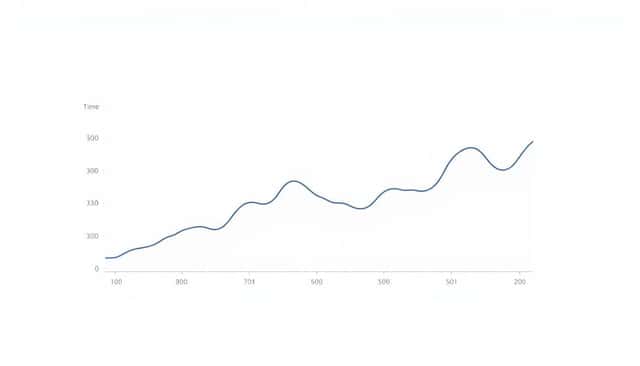
Step 4: Set Up ggplot2 in R
If you’re looking to unlock advanced plotting capabilities, R’s ggplot2 package is a game-changer.
To get started, make sure you have R and RStudio installed on your computer.
Open RStudio and install ggplot2 by typing install.packages("ggplot2") in the console.
Once the installation is complete, load the package with library(ggplot2).
Now, you’re ready to dive into creating plots.
Let’s say you want to visualize stock market performance throughout a trading day.
You can input your data into R, organizing it into a data frame with columns for time and price.
Don’t worry if you’re new to R; it’s more user-friendly than it might seem.
Think of it like learning to write books on your phone—it might feel odd at first, but it becomes second nature with a bit of practice.
Remember, every expert was once a beginner.
Step 5: Add Layers to Your ggplot
With your data loaded and ggplot2 ready, it’s time to build your plot.
In ggplot2, you create plots by adding layers, much like stacking ingredients in a sandwich.
Start with the foundation by specifying your data and mappings.
For example, using the stock market data, you set the aesthetics with time on the x-axis and price on the y-axis.
This might look like ggplot(data, aes(x=Time, y=Price)).
Next, add a geom layer to define how the data should be displayed.
To create a line chart of stock prices, you’d add + geom_line() to your plot.
Each additional layer can enhance your plot.
You might add points with + geom_point() to highlight individual data points.
If you want to indicate the opening and closing prices, you could add horizontal lines using + geom_hline().
Building your plot step by step allows you to customize it exactly how you want.
It’s a bit like crafting a story where each layer adds more depth, just as when you explore different ways on how to become a beta reader to delve deeper into literature.
Step 6: Customize Your ggplot Appearance
Now that you have the basic structure, it’s time to make your plot visually appealing.
Customizing your ggplot can help highlight important aspects of your data.
Suppose you’re charting traffic volume on major roads over a day.
You can assign different colors to each road to make comparisons easier.
Add a title and axis labels to give context, like + labs(title="Traffic Volume Throughout the Day", x="Time", y="Number of Vehicles").
To enhance readability, you might apply a theme such as + theme_minimal() for a clean look.
Changing the color palette can also make your plot more accessible for people with color vision deficiencies.
Customization isn’t just about aesthetics; it’s about making your plot effective.
Think about what will make your data easiest to understand.
Just as presentation matters when you publish a coloring book, the way you present your plot can make a big difference.
Don’t hesitate to tweak and refine until you’re satisfied.
Step 7: Tips for Creating Effective Plots
Creating a plot is both an art and a science.
Here are some tips to help you craft plots that communicate effectively.
First, keep it simple.
Avoid adding unnecessary elements that might clutter the plot.
Second, focus on clarity.
Make sure your labels, legends, and titles are clear and descriptive.
Third, use color thoughtfully.
Colors should enhance understanding, not confuse the viewer.
Fourth, tailor your plot to your audience.
Consider what they know and what they’ll find most informative.
Fifth, check your data.
Ensure that all data points are accurate and that there are no errors.
Sixth, solicit feedback.
Sometimes another set of eyes can spot things you’ve missed.
Finally, stay curious and keep learning.
Creating great plots is a skill that improves over time, much like exploring new techniques in writing or learning how to get a book published without an agent by navigating the publishing world on your own.
Step 8: Review and Experiment with Your Plots
With your plot complete, take a moment to review it critically.
Ask yourself if it effectively communicates the key insights from your data.
Consider showing it to a friend or colleague for their perspective.
Be open to making changes based on feedback.
This is also a great time to experiment with different plot types.
Maybe a heatmap would reveal patterns in your website traffic that a line chart doesn’t.
Try adjusting colors, themes, or layouts to see how they impact the readability.
Remember, the goal is to make your data as accessible and informative as possible.
Don’t be afraid to step outside of your comfort zone.
After all, creativity often involves a bit of risk-taking.
Whether you’re refining a plot or figuring out how to make an audiobook, experimentation leads to growth.
Keep tinkering until you’re happy with the result.
FAQs
Select the chart type based on the data relationships you want to highlight. For comparisons, use bar charts; to show trends over time, use line charts; for proportions, pie charts work well.
Install ggplot2 by running install.packages("ggplot2") in R. Then, load it into your session with library(ggplot2). This prepares R to create advanced graphics using ggplot2.
Use the + operator to add layers in ggplot. Layers can include geometries, statistics, scales, and themes, allowing you to build complex and informative plots incrementally.
Keep your plots clear and simple. Use appropriate scales and labels, choose colors thoughtfully, and avoid clutter. Ensure every element adds value and enhances the viewer’s understanding.