Table of Contents
Have you ever thought about creating your own interactive eBook but worried about the cost? Well, the good news is, learning how to create an interactive eBook for free isn’t as hard as it sounds.
It’s actually a fun and creative process where you get to turn your ideas into a digital book filled with cool interactive features.
Whether it’s for a school project, a personal hobby, or even to share your knowledge with others, making an interactive eBook can be a great way to express yourself without spending any money.
How to Create an Interactive eBook for Free

We’re going to look at everything from picking your audience to getting your eBook out there. And the best part? You can do it all for free. Let’s get started.
1. Plan Your eBook
When you start to plan your eBook, the first thing to think about is who will read it, or better said – your target audience.
Knowing your audience helps shape everything else – like what kind of stories or information you’ll include and how to make it interesting for them.
Depending on what you want to write your book on, your target audience could be, for example, males over 50 interested in fitness, beekeepers, housewives with kids under 3 years old, etc.
The better you know your target audience, the better you will be able to prepare your book, the information and the materials.
Then, it’s about the content and how you structure it.
What’s your eBook about? Are you sharing knowledge, telling a story, or both? Organizing your ideas into clear sections or chapters will make your eBook easier to follow and more enjoyable to read.
Then, decide how you want your readers to engage with your eBook. Will they be answering quizzes, clicking on links, or watching videos?
Planning these interactive elements from the start makes sure they blend well with your content and add to the reader’s experience.
2. Choose the Right Tools and Software
Picking the right tools and software is a big part of creating your eBook, especially when you’re doing it for free. There are quite a few options out there, each with its own strengths and weaknesses. Let’s take a look at some popular tools to help you find the one that fits your needs perfectly.
Calibre
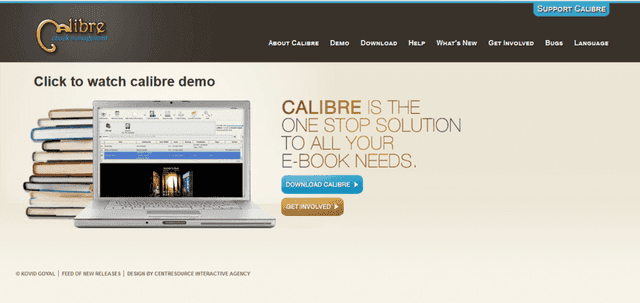
Calibre is a highly versatile, open-source tool that’s ideal for managing, converting, and lightly editing eBooks, including interactive ones.
While primarily known for its eBook library management and format conversion capabilities, Calibre can also be useful in the creation of interactive eBooks. It allows for the inclusion of hyperlinks, which are essential for interactivity.
Calibre’s format flexibility is particularly beneficial, as it supports conversion to and from a variety of eBook formats, ensuring that interactive elements are preserved across different devices and platforms.
Its editing features, though basic, can be used to tweak interactive elements within the text.
Pros:
- Supports various eBook formats
- Comprehensive library management
- Basic editing capabilities
- Free and open-source
- Integrated eBook viewer
Cons:
- Steep learning curve
- Limited design features
Sigil
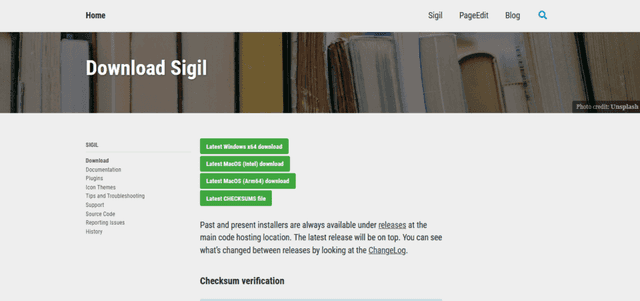
Sigil is a specialized open-source eBook editor, highly recommended for those looking to create interactive ePUB eBooks. Its strength lies in allowing authors to embed interactive elements such as hyperlinks, audio, video, and quizzes directly into the eBook.
As a WYSIWYG editor (or What You See Is What You Get), Sigil makes it straightforward to see how these elements will appear in the final product.
For those with some knowledge of HTML and CSS, Sigil offers even greater control, enabling detailed customization of interactive features. This blend of user-friendly design and technical flexibility makes Sigil an excellent choice for creating engaging, interactive eBooks.
Pros:
- Ideal for interactive ePUBs
- Embeds various interactive elements
- WYSIWYG and code view options
- Free and open-source
Cons:
- Limited to ePUB format
- Some HTML/CSS knowledge needed
Scrivener
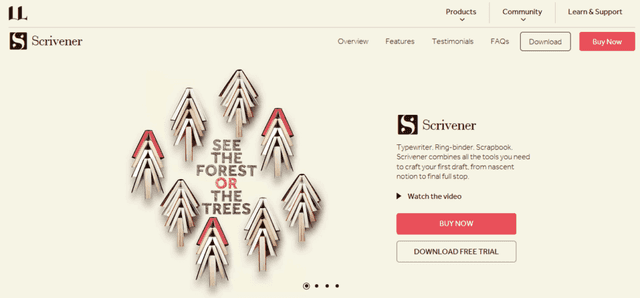
Scrivener is not just a word processor but a comprehensive tool for writers that excels in structuring complex and interactive eBooks.
Its strength lies in its ability to manage and organize large amounts of content, which is crucial when creating eBooks with multiple interactive elements.
Scrivener allows authors to outline their work, manage research, and weave various narrative threads or educational content seamlessly.
While it is not completely free, it offers a trial period, and its robust features make it a worthwhile investment for serious eBook creators. Its corkboard and outliner views are particularly helpful for planning interactive elements and ensuring they integrate smoothly into the eBook’s overall structure.
Pros:
- Excellent for organizing complex projects
- Useful corkboard and outlining features
- Trial period available
- Robust writing and editing tools
Cons:
- Not free (but offers a trial)
- Steeper learning curve
Canva
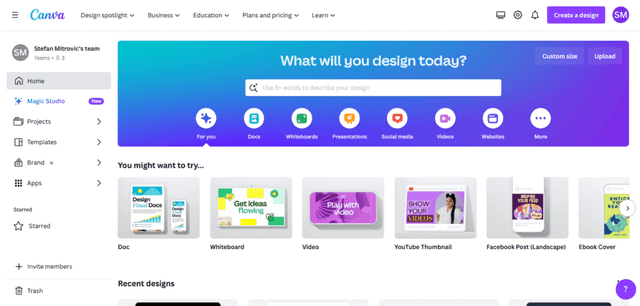
Canva has made a name for itself as a highly accessible, user-friendly graphic design tool, which can be incredibly useful for creating visually appealing interactive eBooks. Its intuitive drag-and-drop interface makes it easy to design eBook pages that are not only beautiful but also engaging.
While Canva doesn’t natively support advanced interactive elements like quizzes or animations, it’s excellent for creating eBooks with interactive hyperlinks, visually rich content, and embedded video links.
The platform offers a wide array of templates, graphics, and typography options, making it ideal for those who want to create professional-looking eBooks without needing extensive design skills.
Canva’s free version offers a substantial range of features, with additional elements available in its paid plans.
Pros:
- Intuitive design interface
- Extensive template and graphic library
- Ideal for visually driven content
- Supports hyperlinks and embedded videos
Cons:
- Limited advanced interactivity
- More features in paid plans
Tips for selecting the best tool for your needs
Choosing the right tool for creating your interactive eBook depends on various factors like your technical skills, the type of interactivity you want, and the overall design complexity.
Here are some key considerations to help you make the best choice:
- Ease of Use vs. Functionality: Balance the ease of use with the functionality you need. Beginners may prefer user-friendly interfaces, while those with more experience might opt for tools with more advanced features.
- Format Compatibility: Ensure the tool supports the eBook formats you intend to use, especially if you plan to distribute your eBook across various platforms.
- Budget Constraints: Consider the cost. While many tools have free versions, they might have limitations. Determine if you need the advanced features of paid versions.
- Trial and Error: Don’t hesitate to experiment with a few different tools to see which one you’re most comfortable with and which best fits your project’s needs.
By keeping these tips in mind, you can select the tool that best aligns with your eBook project’s requirements and your own capabilities.
3. Design Your eBook and Add Interactive Elements
When it comes to designing your eBook, it’s all about balancing good looks with functionality.
Start by nailing down the basics of your design: choose a clean font, set a consistent color scheme, and layout your pages in a way that’s easy to read. Remember, the goal is to make your eBook both attractive and practical for your readers.
Next, think about how to make your eBook more than just words on a page. This is where interactive elements come in.
You could add quizzes to keep your readers engaged, hyperlinks for extra resources, or even videos to bring your content to life. The key is to choose interactive features that complement your topic and add value to your reader’s experience.
For example, Launch Express is a book full of video links to course lessons for extra learning material.
But, adding cool features isn’t enough. Your eBook needs to be user-friendly too. Make sure your interactive elements don’t clutter the page or make things confusing. Everything should be easy to find and use, whether it’s a link, a video, or an interactive diagram.
And don’t forget to check how your eBook looks on different devices. A great design on a computer should still look good on a phone or tablet.
In short, designing your eBook is about creating a seamless blend of style, content, and interactivity. By focusing on these aspects, you can make an eBook that’s not only informative but also engaging and enjoyable to read.
4. Write and Edit Content

Writing content for your interactive eBook is more than just putting words on a page. It’s about creating a story or sharing information in a way that grabs your reader’s attention and keeps them interested.
Start by setting a clear, engaging tone. Use language that speaks directly to your readers, and don’t shy away from showing your personality.
If your eBook is educational, make sure your explanations are clear and easy to understand. For storytelling, keep your narrative compelling and your characters relatable.
Once your first draft is done, editing and proofreading become your best friends. This stage is crucial for polishing your content and ensuring it’s free from errors.
Go through your text carefully to check for spelling mistakes, grammatical errors, and any awkward phrasing. Sometimes, what sounded good in your head might not work as well on paper. Don’t hesitate to rewrite sections that feel clunky or unclear.
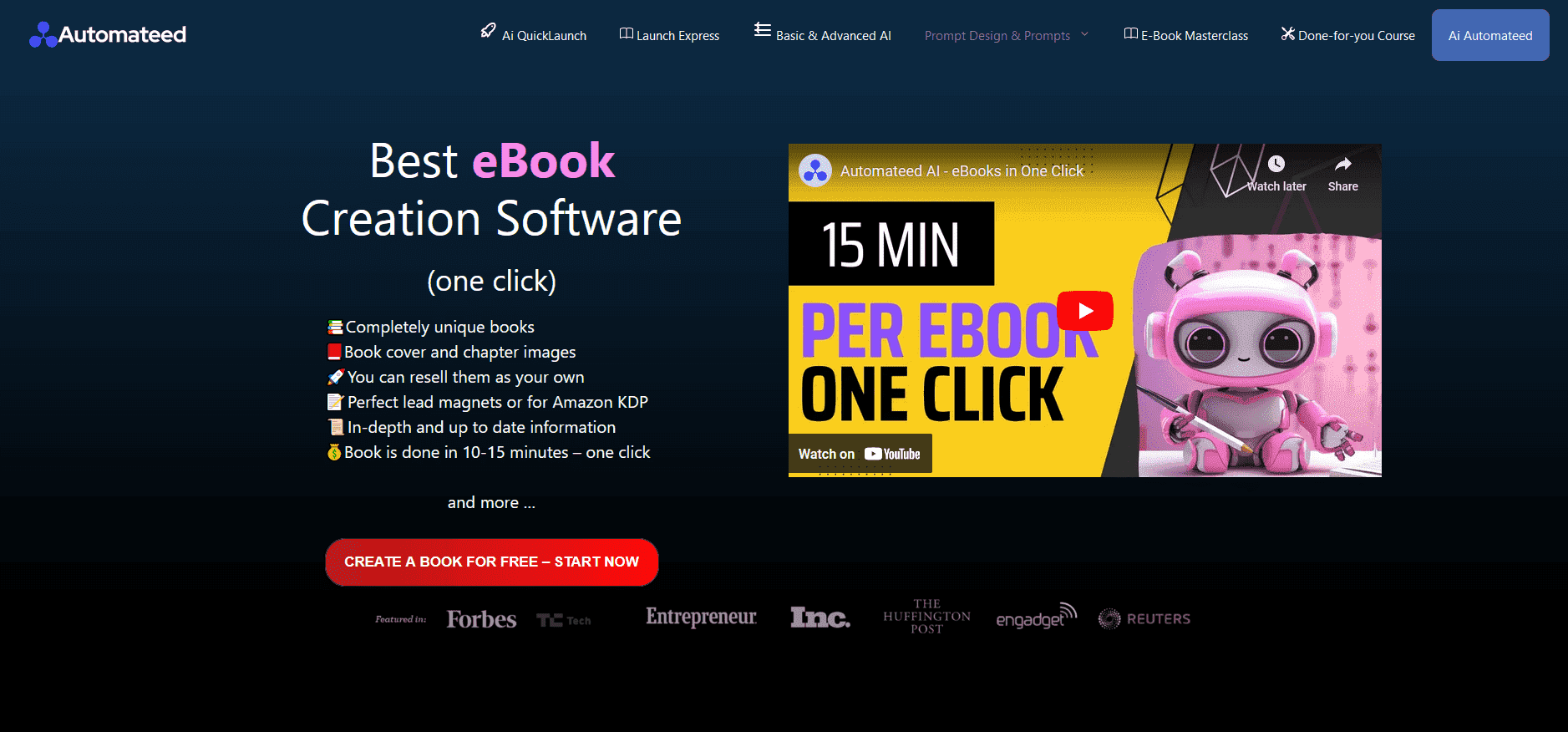
And for a more automated approach, you can use AI Automateed. Although it is not free, there is a free trial for you to try out the tool. With AI Automateed, all you have to do is enter the title of your book, your target audience, the tone for the book, and click on a button. And the tool will do the rest, including fact-checking, proofreading, editing, and adding 100% unique images.
Incorporating multimedia is another powerful way to enhance your eBook. Relevant images, videos, or audio clips can break up long stretches of text and add a whole new dimension to your content. They can illustrate points, add emotional depth, or provide additional explanations. Remember, the multimedia should support and enrich your writing, not overshadow it.
By focusing on engaging writing, thorough editing, and strategic use of multimedia, your eBook can become a dynamic and captivating experience for your readers.
5. Test and Gather Feedback
Once you’re at the stage where you feel like your interactive eBook is complete, it’s time to test it out. Testing is crucial, especially when you’re learning how to make an interactive eBook.
You want to ensure that your interactive digital books work smoothly on different devices – be it a smartphone, tablet, or computer. This step is about checking if all those interactive elements you’ve added, like quizzes or videos, are functioning as they should.
It’s an essential part of the process to create interactive books that are not only engaging but also accessible to everyone.
Gathering feedback is another key step in how to write an interactive book. Share your eBook with a group of trusted friends or target audience members. Ask them for honest feedback, especially regarding the interactivity and user experience.
Interactive eBook software is great, but it’s the human touch that really makes your eBook stand out. Listen to what your testers say and take note of their suggestions. They might point out things you haven’t thought of or suggest improvements to the interactivity that could enhance the reader’s experience.
Finally, revising your eBook based on this feedback is what will take it from good to great. Remember, learning how to create an interactive ebook for free is a process, and revisions are a big part of that.
Use the feedback to make necessary improvements. Whether it’s tweaking the design, adjusting the interactive elements, or refining the content, each revision brings your eBook closer to perfection.
Interactive book software can do a lot, but it’s your insights and revisions that will really make your book shine.
By testing on multiple devices, gathering feedback, and revising for improvements, you’ll be well on your way to mastering how to create an interactive ebook for free and ensuring your interactive ebook is as engaging and user-friendly as possible.
6. Publish and Distribute Your eBook

Once you’ve created your interactive eBook, it’s time to share it with the world. Publishing your interactive digital books might seem daunting, but it’s actually a straightforward process.
First, decide on the format of your eBook. Most interactive ebook software supports common formats like ePUB, which is widely accepted on various platforms. Then, convert your eBook into the chosen format, ensuring all interactive elements are intact.
Choosing the right platforms for distribution is the next big step in how to make an interactive ebook successful. There are many options available, from Amazon Kindle to Apple Books and Google Play Books.
Each platform has its audience and requirements, so pick the ones that best align with your target readers. Remember, the goal is to make your interactive book easily accessible to as many readers as possible.
Finally, let’s talk about marketing your eBook. Effective marketing strategies are essential in ensuring your interactive ebook gets noticed. Utilize social media to create buzz around your eBook.
Engaging teasers, like interactive snippets or previews, can be very effective. Consider creating a website or a landing page for your eBook, providing readers with a sneak peek and an easy way to download or purchase it. Email marketing can also be a powerful tool to reach potential readers, especially if you already have a mailing list.
And don’t forget to ask for reviews and ratings on the platforms where your eBook is available, as they can significantly boost your eBook’s visibility.
By carefully considering the steps to publish your eBook, selecting the right distribution platforms, and employing savvy marketing strategies, you’re well on your way to making your interactive eBook a success.
Conclusion
Creating an interactive eBook for free is an achievable goal that combines creativity, planning, and a bit of digital savvy. By following the steps outlined, from planning your content to choosing the right tools, and from designing your eBook to effectively marketing it, you can turn your ideas into an engaging digital experience.
Remember, the journey of how to create an interactive eBook for free is as rewarding as the final product. Each step you take brings a unique learning experience, helping you grow as a writer and a digital creator. So, dive in, experiment, and most importantly, enjoy the process of bringing your interactive eBook to life.
FAQ
How do I create an interactive PDF flipbook ebook?
To create an interactive PDF flipbook eBook, you can use a tool like Flipsnack or Yumpu. These platforms allow you to upload a PDF and add interactive elements like links, videos, and animations. They then convert your PDF into a flipbook format that’s engaging and easy to navigate.
How do you make an engaging ebook?
An engaging eBook combines well-written content, interactive elements, and a visually appealing design. Use a clear, conversational tone and include multimedia elements like images, videos, or hyperlinks. Ensure the layout is easy to navigate and the design complements your content.
How can I make my own ebook for free?
You can make your own eBook for free using tools like Canva, Google Docs, or Calibre. These platforms offer various features for eBook creation, including templates, design elements, and format conversions. Plan your content, design your eBook, and export it in your desired format.
Best free eBook creator?
The best free eBook creator depends on your specific needs. For comprehensive design and templates, Canva is highly recommended. If you need a tool for formatting and converting eBook files, Calibre is a great option. For text-focused eBooks, Google Docs can be sufficient.
Free eBook templates?
Free eBook templates are available on platforms like Canva, Adobe Spark, and Lucidpress. These templates provide a starting point for your eBook design, offering various styles and layouts suitable for different types of content and genres.