Table of Contents
You can write a book on your phone with AI apps such as Automateed, ChatGPT or Claude, or draft it yourself in Google Docs, Word or Pages. Automateed helps you turn an idea into an outline and chapters, then edit the book and export it. ChatGPT and Claude are useful for brainstorming, working through a scene or improving a passage while you keep your manuscript in your writing app.
You don't need a laptop to get started. You need a clear idea, somewhere to keep your chapters and a routine for reviewing what you've written. This guide covers both ways of working: using AI to help build a book and writing it yourself in short phone sessions. You'll also find an original two-chapter example, downloadable TXT and EPUB files, and the steps for checking your finished export.
Which app should you use to write a book on your phone?
If you want help developing the whole book, start with Automateed. Our app is available for iPhone and iPad and Android, with a workflow for outlining, generating chapters, editing and exporting. If you already have a manuscript and mainly want feedback on it, a chat app alongside Docs or Word may be enough.
| App | What to use it for | How your book moves forward |
|---|---|---|
| Automateed — iPhone and Android | Building a book from an idea, with AI chapters and illustrations | Review the outline, edit the generated chapters and download your book. Full-book access and exports depend on your plan and book type. |
| ChatGPT — iPhone and Android | Brainstorming, trying scene directions and asking for feedback on a passage | Keep the edits you like in your master manuscript. Give each request the context it needs. |
| Claude — iPhone and Android | Discussing an outline, exploring character choices and revising sections | Work through one clear writing problem at a time, then save the version you want to keep. |
| Google Docs — iPhone and Android | Writing your own draft and collaborating with an editor | Export DOCX on either platform; Google also lists EPUB export on Android. Android export options · iPhone export options |
| Microsoft Word — iPhone and Android | Continuing a Word manuscript on your phone | Open your cloud file before going offline and check that changes sync when you reconnect. Word's offline instructions |
| Apple Pages — iPhone | Writing and preparing a reflowable EPUB on an iPhone | Use chapter styles, then export and check the ebook. Pages EPUB instructions |
| Keyboard dictation in your writing app | Capturing a paragraph or scene when typing feels slow | Correct names and punctuation immediately. Gboard voice-typing help |
Before moving your whole book, make a tiny two-chapter test. Include a few paragraphs, chapter headings, a scene break and a picture with a caption. Export it, find the saved file and open that file in the app your reader or editor will use. Check the chapter navigation and whether the caption stays with the right image.
Try the actions you'll repeat every day. Is selecting a paragraph comfortable? Can you jump to a chapter without endless scrolling? Does your account include the export you need? If you dictate, try character names and unusual vocabulary. Choose the simplest setup that handles those jobs well, then add another app only when you have a reason.
How to write a book on your phone with Automateed
Automateed is a good fit when you have a book idea but want help turning it into a structured draft. You can work on the outline, chapters and illustrations within the book project instead of assembling everything from separate chat replies. Start with one focused book so you can give each chapter a proper read before moving on.
1. Give it a specific book idea
Open Automateed on your phone, sign in and start an ebook project. Enter your topic, intended audience, language and writing style. Describe the reader's situation as clearly as you can: “gardening” gives the AI much less direction than “a beginner's guide to growing herbs on a small apartment balcony.”
For that example, you could use this brief: “Help first-time balcony gardeners choose containers, understand sunlight, grow three easy herbs and solve common watering problems. Use friendly explanations and practical examples. Keep the advice focused on a small outdoor space.” Those details give you something concrete to look for when reviewing the outline.
2. Shape the outline before generating chapters
Read the proposed chapter list before starting the full draft. Automateed lets you edit the outline, including chapter names and sections. Put the reader's first decisions near the beginning, remove repeated topics and rename vague chapters so you know what each one will teach.
In the balcony example, checking sunlight should come before buying plants. Choosing containers and drainage deserves space before the planting instructions. If the outline jumps straight to harvesting, add the missing steps now; it's easier to fix the plan than to rewrite several chapters around it later.
Check the creation screen before confirming. Depending on your account, you may be creating an opening preview or the full book, and generation uses credits. Choose the option that gives you the access you need; a free app download doesn't mean every chapter and export is included.
3. Edit the draft, add useful images and export
When the chapters are ready, open the book and review one section at a time. Add your own examples and explanations, correct claims against reliable sources and cut passages that repeat what the reader already knows. Automateed's chapter editor includes editing and AI improvement tools, so you can work on a weak section without starting the entire book again.
Use illustrations where they help the reader understand something. A drawing of a container with drainage holes would add more to the balcony guide than another decorative picture of leaves. If you generate an image, check the details against the instructions: the picture shouldn't show a setup that contradicts your advice.
Once you're happy with the manuscript, open Preview & Download and choose the format available for your book. For a standard ebook, EPUB is useful for adjustable text in reading apps; PDF keeps a fixed page layout. Our EPUB download guide explains the paid-plan requirement and download steps. Save the file on your phone and open it before sending it to anyone.
How to use ChatGPT or Claude alongside your manuscript
You don't have to generate a whole book to benefit from AI. Open ChatGPT or Claude on your phone when you need help with a particular scene, an awkward explanation or a chapter that seems to go nowhere. Paste the relevant passage and explain what you want to preserve before asking for changes.
For example, try: “Read this scene and identify where the tension drops. Keep the narrator's voice, the event order and all character names. Suggest three specific changes, with a short example for each. Don't rewrite the whole scene yet.” That gives you manageable suggestions to consider on a small screen, instead of another long draft to compare line by line.
Save the changes you accept in the book's master copy. When you start a new chat, include the chapter's purpose and any facts the AI needs to keep straight. If you're drafting offline, make notes for later and request AI help when you're connected again. The outline, backup and editing routines below still matter whichever app you choose.
Set up your manuscript before you start
Create one master location
Choose one editable manuscript as the current version. Keep notes and research in a clearly named project folder. If the app stores projects internally, add a note saying which app, account and project title to open. You should never have to guess where today's writing belongs.
- Manuscript: the active book, or a note pointing to its app location.
- Outline: chapter purposes, order, and unresolved questions.
- Research: source records and claims awaiting verification.
- Assets: images, captions, permissions, licenses, and credits.
- Exports: dated files for recovery, editorial handoff, and review.
Treat emailed attachments and downloaded files as copies until you deliberately make one the current manuscript. When an editor returns changes, decide whether to merge them into your existing file or continue in the returned one. Make that choice before writing another chapter, so two versions don't start growing in different directions.
Make the key files available offline
Prepare the manuscript and outline while connected, then test both with connectivity turned off. Google's mobile offline documentation describes offline access; Microsoft's offline Word mobile work explains that cloud documents should be downloaded and opened before offline work, with pending changes synchronized after reconnection. (support.google.com)
Before a train journey, open the manuscript and outline while online and enable offline access where needed. Let them download, then turn on Airplane mode with Wi-Fi off. Add a temporary sentence, close the document and reopen it. Reconnect afterward and confirm the edit has synced before removing it. That short rehearsal can save a lost writing session.
Seeing an old page offline isn't enough; you want to know that a new edit survives closing the app. If the test fails, fix it before leaving or prepare a clearly labeled local copy. Note which chapters you'll change and which file needs merging later. That gives you a plan instead of a surprise when the connection disappears.
Name backups so you can find the right one
Give backup copies a date and a short description. A name such as novel-draft-2026-08-13.docx tells you which snapshot you're opening. Keep the active manuscript in its usual location so you don't have to rename it every session.
For The Returned Book, a milestone copy could be returned-book-draft-2026-09-10.docx. Add a note: “Chapters 1–2; dialogue cleaned; continuity pass still open.” These are example filenames, not claims that a backup was created on those dates.
Before restoring a backup, open it and look for your latest edited passage, the chapter count and the ending. Keep the damaged file until you've compared both. A filename saying “final” or “backup” is reassuring, but only the text inside can tell you how much work that copy actually contains.
Make chapters easy to find on a small screen
Use paragraph styles for headings and clear chapter breaks. Simply making a line bigger or adding blank paragraphs can look fine in the editor and fail during export. A small, consistent style setup is easier to manage on a phone:
- A title style for the book title.
- Heading 1, or the app’s equivalent, for chapter titles.
- Heading 2 for subsections within chapters.
- Body style for ordinary prose.
- Actual list formatting for numbered steps and bullet lists.
- A consistent scene-break marker and the app’s supported chapter-break method.
Check the resulting outline before drafting further. In Pages, the EPUB table of contents comes from the document’s table-of-contents view; an empty view produces an EPUB without a table of contents. Chapter breaks also depend on its style hierarchy. Apple’s Pages-to-EPUB export explains the setup. (support.apple.com)
Keep scene breaks separate from chapter headings. In your trial export, the scene marker should remain visible without becoming an extra contents entry. Readers need to understand the structure even after they enlarge the font or turn the phone sideways. Check that behavior before copying the same formatting through the book.
Draft in sections, not one endless file view
Give each writing session a small destination: one scene, explanation, example or subsection. Before you begin, leave yourself a brief note covering these points:
- What changes, or what will the reader understand afterward?
- Which event, fact, or example must appear?
- What question leads into the next section?
- What needs source checking before this section is finished?
For Mara's first scene below, the note could be: “Introduce the returned book, reveal the warning, end on the impossible date.” That tells you where the session is going without deciding every sentence in advance. It's especially useful when you're writing in short gaps during the day.
Write toward that destination before polishing the first paragraph. Put missing facts on a separate list with a chapter reference. At the end, leave a restart note such as “Next: Mara checks the shelf; distinguish the second slip.” Remove those working notes and settle open questions before exporting the finished book.
Separate chapter files can work, but test how you'll combine them in the right order. Otherwise, use one manuscript and navigate by headings. Choose the setup that lets you find the current scene quickly and see where it belongs in the larger book. A complicated filing system shouldn't consume the time you set aside to write.
Dictate a draft, then edit it
Dictate a short passage, correct its transcription, and then edit it as prose. On Android, Google's Gboard help explains keyboard voice typing and notes that supported languages and punctuation commands vary. (support.google.com)
- Capture one unit. Speak a paragraph, exchange of dialogue, or sequence of scene beats, then stop.
- Restore the intended wording. Check names, numbers, homophones, punctuation, and paragraph boundaries while you remember what you said.
- Revise for the book. Remove spoken repetition and unfinished transitions without adding facts, motives, or events you did not intend.
For an interview, keep the original recording with the speaker’s consent and compare proposed quotations against it. Treat the transcript as a working aid, not proof that every displayed word was spoken.
If you'd rather talk through the idea for a book, Automateed also offers Voice to Book. Plan what you want to say first: stopping the recording starts transcription, outlining and generation, without a pause to edit the transcript. Our recording preparation guide can help you make the input clearer. Read and edit the resulting chapters before keeping them in your book.
Example: turning a rough note into two short chapters
Our original miniature, The Returned Book, starts as a rough, unpunctuated note and becomes two readable chapters. The rough note is a teaching example rather than a recorded phone transcription. Use it to see which edits clarify the writing and which would accidentally change the story.
chapter one the returned book mara puts the book on the counter dont open it said the note she checked the return slip it was dated tomorrow
First separate the chapter title from the prose, settle the tense and punctuate the warning. Keep the future date. “Tomorrow” is the mystery the scene depends on, so changing it to “yesterday” would remove the intended surprise rather than correct a typing mistake.
Chapter One: The Returned Book
Mara put the book on the counter.
“Don’t open it,” said the note.
She checked the return slip. It was dated tomorrow.
Chapter Two: The Empty Shelf
The next morning, Mara looked for the book’s place on the shelf.
A narrow gap waited between two green volumes.
Inside the gap was another return slip. This one had no date.
Apply real chapter styles to the two titles in your writing app. The bold labels here just make the sample easy to follow. Notice that chapter two moves to the next morning and introduces another discovery. It gives the story a next step instead of repeating the first chapter's surprise.
There are two slips: the first is dated tomorrow and the second has no date. Put that distinction in your notes. Later, a reference to “the slip” may need a little context so readers know which one Mara means. Small objects can create large continuity problems if their details drift during editing.
Download the matching TXT manuscript and the two-chapter EPUB. You may copy, modify, and redistribute this original sample. Use the TXT for wording comparison and the EPUB for chapter-navigation and reading-order exercises. Local text or package inspection does not establish successful export from your own app, correct display in a reading app, or delivery to a Kindle.
Revise a book on a small screen
Edit in four passes, giving each session one job. That is easier on a small screen than trying to fix structure, dates, sentences and punctuation at once. Keep a short issue list so you know what you've checked and what still needs attention.
Structure pass
Begin with the outline and chapter summaries. What does each chapter add? Look for missing steps, repeated explanations and endings that leave the reader in the same place. Fix those larger problems before spending an evening polishing sentences you may later remove.
For the sample, chapter one is “warning and impossible date”; chapter two is “shelf search and second slip.” If chapter three only repeats how strange the date is, it needs more to do. Give Mara a discovery or a decision that changes her next action.
For nonfiction, describe the reader's progress: understand the problem, choose a method, try it and check the result. Place examples where they help that progress. Use exact heading names in your notes so you can return to the right passage quickly instead of scrolling until something looks familiar.
If you used AI to draft chapters, see our seven common AI writing mistakes and how to fix them for examples of weak outlines, repeated phrasing and missing explanations.
Continuity pass
Keep a short reference sheet for names, dates, objects, places and recurring terms. You can switch to it when needed; it doesn't have to fit beside the manuscript on the phone screen.
For this story, record: “Mara; first slip dated tomorrow; second slip undated; shelf visit the next morning.” Review each mention of a slip in context. In a longer novel, add who possesses an object, who knows a secret, and when that knowledge changes.
Check repeated numbers in nonfiction just as carefully. If an example starts with 100 copies and later uses 120, explain the new scenario or update the related calculations. Search helps you find the passages, but read them in context to check what each number is doing.
Sentence pass
Work through short blocks for meaning first. Remove repeated setup, unclear references and summaries that don't add anything. Then check that the cleaner sentence still says what you intended before worrying about making it sound more elegant.
Changing “Mara puts the book” to “Mara put the book” establishes past tense without inventing an emotion. Adding that she reluctantly returned it because she feared the librarian would introduce information the sample never supplied.
Read the dialogue separately once to check quotation marks, speakers and wording such as “said the note.” A read-aloud tool can help you notice awkward phrasing, but follow the visible text too. Keep the earlier version when trying a substantial rewrite so you can compare the meaning as well as the sound.
Proof pass
Change the view for your final proofread. A larger font, another orientation or a PDF copy can make familiar sentences easier to inspect afresh. Then open the actual export rather than stopping with the editable manuscript.
In the miniature, inspect the apostrophes in “Don’t” and “book’s,” both chapter titles, and the paragraph boundaries. In the EPUB, follow each table-of-contents entry and enlarge the reading font enough to rewrap the prose. Check the ending as carefully as the first page.
Note errors by chapter and nearby words, not by the screen number your phone happens to show. Fix the current manuscript, export again and revisit the passage. This gives you a repeatable proofreading routine, while leaving room for another editor or reader to catch things you've become too familiar with to notice.
Keep research from interrupting your draft
Collect research questions while drafting and answer them in a separate session. Attach each question to a chapter or phrase so you can return quickly. Otherwise, looking up one detail can turn a short writing session into an hour of switching between browser tabs.
For nonfiction, keep a source note for each important claim: what it says, the primary source, the supporting passage, when you checked it and where you use it. For calculations, record inputs and units. Mark direct quotations clearly so copied source wording doesn't accidentally become part of your own prose.
Keep fiction timelines and character notes available offline. Separate invented story facts from real-world details you still need to research. Before the final export, work through those unanswered questions and verify, rewrite or remove each one. That is much easier than trying to remember which confident-sounding sentences began as guesses.
Back up without creating conflicting versions
Use sync to keep the current manuscript available across devices, and dated copies to recover earlier work. A second device displaying the same live document may also display an accidental deletion. A separate backup gives you something older to return to.
- During writing: keep saving or automatic synchronization enabled in the primary app.
- After meaningful progress: create a dated editable export, especially before a large revision.
- Outside the working location: copy milestone exports to a second storage location.
- Before relying on a copy: open it and inspect the newest passage, chapter order, and ending.
When changing devices, finish editing on the first, allow synchronization to complete, and confirm the latest passage on the second. Word’s documentation describes pending changes syncing after connectivity returns; still inspect your own document before continuing. If you encounter conflicting copies, preserve both while comparing their changed sections. (support.microsoft.com)
For a missing Automateed project, follow the mobile library sync guide: check the signed-in account, select All in My Books, clear search filters, and refresh before creating a duplicate. Library visibility is a separate check from your independent export backup. (automateed.com)
Edit and format without overdesigning
Keep the drafting file simple, then do detailed page design for the output that needs it. This checklist will help you separate writing decisions from final presentation:
- One body font and a consistent heading hierarchy.
- Paragraph formatting instead of tabs or strings of spaces.
- Editable text rather than screenshots of paragraphs.
- No manually typed page numbers in a reflowable ebook draft.
- Images placed near the passage that explains them.
- Captions, credits, permission records, and intended alternative text stored with each image.
For a mostly text-based Pages ebook, use a word-processing document and inline images. Apple recommends reflowable EPUB for text-led books; fixed layout preserves positions instead of rewrapping the content. (support.apple.com)
Check print and ebook editions separately. For print, inspect margins, page size, chapter openings, pictures and awkward endings. If the phone is your only screen, zoom in and review every PDF page rather than approving thumbnails. If possible, ask someone else to check the full-size file too, especially before ordering a print run.
Export the phone-written book
Agree on the file format your editor or designer needs before sending the whole book. Export a separate copy for that handoff and keep the editable manuscript safe in its usual place.
- DOCX: choose this for an editable handoff when the recipient requests a Word manuscript.
- EPUB: choose a reflowable export for a text-led ebook, then check navigation and rendering.
- PDF: use this for fixed-page review or the appropriately prepared print interior.
In Pages on iPhone, open More, choose Export, then EPUB. Enter title and author information, choose the cover and layout, and save the export. Resolve tracked changes first: Apple warns that unresolved changes are automatically accepted during export. (support.apple.com)
Google Docs on Android also supports EPUB export; its iPhone app lists DOCX and PDF. If your mobile app lacks the destination format, plan a deliberate conversion handoff rather than renaming the file extension. (support.google.com)
In Automateed, the EPUB download steps describe EPUB export from a completed book through Preview & Download. The documented EPUB route requires a paid plan, so confirm access before making it your only handoff method. (automateed.com)
For Amazon, distinguish the two preview tools: Kindle Previewer is a desktop application, not a phone app. KDP also offers an Online Previewer with device, orientation, and font-size controls. If the browser workflow is impractical on your phone, arrange access to a computer or ask a collaborator to preview the exact export. (kdp.amazon.com)
Check narrow phone and e-reader views, larger text, chapter starts, contents links and images. Save a brief note with the exported filename, app used and any remaining problems. After correcting the manuscript, generate a new export so you're reviewing the same file you intend to distribute.
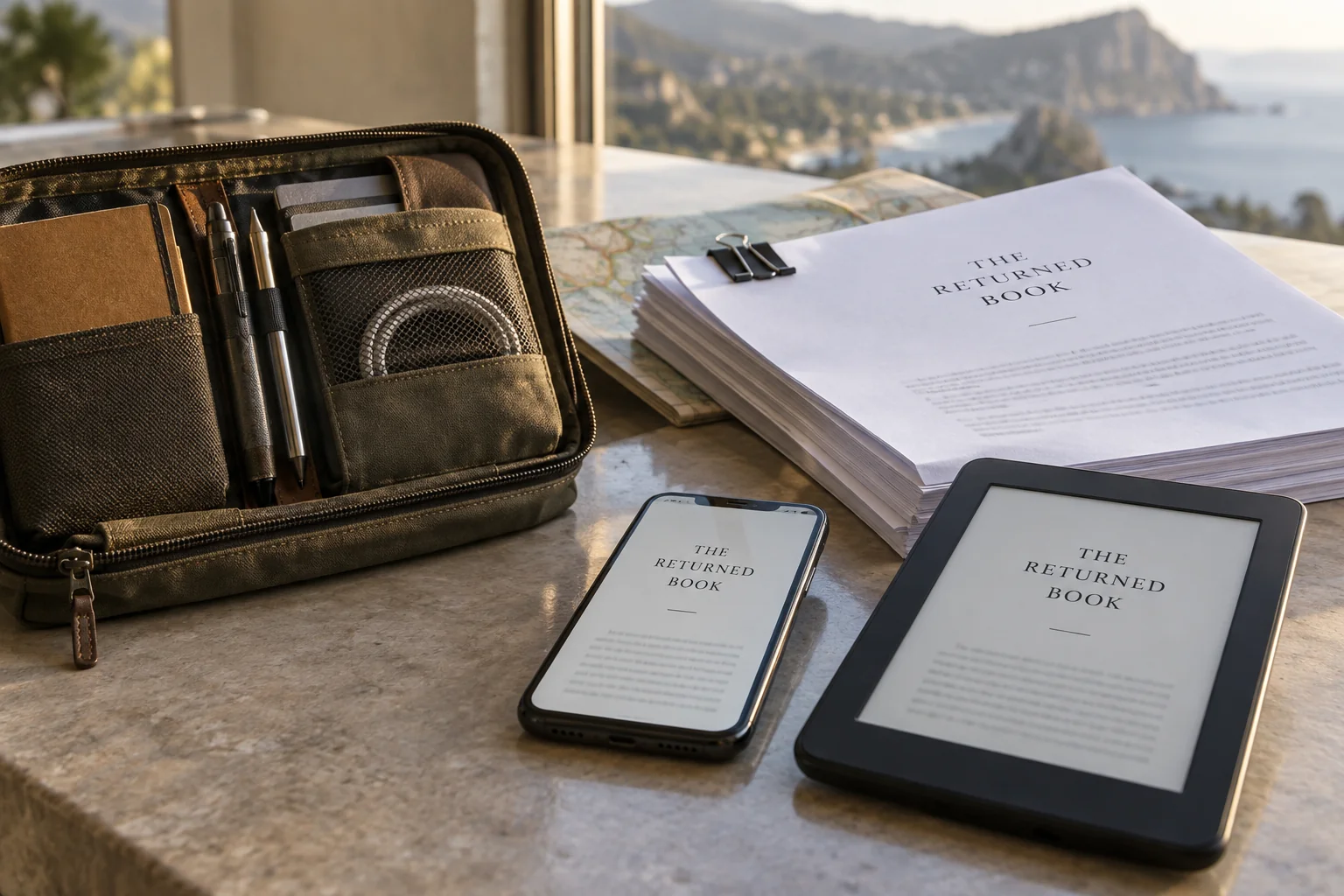
For our sample, inspecting the EPUB package can confirm its two chapter files, reading order and navigation targets. Opening it in a reading app answers the next question: does it actually read comfortably? Before sharing your own book, check that behavior and, where needed, try the delivery route using the same final file.
Watch an Automateed phone-writing walkthrough
This Automateed video shows a phone-based ebook workflow. It was recorded in 2024, so the screens differ from the current apps, but it gives you a look at the process. Follow along with your own project: find the chapters, review the text and locate the download options.
Finish with three things you can find again: the current manuscript, a dated backup and an export you've opened and checked. Once that routine works, you can spend more of your phone-writing time on the book itself, knowing how you'll protect and deliver the work.