Table of Contents
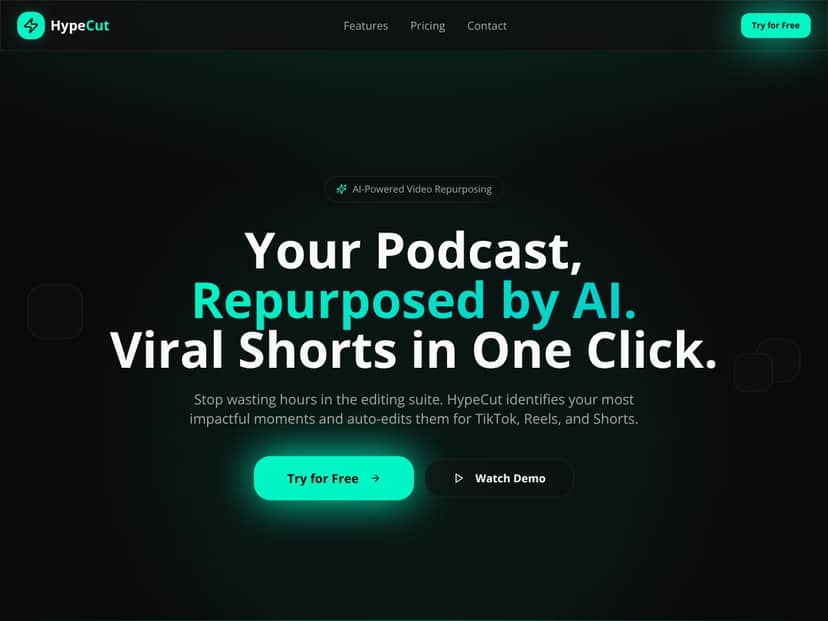
What Is HypeCut? (And What I Actually Saw It Do)
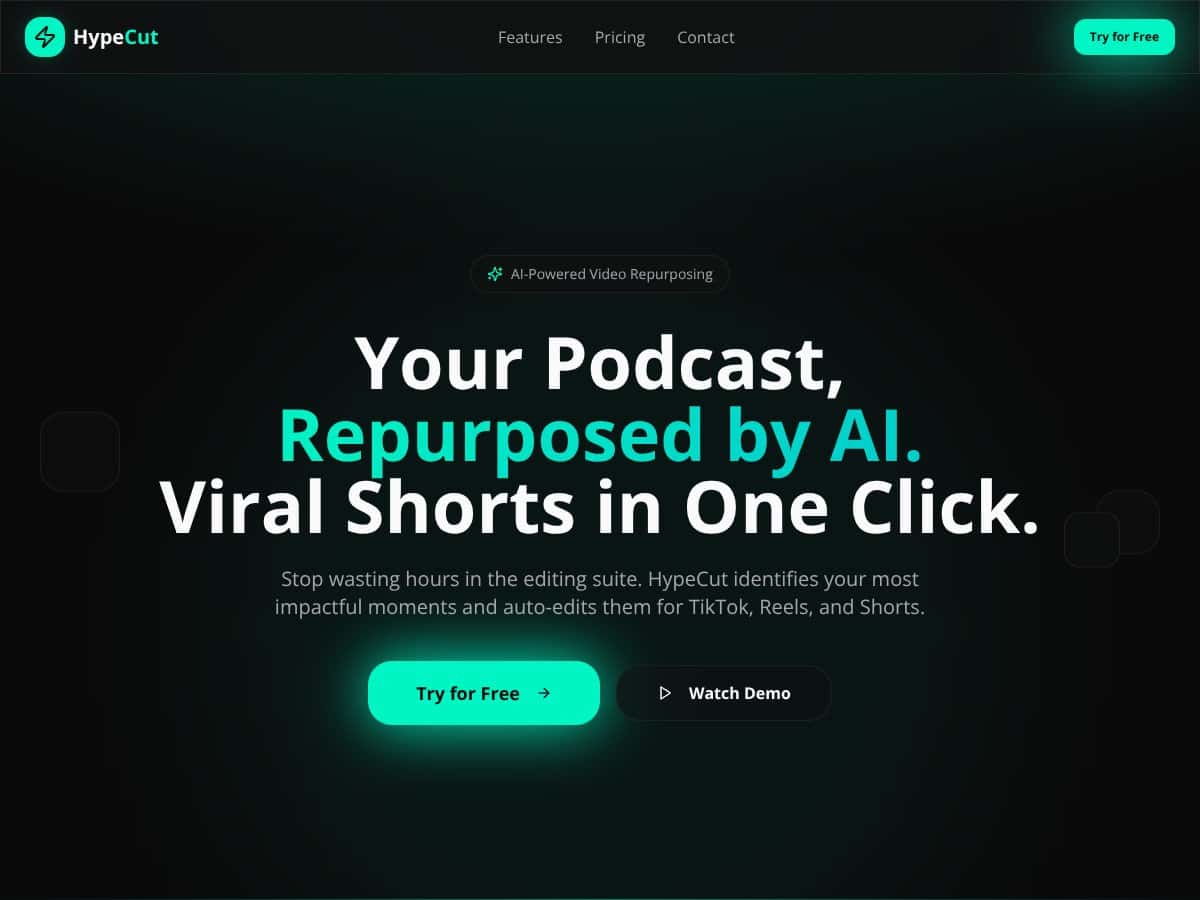
I’ll be honest—I was skeptical too. The pitch sounds simple: upload a long podcast (or video), and an AI system finds the “hype” moments, trims them into short clips, and formats them for TikTok, Reels, and Shorts. Too good to be true? Maybe. But I wanted to see what it looked like in the real workflow, not just on a sales page.
Here’s the basic idea. HypeCut is an AI-powered service that takes your long-form content and:
- identifies moments it thinks will perform (based on its internal scoring),
- cuts those segments into clip-sized videos,
- formats them for vertical viewing, and
- prepares them for social sharing (including options for multi-platform output).
In practice, it’s not a full editing suite. It’s more like “AI clip generation + formatting,” then you decide what to keep. If you’re hoping it’ll replace Premiere Pro or Final Cut, it won’t. I went in with that expectation and it helped—because where HypeCut shines is speeding up the boring first pass.
One detail I checked early: what do they actually reveal about the team and how the scoring works? The website and marketing materials don’t go deep into model architecture or a published scoring rubric. I searched around for documentation, sample outputs, and any “how accuracy is measured” claims, but I didn’t find anything that felt truly transparent. So instead of trusting marketing language, I focused on outputs from my own test.
My test setup: I used a podcast episode I already had recorded (about 42 minutes). I ran it through HypeCut once to generate clips and then compared what it picked vs. the moments I would’ve chosen manually.
What it produced: it generated 10 clips in the initial batch (based on the plan/settings I selected). Most clips were in the typical social range—short enough to be watchable quickly, long enough that the “point” landed.
Selection accuracy (my honest take): I’d say 7 out of 10 were genuinely usable without me doing major rewrites. The other 3 were close, but needed tweaks—either the timing started a little too early, or the moment didn’t hit as hard as the part I would’ve cut by hand.
And yes, I did notice it finding “key moments.” But it wasn’t perfect. It’s good at spotting conversation peaks and strong lines, yet it can miss nuance—like when a joke lands two sentences later. That’s where manual polishing still matters, even if it’s just trimming a second or two at the edges.
So, what is HypeCut, really? It’s a shortcut for creators who want vertical, social-ready clips fast—especially if you’re repurposing long-form audio/video into short-form posts. Think of it as a first draft that’s often good enough to post, not a final edit.
HypeCut Pricing: Is It Worth It?
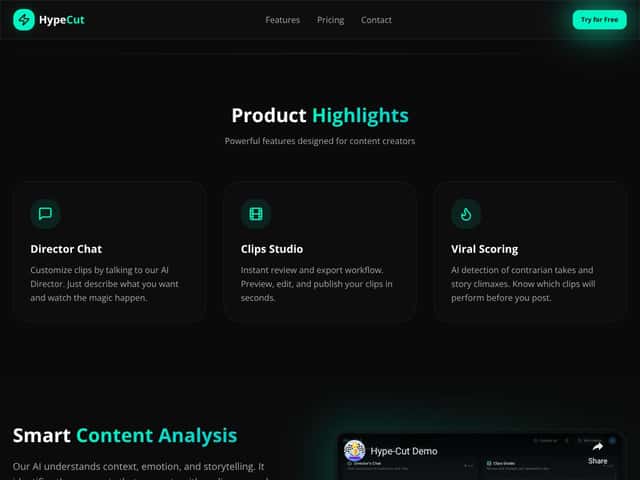
| Plan | Price | What You Get | My Take |
|---|---|---|---|
| Starter | $29/month | Up to 20 clips, Basic Viral Scoring, AI Auto-Editing, Standard Export Quality, 100 Credits | This is a decent entry point if you’re testing the workflow and posting occasionally. I wouldn’t choose it if you’re aiming for volume, because 20 clips can disappear fast once you start experimenting with different uploads. |
| Creator | $49/month | Up to 50 clips, Advanced Viral Scoring, AI Auto-Editing, HD Export, 250 Credits | In my opinion, this is the “sweet spot” for regular creators. You get more clips and HD export, which matters when you’re actually posting to feeds where quality stands out. |
| Pro | $99/month | Up to 120 clips, Premium Viral Scoring, AI Auto-Editing, HD Export, 600 Credits | Best for teams or creators who publish constantly. If you’re only repurposing once in a while, it’s overkill—and the cost adds up quickly. |
Is it “worth it”? For me, the answer depends on how much you value time. Manual clipping isn’t just cutting a video—it’s listening for the right lines, checking timing, formatting for vertical, and then doing exports. On my side, a typical manual pass for ~40–45 minutes of content took me around 45–60 minutes to get 8–12 clips ready (including basic cleanup).
With HypeCut, the first pass took me roughly 8–12 minutes from upload to having clips ready to review. Then I spent an extra 10–15 minutes trimming a few edges and fixing what didn’t quite land. So overall, I saved about 25–40 minutes compared to doing everything manually.
One thing I don’t love: there’s no clearly advertised free tier or trial. If you’re the type who wants to “poke it” for an hour and decide later, you might feel annoyed paying immediately. That said, the launch offer (double credits) helps if you’re willing to test before committing long-term.
Also, the better scoring and HD exports are tied to higher tiers. If you’re on Starter, you may get results—but don’t be surprised if you end up upgrading once you realize you’re posting more than you expected.
The Good and the Bad (From My Test, Not Just Marketing)
What I Liked
- AI auto-editing that actually saves time: I expected “kinda okay” clips. Instead, the first batch was 7/10 usable without heavy rework. I still trimmed some intros/outros, but I wasn’t rebuilding clips from scratch.
- Vertical cropping with face-aware framing: On my test, the crop generally kept the speaker centered and avoided the most awkward “face chopped off” moments. The big win was consistency—most clips looked like they were built for Reels/TikTok rather than just squeezed into vertical.
- Export quality felt appropriate (especially on HD): With HD export enabled, the text readability on the screen area (where applicable) was noticeably better than the standard output. Audio stayed clean enough that I didn’t have to re-normalize for most clips.
- Multi-platform workflow: The process of preparing clips for different platforms was smoother than the “export everything, then rename, then upload” routine I usually do. It’s not magic, but it reduces the busywork.
- Clear plan limits: The credit/clip limits are straightforward. I always prefer when a tool tells you what you’ll hit before you start burning time and money.
What Could Be Better
- Scoring transparency is still vague: I couldn’t find a clear explanation of how the “viral scoring” is calculated. I looked for documentation, scoring examples, and any sample rubric. Without that, you have to trust outputs—and then verify manually.
- Edge cases happen: In my batch, 3 clips started a bit early or ended a bit before the punchline. It wasn’t broken—it was just slightly off from where I’d cut. If you’re picky about timing, plan for quick trims.
- Customization is limited: There’s not much room for deep creative edits (custom transitions, heavy text overlays, effect stacking). I don’t mind that for “repurpose fast,” but it’s not a replacement for real editing.
- Missing clarity on mobile support: I didn’t see a dedicated mobile app or a “full editing on iPhone/iPad” story. This is very much a desktop-first workflow.
- Stream Deck integration wasn’t something I could fully validate: I didn’t test a live Stream Deck setup during my review (no live Twitch session from my side). I checked for documentation/claims, but I can’t honestly say “it works seamlessly” in real-time without testing it directly.
Who Is HypeCut Actually For?
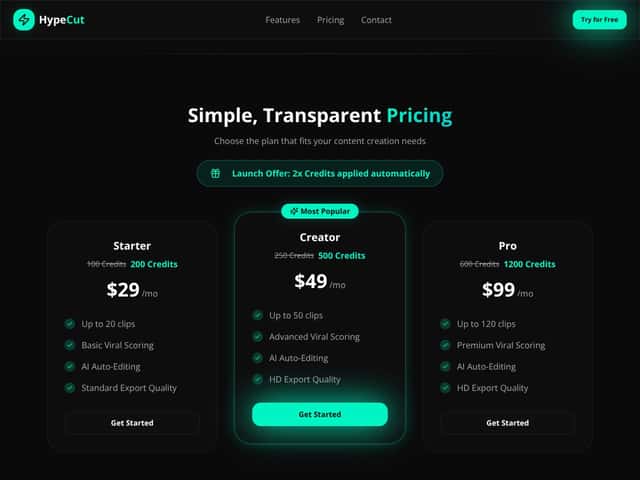
If you’re already creating content from long-form streams or podcasts and you want vertical clips quickly, HypeCut makes a lot of sense. My favorite use case is exactly what it’s marketed for: repurposing—not editing from scratch.
It’s especially relevant if you’re a Twitch streamer. The pitch around Stream Deck integration is clearly aimed at live creators who want to capture moments without breaking their flow. But just to keep it accurate: I didn’t run a live Stream Deck test in this review, so I’m treating that as a “likely benefit” rather than a confirmed feature from my own session.
Where I think HypeCut fits best:
- Creators posting multiple short clips per week and tired of manual trimming.
- Anyone who wants vertical cropping that’s mostly “ready to post,” not a project you babysit.
- People who don’t need advanced effects—just clean, punchy clips.
Where it might feel limiting:
- If you don’t stream on Twitch (or don’t use Stream Deck), you may feel like you’re missing the “best” workflow.
- If your brand requires very specific editing (custom captions, heavy motion graphics, signature transitions), you’ll probably end up exporting and doing extra work elsewhere.
Who Should Look Elsewhere?
If your workflow doesn’t match the platform setup, HypeCut can feel like you’re paying for automation you can’t fully use. If you don’t stream on Twitch and you don’t want to rely on that ecosystem, you may find the effort/benefit ratio isn’t great.
Also, if you’re the kind of creator who likes granular control—adding text styles, tuning captions, creating custom transitions, or shaping the pacing yourself—HypeCut won’t satisfy you on its own. It’s built to accelerate clipping, not to replace creative editing.
Finally, if you’re only posting a couple clips per month, the subscription cost can feel steep. In that case, you might get similar results with a lighter tool or manual clipping plus a basic editor. The value is strongest when you’re producing consistently.
How HypeCut Stacks Up Against Alternatives
I compared these tools based on a simple framework: highlight/clip detection, vertical formatting, publishing/export workflow, and how much manual clean-up you still need. For HypeCut, I relied on my own test outputs. For the others, I used publicly stated features and then looked for obvious gaps (like “does it actually optimize for vertical?” or “is there automation for social posting?”).
Streamlabs Clip Maker
- What it does differently: Clip Maker is a free-ish, browser-based clipping approach tied closely to Streamlabs OBS. It’s great for quick highlight capture, but it’s not built around vertical social formatting as a core feature.
- Honest price comparison: Free to start, but automation for “TikTok/Reels-ready vertical” is limited.
- Choose this if... you want fast clips inside your existing streaming setup and you don’t mind doing vertical formatting yourself.
- Stick with HypeCut if... you want vertical cropping and a workflow aimed at social-ready exports without as much manual handling.
Eklipse.gg
- What it does differently: Eklipse.gg leans into AI highlight detection and tends to support more editing/selection workflows than a basic clip tool.
- Honest price comparison: Pricing is often described around the low-teens per month depending on plan, which is in the same ballpark as HypeCut tiers.
- Choose this if... you want more control over what gets clipped and you’re producing content that may not be strictly “shorts-first.”
- Stick with HypeCut if... your priority is quick, automated social clip creation with minimal fuss.
Medal.tv
- What it does differently: Medal is built around clip capture and sharing with a community vibe. It’s strong for gaming highlights, but vertical social optimization isn’t its main focus.
- Honest price comparison: Free tier exists for basics, and paid plans are typically around the few-dollar range per month for extra features.
- Choose this if... you care more about capturing highlights and sharing them socially with others than producing vertical-first clips.
- Stick with HypeCut if... you’re aiming for TikTok/Reels-style vertical outputs as the end goal.
Streamable
- What it does differently: Streamable is more of a hosting + simple clip/sharing platform. It doesn’t really compete as an AI auto-editing tool.
- Honest price comparison: Basic use is free; premium plans usually add storage and extra features.
- Choose this if... you just need an easy way to share clips without automation.
- Stick with HypeCut if... you want AI-assisted clip generation and social formatting built into the workflow.
Final Verdict: Should You Try HypeCut?
After testing it, I’d rate HypeCut about 7/10. It’s genuinely helpful if your goal is fast repurposing. The AI doesn’t magically nail every second, but it gets you to “clips you can review” much faster than manual editing.
If you’re a Twitch streamer (and especially if you’re already thinking in terms of live-to-short workflows), HypeCut is the most compelling. If you’re not on Twitch—or you don’t plan to use the Stream Deck workflow—then you may not get the full value of the ecosystem.
Is the paid tier worth it? For me, it’s worth it when you’re posting consistently and you’d otherwise spend time hunting for moments. When I compared my manual workflow (roughly 45–60 minutes for a batch) to HypeCut’s first pass (~8–12 minutes plus light cleanup), the time savings were real—about 25–40 minutes saved for my test.
Just don’t buy it expecting fully polished, brand-perfect videos out of the box. It’s best for creators who want a strong starting point and don’t mind doing quick trims.
So here’s the decision: HypeCut is best for automation-first clip generation for TikTok/Reels/Shorts. If you want deep creative editing and total control, you’ll likely be happier with a traditional editor or a more customizable clipping tool.
Common Questions About HypeCut
- Is HypeCut worth the money? If you regularly turn long-form content into shorts, yes—it saves time. If you only need a couple clips a month, the subscription may feel hard to justify.
- Is there a free version? I didn’t see a free tier or clearly advertised trial in the materials I checked. You’ll likely need to subscribe to test it.
- How does it compare to Streamlabs Clip Maker? Streamlabs is great for quick highlight clipping inside Streamlabs OBS, but it’s not as focused on vertical social formatting and automated multi-platform posting. HypeCut is more “social-ready vertical” oriented.
- Can I customize the clips? You can tweak, but it’s not built for heavy manual editing. Expect limited customization and plan for quick trimming rather than full creative control.
- Does it support mobile devices? It’s designed as a desktop workflow. I didn’t find evidence of a full mobile app for editing on the go.
- Can I get a refund? Refund details aren’t clearly spelled out in the content I reviewed. If you’re considering it, I’d contact support directly and ask about refund eligibility before committing.