Table of Contents
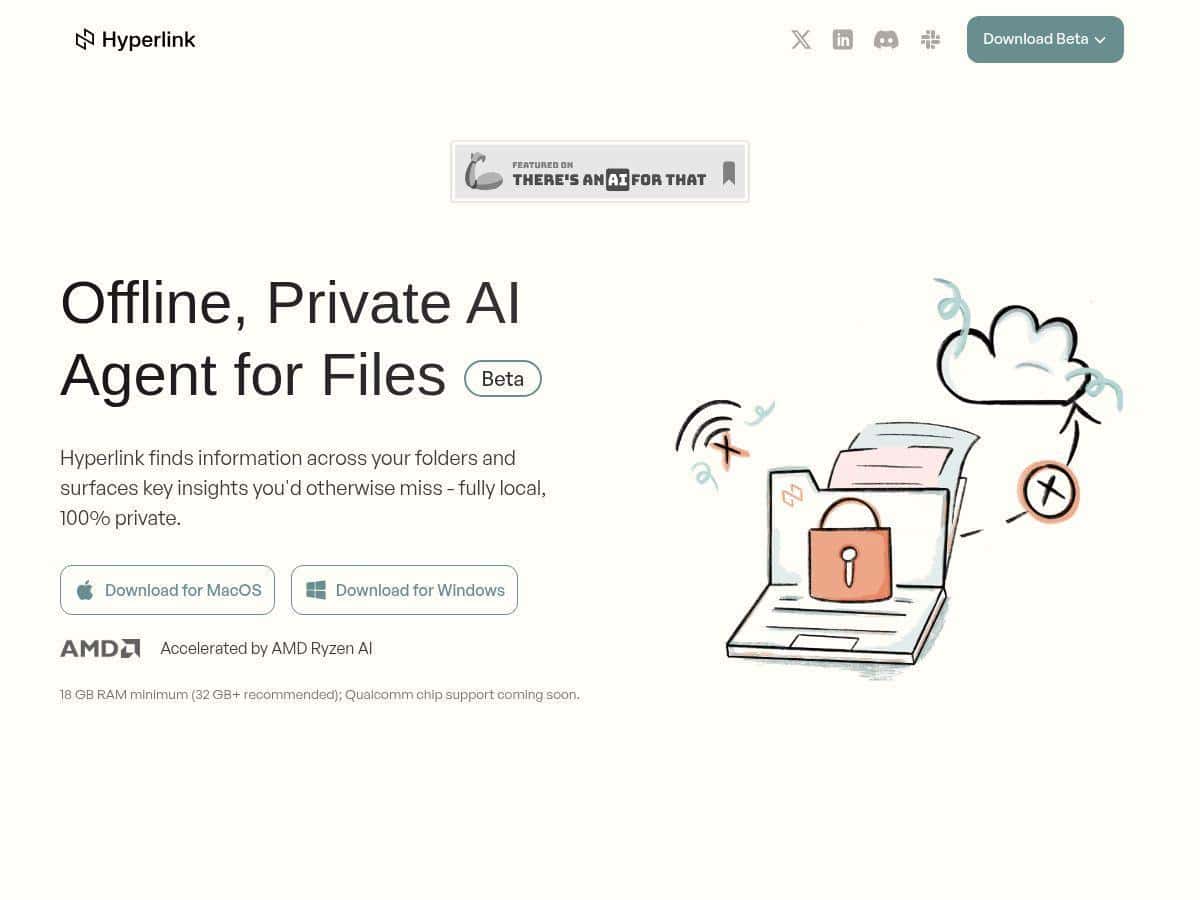
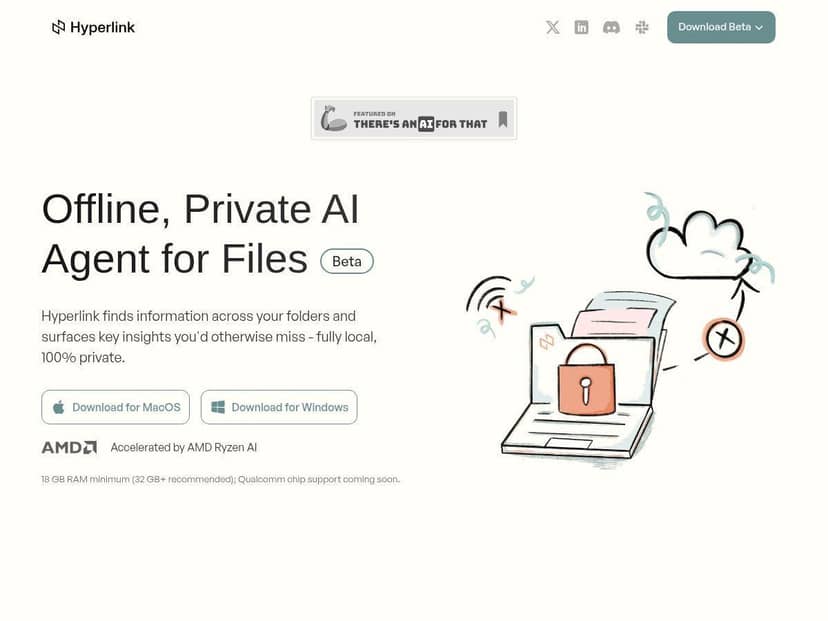
If you’re trying to search your documents without handing them to the cloud, I’ve been testing Hyperlink for a bit. My goal was simple: find a document fast, ask questions in plain English, and keep the sensitive stuff on my device. What I noticed is that Hyperlink is built for that “quick search + AI answers” workflow, and it feels pretty responsive when you’re actively using it.
Hyperlink Review
Setup was one of the first things I cared about. I don’t want a tool that turns “searching documents” into a multi-step tech project. In my experience, Hyperlink’s interface is clean and the onboarding doesn’t feel heavy. Once I had it running, the big selling point—local processing—was immediately obvious in how it behaves. I didn’t have to upload my files to a remote service just to get search working, which is exactly what I was hoping for.
Here’s what I tested so you can judge it against your own needs:
- Device/OS: I ran Hyperlink on my laptop (desktop app) and tested searches while actively switching between documents.
- Document types: PDFs, a few DOCX files, one Markdown file, and a couple of slides (PowerPoint). I also included image files with embedded text to see how OCR performed.
- File volume: I loaded enough docs to make search meaningful (not just one file—think “real workspace clutter”).
- Query style: I tried both normal questions (“what does this policy say about refunds?”) and targeted searches using commands like @folder and @document.
What impressed me most wasn’t just that it found stuff—it was how it handled natural-language queries. Instead of making me hunt through results like a traditional search engine, I could ask something like “Summarize the section about data retention” and then follow the answer back to where the information came from. That citation-style feedback matters. It made it easier to trust the response (or quickly spot when it wasn’t quite right).
One thing I liked: it feels “search-first.” You’re not stuck in a long chat loop. You ask, it returns answers, and you can pivot quickly. And yes, the image OCR angle is real—when I searched for text that existed only inside images/scans, Hyperlink still pulled it up. That said, OCR isn’t magic. If the image is blurry or the text is tiny, results can be weaker than you’d get from a clean PDF with selectable text.
Key Features
Hyperlink’s feature set is pretty practical. Here’s how those claims played out in my testing:
- Local AI Processing: The main privacy promise is that processing happens on your device. In use, it translates to “no upload step” to get things working, which is what I wanted for sensitive files.
- Instant Language Queries (with citations): I could ask questions in plain language and get immediate responses tied back to the source text. The citations weren’t just decorative—they helped me verify the answer.
- File Support: PDFs, Word documents, Markdown, PowerPoint slides, and images. In my tests, the PDFs and DOCX files were the smoothest, while image-only inputs depended heavily on OCR quality.
- Text-in-Images Search (OCR): This is where Hyperlink stood out for me. I searched terms that only appeared in scanned images and still got relevant matches. When the image text was clear, it worked well. When it wasn’t, it struggled like most OCR tools.
- Context-specific Search with commands: Using @folder and @document made a big difference. Instead of searching everything, I could narrow the scope and get results that felt way more accurate.
- Automatic Index Updates: After adding new files, the search index updated so I didn’t have to “manually rebuild” anything. That’s the kind of background behavior that saves time.
- Future Cloud Integration: It’s not there yet in my testing. I did see the direction, but I can’t treat “planned” as “available today.”
To make this less abstract, here’s an example of the kind of query workflow that actually made Hyperlink useful for me:
- I opened a policy PDF and used a question like “What does this say about refunds and timelines?”
- Hyperlink answered in plain English and included the relevant citation text so I could confirm the exact wording.
- Then I followed up with something more specific, like “List the refund conditions mentioned”, and it narrowed down what mattered.
That back-and-forth is the real win. It’s not just “search results.” It’s search + explanation + traceability.
Pros and Cons
Pros
- Privacy-friendly by design: Keeping processing local is the whole point here, and it matches how the tool behaves in practice.
- Fast, natural search: It doesn’t feel like you’re typing rigid filters all day. The language-based queries are easy to use.
- Citations make answers more trustworthy: I appreciated being able to see where the response came from instead of treating it like a black box.
- Image OCR support: Searching text inside images/scans worked for me when the text was reasonably legible. That alone can save a lot of time.
- Command-based narrowing: @folder and @document help when your library grows and you don’t want everything mixed together.
Cons
- No cloud storage integration yet: If you live in Google Drive or OneDrive, you’ll still need a local workflow for now.
- Advanced querying takes a little practice: It’s not hard, but if you want consistently great results, you’ll probably spend some time learning how to phrase queries and when to use the context commands.
- “Unlimited context” is a tricky claim: In real life, context is limited by what the system can effectively retrieve and process. I didn’t hit a hard “you can’t do that” error, but the best results came when my questions were grounded in specific documents/folders instead of trying to force broad, everything-at-once analysis.
Pricing Plans
Here’s what I found: Hyperlink is free for personal and workspace use right now. I also saw that paid plans are planned, but there wasn’t anything I could point to as confirmed pricing details at the time of my testing. So I’d treat “future paid plans” as a possibility—not a promise—until Hyperlink publishes specifics on their pricing page.
What I’d do differently (so you don’t waste time)
- Start with one folder: Load a realistic folder of documents first, then test queries. It helps you learn how the indexing and citations behave in your own library.
- Use @folder when accuracy matters: If you ask broad questions across everything, answers can feel more general. Narrowing context usually improves relevance.
- Check OCR quality before relying on it: If your “images” are screenshots or low-res scans, expect OCR to be the weak link. Clean PDFs with selectable text will generally feel faster and more accurate.
- Ask follow-ups: The tool shines when you iterate—ask one question, then refine based on what the citations point to.
Bottom line: if you want private document search with AI-style answers and you’re okay keeping files local for now, Hyperlink is genuinely worth your attention—especially since it’s free. It’s not perfect (OCR quality and learning good query habits take some effort), but the overall experience felt fast, practical, and aligned with privacy-first needs.