Table of Contents
I’ve used a bunch of brainstorming tools over the years—some are great for dumping thoughts, and others are great at turning those thoughts into something usable. Ideamap caught my eye because it mixes a visual mind-map style workspace with AI help, and I wanted to see if it actually saves time (or if it’s just another pretty interface).
For my test, I signed up as an individual first (free tier), then upgraded so I could compare what you get with AI and team features. I spent about a couple of hours building one map from scratch, running a few AI-assisted expansions, and then doing a lightweight collaboration test with another account to see how “real-time” it feels. What I noticed right away: dragging ideas around is genuinely fast, and the AI suggestions are helpful—but they can also push you into generating more nodes than you intended if you’re not careful.
Ideamap Review (Hands-On)
Let me tell you what I did, step by step, because that’s where the “real” answer is.
1) Set up the workspace
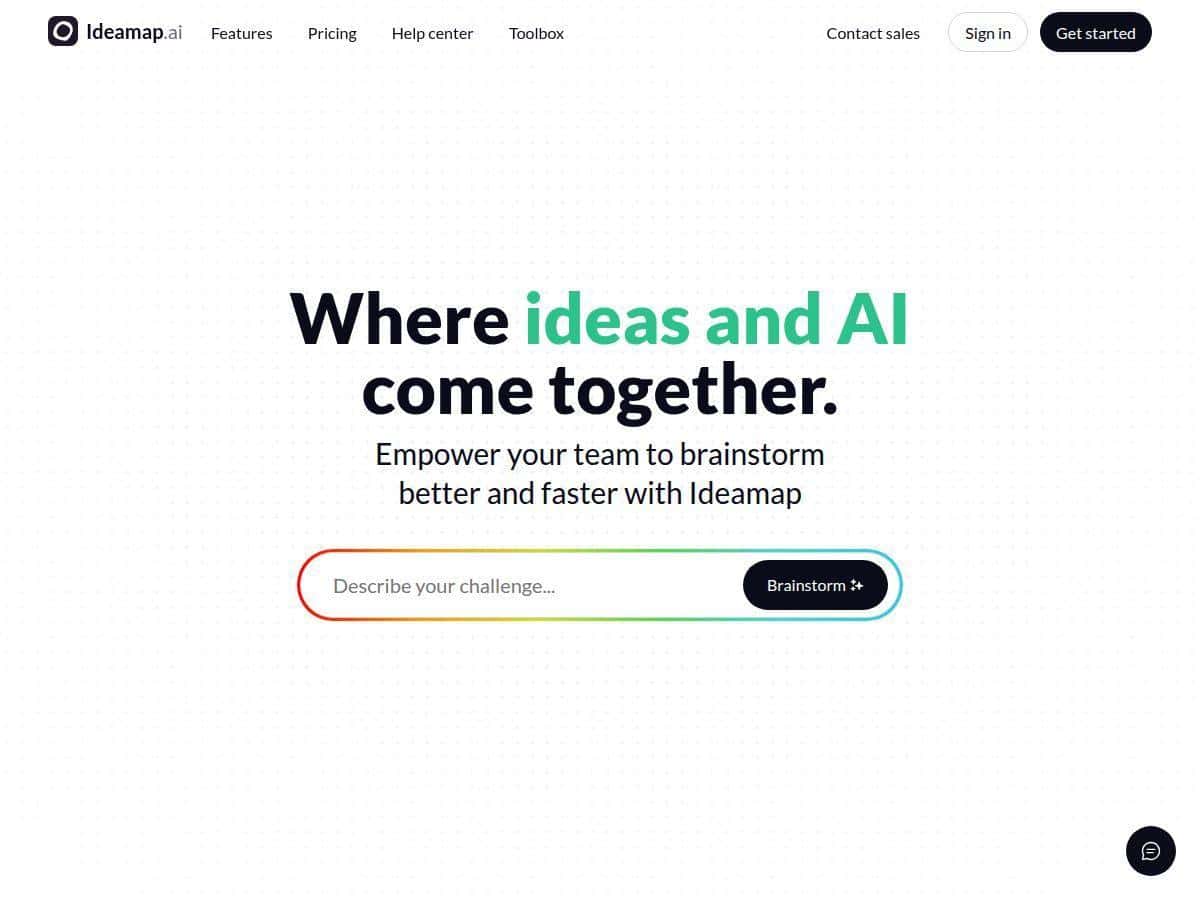
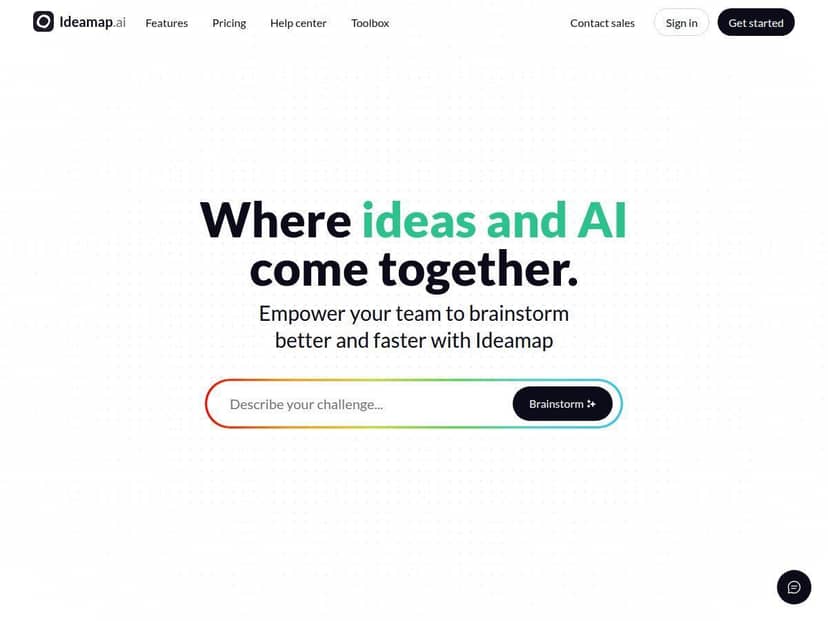
After signing in (quick process—minutes, not hours), I landed on a clean canvas. The first thing I tried was the drag-and-drop flow: I created a central topic, then added child ideas by clicking to add nodes and dragging them into place. It felt responsive, and I didn’t have to wrestle with menus to get started.
2) Built a map from scratch
My goal was simple: brainstorm a content plan for a small project team (topics, angles, and next steps). I added about a dozen nodes manually first, just to get a feel for how the UI behaves when the map gets “busy.” What I noticed: rearranging nodes is smooth, but the map can get visually cluttered if you keep expanding without grouping or prioritizing.
3) Used the AI to expand ideas
Then I turned to the AI side. I typed a short prompt in plain language (think: “Give me related angles and examples for this topic”). The AI response came back as additional nodes—some were clearly on-topic, and a few were “adjacent” enough that I’d probably keep them only if they match a specific angle. In my experience, AI is best when you already have a direction. If you start too broad, it’ll happily generate a lot and you’ll spend time sorting.
4) Tried collaboration
For the collaboration test, I invited another user to the same map and made small edits (adding a node and changing text). I saw updates appear quickly—fast enough that it felt like live editing, not a delayed sync. Still, it wasn’t instant in every moment. Network conditions matter, and if you’re offline or on a shaky connection, you’ll feel it.
5) Export + organization reality check
I also looked for practical ways to “use” what I built. The map is great for ideation, but turning it into action means you’ll want to label, group, or prioritize nodes as you go. The built-in organization tools helped, especially when I started generating more ideas with AI. Without that, you end up with a wall of text that’s harder to convert into tasks.
So, does Ideamap live up to the hype? For brainstorming and visual organization, yes. It’s not magic—you still have to steer the AI and clean up the map. But it does reduce the friction of going from “idea” to “structured set of ideas.”
Key Features (What I Actually Used)
- Visual workspace & interactive mind maps
This is the core. Adding and moving nodes is straightforward, and the layout makes it easy to see relationships at a glance. - AI integration for idea generation & summarization
I used AI to expand a topic into related angles and example ideas. It’s strongest when you give it a clear starting point (a narrow topic or a specific goal). - Real-time collaboration for multiple team members
Edits from another account showed up during my session quickly enough to feel collaborative. It’s not “telepathy,” though—latency is still dependent on connection. - Idea management (duplicates + prioritization)
When I generated a bunch of related nodes, I could tell duplicate-ish ideas were a risk. The management tools helped me keep the map usable instead of turning into a brainstorm dump. - Templates for structured brainstorming sessions
Templates are handy when you want to run a consistent session (like planning, problem-solving, or mapping out requirements). I used one to get the structure started faster. - Integrations with Microsoft Teams, Slack, and more
If your team lives in Teams or Slack, this matters because it reduces the “copy/paste tax.” I didn’t do a deep integration overhaul in my test, but the presence of these integrations is a real plus. - Extra tools like audio transcription & AI-generated images
I checked these areas, but I didn’t fully stress-test transcription in this run. Still, it’s good to know they’re there if your team brainstorms via voice. - Offline access for viewing and editing mind maps
Offline support is one of those features that sounds small until you need it. In my case, it was mainly useful for reviewing without immediately relying on a connection.
Pros and Cons (Based on My Test)
Pros
- It’s easy to learn
I didn’t have to watch tutorials to start building. The drag-and-drop node placement felt intuitive, and I could expand the map without getting stuck in settings. - AI helps, but it’s not just “random ideas”
When I gave the AI a specific topic, it returned related nodes that were genuinely useful. I also noticed it tends to suggest multiple directions, which is great for ideation sessions. - Collaboration feels natural
During my quick multi-user test, updates showed up quickly enough that the workflow didn’t break. It’s the kind of tool where you can actually do a live working session. - Templates reduce setup time
If you run recurring brainstorming (weekly planning, retros, kickoff meetings), starting from a template is a time saver. - Integrations make it easier to plug into the team
Teams and Slack support means you’re less likely to end up with a map that only “lives” in one tab.
Cons
- Real-time collaboration depends on internet
If your connection isn’t great, you’ll notice delays. Offline mode helps for viewing/editing, but true live collaboration still needs connectivity. - AI can overwhelm you if you ask too broadly
I generated a bigger set of nodes than I expected once, and organizing them took longer than the AI generation itself. If you want quality over quantity, you’ll need to guide it. - Some features take a bit of practice
Not in a “hard to use” way—more like “you’ll get better results once you learn the best way to prompt and structure your map.” - Pricing can be confusing if you’re comparing tiers quickly
I don’t think it’s terrible, but you’ll want to double-check what’s included for AI usage and team seats before you commit. The differences matter.
Pricing Plans (What I Found)
Here’s the honest version: pricing is where you’ll decide if Ideamap is worth it for your workflow. I started on the free tier to test the basics, then looked at paid options specifically for AI usage and collaboration.
Free plan
The free plan is good for individuals who want to try the mind-map workflow and get comfortable with the interface. You can build maps and explore the product, but you shouldn’t expect the same level of AI and team capabilities as the paid tiers.
Basic (paid) — starts around $7/month
This tier is positioned for individuals or smaller needs. In my experience, it’s the point where AI usage and collaboration options become more practical for regular use. If you’re just experimenting with AI-assisted brainstorming, this is often the “try it for real” tier.
Pro (paid) — around $15/month
Pro is where the full AI experience and stronger team tools typically make more sense. I noticed the difference most in how comfortable it was to generate and iterate on ideas without feeling like I had to ration usage constantly.
Enterprise (custom)
For larger orgs, there’s usually a custom plan with added support and more advanced needs. If you need deeper integrations, admin controls, or dedicated assistance, this is the lane.
My practical tip: Before you upgrade, think about how many people will edit maps and how often you’ll use AI. If you’re doing one brainstorming session a month, you might not need Pro. If you’re running weekly team sessions and leaning on AI to expand ideas, Pro starts to feel a lot more justified.
Wrap up
Ideamap is a solid choice if your main goal is visual brainstorming and organizing ideas in a way that teams can actually collaborate on. What I liked most was how quickly I could build a map, use AI to expand ideas, and keep the structure from falling apart. The main downside is also pretty simple: if you generate too much with AI or you’re on a weak connection, you’ll spend time cleaning up or dealing with delays.
If you’re a solo creator, it’s worth trying for the workflow alone. If you’re running team brainstorming sessions (especially with recurring templates), Ideamap becomes more than “a mind map”—it starts to feel like a working session tool. And honestly? That’s the kind of tool I keep using.