Table of Contents
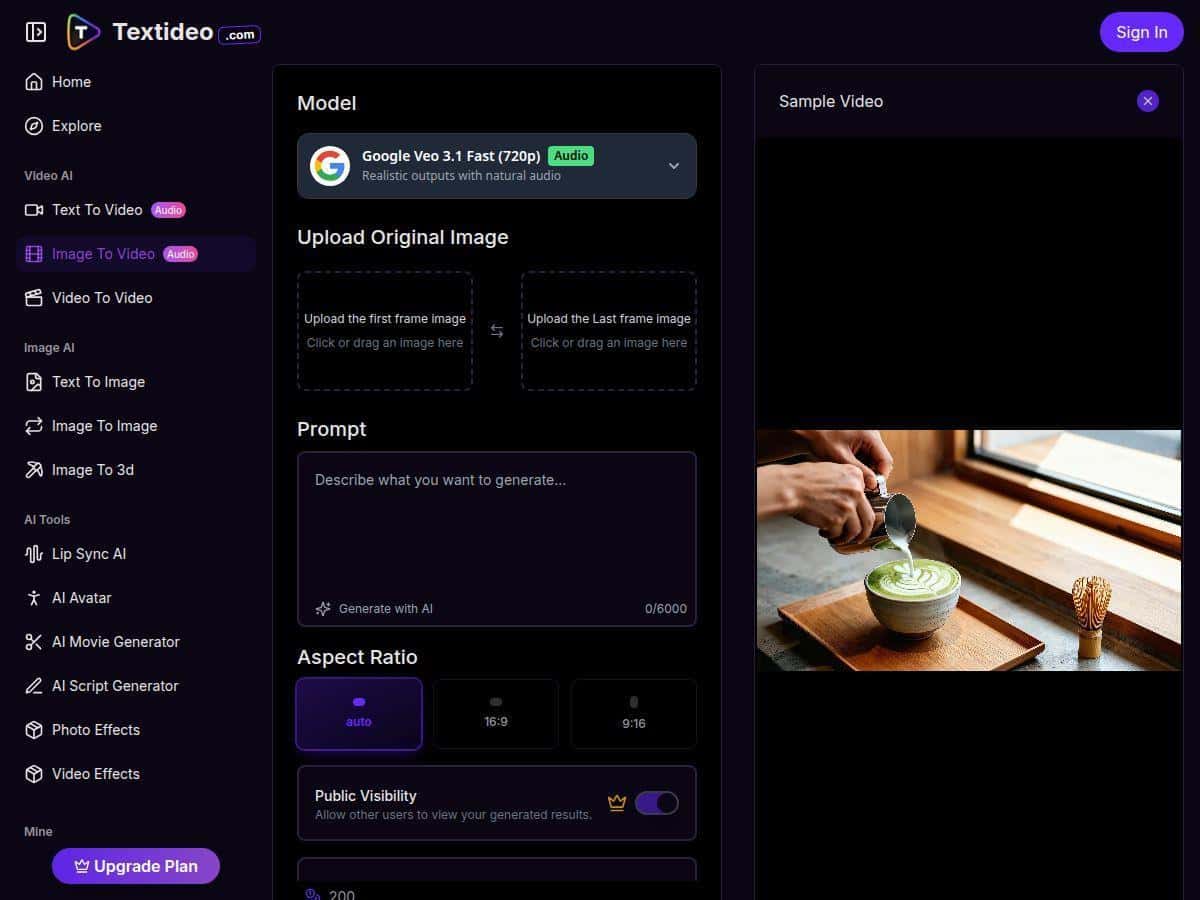
If you’ve got a folder full of photos and you’re tired of posting the same static stuff, Textideo is worth a look. I tested Textideo’s Image to Video AI with a few different image types to see how real the results are (and how much effort it actually takes). Short version: it’s genuinely easy to get motion on photos, and the outputs look polished enough for social posts and marketing clips. But it’s not magic—your starting images and your expectations matter.
Textideo Review (Image to Video AI): What I Tested & What I Got
After testing Textideo’s Image to Video AI, I can say it’s one of the more straightforward “photo → video” tools I’ve used. The big win is how quickly it turns a still image into something that looks like it was shot with intention—motion, depth, and that slight cinematic feel.
But I’m not going to pretend every output was perfect. Here’s what I actually did, what I uploaded, and what changed in the results.
My test setup (so you can compare)
- Number of images tested: 6 total (3 single-photo videos and 2 multi-image projects, plus 1 “harder” image to stress it a bit)
- Image types: 1 portrait photo, 1 product-style shot, 1 landscape, 2 mixed “multiple images” sets, and 1 low-detail image (to see how it handles weaker inputs)
- What I tried to control: the animation style, motion intensity (how strong the movement feels), and the overall duration so it didn’t look too fast or too slow
Example #1: Portrait photo → social-ready vertical video
I started with a portrait image (a person against a fairly clean background). I exported with a vertical-friendly format (the kind of sizing you’d use for Reels/TikTok). What I noticed immediately:
- The AI added a subtle zoom and motion rather than just “shaking” the image.
- It kept the subject mostly consistent—no weird face melting or major identity drift (which is usually the first thing I look for).
- The animation felt smooth enough that I didn’t need to touch it afterward.
Time-to-generate: on my end, the render felt fast—fast enough that I could iterate through style choices without losing momentum (think “minutes,” not “hours”).
Example #2: Product shot → clean slideshow-style motion
Next I used a product-style image with decent lighting and contrast. This is where I expected “generic movement,” and honestly, I got something a bit better than that.
- The AI created a more deliberate motion path (it felt like a gentle camera move rather than random effects).
- When I adjusted motion intensity, the difference was noticeable—lower intensity looked more “premium,” higher intensity looked more “ad-like.”
- For marketing clips, that matters. You don’t want it to look cheap.
Example #3: Multiple images → scene transitions that actually read as scenes
For my multi-image test, I uploaded a set of images that were meant to tell a story (basically: “scene A → scene B → scene C”). This is where a lot of tools fail because transitions look like a slideshow with effects slapped on.
Textideo did better than I expected:
- Transitions felt smooth rather than abrupt.
- The motion stayed consistent across images, so it didn’t look like each photo was generated completely from scratch.
- I could tweak timing/duration enough to make it feel like a single video instead of separate clips.
Where it struggled (real limitations)
Let me be upfront: Textideo is strongest when your input images are clear and well-composed. When I tried a lower-detail image, the output still looked “animated,” but the result felt less convincing—more like it was guessing at depth.
- Low-res/low-detail inputs: you’ll see weaker motion cues and less depth.
- Fine control is limited: you can adjust style/timing, but you’re not getting the kind of frame-by-frame precision you’d expect from dedicated editing software.
- Advanced edits aren’t the focus: don’t expect tools like manual masking, keyframing, or audio track editing inside the workflow.
So if your goal is quick, good-looking motion for social and marketing, it delivers. If you need full “editor” control, you’ll likely want to pair it with a traditional video editor afterward.
Key Features (and how I used them)
- AI-Powered Transformation (motion, zoom, cinematic effects)
- I used this on both the portrait and product shot. What I actually clicked/chosen wasn’t just “on/off”—I picked a style and then adjusted the motion intensity. The difference showed up in how “camera-like” the movement felt.
- Multiple Video Styles with motion intensity control
- On my portrait test, I tried a couple styles and kept the one that looked natural. Higher intensity made it more dramatic, but it also increased the chance the motion looked a little too aggressive.
- Automated Scene Transitions for multi-image projects
- For the multi-image test, I liked that it didn’t just crossfade randomly. The transitions read like scene changes, and the overall pacing stayed coherent when I adjusted the duration.
- Post-Creation Fine-Tuning (styles/durations/effects)
- After generating, I went back to tweak timing and style. This was the part that saved me from regenerating everything—small changes made the output feel more “intentional.”
- Flexible Export Options (formats/resolutions)
- I exported in a vertical-friendly setup for social testing. The main thing I cared about was whether the output looked sharp enough when viewed at typical phone sizes. It did—especially when the source image was clear.
- User-Friendly Interface (no advanced editing required)
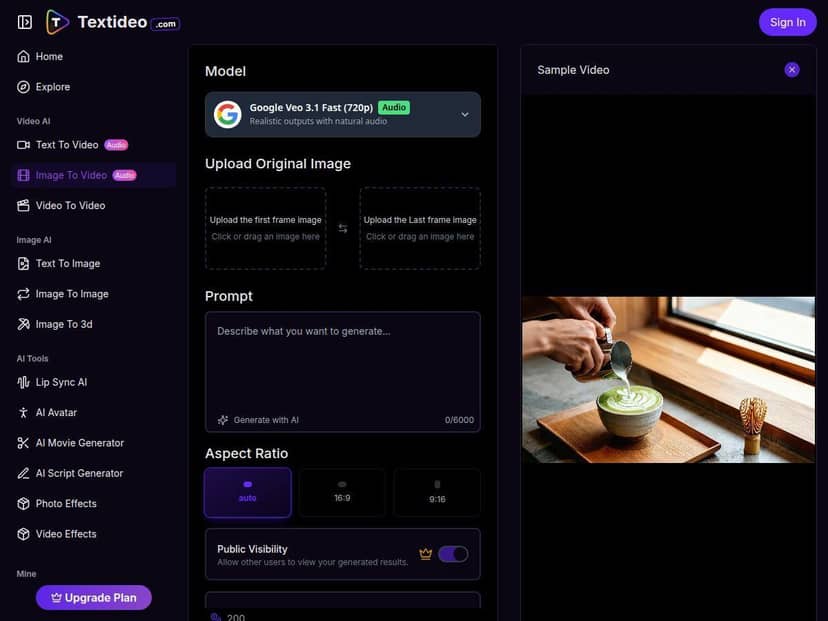
- I didn’t have to learn a complicated timeline. Upload → choose style → generate → tweak. That workflow is exactly what I want when I’m making content quickly.
- Integration with other AI tools (text-to-video, avatar creation, image enhancement)
- I didn’t go deep into every adjacent feature in this test, but the fact that it’s positioned as part of a broader AI content workflow is a plus if you’re already using AI tools for ideation and assets.
Quick comparison (what felt different vs. a typical alternative): Compared to tools that feel more “prompt-driven” (and can be hit-or-miss), Textideo felt more guided. I spent less time fighting settings and more time iterating on style choices that immediately affected the look.
Pros and Cons (based on what I saw)
Pros
- Fast to get usable results: I could create multiple video variations without a steep learning curve.
- Motion looks smooth: the animations didn’t feel jittery or broken like some “image-to-video” tools.
- Style and timing tweaks are actually helpful: small adjustments improved the final look without starting over.
- Good for social + marketing: the outputs were polished enough to post or use in campaigns.
- Multi-image projects work: scene transitions felt cohesive rather than purely decorative.
Cons
- Input quality matters a lot: low-res or low-detail photos produce weaker depth and less convincing motion.
- Not a replacement for professional editing: you can’t do the kind of manual control you’d expect in dedicated tools.
- Advanced editing features aren’t the focus: I didn’t find keyframing-style precision, manual masking, or frame-by-frame editing in the workflow I used.
- Pricing isn’t clear from my side during this review: I couldn’t confirm exact plan pricing in the content I reviewed, so I’m treating pricing as “check the official page” for accuracy.
Pricing Plans (what I can confirm)
Textideo’s exact pricing plans weren’t publicly detailed in the material I reviewed for this post, so I can’t responsibly quote a number here. Pricing can also change quickly with AI tools.
What I can tell you is how to sanity-check value before you pay:
- Look for credit limits or generation caps: image-to-video tools often limit how many renders you can do per period.
- Check export quality/resolution tiers: higher tiers usually unlock better resolution or fewer restrictions.
- Compare monthly cost vs. your production needs: if you’re making 10–20 videos/month, you’ll want a plan that matches that volume (otherwise you’ll feel the limits fast).
If you want the most accurate pricing, you’ll need to check the official Textideo pricing page directly (and I’d do it before committing to an annual plan).
Wrap up
Textideo is a solid choice if you want to turn photos into videos quickly and don’t want to wrestle with complicated editing timelines. My results were consistently smooth, and the style/timing tweaks made it easy to get closer to the look I wanted without starting over every time. Just don’t expect it to replace professional video editors—especially if you need deep manual control.
If you’re building social content, refreshing product visuals, or making simple marketing clips from existing images, Textideo earned a spot in my “try first” shortlist.