Table of Contents
Like most people, I’m juggling a bunch of tasks at once—work stuff, side projects, random “I’ll do this later” items that somehow multiply. I’ve tried the usual task apps, and honestly, they all start strong… then you end up spending more time managing the tool than getting things done. That’s why I was interested in Keo Dev.
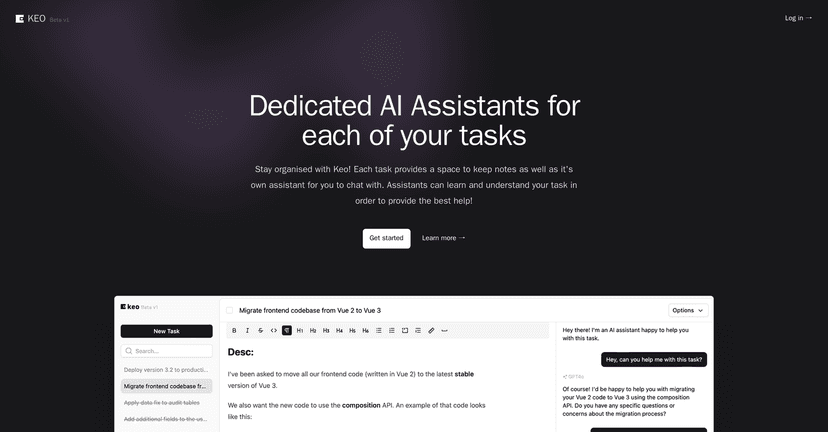
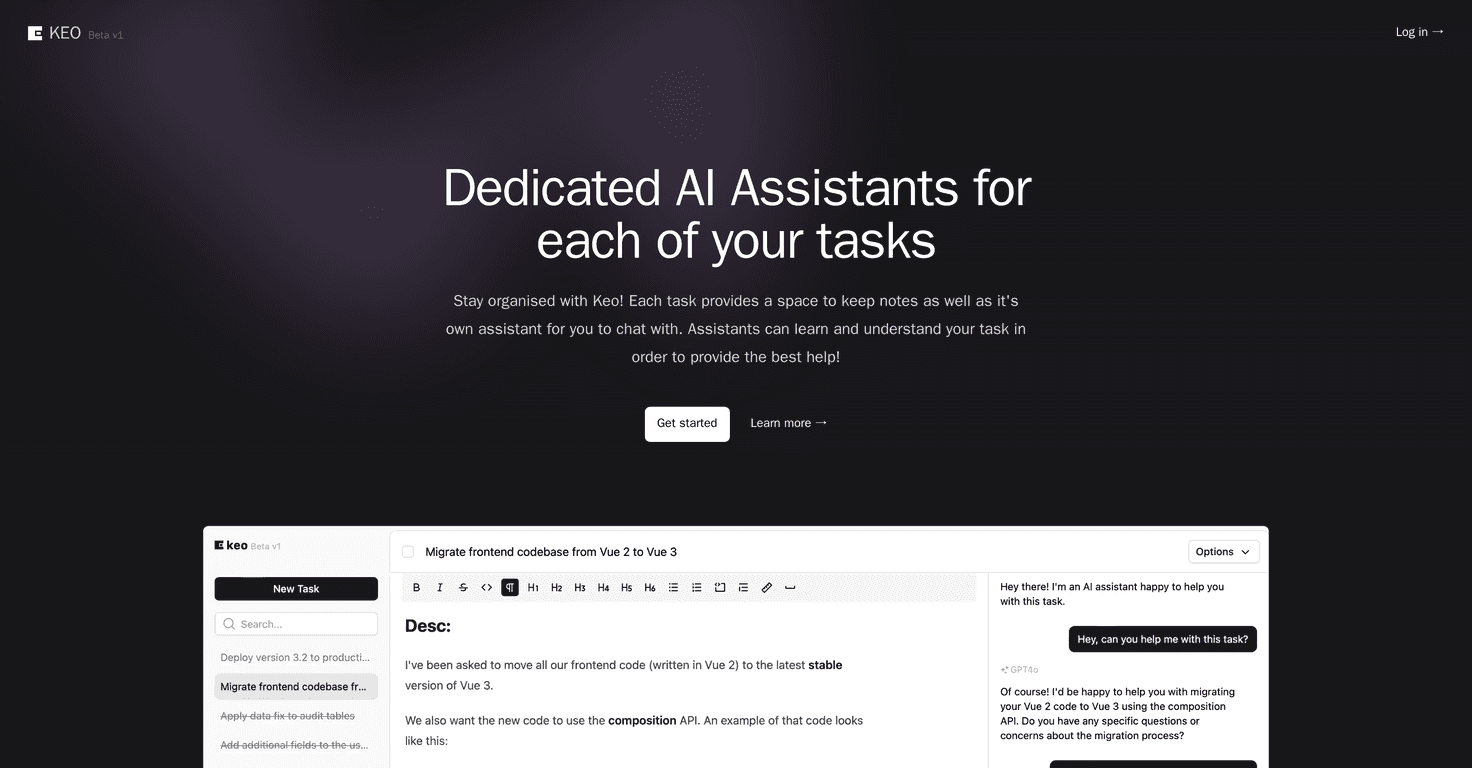
Keo Dev positions itself as a simple task management tool for individual professionals. The big hook is that each task comes with its own AI assistant, and it’s supposed to understand the context you provide (via notes). On paper, that sounds great—because why not have help that’s tied to the exact task you’re working on?

What I liked right away is how quickly I could get moving. I didn’t have to build a complicated system before I could start capturing tasks. I just created tasks, added notes, and kept going. That “get out of my way” feeling matters when you’re busy.
Keo Dev also includes a dedicated note-taking area for each task. In my experience, that’s where these tools either win or lose. If notes are clunky or hard to find later, you’ll stop using them. Here, the notes are clearly tied to the task, which makes it easier to remember details like links, requirements, next steps, or even rough ideas you don’t want to lose.
That said, it’s not perfect (and it’s not pretending to be). Keo Dev is currently in beta, so I’d expect some rough edges—things like occasional glitches, unfinished features, or changes to how workflows work. Also, it’s clearly aimed more at individuals than teams. If you’re looking for collaboration features like shared boards, permissions, or team workflows, this might not be the right fit.
Keo Dev Review: What It Feels Like to Use
Keo Dev is built around one main idea: tasks should be more than just titles. When you create a task, you’re not only storing it—you’re also getting an AI assistant tied to that specific task. The goal is that the assistant can respond based on the context you add in the notes.
In my experience, the best part of this kind of setup is when you’re stuck. You know that moment where you’ve got a task written down, but you’re not sure what “done” looks like? For example, if I create a task like “Prepare client update,” I can add notes such as:
- What the client needs (bullet points)
- Key deadlines (e.g., “send by Friday 3 PM”)
- Any links or references
- My rough outline
Then the AI assistant becomes a “working partner” for that task, instead of a generic chatbot floating around in the background. It’s not magic, of course. But having contextual help right inside the task view is genuinely useful—especially when you’re trying to move faster without constantly switching tabs.
Another thing I appreciated is the note-taking flow. It’s easy to jot down details as they come up. I don’t have to stop and rewrite everything into a perfect format. I can dump messy notes and clean them up later (which is honestly how most real work happens).
At the same time, I wouldn’t oversell it. Since it’s in beta, you might run into changes or minor hiccups. And if you’re managing a team—assigning work, tracking approvals, coordinating across roles—this doesn’t seem designed for that kind of collaboration right now. It’s more “individual productivity” than “shared project management.”
Key Features That Actually Matter
- Simple, user-friendly task management
You can create tasks quickly without setting up a complicated workflow first. - Notes tied to each task
Every task has its own note space, so details don’t get lost in a separate document or chat. - Contextual AI assistants per task
The AI assistant is designed to use the information from your notes, so it can help more directly with what you’re working on.
Pros and Cons (My Honest Take)
Pros
- It’s fast to start. I didn’t feel like I needed onboarding just to capture my first few tasks.
- Notes are actually useful. Because they’re attached to the task, I found it easier to pick up where I left off.
- Contextual AI support helps with execution. Instead of getting generic advice, the assistant is tied to the task context you provided.
Cons
- Beta means you might hit bugs or changes. If you rely on tools for critical workflows, keep that in mind.
- Not built for teams (at least not yet). If your use case needs collaboration, assignments, or shared tracking, you’ll likely outgrow it.
Pricing Plans: What I Could Find
As of now, Keo Dev doesn’t publicly list pricing plans. When I checked, the site instead encouraged users to sign up for updates. That usually means you’ll get details about subscription options (and sometimes access to try the tool for free, depending on what they’re running).
If pricing is a big deal for you, I’d suggest signing up for updates first and then deciding. Why guess when you can get the actual numbers?
Wrap up
Overall, Keo Dev feels like a refreshingly simple task tool for individuals who want their tasks to include context—not just a checklist. The AI assistant-per-task approach is the standout feature, and the task-specific notes make it easier to stay organized without turning everything into a complicated system.
If you’re the type who likes to capture details on the fly and you want help that’s tied directly to each task, Keo Dev could be a strong fit—especially while it’s still evolving. Just don’t expect team collaboration features right away, and remember it’s beta.