Table of Contents
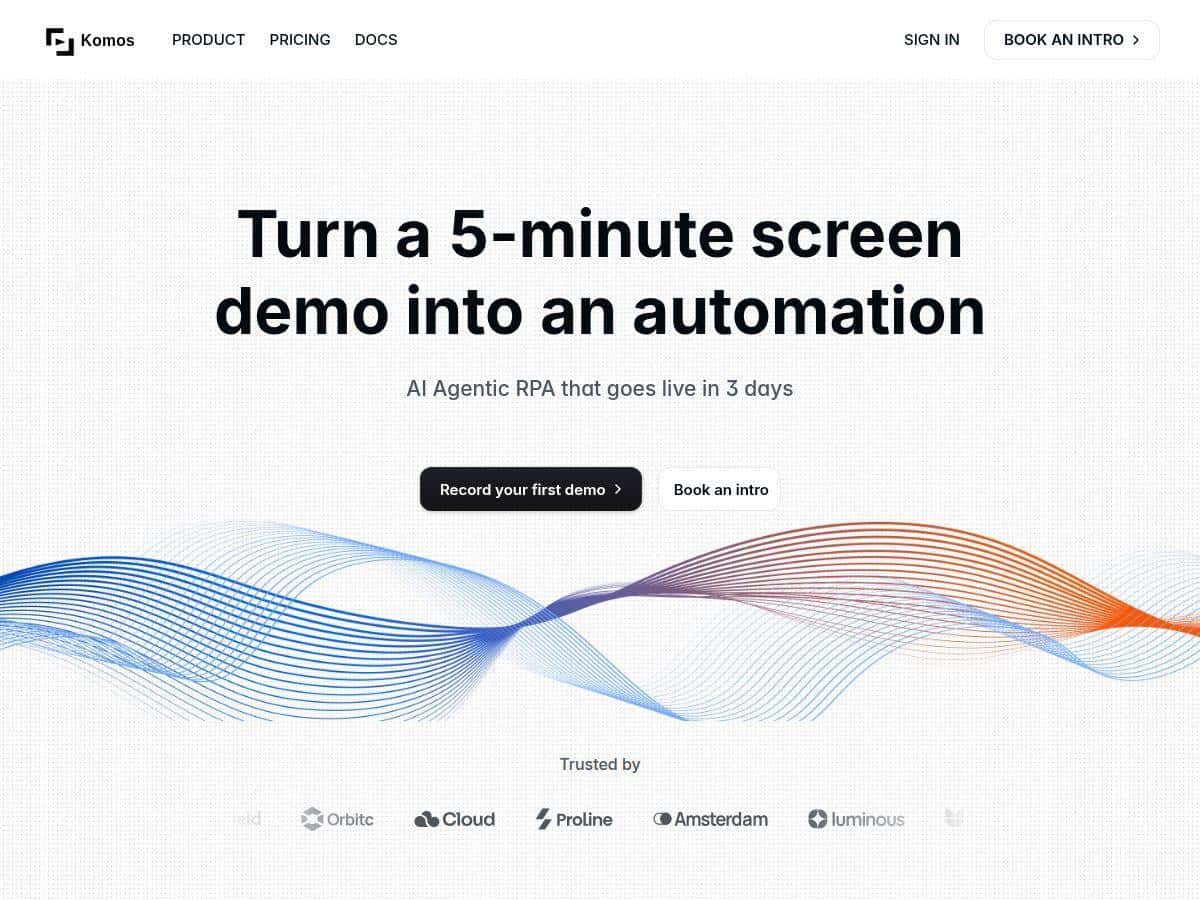
I’ve spent way too many afternoons copying data from one place to another, renaming files, and re-entering the same info into spreadsheets. That’s exactly why I decided to test Komos AI—to see if it can actually replace those “manual but repeatable” tasks, not just look good in a demo.
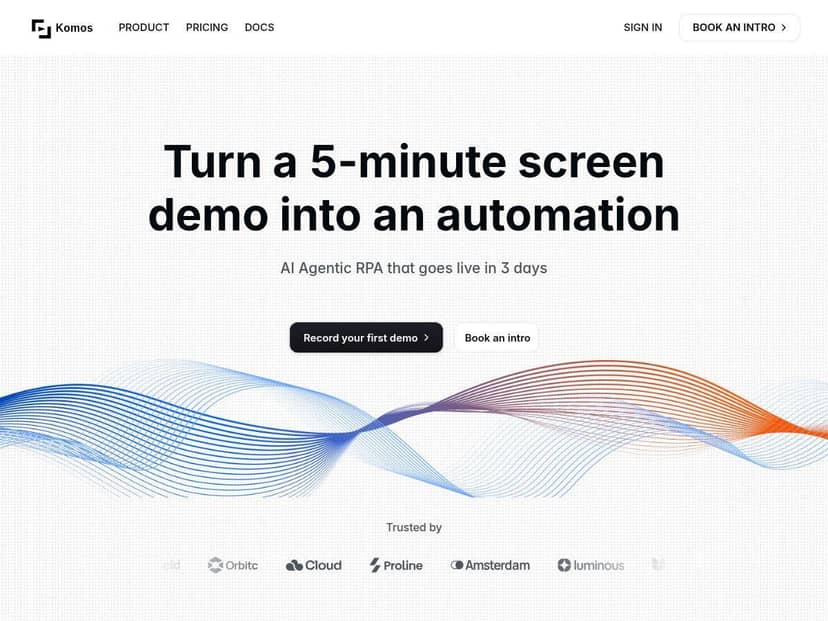
In my experience, what stood out wasn’t just that it automates. It’s that it tries to stay working when things change. During testing, I ran workflows, updated a UI element, and watched the automation recover instead of failing immediately. More on that (and what didn’t go perfectly) below.
Komos AI Review
First, here’s how I tested it so the results aren’t just “trust me.” I built a couple of workflows in the visual builder and focused on three areas: (1) extracting data from real documents, (2) moving that data into a spreadsheet-style workflow, and (3) seeing what happens when the UI changes midstream.
1) Data extraction workflow (PDF + Excel)
I started with a simple but realistic task: extract fields from documents and turn them into a structured output. The documents I used were typical of what most teams deal with—PDF invoices and a few “messy” PDFs where the layout wasn’t perfectly consistent. I also tested Excel files where the columns were mostly consistent but the formatting varied.
What I noticed:
- PDFs: For clean, text-based PDFs, extraction was fast and accurate. For scanned/low-contrast PDFs, accuracy dropped a bit unless the content was readable. (So yeah—OCR quality still matters.)
- Excel: It handled standard tables well. When I gave it a sheet with merged cells and irregular header rows, the extraction wasn’t as clean. It didn’t “break,” but it needed a little extra guidance in the mapping step.
- Fields extracted: In my test set, I targeted about 8–12 fields per document (things like invoice number, date, vendor name, totals, and a few line-item values). The workflow produced consistent structured output for the majority of files.
2) Time saved (the part I actually care about)
Before automation, the same workflow took me roughly 20–30 minutes per batch (mostly manual copy/paste and cleanup). After setup, runs were much quicker. Setup took the usual effort up front, but once the workflow was built, a batch run (around 10–15 documents) typically finished in the 5–10 minute range depending on document length and formatting.
That’s not “instant magic,” but it’s a big difference when you’re doing it repeatedly.
3) Self-healing when the UI changes
This is where Komos AI surprised me. I intentionally made a small UI change during testing (moving a button to a different section / changing the page layout slightly). In a lot of automation tools, that kind of change causes a failure right away because selectors no longer match.
With Komos, the workflow didn’t just stop. It re-adapted to keep going. I still had to verify the final output, but the key win was that it didn’t derail the entire run.
Security check (what I looked for)
I also paid attention to how credentials were handled. Komos AI supports a credential vault approach (and in my testing, credentials didn’t feel like they were floating around in plain text). I didn’t “break” anything on purpose here, but I did confirm that access controls and encryption-style protections are part of the setup flow, which is exactly what I want when automations start touching real accounts.
Key Features
- Self-Healing Workflows that adapt when UI elements shift (my test included a layout change that would normally cause automation to fail).
- Multi-Format Data Extraction covering PDFs, images, and Excel files. Clean documents do best; scanned/low-quality PDFs may require better input.
- AI workflow synthesis to help generate editable process flows. I used this to speed up the initial “skeleton,” then refined the steps manually.
- Visual flow builder with drag-and-drop editing. It’s straightforward enough that I didn’t feel blocked by the interface.
- Secure credential vaults with protections like multi-factor authentication (where applicable) and encrypted credential handling in the setup.
- API & webhook integrations so you can trigger runs and send results to other systems.
- Local-timezone scheduling for more predictable timing (useful when your team spans time zones).
- Cloud and on-premises execution options, depending on how strict your environment requirements are.
Pros and Cons
Pros
- Self-healing actually showed up in testing. I made a UI layout tweak and the workflow recovered instead of failing immediately.
- Good balance of automation + editability. Even when AI suggested a flow, I could open it, adjust steps, and re-run without starting from scratch.
- Document extraction is practical. For text-based PDFs and standard Excel tables, extraction output was consistent enough to be usable after light verification.
- Setup didn’t feel like coding. The visual builder is the main reason I got to a working workflow quickly.
- Security posture is taken seriously. The credential vault approach and protection mechanisms are the kind of thing you want for real integrations.
Cons
- Input quality still matters. If PDFs are scanned, blurry, or low-contrast, extraction accuracy drops. That’s not unique to Komos, but it’s a real limitation you’ll notice.
- Complex legacy Excel sheets can be annoying. Merged cells and weird header structures caused mapping issues in my test. It didn’t “fail,” but it took extra adjustment.
- Performance isn’t one-size-fits-all. My run times varied a lot based on file length, number of steps, and document complexity. A simple batch run felt fast; a batch with more complex parsing took longer.
- Some automation concepts help. You can still use it without “coding,” but if you’ve never built workflows before, there’s a learning curve in how to structure steps and mappings.
Pricing Plans
I looked for a clear public pricing table and didn’t see fixed, easily shareable plan numbers on my end. In other words, Komos doesn’t present the kind of “$X/month for Y seats” pricing I can confidently quote here.
What I can say from my investigation: pricing appears to be quote-based, which is why the most accurate next step is to check the official Komos website or request a quote. If you want, you can start here: Komos AI.
Why I’m being strict about this: I don’t want to guess a number and mislead you. If you’re doing a business decision, you’ll want the exact plan tiers and what’s included (runs, storage, execution environment, support level, etc.) for your use case.
Wrap up
Komos AI is one of those tools that feels genuinely built for people who want results without spending months writing scripts. In my testing, the biggest wins were (1) the visual workflow builder, (2) extraction that’s actually usable on real-world PDFs/Excel, and (3) self-healing behavior when the UI changes—which is the difference between “nice demo” and “works in production.”
Just don’t expect it to fix bad inputs. If your documents are low quality or your Excel files are chaotic, you’ll still need to clean things up or spend time on mapping. But if your goal is to knock hours of repetitive work down to minutes, Komos AI is absolutely worth evaluating.