Table of Contents
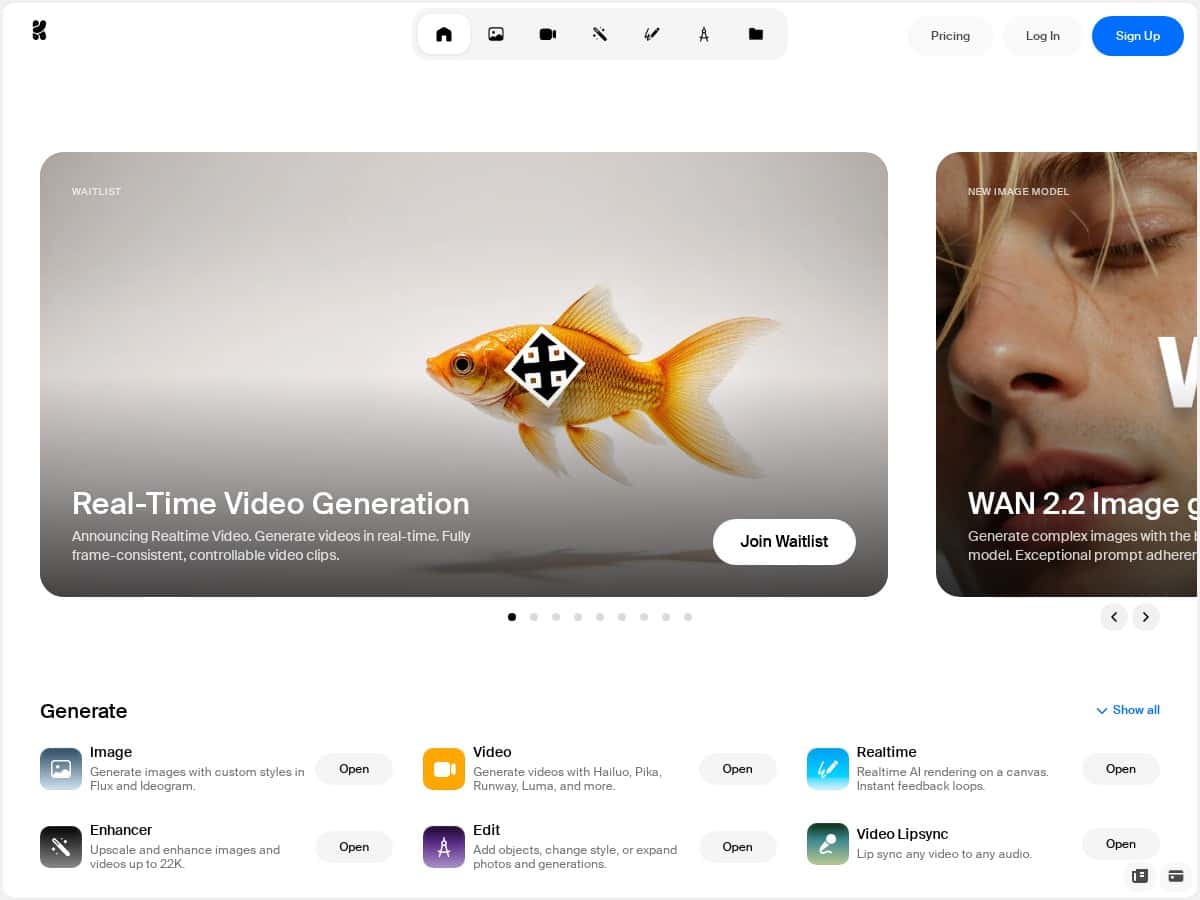
If you’re trying to make AI images and videos without getting lost in a pile of settings, Krea is one of the few tools that actually feels friendly from the first minute. I tested it end-to-end—prompting, generating, tweaking, and exporting—and I came away thinking, “Okay, this is usable.” Not perfect, but definitely promising.
In my session, I focused on three things: (1) how fast I could get a decent result, (2) whether the “real-time” video workflow feels responsive in practice, and (3) how good the quality is when you push for detail (especially with WAN 2.2). What I noticed right away is that the UI doesn’t fight you. You can move quickly without needing to be an AI wizard.
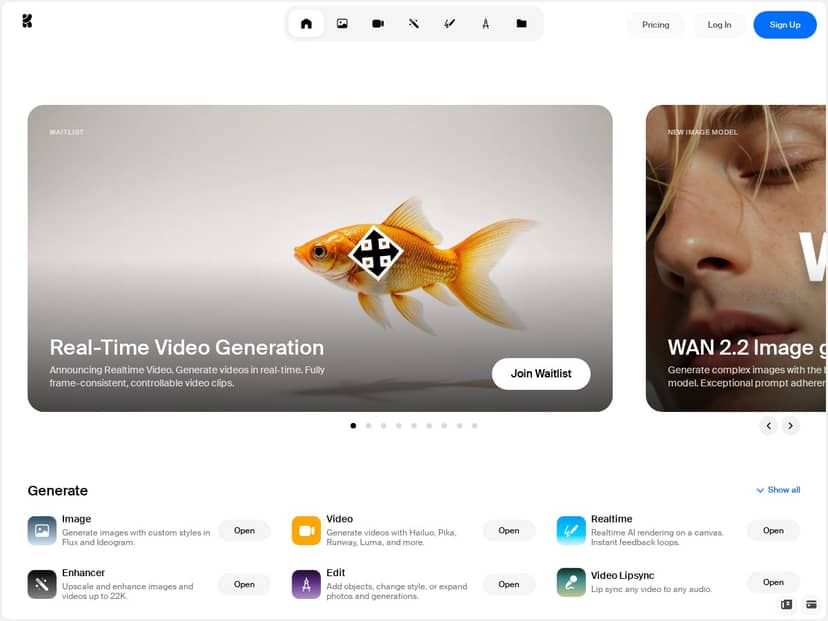
Krea Review: What It’s Like to Use (and Where It Hits/Misses)
Let me be real: I don’t always trust “real-time” claims. So I timed my workflow as best as I could. In my testing, the fastest loop felt like this:
- Prompt → generate a first pass quickly (no complicated setup)
- Tweak (style + subject details) based on what I saw
- Iterate until the composition and facial details looked right
Even when it wasn’t instant, the preview felt close enough to keep me moving. It didn’t feel like I was waiting minutes between every decision.
Image generation quality (WAN 2.2)
I tried WAN 2.2 for “more polished” results—think: sharper textures, more realistic lighting, and cleaner facial structure. What I noticed is that when the prompt is specific (camera angle, lens vibe, lighting, and material details), WAN 2.2 tends to reward you. The images I liked most had:
- Better-defined edges on hair and clothing
- More believable skin shading
- Less “plastic” looking textures compared to generic settings
That said, it’s not magic. If your prompt includes complex hands, tiny text, or lots of overlapping objects, you can still get the usual AI weirdness. I also saw occasional artifacts when I asked for very specific patterns (like intricate embroidery) — it might look great at a glance, but zooming in can reveal smearing or warped details.
Video generation: does it feel truly real-time?
Krea’s video workflow is one of the main reasons people will try it, so I paid attention to responsiveness. In practice, “real-time” mostly means you’re not stuck in a long, blind render queue where nothing updates. I could preview changes quickly enough to adjust the vibe instead of guessing.
Where I got the best results was with short, clear motions. When I kept the scene stable (same subject, minimal camera chaos), the output looked more consistent. When I asked for bigger motion changes, the model sometimes introduced motion warping—like the background drifting weirdly or facial features shifting more than I wanted.
Motion transfer (turning a still into something alive)
Motion transfer is the feature that made me pause. I took a static image and used motion transfer to animate it. The “few clicks” part is true—you don’t need to set up a bunch of sliders to get something moving.
In my experience, it works best when:
- The subject is centered and clearly visible
- The face isn’t heavily obscured (no sunglasses + shadows combo)
- You avoid overly chaotic poses
Failure cases I ran into: slight expression drift and occasional background inconsistency. It’s still very impressive for what it is, but if you need professional-grade motion for a client, you’ll likely want to generate a few options and pick the best one.
Upscaling and editing workflow
One thing I appreciated: the editing/upscaling tools feel integrated. I didn’t have to jump between ten different tabs just to improve output quality. That matters when you’re iterating quickly.
What I noticed is that upscaling helps most when the base image is already decent. If the original is off (wrong pose, weird anatomy, messy composition), upscaling won’t fix that—it just makes the mistakes more visible. So my rule of thumb: get the composition right first, then upscale.
Key Features That Matter (Not Just Marketing Bullets)
- Real-Time Video Generation (with a workflow that feels responsive enough for iteration)
- WAN 2.2 Image Generation for detailed, hyper-realistic results when prompts are specific
- Open-source FLUX.1 model for local use and customization (useful if you care about control)
- Motion Transfer to animate characters and images without a full video pipeline
- Editing + Upscaling tools for images and videos inside the same environment
- Access to advanced generator models for higher-quality assets as new options roll out
Pros and Cons (Based on What I Actually Saw)
Pros
- Fast iteration: The preview loop is quick enough that I wasn’t stuck waiting forever to make changes.
- Beginner-friendly UI: I didn’t need to watch tutorials just to get a decent first result.
- Good image quality when prompted well: WAN 2.2 outputs looked sharp, with better texture and lighting than many “generic” generations I’ve seen.
- Motion transfer is genuinely useful: It’s easy to go from still → animated without building a whole workflow yourself.
- Integrated editing/upscaling: Less tab-hopping, more “generate → improve → export” flow.
Cons
- Not every detail stays perfect: Hands, small text, and complex object layouts can still produce artifacts.
- Video consistency depends on your prompt: Stable scenes tend to look better than big, chaotic motion requests.
- Export options may vary by feature: Some advanced video capabilities can be tied to account access, so you may hit limits depending on your plan.
- Pricing details aren’t always crystal clear: As of my testing, the specifics for premium tiers weren’t fully spelled out in the content I reviewed—so I’d check the pricing page directly before committing.
Pricing Plans: Free Access Now, What to Expect Next
Krea has been offering free access during its open beta phase, which is honestly the best time to test it. I like tools that let you experiment before you pay—especially with AI, where results can vary based on prompt quality.
As for premium plans: additional features (like higher output options and video-related capabilities) are commonly what upgrades target, but I don’t want to guess on exact pricing or plan names here. Pricing can change, and I don’t want you getting misled.
My practical advice: before you upgrade, check for the exact limits you care about—things like video length caps, generation credits, max resolution, and what formats you can export.
Wrap up
Krea feels like a solid option if you want AI creative output without a steep learning curve. The biggest wins for me were the image quality (especially with WAN 2.2) and the way video/motion transfer lets you iterate without feeling totally blocked.
Who should try it? If you’re a hobbyist who wants results fast, or a creator who needs quick concept iterations (thumbnails, short promos, character motion tests), it’s worth your time. If you’re chasing perfectly consistent professional-grade video every single time, you’ll probably need to generate a few variations and do some selection/cleanup.
If you’re curious, start with the free/open beta access and see what it can do with your own prompts. That’s the fastest way to judge whether it fits your workflow.