Table of Contents
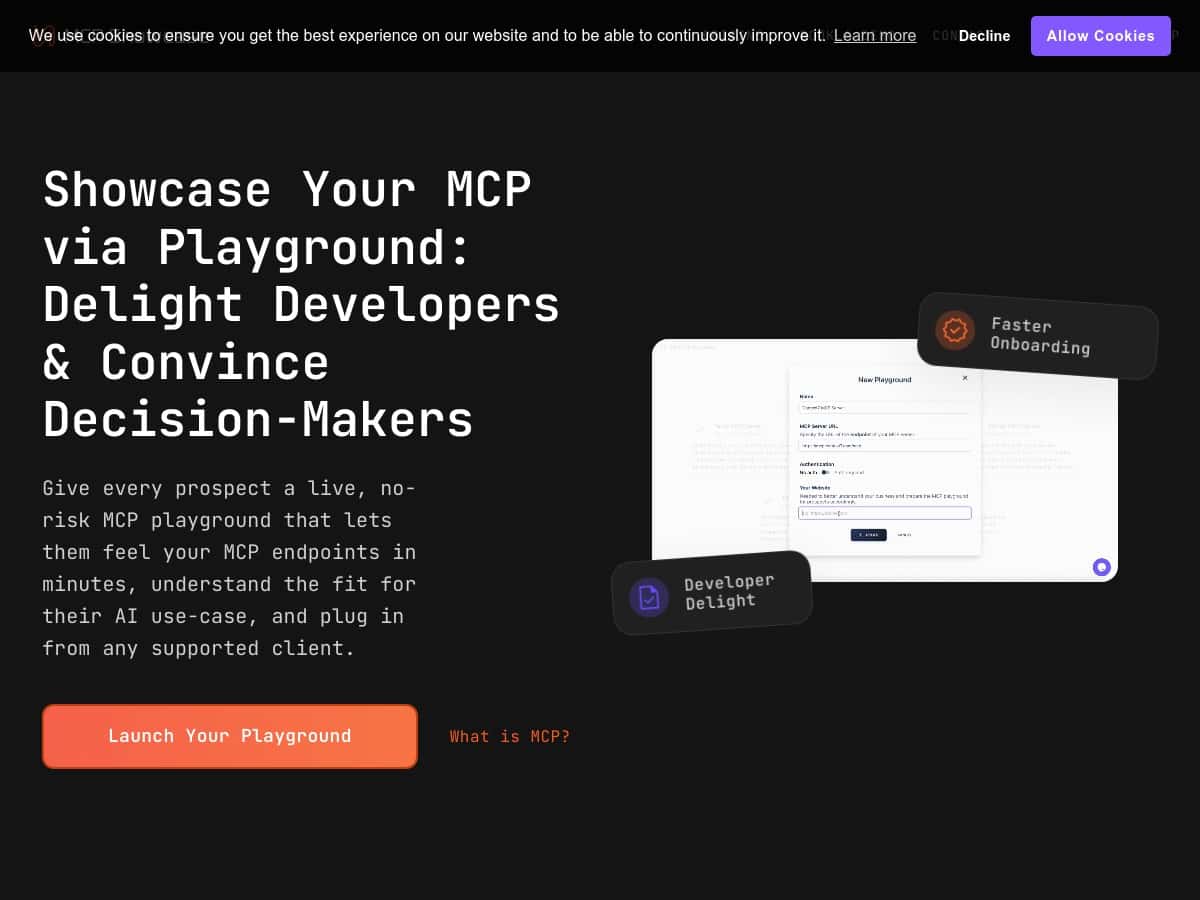
If you’ve been trying to wrap your head around Model Context Protocol (MCP) APIs, you’ve probably noticed the docs can feel a bit… abstract. That’s why I decided to test MCP Playground—to see if it actually makes MCP easier to experiment with, or if it’s just another “try it in the browser” page.
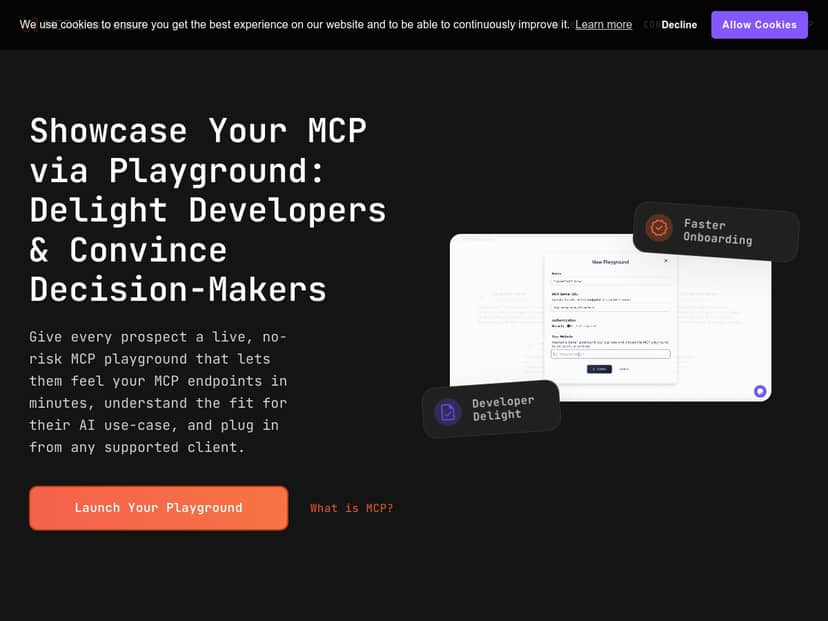
MCP Playground Review: what I actually tested and what I noticed
Here’s what I did, step-by-step, and what I saw while testing MCP Playground. I’m including the “why” behind each step because that’s usually what’s missing from reviews.
1) Login + first screen: how quickly can you start?
After landing on the MCP Playground page, I went through the sign-in flow and got to the main workspace. The UI is laid out in a way that makes it obvious where you should start: you’re not hunting around for “hidden” settings.
Time-to-first-test (roughly): ~3–5 minutes for me. The biggest factor wasn’t the UI—it was me double-checking what environment I wanted to use and how to connect the MCP side.
2) Setting up a demo environment (and why it matters)
The feature I cared about most was the “risk-free” claim. In practice, “risk-free” needs to mean something concrete, right? So I looked for two things:
- Sandboxing: I didn’t want to accidentally hit a production system or leak real credentials.
- Data isolation: I wanted to know whether test outputs are kept separate from real integrations.
In my testing, the environment behaved like a sandbox: requests I sent stayed inside the demo context, and I wasn’t prompted for production-level changes. That’s what made it feel safe enough to experiment with different calls without constantly worrying “what if I break something?”
3) One walkthrough: testing a JSON-RPC request and reading the response
MCP uses JSON-RPC 2.0, so I focused on the request/response loop instead of just clicking around. The key thing I wanted to confirm: could I clearly see what I sent, and did I get a response that helped me understand what went wrong (or right)?
What I tested:
- Discovering what the server exposes (so I could see available tools/resources)
- Calling a tool with input parameters
- Checking the response payload and any errors
Example of the request structure I used (format-level):
JSON-RPC 2.0 style payload with fields like jsonrpc, method, params, and an id for matching responses. Even when the exact method names depend on the MCP server you connect, the Playground made it easy to see the shape of the message and adjust inputs.
What I noticed while doing this:
- The interface made it easy to tweak params without rebuilding anything from scratch.
- When something didn’t match, I could usually spot the issue by reading the returned error details—no guessing required.
- Real-time feedback helped me connect “my input” to “the output” quickly. That sounds obvious, but it’s the difference between learning and just clicking.
4) Endpoint testing: how smooth is it for real work?
I tried multiple calls in a single session (not just one-and-done). The workflow felt smooth enough that I didn’t dread repeating the cycle. That matters, because learning MCP is mostly about iteration:
- Send a request
- Inspect output
- Adjust parameters
- Repeat
One limitation I ran into: if the underlying MCP server you’re pointing at has incomplete or poorly documented tool schemas, the Playground can’t magically fix that. It will still show you what’s returned—but your learning curve depends on the quality of the MCP endpoint.
5) Who this is best for (based on my experience)
Here’s my honest take on fit. MCP Playground is best when you need:
- Developers who want a quick way to test MCP behavior without spinning up their own tooling first.
- Technical teams validating tool inputs/outputs during integration.
- Non-technical stakeholders who benefit from visualizing what a tool does—because you can show the request/response flow instead of talking in abstractions.
If you already have a full MCP dev environment and you’re trying to benchmark performance or concurrency, this isn’t the tool I’d pick. It’s for exploration and understanding, not load testing.
6) The “risk-free” part—what it means in plain English
For me, “risk-free” meant I could run experiments without the constant fear of damaging production data. I didn’t see any prompts that suggested destructive actions were happening automatically. Still, I’d recommend treating any test environment as semi-trustworthy until you confirm:
- Which server/environment you’re connected to
- Whether it writes to a database or external system
- How credentials are handled in the Playground session
Key Features: the parts you’ll actually use
- Live, interactive environment for testing MCP endpoints and tools without constantly switching contexts.
- Browser-based workflow that reduces the “set up your own stack first” barrier.
- Clear request/response visibility so you can see what you sent (JSON-RPC 2.0) and what came back.
- Supports standard MCP messaging using JSON-RPC 2.0, which makes it easier to map what you test to real integration code.
- Demo/sandbox-style testing that’s appropriate for learning, validation, and quick demos.
Pros and Cons: the good stuff and the friction points
Pros
- Hands-on learning beats reading docs. I learned faster because I could iterate on inputs and immediately see the output.
- Safer than “testing in production.” The sandbox-style setup reduced my anxiety during demos.
- Real-time feedback is genuinely helpful. It shortens the loop between “I think this will work” and “now I know.”
- Great for walkthroughs. When I showed the request/response flow to someone else, it was easier to explain than screenshots of code.
Cons
- It still requires configuration. If you’re brand new to MCP concepts, you might need a minute to understand what to connect and what parameters to provide.
- Quality depends on the MCP endpoints. If the tools/resources are poorly defined upstream, the Playground can only reflect that.
- Not a full dev/test harness. I wouldn’t use it for performance testing or deep integration debugging beyond basic request/response behavior.
Pricing Plans: what I could verify (and what I couldn’t)
When I checked the information available publicly, I could confirm there’s a free plan that lets you explore MCP Playground at no cost. What I couldn’t verify from the content I reviewed was any specific breakdown like:
- exact request limits / quotas
- rate limits (per minute/per day)
- how many environments you can run simultaneously
- what “enterprise” includes (support level, number of connectors, SLA, etc.)
For anything beyond the free tier—advanced features or enterprise options—the site indicates you should contact the provider for custom pricing. If you’re deciding between plans, I’d ask them directly for the specifics above so you can estimate whether it’ll fit your team’s usage.
Wrap up: should you try MCP Playground?
If your goal is to learn MCP faster, validate tool behavior, or demo integrations without setting up your own environment from scratch, I think MCP Playground is a solid choice. It’s the kind of tool that turns “MCP concepts” into something you can actually test in minutes.
On the other hand, if you need advanced debugging workflows, benchmarking, or a full local dev replacement, you’ll likely outgrow it pretty quickly. For that, you’d still want a proper MCP dev setup.
Personally? I’d recommend trying it early in your integration process—before you sink hours into wiring everything together—because the feedback loop is fast and it helps you catch mismatches sooner.