Table of Contents
I’ve been running an online retail shop long enough to know the “upload, write, edit, repeat” cycle gets old fast. That’s why I decided to test Merchant Floor—mainly to see if it can actually speed up product listing and the marketing stuff that usually eats my evenings.
In my trial, I focused on a pretty typical workflow: adding new items, generating product images, and turning the product details into promotional copy. I also paid attention to what required manual cleanup (because real life always does). Spoiler: it helped, but it’s not magic—and there are a couple limits you should know before you commit.
Merchant Floor Review: What I Tested (and What Actually Changed)
For context, I’m not a huge catalog operation. During my trial, I used Merchant Floor with a small-to-mid sized set of products (think: a few dozen SKUs, not thousands). The items I tested were normal retail goods—things where you’d typically need consistent images and clear descriptions. My goal wasn’t to “write faster” in some abstract way. I wanted to see if it reduces the real time spent per listing.
Setup: connecting and getting to the work
Setup was pretty painless. Once I got into the dashboard, I could jump straight into the product workflow instead of spending an hour hunting for where everything lives. What I liked most: the UI didn’t feel like it was designed for developers. It felt designed for store owners.
In my case, I tested the flow end-to-end on a handful of products first (so I could compare time and quality). Then I repeated the same steps on more items to see if the “speed boost” held up or if it was just a one-off.
AI product images: useful, but not always plug-and-play
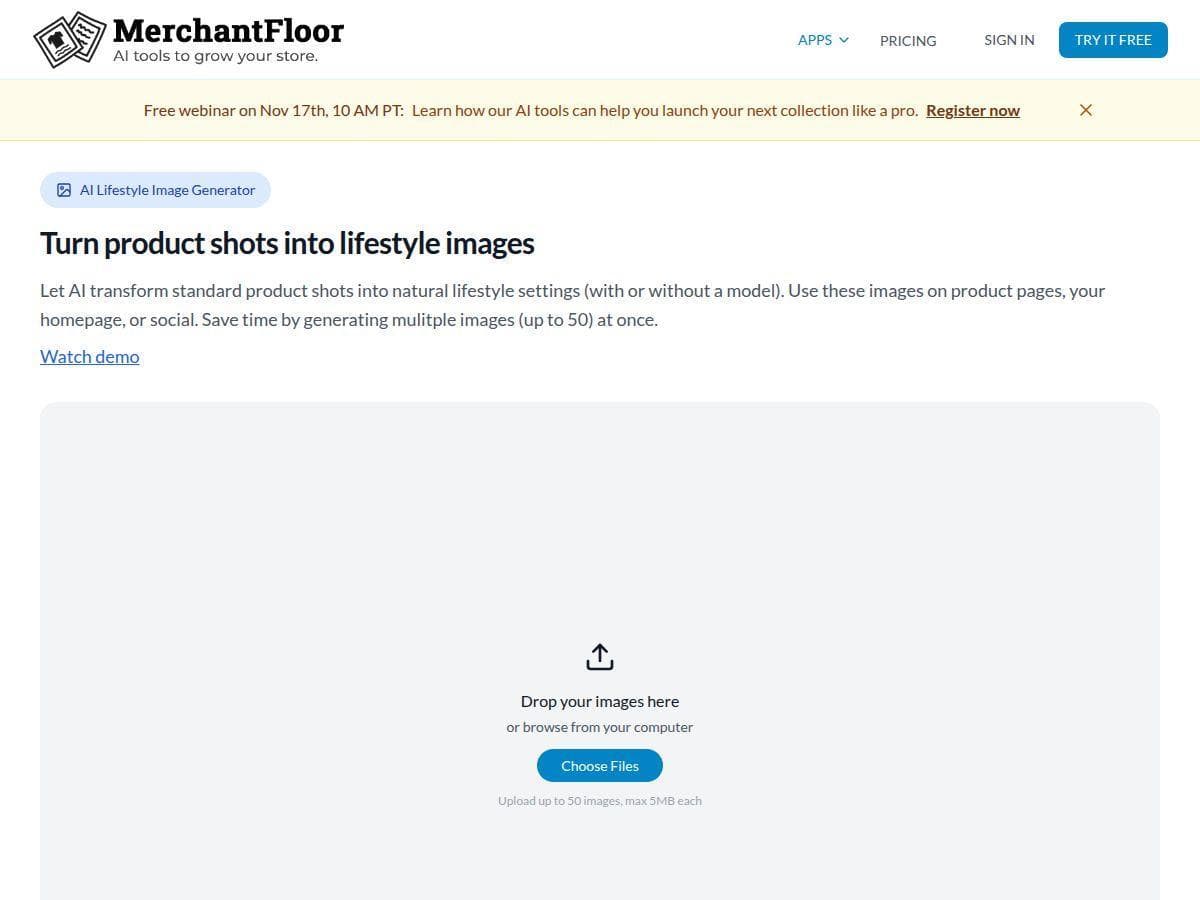
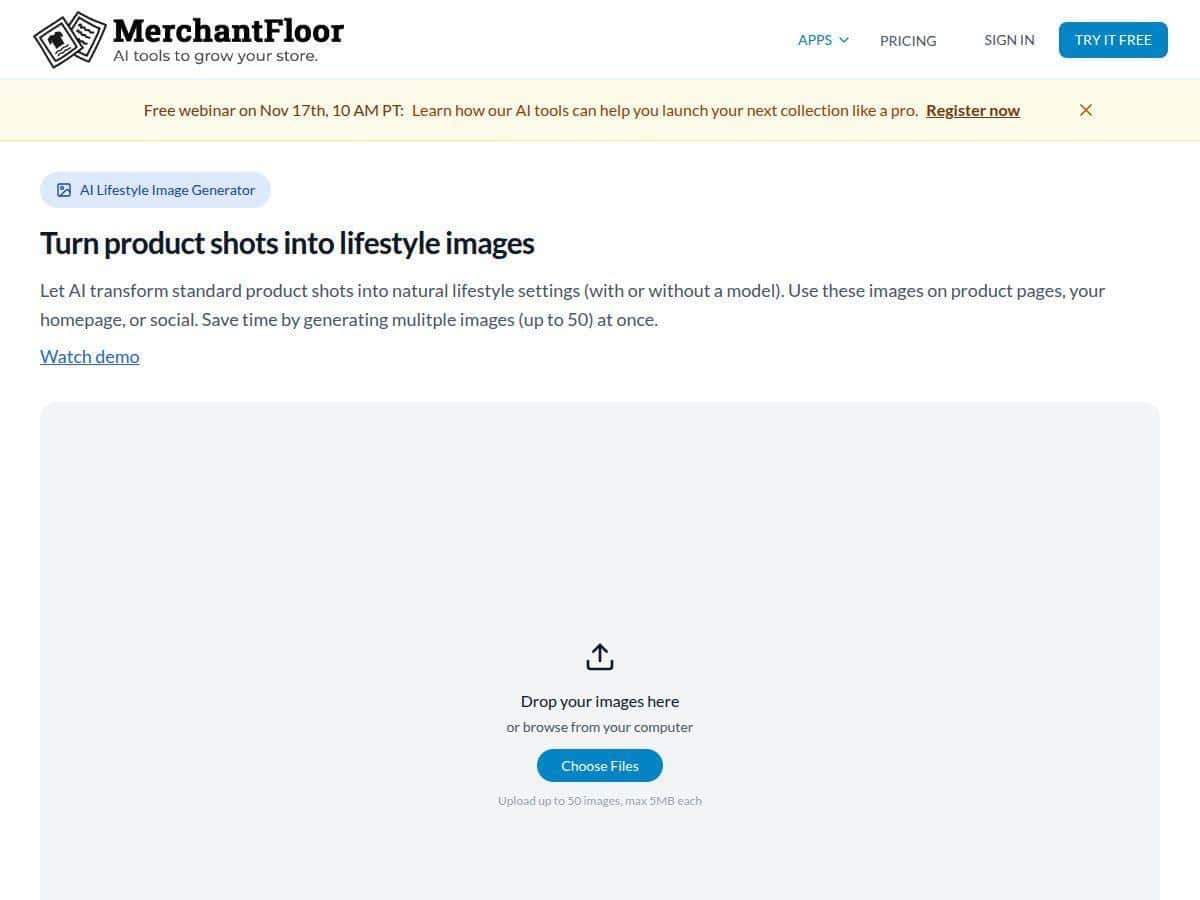
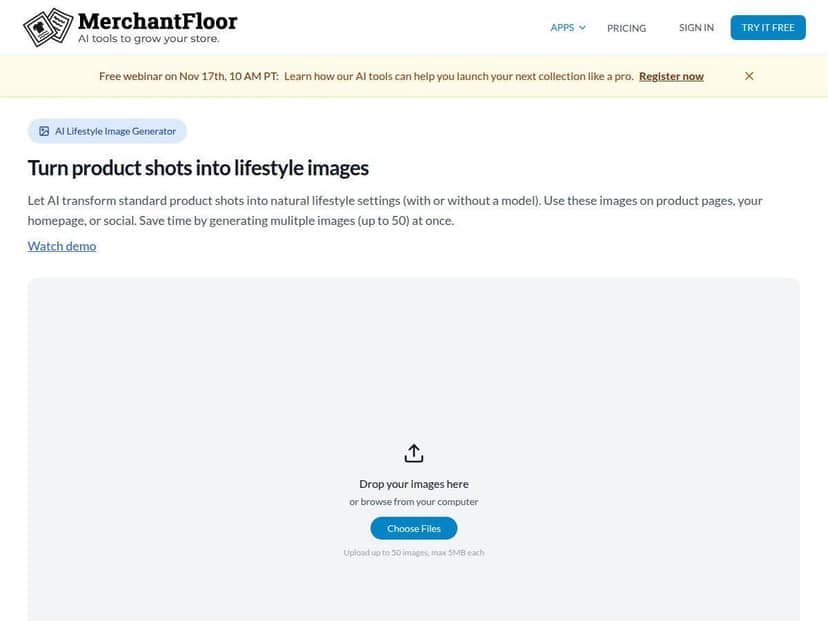
The big feature I cared about was AI-powered product photo creation. Here’s what I did: for each product, I provided the basics (product name, key attributes, and the style direction I wanted). Merchant Floor generated images that looked like they were meant for product pages—clean backgrounds and consistent presentation.
What I noticed after testing multiple products: most results were good enough to move forward, but not all of them were ready to publish without touching up. For about 3 out of 10 products, I needed manual tweaks—mostly around framing and making sure the visual matched the listing details (for example, if a product had a specific color or material and the image leaned a bit generic).
Time-wise, the difference was real. I didn’t measure to the second every time, but I tracked my workflow: generating images + prepping assets took me roughly 15–25 minutes per listing at first, then dropped to about 10–15 minutes once I figured out what prompts and inputs produced the most consistent results.
Marketing copy: faster drafts, but you still need taste
Merchant Floor also generates automated marketing content. This is where it saved me the most time—not because it wrote “perfect” copy, but because it got me past the blank-page stage.
I used it to generate:
- Short product descriptions for the main listing
- Longer “sales page” style copy
- Bullet points for features/benefits
In my experience, the output was solid for first drafts. But I still edited. Why? Because I know what my customers actually care about (fit, durability, sizing, shipping expectations). The AI usually nails the general vibe; it doesn’t know your brand voice unless you steer it.
One practical tip I’d give: keep your product attributes tight. If you feed vague details, the copy gets vague too. If you feed specifics (materials, dimensions, use cases), the writing gets way more “sellable” without as much rewriting.
Listing and editing: where the time savings shows up
The listing tools are the glue between images and copy. I’m not going to pretend it eliminates all manual work, but it does reduce the repetitive parts.
Here’s what made the biggest difference for me:
- I could generate assets and descriptions without bouncing between multiple tools.
- Editing was straightforward enough that I could clean up the weak spots quickly.
- Once I had a “good” workflow for one product type, I could reuse it for similar SKUs.
If you’re currently doing product updates one-by-one in a separate editor, Merchant Floor will feel like a shortcut. If you already have a streamlined process with a design team or a dedicated content pipeline, you might not feel the same impact.
What didn’t impress me (the stuff you should plan for)
Let me be honest: Merchant Floor doesn’t replace everything. You’ll still need to:
- Review AI-generated images for accuracy (colors, materials, and composition)
- Adjust copy to match your brand tone and customer questions
- Do some manual formatting for the final product page
Also, if you’re expecting advanced bulk operations for huge catalogs, you may find the workflow a bit limiting depending on how you manage inventory and variations today.
Key Features: What You Get and How It Works
- AI-powered product photo creation
- Where it shows up: in the product creation/editing flow when you’re generating images for a listing.
What it does: takes your product details and generates product-style images you can attach to the listing.
What to expect: usually good results, but you may need manual tweaks for a subset of products (especially color/material accuracy).
Example workflow: generate images → pick the best one → compare it against your product attributes → make quick crop/framing tweaks if needed. - Automated marketing content generation
- Where it shows up: description and marketing text fields while editing a product.
What it does: turns product info into drafts for short descriptions, longer copy, and bullet points.
What to expect: strong first drafts, but you’ll want to edit for brand voice and specifics customers care about (shipping, sizing, materials, etc.).
Example prompt idea (what I used): “Write a product description that emphasizes [material] and [use case], keep it under [X] words, and match a friendly, no-fluff tone.” - Tools for faster listing and editing
- Where it shows up: the product dashboard where you manage listings and update content.
What it does: reduces back-and-forth between uploading media, writing text, and updating fields.
What to watch: if you rely on highly customized layouts or complex variants, you may still need manual adjustments to get everything looking right. - Basic analytics to track performance
- Where it shows up: inside the dashboard reporting area.
What it does: gives you a starting point for how products are performing after updates (useful for spotting what’s working).
What to expect: it’s not a full marketing suite—more of a helpful snapshot than a deep analytics platform. - Seamless integration with major e-commerce platforms
- Where it shows up: during account setup / connection steps.
What it does: helps you connect your store so generated assets and updates can be applied where your customers shop.
What I recommend: double-check that the fields you care about (images, titles, descriptions, variants) map cleanly the way you expect before you generate a bunch of content.
Pros and Cons: My Honest Take
Pros
- Time savings is real for everyday listings. In my trial, generating images + drafting descriptions cut the “blank page” and repetitive steps significantly.
- Easy to use (and not overly technical). I didn’t feel like I needed tutorials just to start creating assets.
- Marketing copy drafts are actually usable. I still edited, but I wasn’t starting from zero.
- Great fit for small to medium shops. If you’re adding new products regularly, it fits the rhythm of retail operations.
- Helps you stay consistent. Using the same workflow across similar products made my listings look more uniform.
Cons
- AI images may need manual tweaks. In my testing, a noticeable chunk of products (around 30% in my sample) needed minor fixes for accuracy or composition.
- Limited “power user” depth. If you expect advanced bulk editing, complex variant logic, or deep customization, you may hit walls depending on your catalog setup.
- Customization isn’t limitless. Some formatting and final presentation still needs your attention.
- Generated content isn’t automatically on-brand. You’ll want to adjust wording, especially for your brand tone and customer-specific details.
Pricing Plans: What I Found (and What to Check)
Merchant Floor includes a free trial, which is exactly how I recommend trying it—generate a few images and drafts, then see if the output matches your standards.
For paid plans, I saw pricing that falls in the $20 to $50/month range depending on what you need and how much you’re managing. I didn’t want to guess on exact plan names because pricing can change, and I don’t want you signing up blind.
Quick checklist before you choose a plan:
- Confirm whether the trial includes the features you care about most (image generation + marketing copy).
- Check if there are limits tied to usage (number of generations, number of products, or export/update frequency).
- Make sure your e-commerce platform integration is included for your store type.
If you want the most accurate current details, check the pricing page directly from the product site before you commit.
Wrap Up
Merchant Floor is one of those tools that can genuinely help if your days are packed with product listings and promotional copy. For me, the biggest win was speed—less time stuck on repetitive setup, and faster drafts I could refine.
Just go in with the right expectations: you’ll still review AI outputs, and you may need manual tweaks for some images and copy. If you’re a small or growing retail shop and you want a more efficient workflow, it’s worth testing. If you run a massive catalog with complex variants and strict brand requirements, you’ll want to validate the limits during the trial first.