Table of Contents
I’ve been messing around with AI tools for video, and MovieFlo.AI is one of the few that actually tries to cover the whole “from idea to clips” workflow instead of stopping halfway. In my testing, I used it to turn a short script into a storyboard, then generate a set of scene-style clips—without bouncing between five different apps.
MovieFlo.AI Review: what it’s like to go from script to clips
Here’s what I actually did. I started with a small “movie trailer” style script (roughly a few paragraphs—nothing crazy long). Then I fed that into MovieFlo.AI and asked for a consistent look across scenes (cinematic, moody lighting, shallow depth of field). After that, I moved to the storyboard stage to see how it breaks the script into scenes and whether I could steer the results.
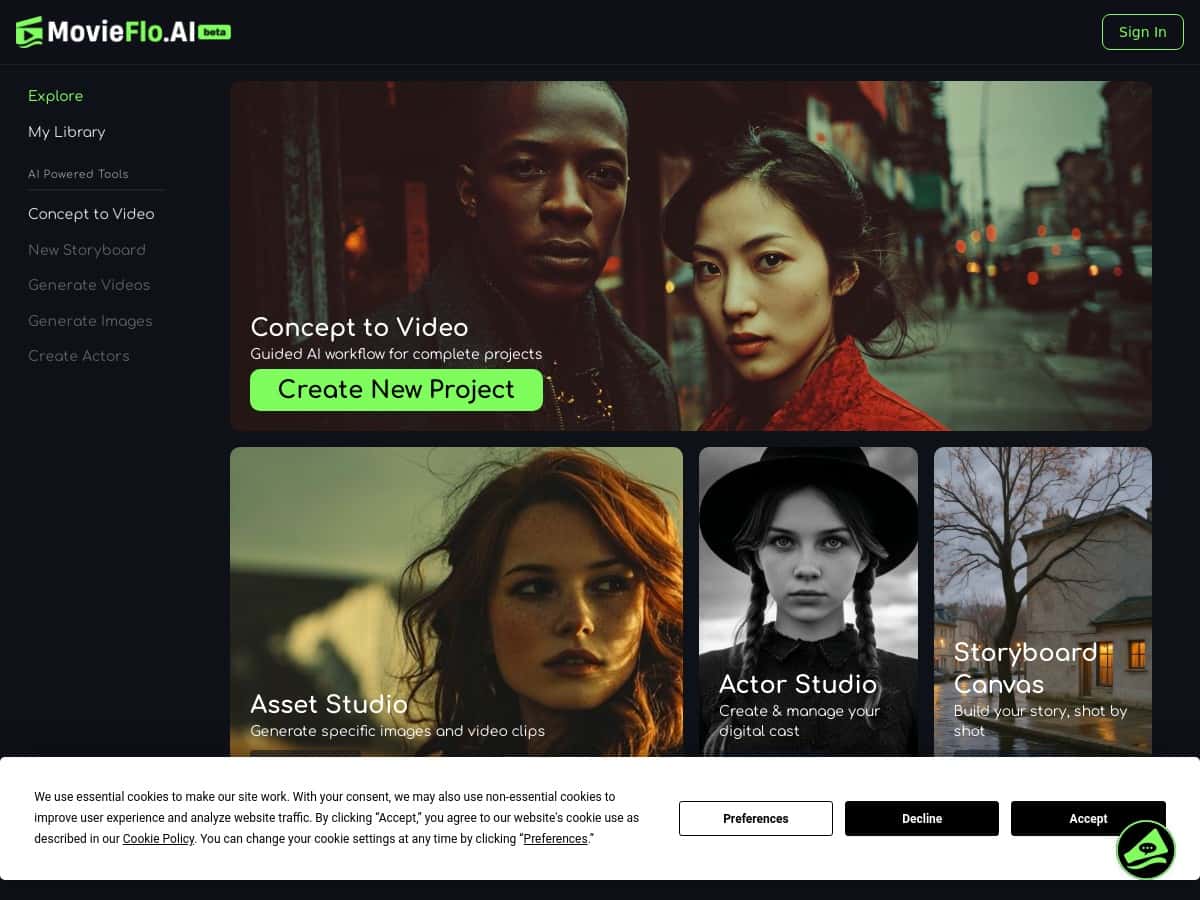
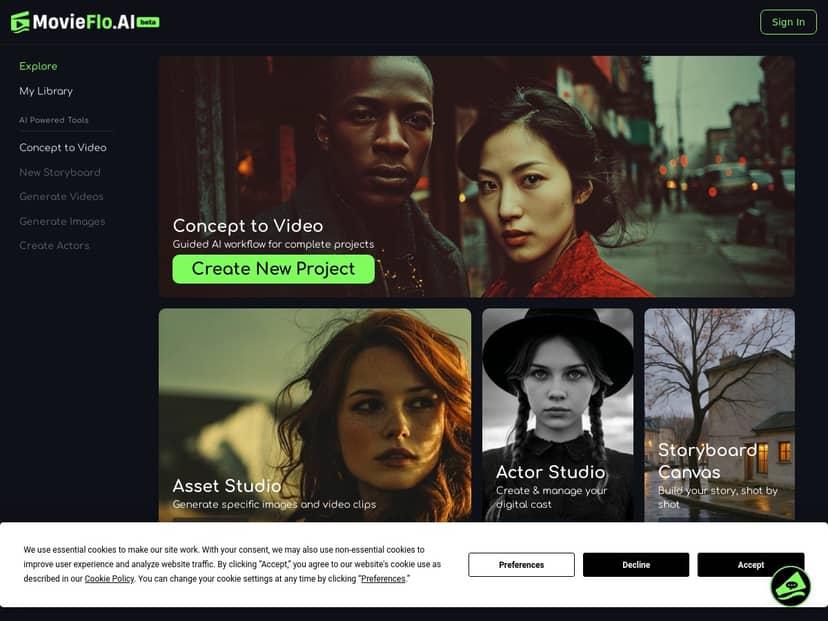
What I noticed right away: the workflow is pretty guided. You’re not hunting through menus like “okay, which button generates the scene again?” Instead, it feels like a step-by-step pipeline: script → storyboard → scene/clip generation. That matters, because the biggest time sink in AI video isn’t just generation—it’s figuring out what to generate next and how to keep everything consistent.
On consistency: I tried tweaking the prompt/style between scenes (for example, changing “night street” to “rainy alley” and swapping the vibe from “warm neon” to “cold blue”). The results were close enough that I could tell the model was responding, but not perfect. A couple scenes drifted slightly in framing, and I had to regenerate once to get the composition I wanted.
Speed-wise, the biggest win for me was reducing back-and-forth. With a more manual workflow, I’d normally spend time writing prompts per scene and then reformatting assets for each tool. Here, I stayed in one workspace from the first scene to the clip outputs. I didn’t time it with a stopwatch to the millisecond, but the difference was obvious: fewer setup steps, fewer “where do I upload this?” moments, and faster iteration when I changed the style.
Limitations? Yeah—because it’s still in Open Beta, I ran into the usual growing pains. Sometimes generation would take longer than expected, and occasionally the output needed a regen or a tighter prompt to match what I had in mind. Also, if you’re expecting full “final cut” editing (like a dedicated NLE), this isn’t that. Think “concept-to-visuals” and “scene clip generation,” not “complete post-production suite.”
Key Features that matter (not just buzzwords)
- Unified Workflow from script to final video
- This is the core idea: you start with a script, then build toward scene outputs without leaving the platform. In my testing, that reduced the “tool switching” overhead that usually slows me down.
- AI-powered storyboarding and scene generation
- The storyboard step is where you can correct course. I found it easiest to refine by adjusting scene intent (location + lighting + mood) rather than trying to micromanage every visual detail. When I did that, outputs matched my direction more reliably.
- High-quality visual effects and design options
- The visuals look cinematic, and the style controls help you keep a consistent tone across scenes. I liked being able to push things toward “moody, filmic” instead of getting generic results.
- Content ownership and ethical AI practices
- MovieFlo.AI emphasizes ethical AI use and content ownership. That’s important to me because I don’t want to generate client work and then wonder later what rights I actually have.
- Flexible credit-based pricing with subscription options
- The credit system is the part you need to understand upfront (more on that below). If you’re planning lots of regenerations, credits will be your limiter.
Pros and Cons from my testing
Pros
- One workspace: I didn’t have to juggle multiple tools just to go script → storyboard → clips. That’s genuinely faster.
- Guided flow: The UI makes it hard to get lost. I could move between steps without constantly searching for the “right” next action.
- Style consistency helps: When I kept my style instructions consistent, the scenes looked like they belonged in the same project.
- Ethics/ownership messaging: It’s not just “generate and hope.” The platform’s focus on rights and ethical use is a plus for creators.
- Beginner-friendly, but not toy-level: I could get solid results with minimal effort, but there’s enough control to iterate.
Cons
- Open Beta quirks: Expect occasional bugs or slower-than-you’d-like generation. I had at least a couple moments where regenerating was necessary to get the output I wanted.
- Credits can disappear fast: If you’re doing lots of variations per scene, costs add up. The tool is best when you iterate strategically, not randomly.
- Not a full editing suite: You’re generating visuals/clips—not building a complete edit timeline like you would in a dedicated editor.
- Public case studies are limited: There aren’t tons of transparent, third-party examples out there yet, so you’ll rely more on your own tests.
Pricing Plans: credits, subscriptions, and what it could cost you
MovieFlo.AI offers credit packs starting at $10 for 750 credits and going up to $249 for 30,000 credits. Subscriptions are listed as Standard: $15/month (650 credits), Pro: $50/month (2,500 credits), and Ultimate: $125/month (6,500 credits), with custom enterprise options for larger teams.
Here’s the part I think people miss: credits aren’t just “pay once and generate forever.” If you’re generating multiple scenes and then regenerating when the framing or mood isn’t right, your credit burn rate climbs quickly.
In my workflow, I treated it like this:
- Early iteration: I generate rough scenes first, then refine style/location prompts before doing another round.
- Regeneration strategy: I only re-run when a scene is clearly off (wrong mood, off-target location vibe, inconsistent lighting). If it’s “close,” I’d usually keep moving instead of chasing perfection.
- Budget planning: For a small project (say, 5–8 scenes), I’d expect to spend more credits than I initially thought, especially if I adjust prompts after seeing results.
Without a publicly consistent “credits per clip” chart in the content I reviewed, I can’t give you a guaranteed exact number per scene. But I can tell you how to avoid sticker shock: do a tiny test run first (generate 2–3 scenes), see how many credits it eats, then scale up. That one habit saved me from blowing through credits on a full storyboard before I knew what the outputs would look like.
Who MovieFlo.AI is best for (and who should skip it)
Best for: creators, small studios, and indie filmmakers who want fast visual development from a script—especially if you’re building trailers, concept scenes, moodboards, or pitch materials.
Not for: people who need a full professional editing pipeline (timeline editing, advanced color grading, sound design, exporting broadcast-ready finals). If your goal is a polished final cut in one tool, you’ll likely still need an editor.
Wrap up
After testing MovieFlo.AI, I like the direction a lot. It’s one of the more practical “AI filmmaking” tools because it keeps you moving through the steps—script to storyboard to clip-style outputs—without making you constantly switch apps. Just go in knowing it’s still evolving (Open Beta), and treat credits like a resource you manage, not an afterthought. If you want to turn ideas into cinematic visuals quickly, it’s worth your attention. If you want complete post-production inside one editor, you’ll probably feel limited.